
OmninexHub FD-570
User Manual for OmninexHub Smart Board Stand with Camera Tray
Model: FD-570
Produkt overview
The OmninexHub Smart Board Stand with Camera Tray is a versatile and robust mobile stand designed to enhance your interactive display experience in various environments, including home, office, and classroom settings. It offers wide compatibility, height adjustability, and convenient mobility.
Nøglefunktioner:
- Bred kompatibilitet: Designed for 42"-75" screens, this smart board stand is the perfect solution for a range of meeting devices, ideal for modern offices and classrooms.
- Højdejusterbar: The whiteboard stand's height is easily adjustable, ensuring all participants have an optimal viewvinkel.
- Sturdy Weight Capacity: With the ability to support up to 300LBS, this mobile stand ensures your equipment stays secure, making it perfect for corporate use.
- Integrated Camera Tray: The built-in camera tray offers a convenient mounting solution for video conferencing equipment, enhancing meeting efficiency.
- 360° Rotating Wheels for Easy Mobility: Move your smartboard stand effortlessly between rooms with smooth-rolling, 360° rotating wheels, perfect for dynamic office spaces.
Hvad er der i æsken:
- Tripod Legs (x2)
- Rullende hjul (x4)
- Multi-functional Tray (x1)
- Vertical Pillars (x2)
- Monteringsplade (x1)
- Hanging Strips (x2)
- Camera Tray (x1)
- Hardware (screws, bolts, nuts, wrench, screwdriver)

Figure 1: OmninexHub Smart Board Stand with Camera Tray.
Monteringsvejledning
Please follow these steps carefully to assemble your Smart Board Stand. A detailed assembly video is provided below for visual guidance.
Video 1: Complete Assembly Guide for OmninexHub Smart Board Stand.
This video demonstrates all assembly steps from wheel installation to final screen mounting.
Trin 1: Hjulinstallation
Insert the rolling wheels into the bottom of the tripod brackets. Use the provided wrench to secure and tighten them firmly.

Figure 2: Detail of 360° rotating wheels and their installation point.
Step 2: Mounting Tripods
Connect the two tripod pieces. Tighten the bolts on either side first to ensure a stable base.
Step 3: Tray Installation
Align the multi-functional tray with the designated slots on the assembled tripod base. Tighten the tray with a screwdriver and secure the bolts.

Figure 3: Close-up of the multi-functional tray.
Step 4: Installation of Pillars
Connect the two vertical pillars to the tripod base. Fasten them securely using the provided nuts and tighten the screws on each side.
Trin 5: Montering af monteringsplade
Hang the mounting plate onto the support pole hooks. Secure the mounting plate with screws, ensuring all nuts and bolts are fastened. Once the screen is hung, put the two latches back in place and tighten the bolts for added security.

Figure 4: Detail of the versatile adjustable mount and safety lock mechanism.
Step 6: Camera Tray Installation
Attach the camera stand to the top mount. Tighten the bolts to secure the camera tray in place.

Figure 5: Close-up of the camera tray.
Betjeningsvejledning
Justering af højde:
The stand features an easily adjustable height mechanism. Locate the height adjustment points on the vertical pillars. Loosen the locking mechanisms, adjust the screen to your desired viewing height, and then securely tighten the locks. This ensures an optimal viewing angle for all participants, whether standing or seated.
Mobilitet og stabilitet:
The 360° rotating wheels allow for effortless movement of the stand between rooms or within a dynamic workspace. To secure the stand in place, engage the wheel locks on all four wheels. Ensure the locks are fully engaged to prevent unintended movement and maintain stability during use.

Figure 6: Smart board stand in a professional setting.
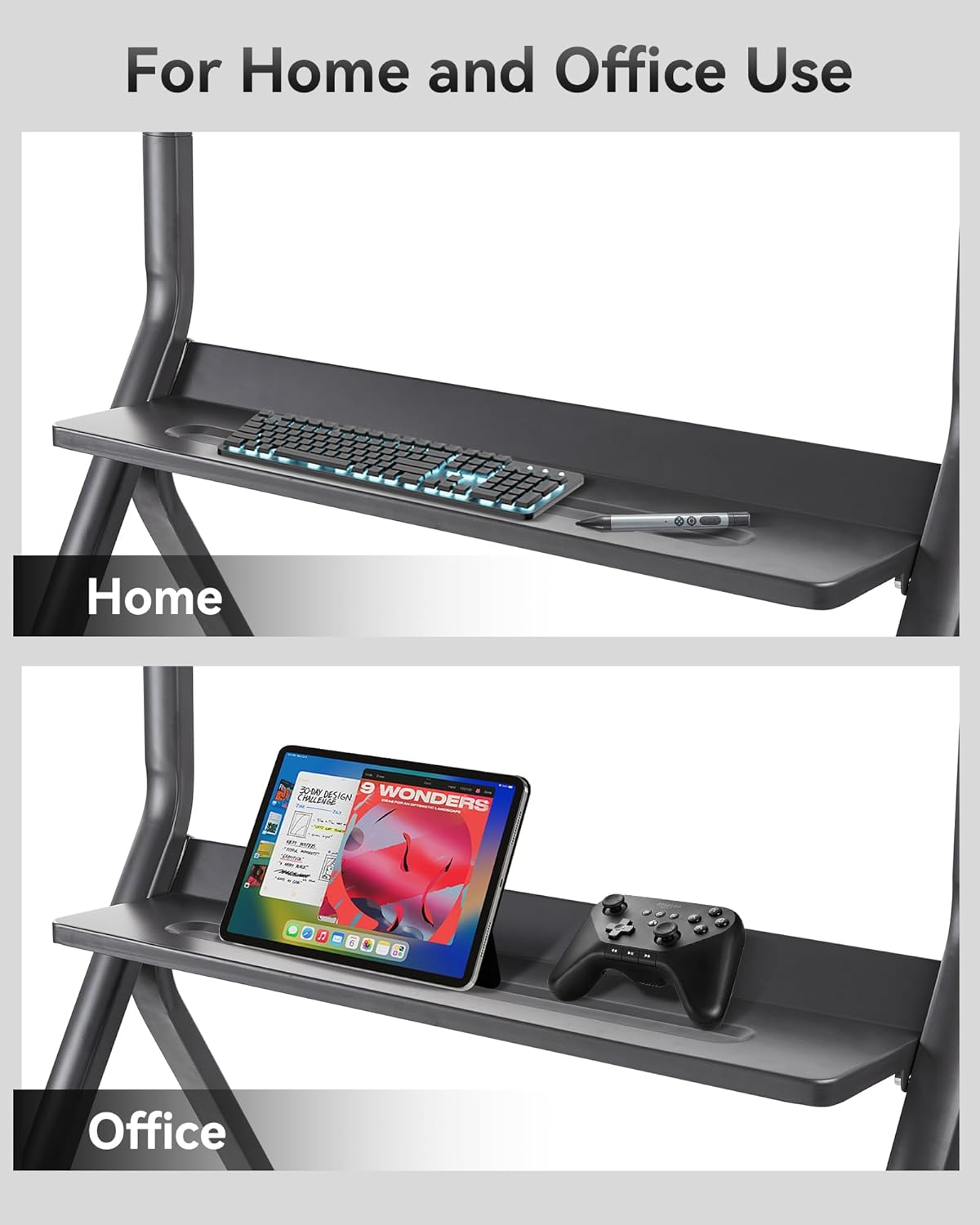
Figure 7: Versatile use of the stand in home and office environments.
Using the Camera Tray:
The integrated camera tray provides a stable platform for your video conferencing equipment. Place your camera or other peripherals securely on the tray. This feature is designed to enhance meeting efficiency by positioning your camera at an optimal height for clear video communication.
Opretholdelse
- Rensning: Tør metaloverfladerne af med en blød,amp klud. Undgå slibende rengøringsmidler eller opløsningsmidler, der kan beskadige overfladen.
- Inspektioner: Kontrollér regelmæssigt alle bolte og skruer for at sikre, at de forbliver stramme. Spænd dem igen om nødvendigt for at opretholde stabilitet og sikkerhed.
- Hjulpleje: Keep the wheels free of debris to ensure smooth rolling. Lubricate the wheel axles if they become stiff.
Fejlfinding
- Stativsvingninger: Ensure all assembly bolts are securely tightened. Check that the floor surface is level.
- Bevægelighedsproblemer: Verify that the wheel locks are disengaged. Clean any debris from the wheels.
- Skærmen er ikke i vater: Re-check the mounting plate installation and ensure it is properly seated on the support hooks. Adjust the screen's position on the mounting strips if needed.
Specifikationer
| Feature | Detalje |
|---|---|
| Mærke | OmninexHub |
| Varemodelnummer | FD-570 |
| Varens vægt | 39 pund |
| Produktdimensioner | 25.98 x 6.29 x 34.64 tommer |
| Farve | Sølv |
| Materiale Type | Metal |
| Antal genstande | 1 |
| Størrelse | for 42"-75" smart board |
| Monteringstype | Gulvmontering |
| Anbefalede anvendelser | Gym, Home, Office, School |
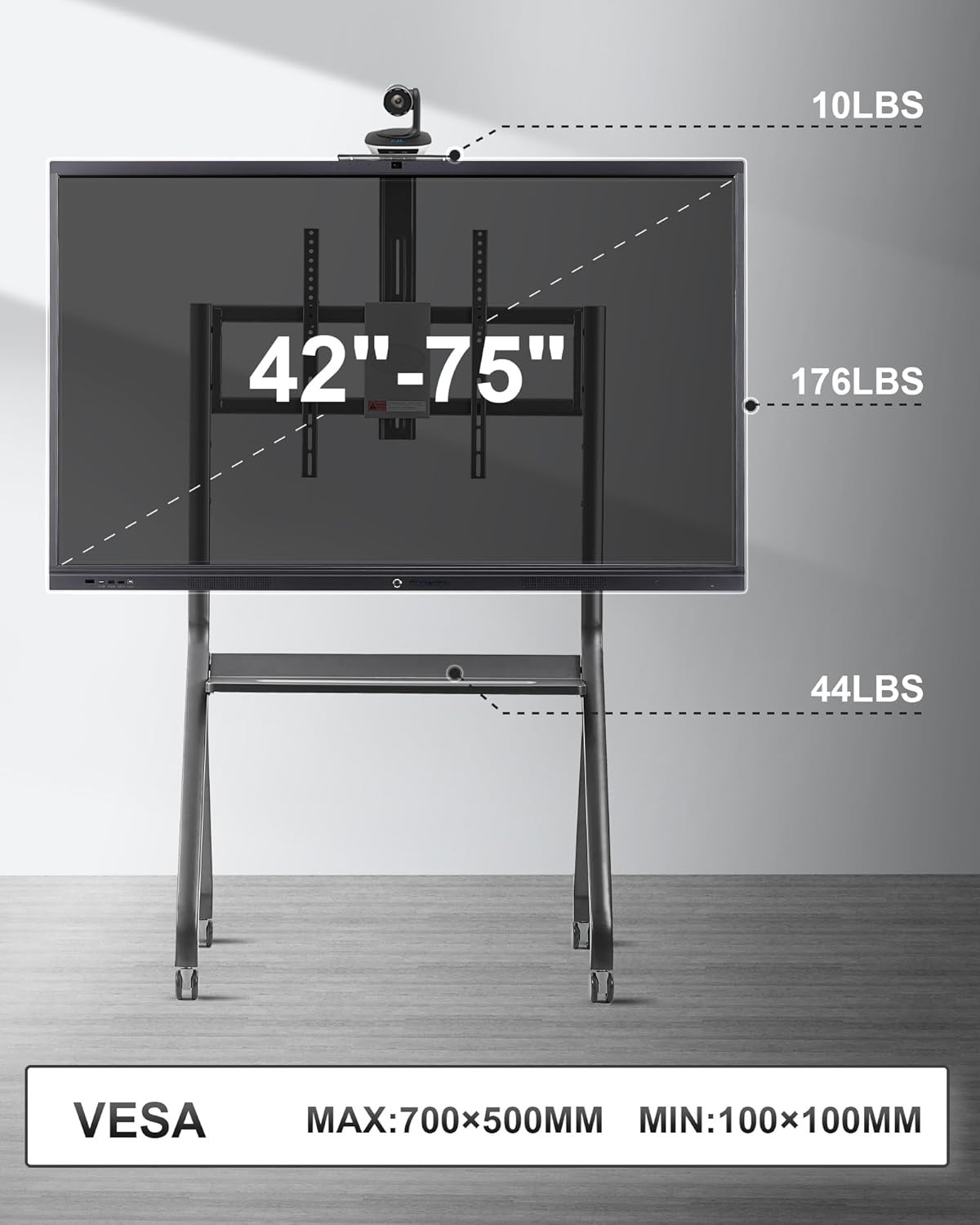
Figure 8: Screen size compatibility and weight capacity.
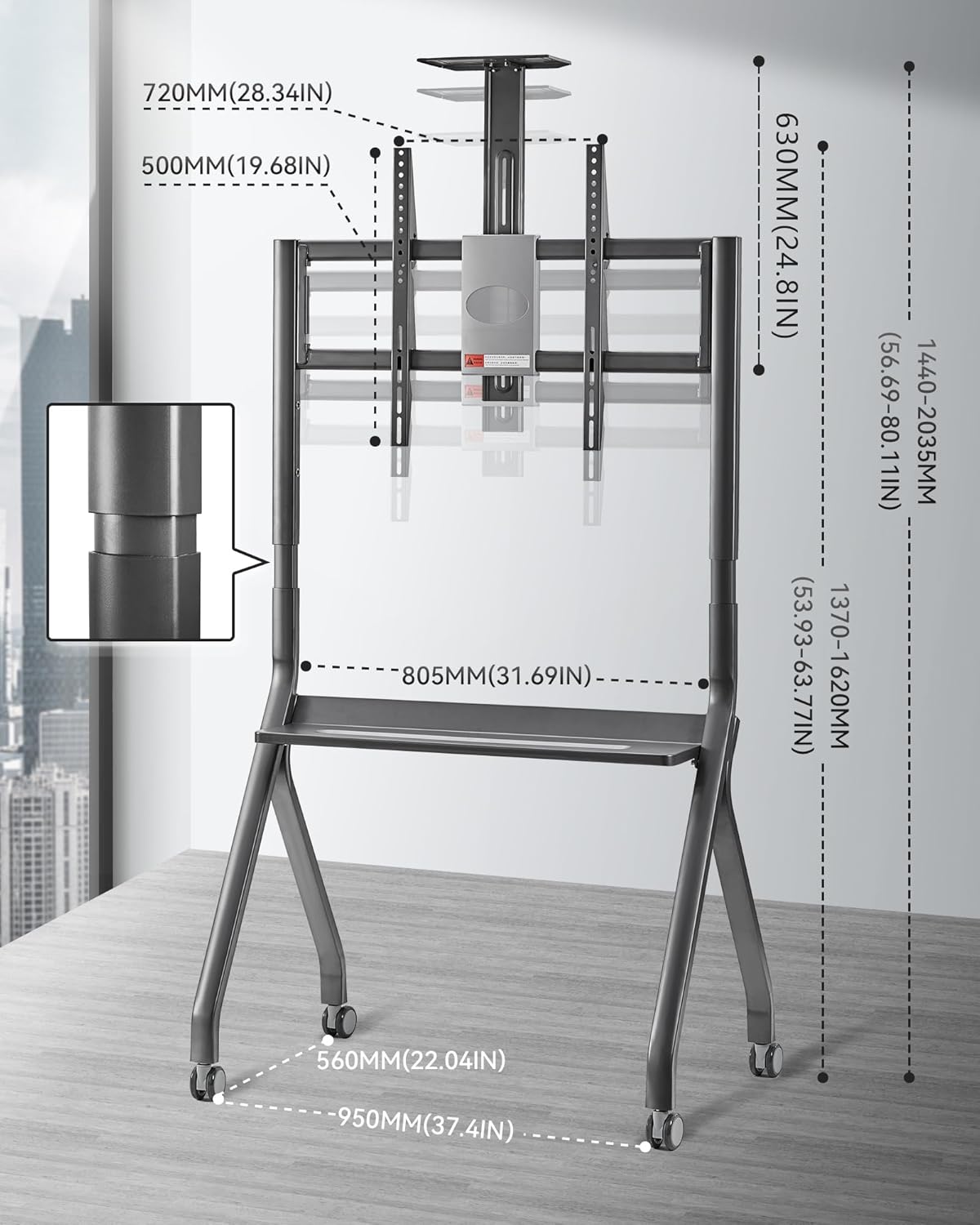
Figure 9: Detailed measurements of the stand.
Garanti og support
OmninexHub is committed to providing high-quality products and excellent customer service.
- Garanti: This product comes with a 3-Year Standard Warranty.
- Teknisk support: For any technical assistance or inquiries, please contact us via email at jiyuanxin-sci@outlook.com.
- Kundeservice: Assured by 24/7 Live Chat Support.

Figure 10: OmninexHub Customer Support details.