
1. Introduktion
This manual provides detailed instructions for the setup, operation, maintenance, and troubleshooting of your NIIMBOT B1 Portable Thermal Label Printer. Please read this manual thoroughly before using the device to ensure proper function and longevity.

Image 1.1: The NIIMBOT B1 Label Maker shown with examples of printed labels for various applications.
2. Produktet er slutview
2.1 Pakkens indhold
Bekræft at alle varer er til stede i din pakke:
- NIIMBOT B1 Label Maker x1
- Type-C kabel x1
- Brugervejledning x1
- Roll label tape (50x30mm) x1 (pre-installed in some models)

Image 2.1: The NIIMBOT B1 Label Maker and its included accessories.
2.2 Nøglefunktioner
- 2-Inch Label Printing: Supports label widths from 20mm to 50mm (1-2 inches).
- Termisk tryk: No ink or toner required, reducing operational costs.
- Automatic Label Identification: For faster and easier printing.
- Forbindelse: Compatible with iOS & Android smartphones via Bluetooth, and PC via USB.
- NIIMBOT App: Offers 10+ fonts/languages, 100+ borders, 1500+ symbols, barcodes, QR codes, icons, time stamps, pictures, photos, and OCR print functions.
- Bærbart design: Kompakt og let for nem transport og brug.
- Automatisk sluk: Customizable auto-off settings (15min, 30min, 60min, never) to conserve battery.
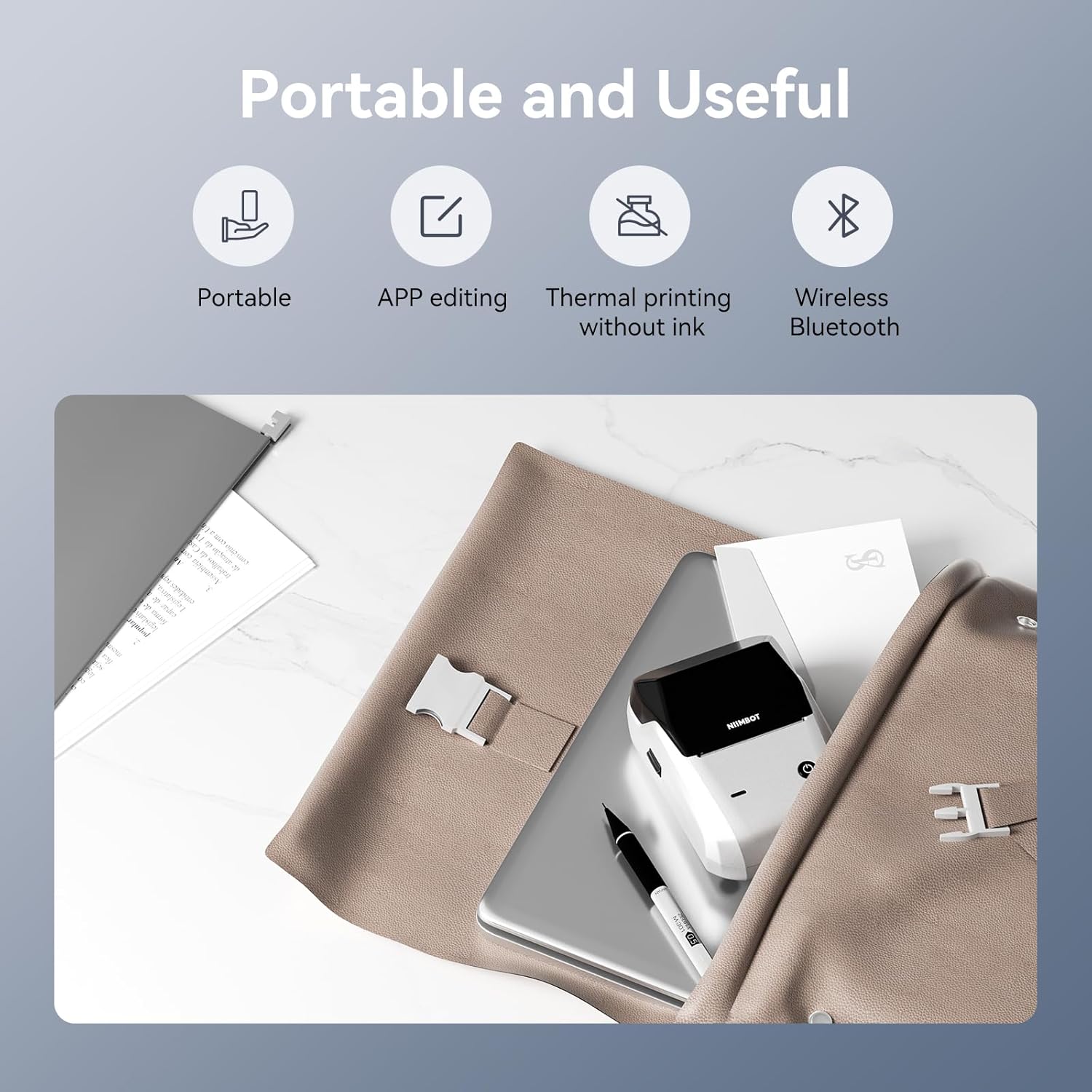
Billede 2.2: Overview of the NIIMBOT B1's portable and useful features.
3. Opsætning
3.1 Ilægning af etiketbånd
- Rotate the side latch to open the tape slot.
- Load the label tape into the slot, ensuring the label side faces upwards.
- Adjust the guide plate to fit the label roll snugly.
- Close the tape slot, leaving a small portion of the label tape extending for smooth feeding.

Image 3.1: Proper installation of label tape in the NIIMBOT B1.
3.2 Appinstallation og -forbindelse
The NIIMBOT B1 requires the NIIMBOT app for smartphone operation.
- Download the NIIMBOT app from the App Store (iOS) or Google Play Store (Android). Søg efter "NIIMBOT".
- Sørg for, at din telefons Bluetooth er aktiveret.
- Open the NIIMBOT app and click "Connect" to search for nearby devices.
- Select your B1 printer from the list (e.g., B1-XXXXXX) to pair. If prompted for a pairing code, enter 0000 or 1234.
- Once connected, the app will automatically identify the label tape in the printer.

Image 3.2: NIIMBOT App download and connection process.
3.3 PC-forbindelse (Windows)
For PC connectivity, you will need to download the driver from the official NIIMBOT webwebsted.
- Besøg den officielle NIIMBOT website and download the B1 printer driver for Windows 7/10.
- Install the driver on your PC.
- Connect the NIIMBOT B1 printer to your PC using the provided USB Type-C cable.
- Open the NIIMBOT desktop software to begin printing.

Image 3.3: Connecting the NIIMBOT B1 to a PC via USB.
3.4 Quick Start Video Guide
Watch this video for a quick visual guide on setting up and using your B1 Label Maker.
Video 3.4: A quick start guide demonstrating the initial setup and basic operation of the NIIMBOT B1 Label Maker.
4. Betjeningsvejledning
4.1 Oprettelse og redigering af etiketter
- In the NIIMBOT app, select a template or create a new label.
- Use the various editing tools to add text, images, icons, barcodes, QR codes, and other elements.
- Customize font styles, sizes, alignment, and other layout options.
- The app supports features like OCR (Optical Character Recognition) for converting images to text.

Image 4.1: The NIIMBOT App interface for creating and editing labels.
4.2 Udskrivning af etiketter
- After designing your label, click the "Print" button in the app.
- Adjust the number of copies and print density as needed.
- Bekræft udskriftsindstillingerne, og start udskrivningen.
- The printer will automatically feed and print the labels. Gently tear off the printed labels.

Image 4.2: Smartphone printing process with the NIIMBOT B1.
4.3 Indikatorlys betydninger
Understand the status of your printer through its indicator light:
- Blåt blåt: Firmwareopgradering er i gang.
- Konstant blå: Printer is in standby mode.
- Blink grøn: Printer is actively printing.
- Konstant grøn: Bluetooth is successfully connected.
- Blink rødt: Printer is charging.
- Konstant rød: Cover is open, out of paper, or low battery.

Image 4.3: Guide to the NIIMBOT B1 indicator light statuses.
4.4 Anvendelse Eksamples
The NIIMBOT B1 is versatile for various labeling needs:
- Hjemmebrug: Kitchen labels, gift labels, kids' item labels, trip item labels.
- Forretningsbrug: Beauty & personal care, DIY item labels, mail labels, perfume labels, bakery food labels.

Billede 4.4: Eks.amples of NIIMBOT B1 usage for home organization.

Billede 4.5: Eks.amples of NIIMBOT B1 usage for small businesses.

Billede 4.6: Eks.amples of labels for bakery and food products.
Video 4.7: Demonstration of the NIIMBOT B1 Label Maker's ease of use for various labeling tasks.
Video 4.8: Showcasing the multipurpose capabilities of the NIIMBOT B1 Label Maker for different applications.
5. Vedligeholdelse
5.1 Rengøring af printhovedet
Regelmæssig rengøring af printhovedet sikrer optimal udskriftskvalitet.
- Sluk printeren, og frakobl strømkablet.
- Åbn etiketrummet.
- Tør forsigtigt printhovedet af med en vatpind.ampafsluttet med isopropylalkohol.
- Allow the print head to dry completely before closing the compartment and turning on the printer.
5.2 Pleje af batterier
- Oplad printeren regelmæssigt, selvom den ikke bruges ofte, for at opretholde batteriets sundhedstilstand.
- Undgå at udsætte printeren for ekstreme temperaturer.
- Brug kun det medfølgende Type-C-kabel til opladning.
6. Fejlfinding
6.1 Almindelige problemer og løsninger
| Spørgsmål | Mulig årsag | Løsning |
|---|---|---|
| Printeren tænder ikke | Lavt batteri; Tænd/sluk-knappen er ikke trykket længe nok ned | Charge the printer; Press and hold the power button for 3 seconds. |
| Kan ikke oprette forbindelse via Bluetooth | Bluetooth off on phone; Printer not in pairing mode; App permissions | Ensure Bluetooth is on; Restart printer; Check app permissions for nearby devices. |
| Dårlig printkvalitet | Dirty print head; Incorrect print density; Low battery | Clean the print head (see 5.1); Adjust print density in the app; Charge the printer. |
| Etiketter fremføres ikke korrekt | Incorrect label installation; Guide plate not adjusted | Reinstall label tape correctly (see 3.1); Adjust the guide plate to fit the label roll. |
| Printeren genkendes ikke af pc'en | Driver not installed; Faulty USB cable | Install the correct PC driver (see 3.3); Try a different USB cable. |
7. Specifikationer
| Feature | Detalje |
|---|---|
| Modelnavn | B1 |
| Udskrivningsteknologi | Termisk |
| Forbindelse | Bluetooth, USB |
| Maksimal udskriftsopløsning | 203 dpi |
| Maksimal udskrivningshastighed (monokrom) | 15 mm/s |
| Maksimal mediestørrelse | 2 tomme (50 mm) |
| Kompatible enheder | Smartphone (Android & iOS), PC (Windows 7/10) |
| Varens vægt | 1.1 pund (499 gram) |
| Produktdimensioner | 5.5" D x 3.5" B x 2.5" H |
| Batteri | 1 A batteri påkrævet (medfølger) |
| Specifikke anvendelser | Labeling for Small Business Product Price/Address, School and Office Files Classification, Home Supplies Organization, Personal Item Identification, Name Tags and Warehouse |
8. Garanti og support
8.1 Garantioplysninger
The NIIMBOT B1 Label Printer comes with a 1-year warranty coverage. Please retain your proof of purchase for warranty claims.
8.2 Kundesupport
For further assistance, technical support, or warranty inquiries, please contact NIIMBOT customer service through their official webwebstedet eller de kontaktoplysninger, der følger med din produktemballage.