
GREATHTEK 4K60HZ+USB2.0
GREATHTEK HDMI+Displayport Dual Monitor KVM Switch User Manual
Model: 4K60HZ+USB2.0
1. Introduktion
The GREATHTEK HDMI+Displayport Dual Monitor KVM Switch allows two computers or laptops to share two monitors and a single set of keyboard and mouse. This device supports both extended and duplicate display modes, provided your computer's graphics card supports these capabilities. It is designed to streamline your workspace by enabling seamless switching between two systems.
Nøglefunktioner omfatter:
- Understøttelse af to skærme: Connects two monitors to two computers using a combination of HDMI and DisplayPort inputs.
- Høj opløsning: Supports Ultra HD resolutions up to 4K@60Hz, with backward compatibility for lower resolutions.
- Integreret USB-hub: Features four USB 2.0 ports for sharing peripherals such as keyboards, mice, U-disks, printers, gamepads, and webknaster.
- Adaptive EDID: Ensures smooth and stable signal output by adapting to various display environments.
- Bred kompatibilitet: Compatible with Windows 10/7/2000/XP/Vista, Linux, UNIX, Ubuntu, Fedora, and other operating systems.
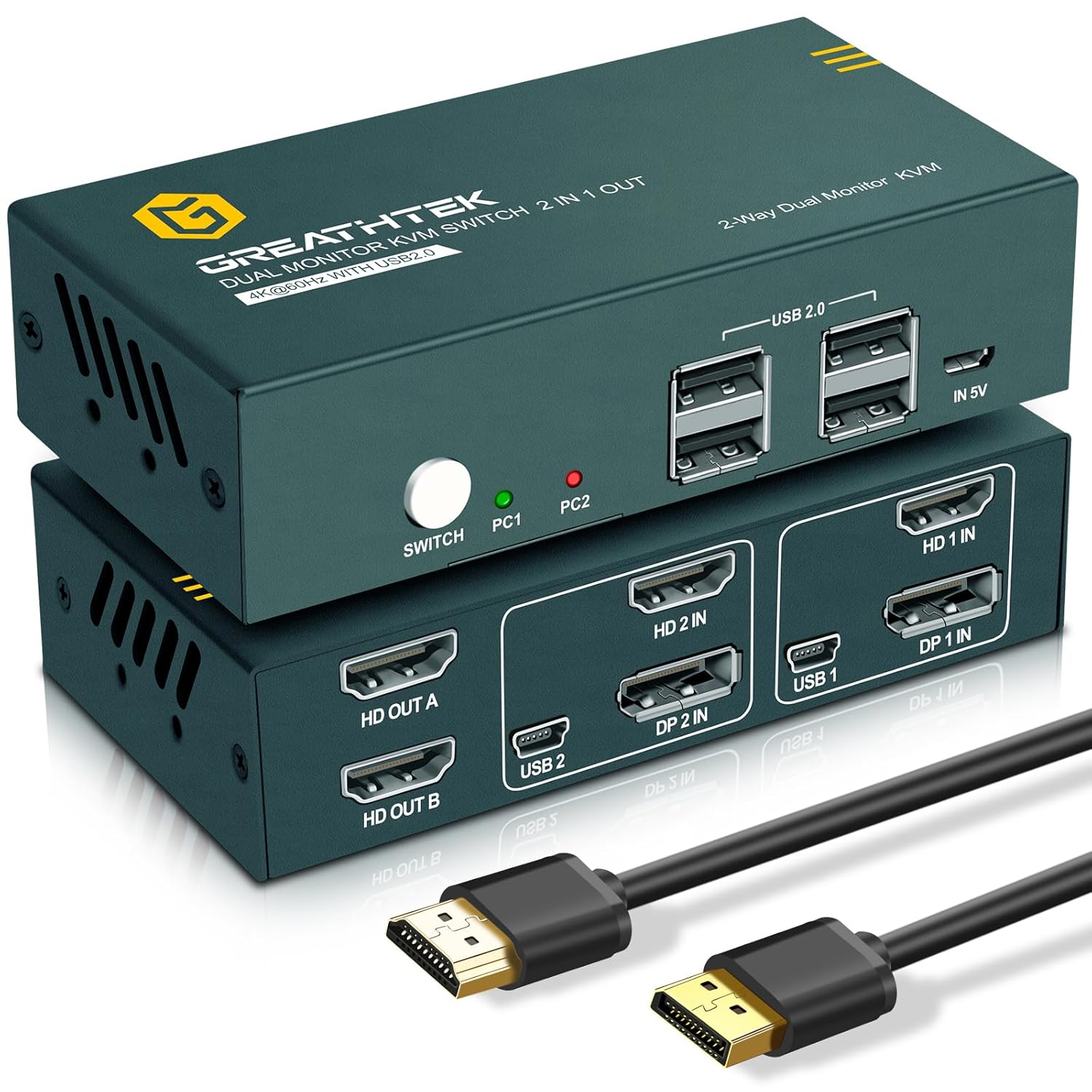
Billede 1.1: Foran og bagpå view of the GREATHTEK KVM Switch with included cables.
2. Pakkens indhold
Kontroller venligst, at alle nedenstående varer er inkluderet i din pakke:
- GREATHTEK HDMI+Displayport Dual Monitor KVM Switch Unit
- Mini USB Cable (x2)
- Mikro USB-kabel (x1)
- DP Cable (5 ft) (x2)
- HDMI Cable (5 ft) (x2)
- Fodpude
- Garantikort
- Brugermanual
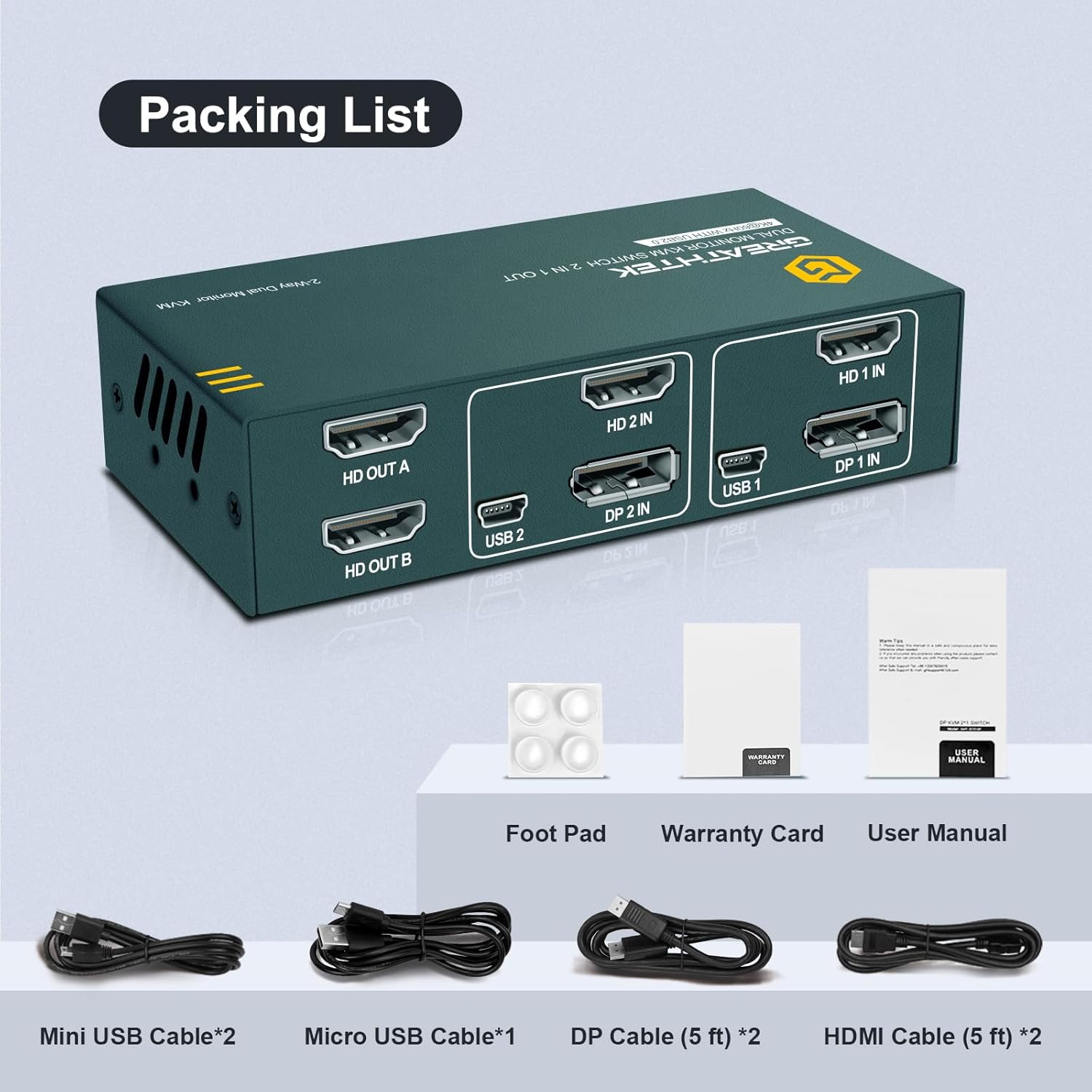
Image 2.1: Illustration of the KVM Switch and its included accessories.
3. Produktdiagrammer
3.1 Layout af front- og bagpanel

Billede 3.1: Detaljeret view of the KVM Switch's front and rear ports.
- 1. HD OUT A: HDMI output for Monitor A
- 2. HD OUT B: HDMI output for Monitor B
- 3. HD 2 IN / DP 2 IN / USB 2: Input group for PC2 (HDMI, DisplayPort, USB)
- 4. HD 1 IN / DP 1 IN / USB 1: Input group for PC1 (HDMI, DisplayPort, USB)
- 5. KONTAKT: Button to switch between PC1 and PC2
- 6. PC1 / PC2: Statusindikatorer (LED'er)
- 7. USB 2.0 Ports: For keyboard, mouse, and other USB 2.0 devices
- 8. IN 5V: 5V power supply input port (Micro USB)
3.2 Tilslutningsdiagram

Image 3.2: Visual guide for connecting two computers and two monitors to the KVM Switch.
4. Opsætningsvejledning
Follow these steps to connect your GREATHTEK KVM Switch:
- Sluk for enheder: Sørg for, at både computere og skærme er slukket, før du foretager nogen tilslutninger.
- Connect Monitors to KVM Outputs:
- Connect your first monitor to the KVM's HD OUT A port ved hjælp af et HDMI-kabel.
- Connect your second monitor to the KVM's HD OUT B port ved hjælp af et HDMI-kabel.
- Connect PC1 to KVM Inputs:
- Connect PC1's HDMI output to the KVM's HD 1 IN port ved hjælp af et HDMI-kabel.
- Connect PC1's DisplayPort output to the KVM's DP 1 IN port using a DisplayPort cable.
- Connect PC1's USB port to the KVM's USB 1 port using a Mini USB to USB-A cable.
- Connect PC2 to KVM Inputs:
- Connect PC2's HDMI output to the KVM's HD 2 IN port ved hjælp af et HDMI-kabel.
- Connect PC2's DisplayPort output to the KVM's DP 2 IN port using a DisplayPort cable.
- Connect PC2's USB port to the KVM's USB 2 port using a Mini USB to USB-A cable.
- Tilslut USB-tilbehør: Connect your keyboard, mouse, and other USB 2.0 devices (e.g., U-disk, printer, webcam) to the four USB 2.0 porte on the front of the KVM switch.
- Tilslut strøm: Connect the Micro USB cable to the I 5V port on the KVM switch and to a 5V power adapter (not always included, but recommended for stable operation, especially with multiple USB devices).
- Tænd: Tænd dine skærme og derefter dine computere. KVM-switchen burde automatisk registrere det aktive input.
Note: Ensure all cables are securely connected. Loose connections can lead to display or peripheral issues.
5. Betjening af KVM-switchen
5.1 Skift mellem computere
To switch between the connected computers (PC1 and PC2), press the SKIFTE button located on the front panel of the KVM device. The corresponding LED indicator (PC1 or PC2) will illuminate to show which computer is currently active.

Image 5.1: The front panel switch button for changing active computers.
5.2 Skærmtilstande
The KVM switch supports both extended and duplicate display modes. The specific mode depends on your computer's operating system and graphics card settings. You can configure these settings directly on your computer.

Image 5.2: Illustration of mirrored and extended display configurations.
6. Vedligeholdelse
For at sikre din KVM-switchs levetid og optimale ydeevne skal du følge disse generelle vedligeholdelsesretningslinjer:
- Opbevar enheden et køligt, tørt sted, væk fra direkte sollys, varmekilder og fugt.
- Undgå at udsætte enheden for ekstreme temperaturer eller fugt.
- Clean the exterior of the KVM switch with a soft, dry cloth. Do not use liquid cleaners or abrasive materials.
- Sørg for korrekt ventilation omkring enheden for at forhindre overophedning.
- Kontrollér regelmæssigt alle kabelforbindelser for at sikre, at de er fastgjort.
7. Fejlfinding
Hvis du støder på problemer med din KVM-switch, kan du se følgende almindelige problemer og løsninger:
| Problem | Mulig årsag | Løsning |
|---|---|---|
| Ingen visning på skærmene efter skift. | Loose video cables, incorrect input selection, resolution incompatibility. |
|
| Tastatur eller mus reagerer ikke. | Loose USB cables, KVM not powered, incompatible USB device. |
|
| USB devices disconnect randomly. | Insufficient power, faulty USB cable, KVM firmware issue. |
|
| Skiftet er langsomt eller reagerer ikke. | Cable quality, KVM processing delay. |
|
8. Specifikationer
| Feature | Detalje |
|---|---|
| Model | 4K60HZ+USB2.0 (GHT-7217PH2-016) |
| Videoindgange | 2 x HDMI, 2 x DisplayPort |
| Videoudgange | 2 x HDMI |
| USB Ports (for computers) | 2 x Mini USB (USB 1, USB 2) |
| USB Ports (for peripherals) | 4 x USB 2.0 Type-A |
| Max opløsning | 4K@60Hz (backward compatible) |
| Driftstilstand | Manual (Push Button) |
| Produktdimensioner | 22.5 x 16.6 x 7.6 cm |
| Vægt | 780 g |
| Materiale | Plastic, Copper/Copper Alloy |
| Kompatibilitet | Windows 10/7/2000/XP/Vista, Linux, UNIX, Ubuntu, Fedora |
9. Garanti og support
GREATHTEK is committed to providing excellent products and customer service. Your KVM switch comes with a warranty. Please refer to the included Warranty Card for specific terms and conditions, including the warranty period.
If you have any questions, concerns, or require technical assistance with your GREATHTEK KVM switch, please do not hesitate to contact our customer support team. Contact information can typically be found on the Warranty Card or the official GREATHTEK webwebsted.
Ask a question about this manual
Ask about setup, troubleshooting, compatibility, parts, safety, or missing instructions. Manuals+ will review the question and use this page’s manual context to help answer it.