
1. Introduktion
Thank you for choosing the HITIME XVX K75 Pro 75% Gaming Keyboard. This manual provides essential information for setting up, operating, and maintaining your keyboard. Please read it thoroughly before use.
Pakkens indhold
- XVX K75 Pro 75% Aluminum Keyboard
- USB-C til USB-A-kabel
- Keycap og switch puller
- 2.4 GHz USB-dongle
- Brugermanual

Image: The XVX K75 Pro keyboard shown with its included accessories: USB cable, keycap and switch puller, and 2.4GHz dongle.
2. Opsætning og tilslutning
The XVX K75 Pro keyboard supports three connection modes: Wired (USB-C), 2.4GHz Wireless, and Bluetooth 5.0. You can connect up to five devices simultaneously (one wired, one 2.4GHz, and three Bluetooth devices).
2.1. Kablet tilstand
- Ensure the keyboard's power switch (located on the back) is in the 'OFF' position.
- Tilslut det medfølgende USB-C-kabel til tastaturets USB-C-port og den anden ende til computerens USB-A-port.
- Tastaturet skifter automatisk til kablet tilstand og begynder at oplade.
2.2. 2.4 GHz trådløs tilstand
- Turn the keyboard's power switch to 'ON'.
- Sæt 2.4 GHz USB-donglen i en ledig USB-port på din computer.
- Tryk på på tastaturet Fn + 4 to activate 2.4GHz mode. The display screen will show '2.4G Linking'.
- The keyboard will automatically pair with the dongle. Once connected, the display will show '2.4G Success'.
2.3. Bluetooth-tilstand
- Turn the keyboard's power switch to 'ON'.
- Trykke Fn + 1, Fn + 2, eller Fn + 3 to select a Bluetooth channel. The display screen will show 'BT1 Linking', 'BT2 Linking', or 'BT3 Linking'.
- Aktiver Bluetooth på din enhed (computer, tablet, smartphone) og søg efter tilgængelige enheder.
- Select 'XVX K75 Pro' from the list of available devices to pair.
- Once connected, the display will show 'BT1 Success', 'BT2 Success', or 'BT3 Success'.

Image: Diagram illustrating the three connection modes: Bluetooth (Fn+1/2/3), 2.4GHz Wireless (Fn+4), and USB-C Wired (Fn+5).
3. Betjeningsvejledning
3.1. Key Functions (FN Combinations)
| Fungere | Nøglekombination |
|---|---|
| Skift baggrundslystilstand | Fn + \| |
| Skift baggrundslysfarve | Fn + Enter |
| Baggrundslys Lysstyrke + | Fn + PgUp |
| Baggrundsbelysningens lysstyrke - | Fn + PgDn |
| Baggrundslyshastighed + | Fn + |
| Backlight Speed - | Fn + > |
| Lydstyrke op | Fn + F12 |
| Lydstyrke ned | Fn + F11 |
| Stum | Fn + F10 |
| Toggle Screen On/Off | Fn + Del (Hold for 3s) |
| Toggle Screen Left/Right | Fn + Home / Fn + End |
| Windows/Mac Mode Switch | Switch on keyboard back |
3.2. Display Screen Usage
The high-definition display on the keyboard provides real-time information and allows for quick adjustments. You can navigate the display options using the function keys.
- Startskærm: Shows battery status, wired/2.4G/Bluetooth connection status, Win/Mac mode, and Caps Lock status.
- GIF Image: Supports custom GIF images (upload via software).
- Konfiguration: Adjust backlight brightness, speed, RGB mode, color, volume, and language settings directly from the screen.
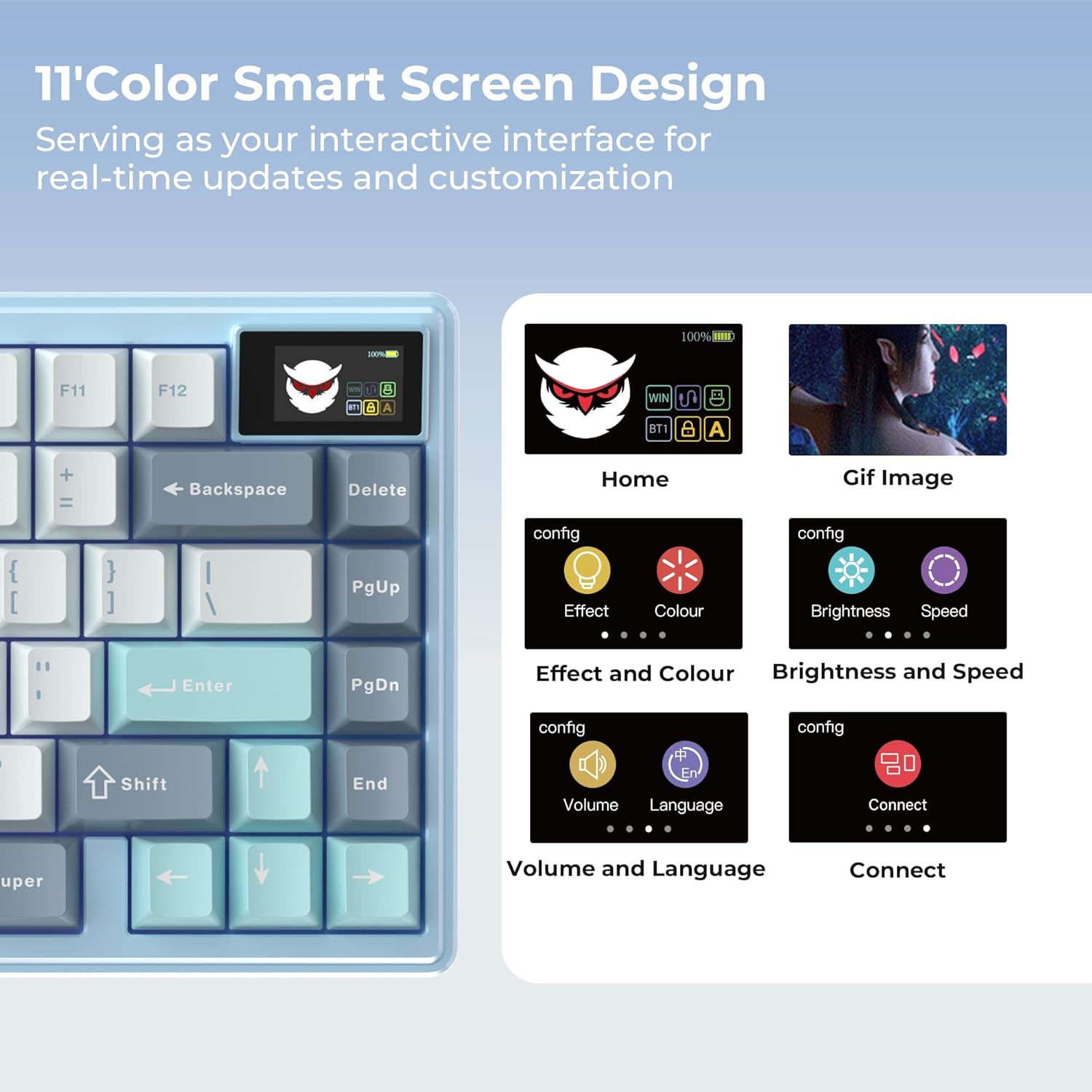
Image: Close-up of the keyboard's display screen showing various configuration options like GIF image, connection status, backlight settings, volume, and language.
Video: This video demonstrates the various features and functionalities of the XVX K75 Pro 75% Aluminum Wireless Mechanical Keyboard, including its display and connectivity options.
4. Tilpasning og software
4.1. Hot-swap-kontakter
The XVX K75 Pro features full-key hot-swappable sockets, compatible with both 3-pin and 5-pin mechanical switches. This allows you to easily change switches without soldering, customizing your typing feel for gaming, typing, or creative tasks.

Billede: Et nærbillede view of the keyboard demonstrating the hot-swappable switch feature, showing a switch being removed with a puller. Details about the pre-lubed linear switches are also displayed.
4.2. PBT-taster
The keyboard comes with durable Cherry profile PBT keycaps, manufactured using double-shot technology. This ensures the legends are sharp, resistant to fading, and provide a matte surface for a comfortable typing experience.

Image: The keyboard with several keycaps removed, showcasing the double-shot PBT keycap construction and Cherry profile design.
4.3. RGB-belysning
The XVX K75 Pro features south-facing RGB LEDs with 19 default effects and 8 backlight colors. These can be customized directly via the keyboard's display or through the dedicated software.

Image: The keyboard illuminated with RGB lighting, showing various Fn key combinations to adjust effects, brightness, colors, and speed.
4.4. Programmeringssoftware
Utilize the dedicated programming software (Windows compatible) to redefine keys, set macros, customize RGB lighting, and upload custom GIF images to the display. This software provides multi-functional control for advanced personalization.

Image: A computer screen displaying the XVX K75 Pro's programming software interface, showing options for 16.8 million colors, custom modes, profiles, and GIF image display settings.
5. Vedligeholdelse
5.1. Rensning
To clean your keyboard, power it off and disconnect it from your computer. Use a soft, lint-free cloth lightly dampened with water or a mild cleaning solution. Avoid harsh chemicals or abrasive materials. For keycaps, use the provided keycap puller to remove them and clean separately if needed.
5.2. Batterioplysninger
The K75 Pro is equipped with a 4000mAh large-capacity battery. For optimal battery life, avoid fully discharging the battery frequently. The keyboard features an outward-opening battery compartment design, allowing for DIY battery expansion or replacement if desired.

Billede: En eksploderet view of the keyboard's underside, highlighting the outward-opening battery compartment and the included 4000mAh battery, with an illustration of how an additional battery can be extended.
6. Fejlfinding
6.1. Forbindelsesproblemer
- 2.4GHz/Bluetooth Disconnection: Ensure the keyboard is charged and within range of your device. Re-pair the device by following the steps in Section 2.
- Kabelforbindelse ikke fundet: Try a different USB port or cable. Ensure the keyboard's power switch is in the 'OFF' position for wired mode.
6.2. Lighting/Display Issues
- Ingen baggrundslys: Check backlight brightness settings using Fn combinations or the software. Ensure the keyboard is powered on.
- Skærm virker ikke: Try toggling the screen on/off using Fn + Del (Hold for 3s). Ensure the keyboard is in a compatible mode.
6.3. Fabriksindstilling
To perform a factory reset, press and hold Fn + Esc for 3 seconds. This will restore the keyboard to its default settings.
7. Specifikationer
| Feature | Detalje |
|---|---|
| Model | K75 Pro |
| Layout | 75% (80-tangenter) |
| Forbindelse | Bluetooth 5.0, 2.4 GHz trådløs, USB-C kablet |
| Afbrydere | Pre-lubed Full POM Linear Switches, Hot-swappable (3-pin/5-pin) |
| tasterne | Cherry Profile Dobbelt shot PBT |
| Baggrundsbelysning | South-facing RGB (19 effects, 8 colors) |
| Vise | High-definition TFT Screen (GIFs, status, settings) |
| Batterikapacitet | 4000mAh Lithium Polymer |
| Etui materiale | Aluminiumslegering |
| Monteringsstil | Pakningsmontering |
| Støj Dampslutning | 4 layers of sound-dampening fillings |
| Dimensioner | 12.5 x 5.3 x 0.98 inches (321 x 133 x 20-36 mm) |
| Vægt | 2.99 pund (ca. 1356 g) |
| Kompatibilitet | Windows, macOS, Gaming Consoles, Laptops, PCs |

Image: Technical drawing showing the dimensions of the XVX K75 Pro keyboard, including length, width, and height at different angles.
8. Garanti og support
8.1. Garantioplysninger
The HITIME XVX K75 Pro keyboard comes with a manufacturer's warranty. For specific warranty terms, conditions, and duration, please refer to the warranty card included in your product packaging or contact the seller/manufacturer directly.
8.2. Kundesupport
If you encounter any issues or have questions regarding your XVX K75 Pro keyboard, please contact HITIME customer support through the platform where you purchased the product or visit the official HITIME webwebsted for hjælp.