
Indledning
This manual provides detailed instructions for the setup, operation, maintenance, and troubleshooting of your JSAUX FlipGo 13.5" 2.2K Dual Touchscreen Portable Monitor. Please read this manual thoroughly before using the product to ensure proper functionality and to maximize your experience.
Sikkerhedsoplysninger
- Udsæt ikke enheden for ekstreme temperaturer, fugt eller direkte sollys.
- Undgå at tabe eller udsætte enheden for kraftige stød.
- Use only the provided cables and power adapter to prevent damage.
- Hold enheden væk fra vand eller andre væsker.
- Forsøg ikke selv at adskille eller reparere enheden. Kontakt kundesupport for at få hjælp.
Pakkens indhold
Bekræft at alle varer er til stede i pakken:
- JSAUX FlipGo 13.5" Dual Touchscreen Portable Monitor
- USB-C to USB-C Cable (Full-featured)
- USB-A til USB-C kabel
- Strømadapter
- Brugermanual
- Optional accessories (e.g., magnetic stand, VESA adapter, carry bag) may be sold separately.
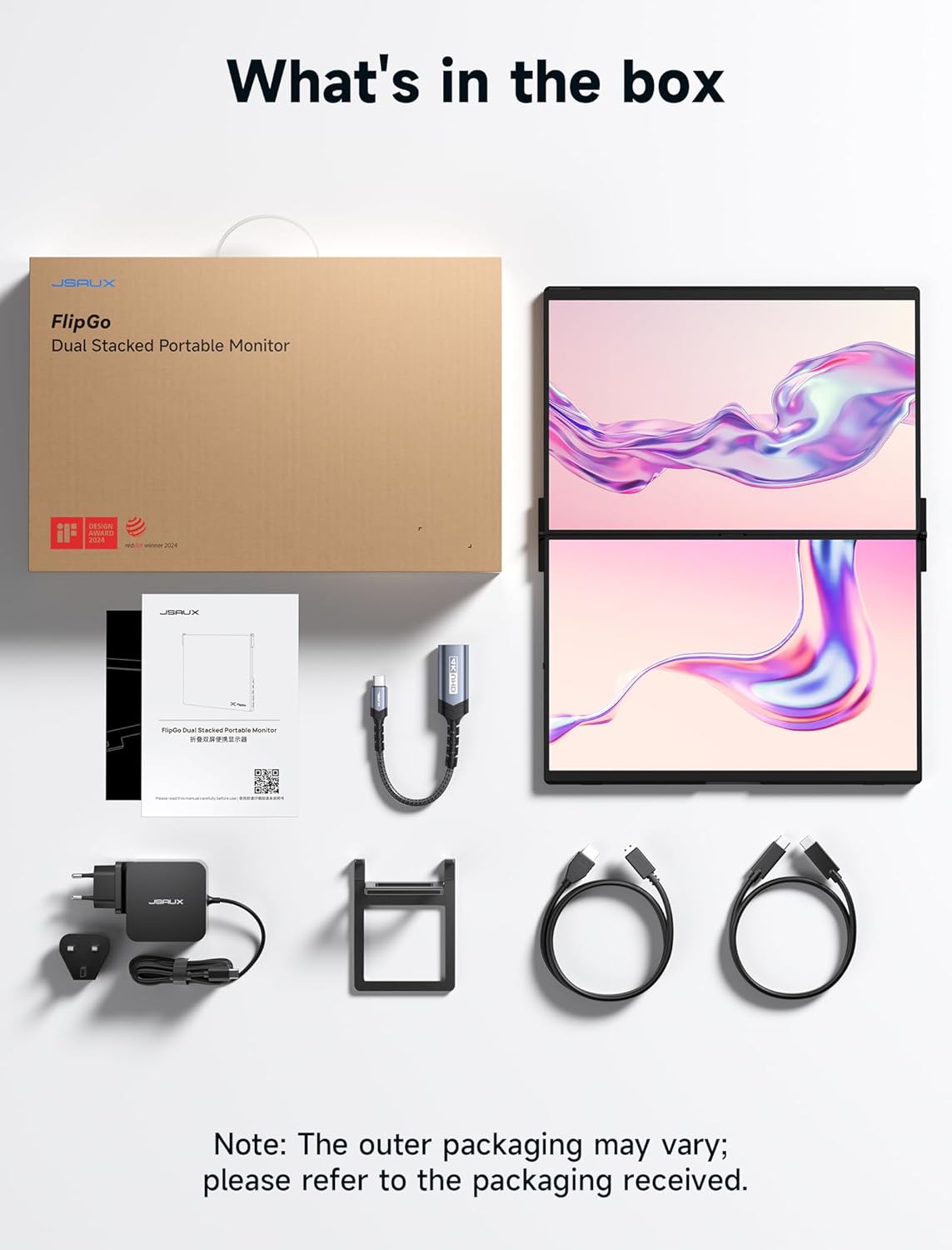
Image: Contents of the JSAUX FlipGo package. Note: Outer packaging and specific accessories may vary.
Produktegenskaber
- Dual-Screen Touch: The FlipGo monitor features dual-screen touch and gesture support with 10-point touch capability, enhancing interaction performance for Windows and macOS.
- Dual 2.2K High-Resolution Displays: Each 13.5-inch IPS screen supports 2.2K resolution (2256x1504 pixels) with a 100% sRGB color gamut, 3:2 aspect ratio, 400 nits brightness, and a 1500:1 contrast ratio for clear and vibrant visuals.
- One Cable Connectivity: Power and display signals can be transmitted through a single USB-C cable from your laptop. When connected to an external power supply, the laptop will also be charged.
- Triple Display (ABC Mode): Extend your workspace across three screens (laptop + two FlipGo screens) for enhanced multitasking and productivity.
- Upgraded Magnetic Design: The monitor's back panel features a magnetic design for secure attachment of stands and other accessories, equipped with N52 strong magnets for stability.
- Built-in HUB: Features an integrated docking station for direct, simultaneous connections to peripherals such as a keyboard, mouse, or USB drive.

Image: Visual representation of the FlipGo's display quality and specifications.

Image: Demonstrating the touch screen capability of the FlipGo monitor.

Image: The FlipGo's built-in USB hub for connecting various peripherals.
Opsætningsinstruktioner
1. Fysisk opsætning
- Unfold the Monitor: Carefully unfold the FlipGo monitor to its desired viewing position. The magnetic design allows for various configurations.
- Opret forbindelse til din enhed: Use the included full-featured USB-C to USB-C cable to connect the FlipGo's USB-C2 port to a compatible USB-C port on your laptop or device. Ensure your device's USB-C port supports video output (DisplayPort Alternate Mode) and power delivery.
- Valgfri strømtilslutning: If your laptop does not provide sufficient power or if you wish to charge your laptop via the FlipGo, connect the provided power adapter to the FlipGo's power input port.
- Using Optional Stands: The FlipGo supports various magnetic stands and VESA adapters (sold separately) for enhanced ergonomics and stability. Align the magnetic part of the display with the stand's magnetic bracket and ensure it is securely attached.

Image: JSAUX Snap Magnetic Stand for FlipGo monitors.

Image: JSAUX Snap VESA Adapter for FlipGo monitors.
2. Touchscreen Setup for Windows
To enable touchscreen functionality on Windows, follow these steps:
- Connect the FlipGo to your computer using the included full-featured USB-C cable.
- Press "Win+R" to open the Run dialog. Enter shell:::{80f3f1d5-feca-45f3-bc32-752c152e456e} and press Enter to open the Tablet PC Settings interface.
- In the Display section, select "FlipGo-A1", click "Settings", and then choose "Touch Input".
- Follow the on-screen instructions to designate the current screen as the touch screen, then lightly press the Enter key.
Video: Instructions for setting up touchscreen functionality on Windows for the JSAUX FlipGo monitor.
3. Touchscreen Setup for Mac
To enable touchscreen functionality on Mac, follow these steps:
- Connect the FlipGo to your computer using the included full-featured USB-C cable.
- Open System Settings > Display > Arrange Displays. Relocate the menu bar to FlipGo.
- Move the cursor over to the desktop displayed on the FlipGo.
Video: Instructions for setting up touchscreen functionality on Mac for the JSAUX FlipGo monitor.
Driftstilstande
The JSAUX FlipGo offers flexible display modes to suit various productivity needs:
- DuoViews (Extended/Mirror Mode): This mode allows you to either extend your desktop across the two FlipGo screens or mirror your primary display. This is ideal for multitasking or sharing content during presentations.
- Triple Display (ABC Mode): By utilizing your laptop's screen in conjunction with the two FlipGo screens, you can create a comprehensive triple-display setup. This expands your screen real estate for complex tasks like financial analysis or creative projects.
- UltraView Mode: Note: This specific version of the JSAUX FlipGo (Model sd0202a) does not support UltraView mode, which combines both screens into one seamless ultra-wide display. This feature is available on the Pro version.
Video: Overståetview of the JSAUX FlipGo Portable Monitor's various display modes and uses.
Opretholdelse
- Rensning: Use a soft, lint-free cloth to clean the screen and exterior. For stubborn smudges, lightly dampRengør kluden med vand eller et skærmsikkert rengøringsmiddel. Undgå skrappe kemikalier.
- Opbevaring: When not in use, fold the monitor and store it in a protective case or bag to prevent scratches and damage.
- Kabelpleje: Handle cables gently. Avoid bending them sharply or pulling them forcefully from the ports.
Fejlfinding
- Ingen visning:
- Ensure the USB-C cable is securely connected to both the FlipGo and your device.
- Bekræft, at din enheds USB-C-port understøtter videoudgang (DisplayPort Alternate Mode).
- Try connecting the external power adapter to the FlipGo.
- Check your computer's display settings to ensure the external monitor is detected and configured correctly.
- Touchscreen reagerer ikke:
- Ensure the USB-C cable is a full-featured cable that supports data and touch signal transmission.
- For Windows, follow the touchscreen calibration steps in the Setup section.
- For Mac, ensure the menu bar is relocated to the FlipGo display as per the Setup section.
- Restart your computer and the FlipGo monitor.
- Flimrende skærm:
- Ensure the cable connections are stable.
- Reduce the screen brightness or refresh rate in your device's display settings.
- Sørg for, at din enheds grafikdrivere er opdaterede.
Specifikationer
| Feature | Specifikation |
|---|---|
| Modelnummer | sd0202a |
| Skærmstørrelse | 13.5 Inches (Dual Screen) |
| Opløsning | 2.2K (2256x1504 pixels) |
| Aspektforhold | 3:2 |
| Billedlysstyrke | 400 nit |
| Kontrastforhold | 1500:1 |
| Farveskala | 100 % sRGB |
| Touchskærm | 10-punkts Multi-touch |
| Samlet USB-porte | 1 (USB-C for connection, additional ports on built-in HUB) |
| Produktdimensioner | 0.35 x 12.08 x 17.48 tommer |
| Varens vægt | 3.88 ounce |
| Fabrikant | Shenzhen Wuyishi Technology Co.,Ltd |
Garanti og support
JSAUX products come with a standard manufacturer's warranty. For specific warranty details, please refer to the warranty card included in your product packaging or visit the official JSAUX website. For technical support, troubleshooting assistance, or to inquire about replacement parts, please contact JSAUX customer service through their official channels.
Online support: Visit the JSAUX official webwebsted med ofte stillede spørgsmål, driverdownloads og kontaktoplysninger.
E-mail support: Refer to your product packaging or the JSAUX webwebstedet for den relevante support-e-mailadresse.