
Rabitpos U27-W
Rabitpos U27-W Wireless 1D 2D QR Barcode Scanner User Manual
Model: U27-W
1. Introduktion
Thank you for choosing the Rabitpos U27-W Wireless 1D 2D QR Barcode Scanner. This manual provides detailed instructions for setting up, operating, and maintaining your device. Please read this manual thoroughly before use to ensure optimal performance and longevity of your scanner.

Image 1.1: The Rabitpos U27-W Wireless Barcode Scanner, shown held comfortably in a user's hand, highlighting its ergonomic design.
2. Produktet er slutview
Nøglefunktioner:
- Alsidig scanning: Reads 1D, 2D, and QR barcodes from both paper and digital screens.
- Trådløs og kablet forbindelse: Supports 2.4GHz wireless via USB dongle and wired USB connection.
- Langtidsholdbart batteri: Equipped with a 2000mAh rechargeable battery for extended operation.
- Flere scanningstilstande: Features Key Trigger and Auto-induction scanning modes.
- Indstillinger for dataupload: Supports Instant Upload and Storage modes for flexible data management.
- Bred kompatibilitet: Fungerer med Windows-, Mac- og Linux-operativsystemer.
3. Opsætningsvejledning
3.1 Tilslutning af scanneren
The Rabitpos U27-W scanner offers two connection methods: 2.4GHz wireless and wired USB. Both are plug-and-play, requiring no driver installation.
Trådløs forbindelse (2.4 GHz):
- Insert the 2.4GHz USB receiver into an available USB port on your computer (PC, laptop, or POS system).
- Turn on the barcode scanner. It will automatically pair with the receiver. A successful connection is indicated by a specific beep sound or LED indicator (refer to LED indicator section for details).
Wired Connection (USB Cable):
- Tilslut den ene ende af det medfølgende USB-kabel til scannerens USB-port.
- Tilslut den anden ende af USB-kablet til en ledig USB-port på din computer.
- The scanner will be recognized as a standard HID keyboard device.

Image 3.1: Illustration of the scanner's 2-in-1 connection capability, demonstrating both wired USB 2.0 and 2.4GHz wireless options with a laptop.
4. Betjeningsvejledning
4.1 Scanningstilstande
The scanner supports two primary scanning modes to suit different operational needs:
- Key Trigger Mode: Tryk på udløserknappen for at aktivere scanningsstrålen og læse en stregkode. Slip knappen for at stoppe scanningen.
- Auto-induktionstilstand: The scanner automatically detects a barcode within its scanning range and activates the beam to read it without requiring a trigger press. This mode is ideal for hands-free operation.
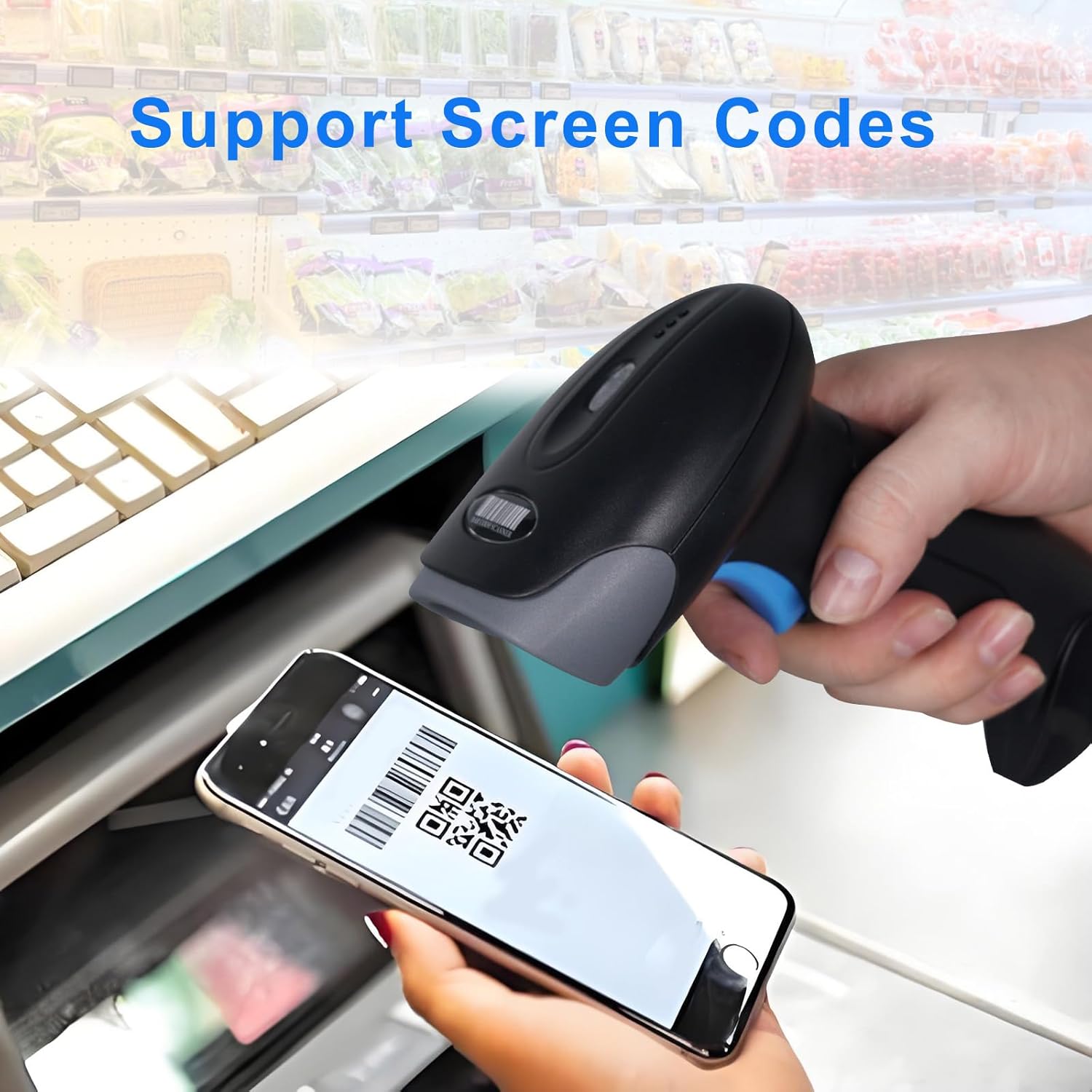
Image 4.1: Visual representation of the two scanning modes: Key Trigger Mode, where the user presses a button, and Auto-induction Mode, where scanning is automatic.
4.2 Datauploadtilstande
Choose between two data upload modes based on your workflow:
- Øjeblikkelig upload-tilstand: Scanned data is immediately transmitted to the connected device. This is the default mode and suitable for real-time inventory or POS operations.
- Opbevaringstilstand: Scanned data is stored internally in the scanner's memory. This mode is useful when working out of range of the receiver. Data can be uploaded later by scanning a specific command barcode (refer to the programming guide for details).

Image 4.2: Depiction of the two data upload modes: Instant Upload, where data is sent immediately, and Storage Mode, where data is saved for later batch upload.
4.3 Understøttede stregkodetyper
The Rabitpos U27-W scanner is capable of decoding a wide range of 1D and 2D barcode symbologies:
- 1D stregkoder: UPC-A, UPC-E, EAN-8, EAN-13, Code 128, Code 39, Code 93, Code 11, Interleaved 2 of 5, Matrix 2 of 5, Standard 2 of 5, Codabar, MSI Plessey, GS1, Databar (RSS), etc.
- 2D stregkoder: PDF417, Data Matrix, QR Code, Aztec Code, Micro QR Code, MaxiCode, etc.
The scanner also supports reading barcodes directly from digital screens, such as mobile phones or tablets.

Image 4.3: The scanner demonstrating its ability to read QR codes and other barcodes directly from a mobile phone screen.

Image 4.4: The scanner's superior decoding ability is shown as it accurately reads a 1D barcode from a printed sheet.
4.4 Beep Settings
The scanner provides audible feedback for successful scans and other operations. You can configure the beep sound settings:
- Turn On Sound: Enables audible beeps.
- Slå lyd fra: Disables audible beeps for silent operation.
Refer to the scanner's programming guide (usually a separate sheet of barcodes) to change these settings by scanning the appropriate configuration barcodes.

Image 4.5: Visual guide for adjusting the scanner's beep settings, allowing users to enable or disable sound feedback.
5. Vedligeholdelse
5.1 Rengøring af scanneren
For at opretholde optimal scanningsydelse skal scannervinduet holdes rent. Brug en blød, fnugfri klud, let fugtetampened with water or a mild, non-abrasive cleaning solution. Avoid harsh chemicals or abrasive materials that could scratch the scanning window.
5.2 Pleje af batterier
The scanner is equipped with a 2000mAh rechargeable battery, providing approximately 72 hours of continuous operation and up to 1 month of standby time on a full charge. To prolong battery life:
- Oplad batteriet helt inden første brug.
- Undgå at aflade batteriet helt regelmæssigt.
- Opbevar scanneren et køligt og tørt sted, når den ikke er i brug i længere perioder.
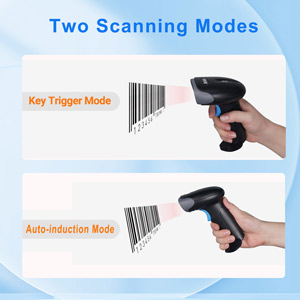
Image 5.1: An illustration emphasizing the scanner's built-in rechargeable battery and its long-lasting capacity.
6. Fejlfinding
If you encounter issues with your Rabitpos U27-W scanner, refer to the following common problems and solutions:
| Problem | Mulig årsag | Løsning |
|---|---|---|
| Scanneren opretter ikke trådløs forbindelse. | USB receiver not properly inserted; scanner not powered on; out of range; pairing lost. | Ensure receiver is firmly plugged in. Turn scanner on. Move closer to receiver. Re-pair the scanner by scanning the pairing barcode (refer to programming guide). |
| Scanneren læser ikke stregkoder. | Barcode damaged or unclear; incorrect scanning mode; scanner window dirty; unsupported barcode type. | Ensure barcode is clear. Check scanning mode (Key Trigger/Auto-induction). Clean scanner window. Verify barcode type is supported. |
| Slow scanning response. | Low battery; interference; system lag. | Charge the scanner fully. Reduce wireless interference. Test on a different computer. |
| No scan indicator (light/beep). | Scanner not powered on; beep sound disabled. | Ensure scanner is powered on. Enable beep sound via programming barcode. |
| Data not uploading in Storage Mode. | Upload command barcode not scanned; memory full. | Scan the 'Upload Data' programming barcode. Clear memory if full (refer to programming guide). |
7. Specifikationer
| Feature | Detalje |
|---|---|
| Modelnummer | HBA-U27W |
| Forbindelse | 2.4 GHz trådløst, USB-kabel |
| Batteri | 2000mAh Rechargeable (1 A battery included) |
| Kontinuerlig arbejdstid | Op til 72 timer |
| Standby tid | Op til 1 måned |
| Kompatible enheder | Stationær, bærbar, POS-systemer |
| Operativsystemer | Windows, Mac OS, Linux |
| Varens vægt | 0.634 ounce |
| Pakkedimensioner | 7.68 x 4.21 x 3.31 tommer |
8. Garanti og support
Rabitpos products are designed for reliability and performance. For warranty information, technical support, or service inquiries, please refer to the contact information provided with your product packaging or visit the official Rabitpos website. Please have your model number (U27-W) and purchase details ready when contacting support.
Ask a question about this manual
Ask about setup, troubleshooting, compatibility, parts, safety, or missing instructions. Manuals+ will review the question and use this page’s manual context to help answer it.