
Indledning
The AJAZZ AJ159 is an ultralight gaming mouse designed for high-performance gaming and versatile use. Featuring a custom flagship PAW3950 APEX optical sensor, it offers exceptional accuracy and sensitivity. The mouse supports tri-mode connectivity and comes with an innovative RGB magnetic screen charging dock. This manual provides essential information for setting up, operating, maintaining, and troubleshooting your AJ159 mouse.

Image: The AJAZZ AJ159 APEX Lightweight 8K Gaming Mouse, showcasing multiple color options and its sleek design.
Opsætning
1. Pakkens indhold
- AJAZZ AJ159 Gaming Mouse
- RGB Magnetic Screen Charging Dock
- USB-C ladekabel
- 2.4GHz USB Dongle (stored inside the mouse)
- Replacement ETFE Foot Pads
- Brugermanual
2. Første opladning
Before first use, fully charge the mouse. Place the mouse onto the magnetic charging dock, ensuring the contacts align. Alternatively, connect the mouse directly to your computer using the provided USB-C cable.

Image: The AJAZZ AJ159 mouse being charged on its magnetic RGB screen charging dock, illustrating the ease of charging.
3. Tilslutning af musen (Tri-Mode)
The AJ159 supports three connection modes: 2.4GHz Wireless, Bluetooth, and Wired USB-C. A switch on the bottom of the mouse allows you to select your preferred mode.
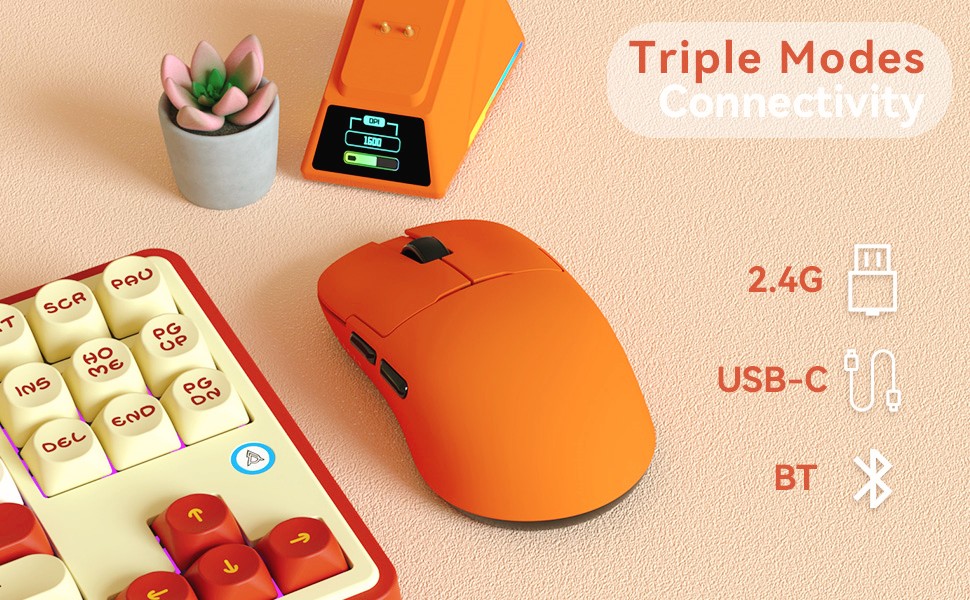
Image: The AJAZZ AJ159 mouse demonstrating its tri-mode connectivity options: 2.4GHz, Bluetooth, and USB-C.
3.1. 2.4 GHz trådløs forbindelse
- Locate the 2.4GHz USB dongle stored in the compartment on the underside of the mouse.
- Sæt donglen i en ledig USB-port på din computer.
- Slide the switch on the bottom of the mouse to the '2.4G' position. The mouse will automatically connect.
3.2. Bluetooth-forbindelse
- Skub kontakten på undersiden af musen til 'BT'-positionen.
- Gå til Bluetooth-indstillinger på din computer, og søg efter nye enheder.
- Select 'AJ159' from the list of available devices to pair.
3.3. Kablet USB-C-forbindelse
- Connect the provided USB-C cable to the front of the mouse and the other end to your computer.
- Slide the switch on the bottom of the mouse to the 'USB' position. The mouse will function as a wired device and charge simultaneously.
4. Software installation
For full customization and advanced features, download the official driver software from QMK.TOP. The software allows you to assign macros, remap buttons, redefine DPI, adjust polling rate, and personalize the charging base display.
Video: An official product video demonstrating the features and functionality of the AJAZZ AJ159APEX 8K Lightweight Mouse with PAW3950 sensor.
Drift
1. DPI-justering
The mouse features a dedicated DPI button, typically located near the scroll wheel, to cycle through preset DPI levels. For fine-tuning and custom DPI settings up to 30K DPI (42K DPI overclocked), use the driver software.
2. Afstemningsrate
The AJ159 supports an 8000Hz polling rate in wireless mode, providing ultra-low latency of 0.125ms. In wired mode, it operates at 1000Hz. The polling rate can be adjusted via the driver software.

Image: Key features of the AJAZZ AJ159 mouse, highlighting the 8000Hz polling rate and the PAW3950 APEX optical sensor.
3. Programmerbare knapper
Utilize the powerful driver software to assign macros, remap button functions, and customize other settings for an optimized gaming experience. The mouse features Huanuo green-translucent white dot micro switches, rated for over 100 million clicks.

Image: The user interface of the Programmable Macro Driver software for the AJAZZ AJ159 mouse, showing key remapping and macro assignment options.
4. RGB Magnetic Screen Charging Dock
The charging dock features a colorful screen that displays the mouse's connection mode, DPI, LOD (Lift-Off Distance), and custom GIF patterns. It also has adjustable RGB lighting to enhance your desktop aesthetics.


Image: Various color options of the AJAZZ AJ159 mouse, each resting on its magnetic RGB screen charging dock.
Opretholdelse
1. Rensning
Regularly clean your mouse with a soft, dry cloth. Avoid using harsh chemicals or abrasive materials that could damage the ice-feel coating.
2. Batteripleje
The mouse is equipped with a 400mAh Lithium Ion battery. To prolong battery life, avoid fully discharging it frequently. Store the mouse in a cool, dry place when not in use.
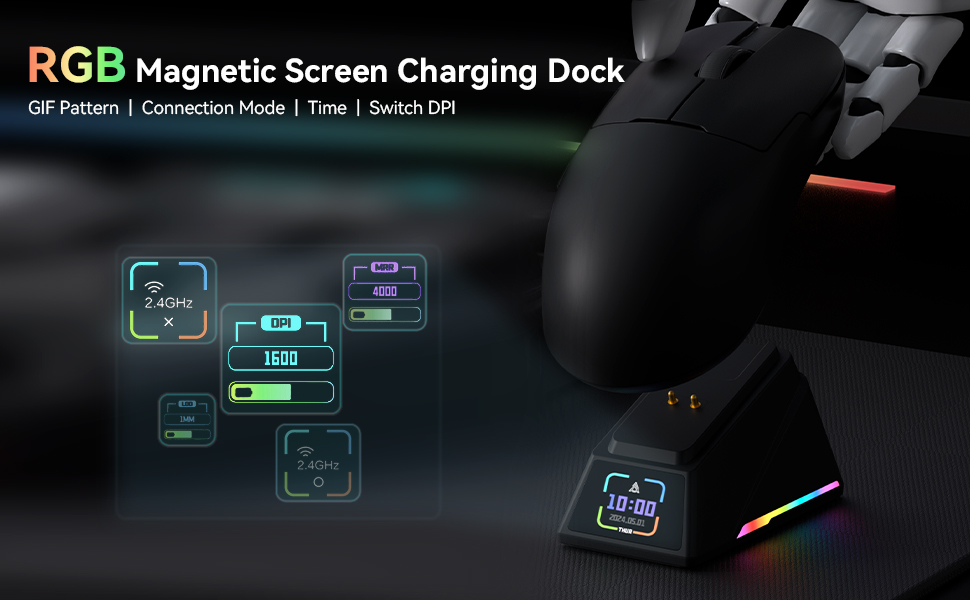
Image: Features of the AJAZZ AJ159 mouse, detailing the 100 million click switches, ice sensation coating, and the rechargeable 400mAh battery.
3. Foot Pad Replacement
The mouse uses pure Teflon (ETFE) foot pads for enhanced wear resistance and smooth gliding. If the foot pads show significant wear, replace them with the provided spares to maintain optimal performance.
Fejlfinding
1. Connectivity Issues (Disconnections/Lag)
- Kontroller forbindelsestilstand: Ensure the switch on the bottom of the mouse is set to the correct mode (2.4G, BT, or USB) for your intended use.
- Batteriniveau: Lavt batteri kan påvirke den trådløse ydeevne. Oplad musen helt.
- Interferens: Move the 2.4GHz dongle closer to the mouse or try a different USB port to reduce potential interference.
- Driveropdatering: Ensure your mouse drivers are up to date by checking QMK.TOP.
- Try Wired Mode: If wireless issues persist, connect the mouse via USB-C cable to rule out wireless interference or battery problems.
2. Opladningsproblemer
- Dokjustering: Ensure the mouse is correctly placed on the magnetic charging dock with contacts aligned. The dock's screen should indicate charging status.
- Kabelforbindelse: If charging via USB-C, ensure the cable is securely connected to both the mouse and the power source/computer.
3. Fejlfunktion i knap eller scrollhjul
- Softwaretjek: Verify button assignments in the driver software. Ensure no buttons are accidentally disabled or remapped incorrectly.
- Rengør knapper: Dust or debris might affect button performance. Gently clean around the buttons and scroll wheel.
Specifikationer
- Modelnummer: AJ159
- Produktdimensioner: 4.7 x 2.5 x 0.1 tommer
- Varens vægt: 1.98 ounces (ca. 56 g)
- Sensor: AJAZZ Custom Flagship PAW3950 APEX Optical Sensor
- DPI: Up to 30,000 DPI (42,000 DPI overclocked)
- IPS: 750
- Acceleration: 50G
- Afstemningsfrekvens: 8000Hz (Wireless), 1000Hz (Wired)
- Forbindelse: 2.4GHZ Wireless, Bluetooth, USB-C Wired
- Kontakter: Huanuo Green-Translucent White Dot Micro Switches (100 Million Click lifespan)
- Belægning: Ice-Feel Coating
- Batteri: 1 lithium-ion batteri (medfølger)
- Særlige funktioner: Ergonomic Design, LED Lights, Lightweight, Programmable Buttons, RGB Magnetic Screen Charging Dock
Garanti og support
The AJAZZ AJ159 APEX mouse comes with a 12-month warranty. If you encounter any problems or require assistance, please contact AJAZZ customer support. We are committed to providing service within 24 hours, even on weekends.
Video: En officiel produktvideoasing the white version of the AJAZZ AJ159 APEX Mouse.
Video: An official product video highlighting the RGB Magnetic Screen Charging Dock and wireless features of the AJ159-APEX mouse.
Video: An official product video demonstrating the lightweight design and wireless capabilities of the AJ159 APEX mouse.