
1. Introduktion
The Machenike K500W is a versatile mechanical gaming keyboard designed for performance and flexibility. It features a compact 94-key layout, tri-mode connectivity (Bluetooth, 2.4G wireless, and wired USB), hot-swappable switches, and customizable RGB backlighting. This manual provides essential information for setting up, operating, maintaining, and troubleshooting your K500W keyboard.
Nøglefunktioner:
- Tri-Mode Connectivity: Bluetooth 5.0, 2.4G Wireless, and Wired USB.
- 94-Key Compact Layout.
- 100% Anti-Ghosting & N-Key Rollover.
- Hot-Swappable Switches (compatible with 3/5-pin switches).
- PBT Doubleshot Keycaps.
- Customizable RGB Backlighting (20 effects, 16.8 million colors).
- Programmable Driver Software.
- Built-in 2500mAh Lithium Battery.
- Lyd Damping Silicone Pad for improved acoustics.
2. Opsætning
2.1 Indledende opladning
Before first use, ensure the keyboard is fully charged. Connect the keyboard to a USB power source using the provided USB-C cable. The charging indicator will show the charging status.
2.2 Tilslutning af tastaturet
The Machenike K500W supports three connection modes:
2.2.1 Kablet tilstand
- Connect the USB-C cable to the keyboard and the other end to your computer's USB port.
- Tastaturet vil automatisk blive genkendt og klar til brug.
2.2.2 2.4G trådløs tilstand
- Locate the 2.4G USB receiver, typically stored in a dedicated slot on the keyboard.
- Sæt 2.4G USB-modtageren i en ledig USB-port på din computer.
- Switch the keyboard's mode selector to 2.4G wireless mode. The keyboard should connect automatically.
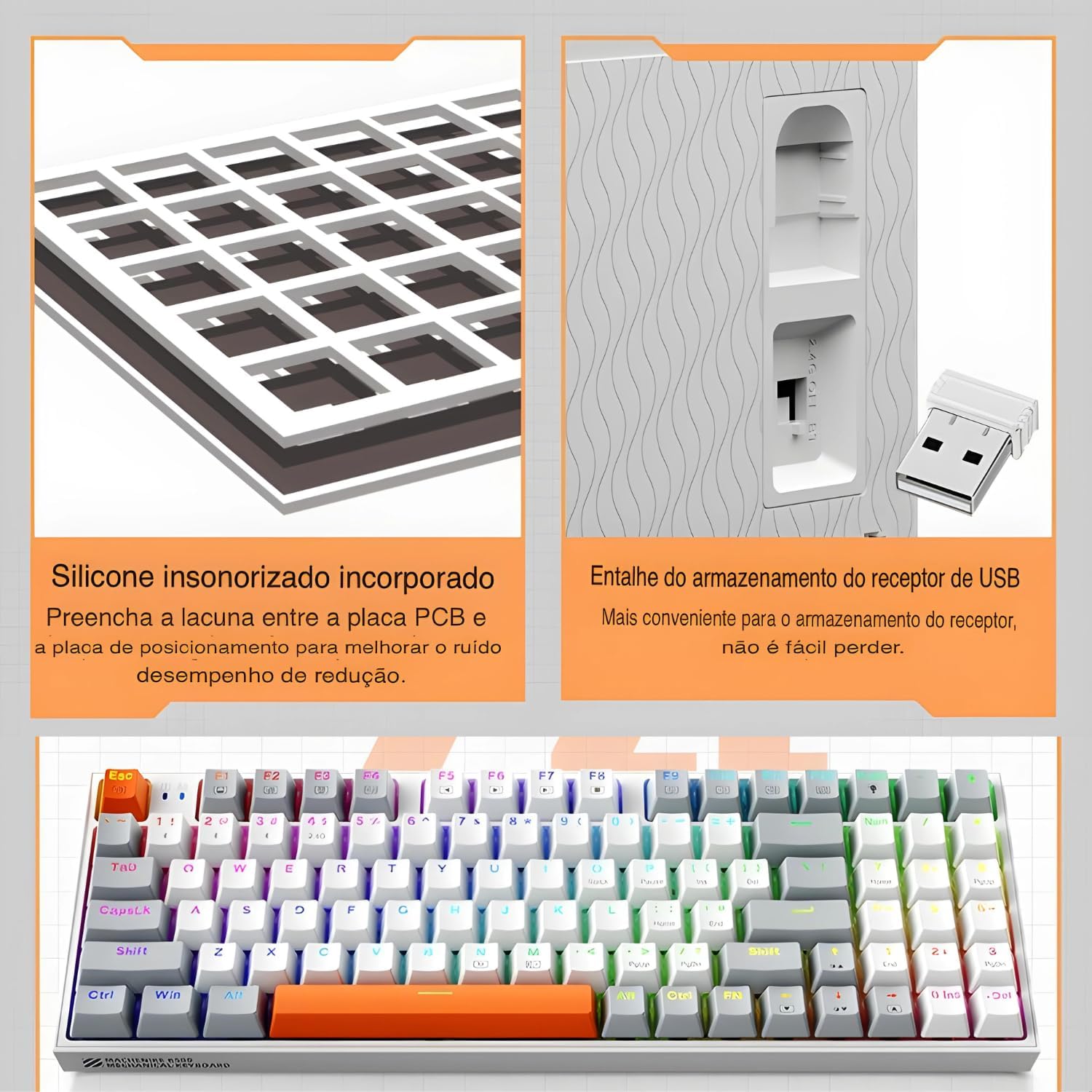
The keyboard features a silicone sound damping pad and a convenient storage slot for the 2.4G USB receiver.
2.2.3 Bluetooth-tilstand
- Skift tastaturets tilstandsvælger til Bluetooth-tilstand.
- Aktiver Bluetooth på din computer eller enhed, og søg efter nye enheder.
- Select "Machenike K500W" from the list of available devices to pair.
- Hvis du bliver bedt om det, skal du indtaste den parringskode, der vises på skærmen.

The Machenike K500W supports tri-mode connectivity, allowing connection to multiple devices like PCs, laptops, and smartphones.
3. Betjeningsvejledning
3.1 Tastlayout og funktioner
The K500W features a compact 94-key layout, providing essential keys while saving desk space. Familiarize yourself with the key positions, especially the function (Fn) key combinations for multimedia and lighting controls.
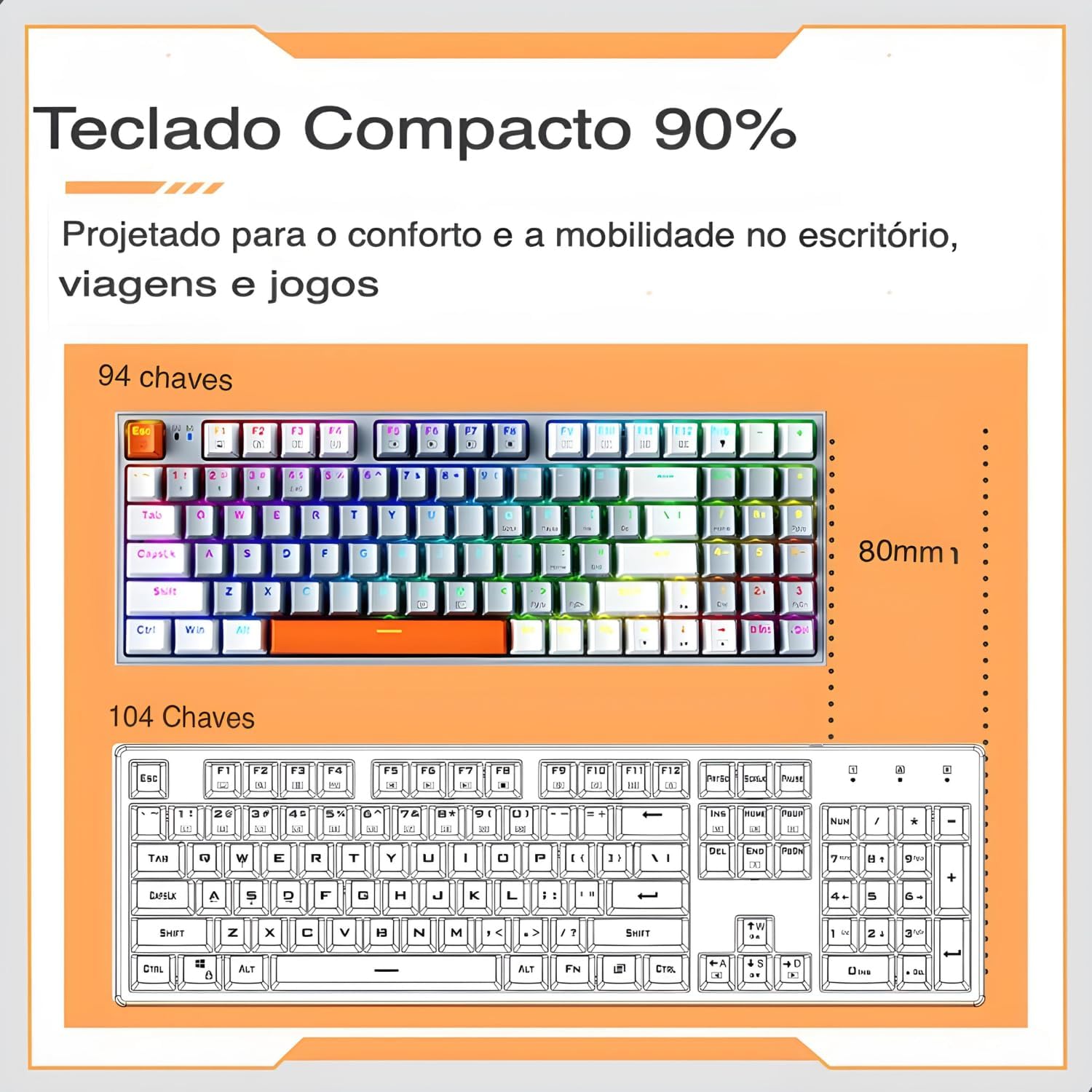
The 94-key compact layout offers more space for mouse movement compared to a 104-key keyboard.
3.2 RGB-baggrundsbelysning
The keyboard features dynamic RGB backlighting with 20 lighting effects and approximately 16.8 million programmable colors. Use the dedicated function keys (often combined with the Fn key) to cycle through lighting modes, adjust brightness, and change speed.
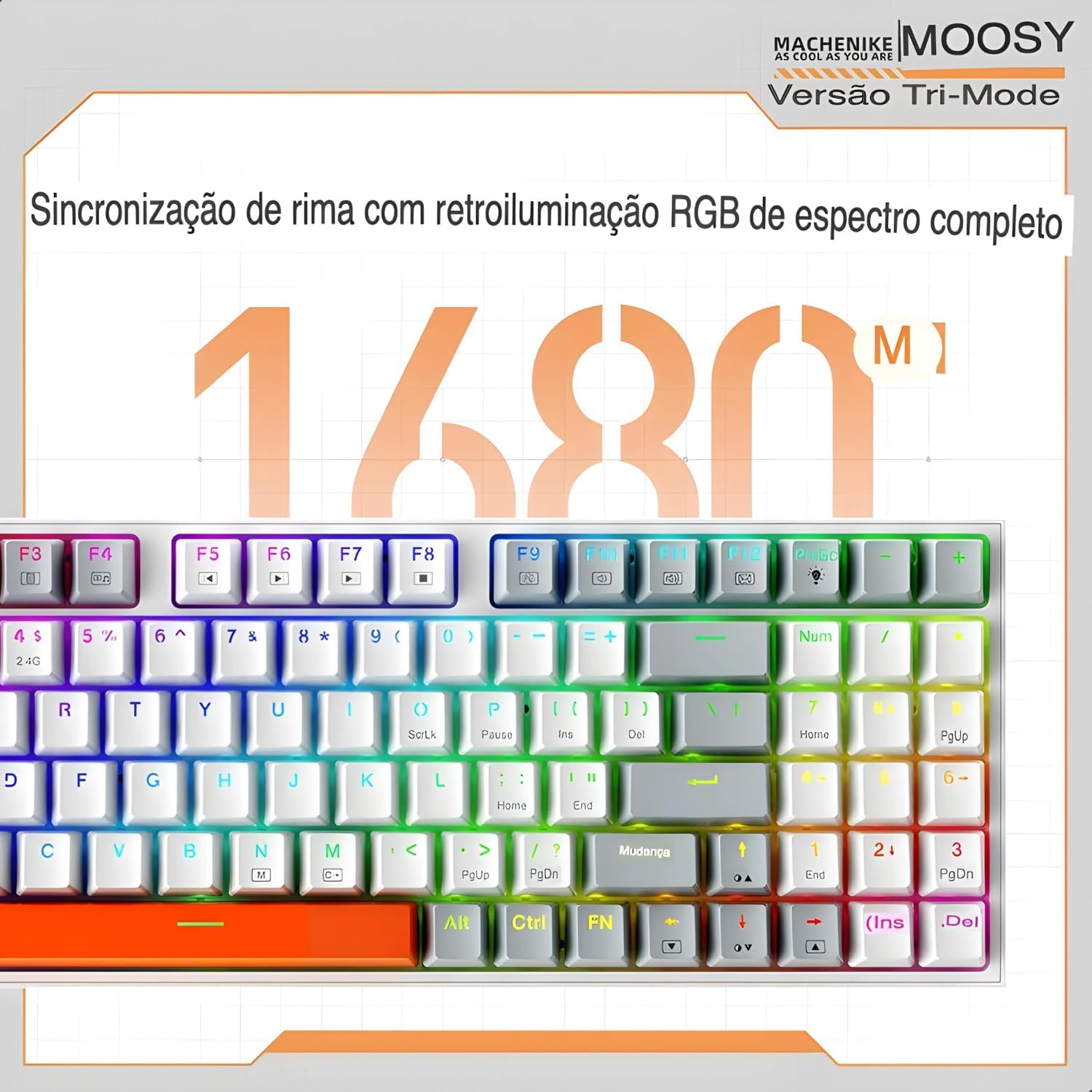
Experience full-spectrum RGB backlighting with 16.8 million colors and various dynamic effects.
3.3 Hot-swap-kontakter
The K500W allows you to easily change mechanical switches without soldering. This feature enables customization of your typing experience. Use the included switch puller to remove existing switches and insert new 3-pin or 5-pin compatible switches.

The hot-swap feature allows for easy installation and replacement of mechanical switches.
3.4 Programmable Driver Software
For advanced customization, download and install the Machenike K500W programmable driver software. This software allows you to remap keys, create macros, and fine-tune RGB lighting effects to your preference.
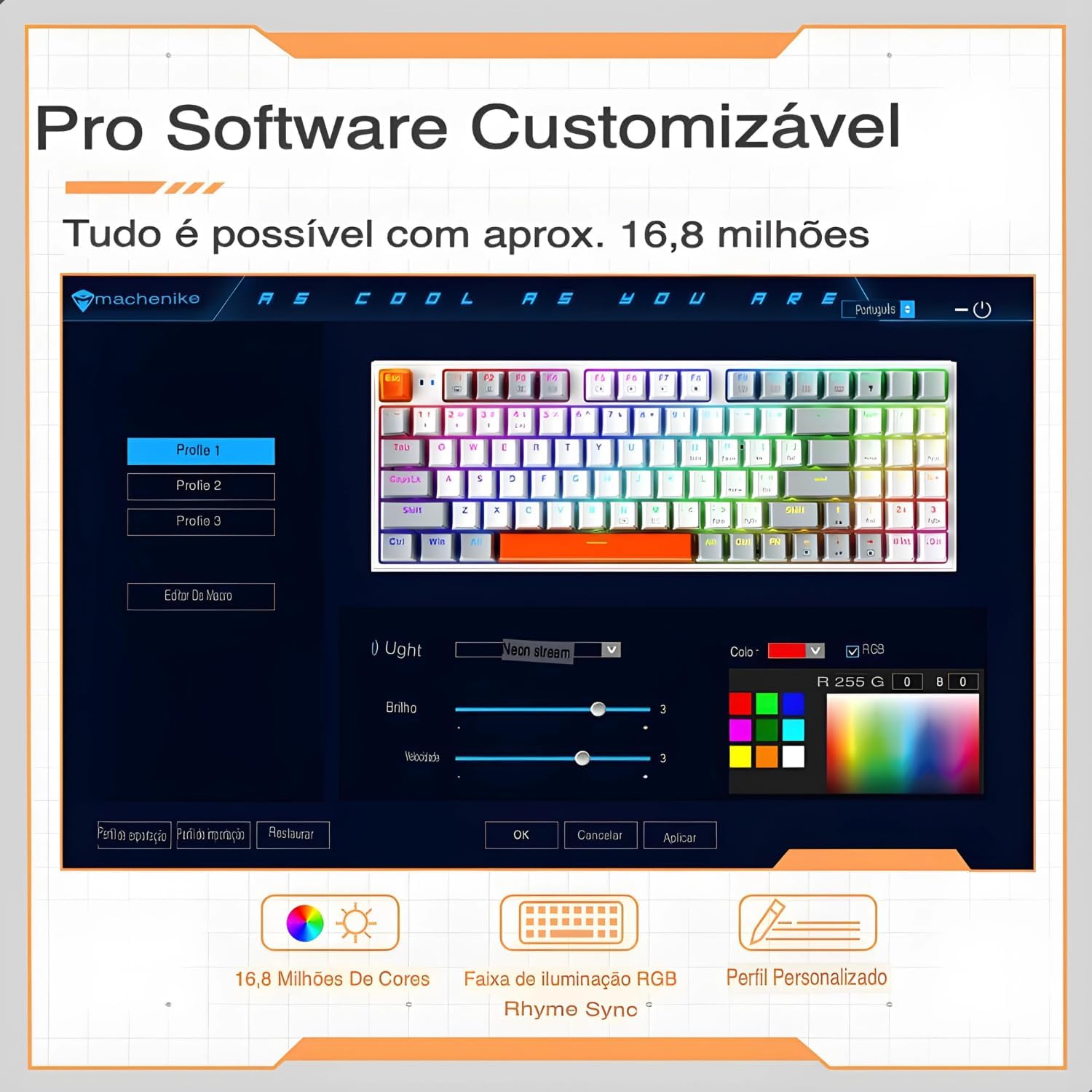
The professional software allows for customizable RGB lighting, macro creation, and personalized profiles.
4. Vedligeholdelse
Korrekt vedligeholdelse sikrer dit tastaturs levetid og optimale ydeevne.
- Undgå spild: Keep liquids away from your mechanical keyboard, as spills can damage the internal circuits.
- Gentle Disconnection: When disconnecting the cable, always pull the plug, not the cable itself, to prevent damage.
- Regelmæssig rengøring: Dust and debris can accumulate and affect performance. Regularly clean your keyboard using compressed air and a soft cloth. For keycaps, you can remove them for a deeper clean.
- Beskyt USB-stikket: When not in use, disconnect and store the keyboard properly to protect the USB connector from damage.
- Softwareopdateringer: Keep the keyboard's software and drivers updated to ensure optimal performance and access to new features.
- Undgå dråber: While mechanical keyboards are durable, severe impacts can still cause damage. Handle with care.
5. Fejlfinding
If you encounter issues with your Machenike K500W keyboard, refer to the following troubleshooting steps:
5.1 Connectivity Issues (Bluetooth or 2.4G Wireless)
- Bluetooth adapter: Use a reputable brand Bluetooth adapter. Other adapters may cause compatibility issues. Refer to your adapter's instructions for installation details.
- Bluetooth aktivering: Before connecting, ensure your computer's Bluetooth adapter is correctly installed and Bluetooth is enabled.
- Genparring: If you cannot connect, disable or delete the existing keyboard connection from your device's Bluetooth settings, then re-pair according to the setup instructions.
- Device Change: If your computer's Bluetooth device has changed, you must re-pair the keyboard.
- Interferens: If your computer's Bluetooth is connected to other devices, check if the Bluetooth speed is adequate or if there's interference.
- 2.4G Anomaly: For 2.4G mode issues, re-pair the keyboard and device by removing the 2.4G receiver and inserting it into another valid USB port.
- Driftsområde: Ensure the keyboard is used within a 10-meter working range from the receiver/device.
5.2 Indikation for lavt batteriniveau
If the keyboard shows a low battery indication, connect it to a USB power source using the provided cable to charge it. Refer to section 2.1 for initial charging instructions.
6. Specifikationer
| Feature | Detalje |
|---|---|
| Mærke | Machenike |
| Modelnummer | K500W |
| Forbindelsesteknologi | Bluetooth 5.0, 2.4G Wireless, Wired (USB-C) |
| Tastaturbeskrivelse | Mekanisk |
| Nøglemængde | 94 nøgler |
| Switch Type | Hot-swappable (3/5-pin compatible) |
| Keycap materiale | PBT Doubleshot Plastic |
| Understøttelse af baggrundsbelysning | RGB (20 tilstande, 16.8 millioner farver) |
| Batterikapacitet | 2500mAh lithium batteri |
| Kompatible enheder | PC, bærbar, tablet |
| Dimensioner | 36 x 13 x 5 cm (omtrentligt) |
| Særlige funktioner | Anti-ghosting, N-key rollover, Programmable, Sound Dampi Pad |

Overview of the Machenike K500W's main features and specifications.
7. Garanti og support
7.1 Garantioplysninger
Dette produkt leveres med en 90 dages garanti from the date of purchase. The warranty covers manufacturing defects and malfunctions under normal use. It does not cover damage caused by misuse, accidents, unauthorized modifications, or normal wear and tear.
7.2 Kundesupport
For technical assistance, warranty claims, or any questions regarding your Machenike K500W keyboard, please contact the seller or manufacturer's customer support. Refer to your purchase documentation for contact details.