
symcode MJ-5090
Symcode 2D Embedded Barcode Scanner MJ-5090 User Manual
Model: MJ-5090
1. Introduktion
The Symcode MJ-5090 is a high-performance 2D embedded barcode scanner engineered for seamless integration into various systems, including automated production lines, kiosks, and self-service terminals. Its robust design and versatile scanning capabilities make it an ideal solution for efficient data capture. This manual provides essential information for setting up, operating, and maintaining your MJ-5090 scanner.
2. Produktet er slutview
The Symcode MJ-5090 scanner features a compact, ultra-rugged metal housing designed for durability and easy embedding. It connects via a standard USB cable, ensuring broad compatibility with various host devices.
2.1 Komponenter
- Symcode MJ-5090 Barcode Scanner Unit
- Integreret USB-kabel
2.2 Nøglefunktioner
- Automatic Sensing: Automatically scans barcodes when they enter the scanning area.
- Manuel udløsertilstand: Allows scanning only when the trigger button is pressed.
- Bred kompatibilitet: Supports 1D, 2D, and QR codes, including UPC, Code 128, PDF417, and more.
- Plug and Play: Ingen driverinstallation kræves for de fleste operativsystemer.
- Holdbar konstruktion: Ultra-rugged zinc alloy metal cover for industrial-grade quality.

Figure 1: Symcode MJ-5090 Barcode Scanner with USB cable.

Figure 2: The scanner's durable zinc alloy casing.
3. Opsætning
The MJ-5090 scanner is designed for easy installation and use. Follow these steps to set up your device:
3.1 Tilslutning af scanneren
- Ensure your host device (e.g., laptop, desktop computer, KIOSK) is powered on.
- Connect the USB cable of the MJ-5090 scanner to an available USB port on your host device.
- The scanner will be recognized automatically by most operating systems as a keyboard device. No additional drivers are typically required.
- Once connected, the scanner is ready for operation.

Figure 3: Plug & Play connection to a computer.
4. Betjening
The MJ-5090 offers two primary scanning modes to accommodate various application needs.
4.1 Automatic Sensing Mode
In this mode, the scanner automatically detects and scans barcodes when they are presented within its field of view. This is ideal for high-throughput environments where items pass by the scanner continuously.
- Ensure the automatic scanning function is enabled (refer to programming guide if specific configuration is needed).
- Position the barcode within the scanner's reading window.
- The scanner will automatically illuminate and capture the barcode data, transmitting it to the connected device.

Figure 4: Auto-sensing scanning in action.
4.2 Manual Trigger Mode
For applications requiring controlled scanning, the manual trigger mode allows the scanner to activate only when its physical trigger button is pressed.
- Ensure the manual scanning function is enabled (refer to programming guide if specific configuration is needed).
- Press the orange trigger button on the scanner.
- Position the barcode within the scanner's reading window while holding the button.
- Release the button after a successful scan.

Figure 5: Comparison of Trigger Mode and Auto-sensing Scanning Mode.
4.3 Understøttede stregkodetyper
The MJ-5090 is capable of decoding a wide array of 1D and 2D barcode symbologies, even those that are blurred or incomplete.
- 1D-koder: UPC-A, UPC-E, EAN-13, EAN-8, Code 39, Code 93, Code 128, Codabar, Interleaved 2 of 5, ISBN, GS1 Databar, etc.
- 2D-koder: QR Code, PDF417, Data Matrix, etc.
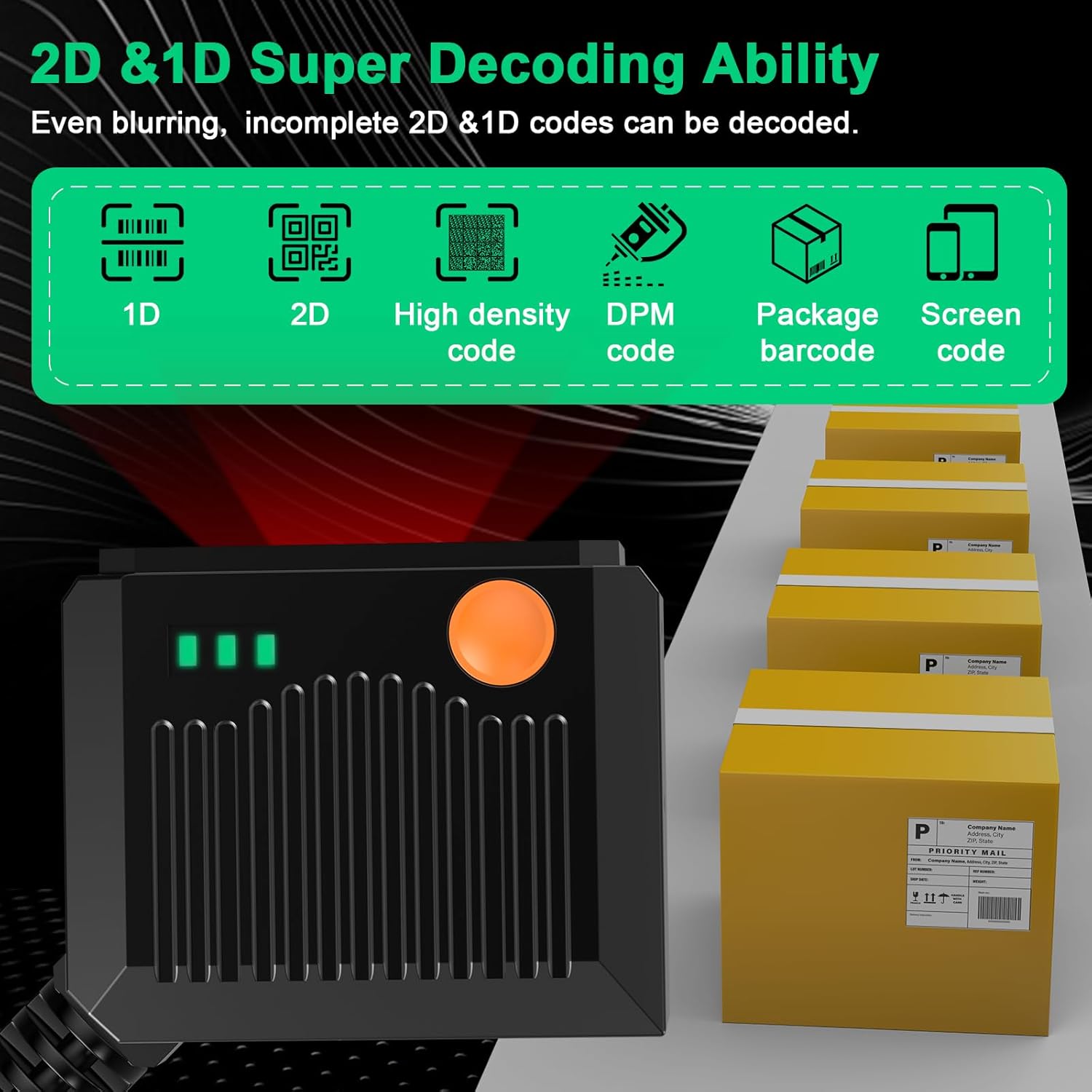
Figure 6: 2D & 1D Super Decoding Ability.
5. Vedligeholdelse
Korrekt vedligeholdelse sikrer scannerens levetid og optimale ydeevne.
- Rensning: Brug en blød, ren klud letampened with water or a mild, non-abrasive cleaner to wipe the scanner's exterior. Avoid harsh chemicals or abrasive materials that could damage the housing or scanning window.
- Scanningsvindue: Keep the scanning window clean and free of dust, smudges, or scratches. A dirty window can impair scanning performance.
- Opbevaring: Opbevar scanneren et køligt, tørt sted væk fra direkte sollys og ekstreme temperaturer, når den ikke er i brug.
- Håndtering: Although rugged, avoid dropping the scanner or subjecting it to severe impacts.
6. Fejlfinding
If you encounter issues with your Symcode MJ-5090 scanner, refer to the following common problems and solutions:
| Problem | Mulig årsag | Løsning |
|---|---|---|
| Scanneren tænder ikke eller reagerer ikke. | Loose USB connection; Faulty USB port; Power issue with host device. | Ensure USB cable is securely connected. Try a different USB port or host device. |
| Scanneren læser ikke stregkoder. | Barcode damaged or poor quality; Incorrect scanning mode; Dirty scanning window; Unsupported barcode type. | Check barcode quality. Ensure correct scanning mode (auto-sensing or manual trigger). Clean the scanning window. Verify barcode type is supported. |
| Stregkodedataene er forkerte eller ufuldstændige. | Partial scan; Incorrect symbology settings; Data formatting issue. | Ensure the entire barcode is within the scanning area. Refer to the programming guide for symbology and data formatting settings. |
| Scanner is slow to respond. | Interference; Host device performance. | Ensure no obstructions or strong light sources interfere with scanning. Check host device performance. |
If the problem persists after attempting these solutions, please contact Symcode customer support for further assistance.
7. Specifikationer
Technical specifications for the Symcode MJ-5090 barcode scanner:
| Feature | Detalje |
|---|---|
| Modelnummer | MJ-5090 |
| Dimensioner | 5.31 x 4.25 x 2.13 tommer (pakke) |
| Varens vægt | 6.4 ounce |
| Forbindelsesteknologi | USB kabel |
| Strømkilde | Elektrisk med ledning |
| Kompatible enheder | Stationær, bærbar |
| Scanningshastighed | 900 32. pladser |
| Fabrikant | symbolkode |

Figure 7: Scanner dimensions and cable length.
8. Garanti og support
For warranty information and technical support, please refer to the documentation included with your purchase or visit the official Symcode webwebsted. Behold din købskvittering som købsbevis i tilfælde af garantikrav.
Kontaktoplysninger: Please refer to the Symcode official website or your product packaging for the most up-to-date contact details for customer service and technical support.
Ask a question about this manual
Ask about setup, troubleshooting, compatibility, parts, safety, or missing instructions. Manuals+ will review the question and use this page’s manual context to help answer it.