
ZTUZAUTO 64cb960d-d251-45fd-a06c-4a253a4add8a
ZTUZAUTO Wireless CarPlay Android Auto Retrofit Kit User Manual
Model: ZTUZAUTO Audi MMI 2G Retrofit Kit
For Audi A3 (2012-2018) and Audi Q3 (2013-2018) with MMI 2G System
1. Introduktion
This manual provides detailed instructions for the installation, setup, and operation of your ZTUZAUTO Wireless CarPlay Android Auto Retrofit Kit. This kit is designed to integrate advanced smartphone connectivity into your Audi's existing MMI 2G system, enhancing your driving experience with features like wireless CarPlay, Android Auto, and mirror linking.
Læs venligst denne manual grundigt inden installation og brug for at sikre korrekt funktionalitet og undgå skader på dit køretøj eller produktet.
2. Kompatibilitet
This retrofit kit is specifically designed for the following Audi models equipped with the MMI 2G System:
- Audi A1 (Model Years: 2012-2018)
- Audi Q3 (Model Years: 2013-2018)
Important: This kit is only compatible with vehicles featuring the MMI 2G System. Please verify your vehicle's MMI system version before proceeding with installation.

Image: Compatible Model List for Audi MMI 2G System, indicating RMC version, Audi model, years 2012-2018, and 6.5" screen size.
3. Nøglefunktioner
- Trådløs CarPlay og Android Auto: Seamless integration for navigation, calls, messages, and music via Siri or Google Assistant.
- Funktionalitet for spejllink: Supports Airplay (for iOS) and AutoLink (for Android) to mirror your phone screen for YouTube, TV news, photos, and navigation.
- Enhanced Camera Support: Automatic activation of the reverse camera when shifting into reverse. Supports aftermarket reverse cameras, 360-degree cameras, and front view camera DVR with dynamic guidance lines.
- Plug and Play installation: Designed for direct connection with original car wiring, eliminating the need for cutting or breaking wires. Retains the factory screen.
- Original bilfunktionalitet: Maintains full functionality of original car controls, including steering wheel buttons and MMI controls for navigation and audio.

Image: Dashboard display showcasing both Wireless CarPlay and Android Auto interfaces, highlighting various compatible applications.

Image: Visual representation of the product's core functionalities: Wireless CarPlay, Wireless Android Auto, and Wireless Mirror Link.
4. Pakkens indhold
Please ensure all items are present before beginning installation:
- ZTUZAUTO CarPlay/Android Auto Module
- Strømkabel
- WiFi antenne
- LVDS In Cable
- LVDS Out Cable
- DB Cable
- Mikrofon
- Installation Manual & Tool (if included)

Image: Contents of the product package, including the main module and various connecting cables and accessories.
5. Installationsvejledning
The installation process involves connecting the retrofit kit to your vehicle's existing wiring harness. It is designed to be plug-and-play without requiring wire cutting. However, professional installation is recommended if you are not familiar with car electronics.
5.1. Forholdsregler
- Before installation, ensure your car's model and year are compatible with the kit.
- Refer to the provided wiring diagram and dial code (if applicable) that matches your car's model.
- After installation, confirm all functions of the module work correctly before reassembling the dashboard to avoid inconvenience.
- Frakobl bilbatteriet, før du påbegynder elektrisk arbejde.
5.2. General Steps (Refer to specific wiring diagram for your model)
- Carefully remove the necessary trim panels and the original MMI unit from your dashboard.
- Connect the provided power cable to the original car's power harness.
- Connect the LVDS IN and LVDS OUT cables between the original MMI unit and the new module.
- Connect the WiFi antenna and microphone to the module.
- If installing a reverse camera, connect its wiring to the designated input on the module.
- Securely mount the module in a suitable location behind the dashboard.
- Test alle funktioner, før instrumentbrættet samles helt igen.

Image: Illustration of the plug-and-play installation, emphasizing no wire cutting and retention of the factory screen.
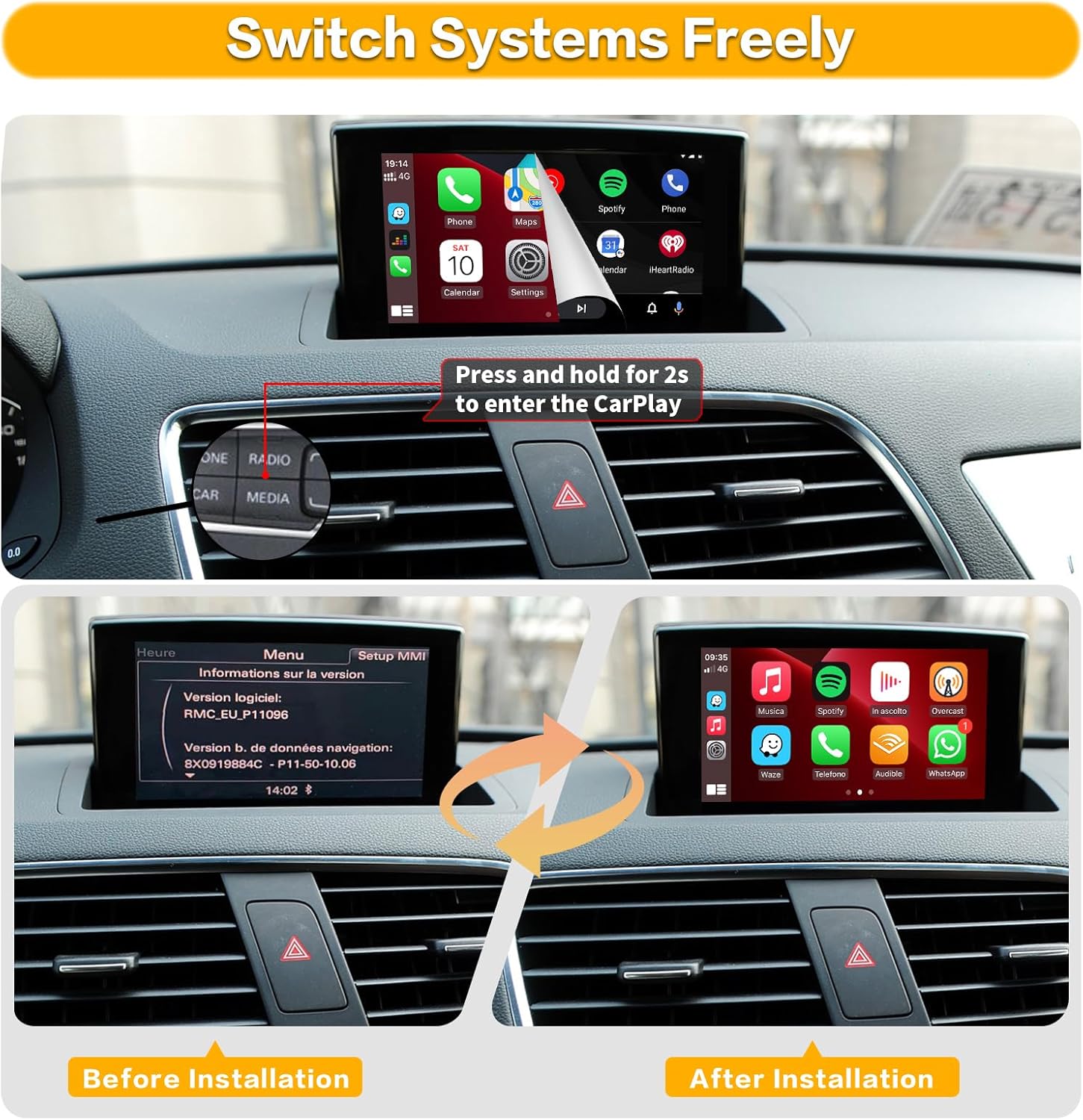
Image: Comparison of the car's display before and after the retrofit kit installation, showing the transition from the original MMI menu to the CarPlay interface.

Image: Instructions for setting up audio via AUX input or Bluetooth, and wiring for original and aftermarket reverse cameras.
5.3. Installationsvideo
Video: Detailed installation guide for the Road Top Wireless Carplay Module for Audi Car. This video demonstrates the physical installation process.
6. Første opsætning og tilslutning
6.1. Trådløs CarPlay-forbindelse
- Sørg for, at din iPhones Bluetooth og Wi-Fi er aktiveret.
- On your car's screen, navigate to the CarPlay interface.
- On your iPhone, go to Bluetooth settings and search for the device named "ZTUZAUTO Box_FXX" (where FXX is a specific identifier).
- Pair your iPhone with the device. Confirm the pairing code on both your phone and the car screen.
- Once paired via Bluetooth, your iPhone will prompt you to enable CarPlay. Accept the prompt.
- CarPlay should now connect wirelessly.
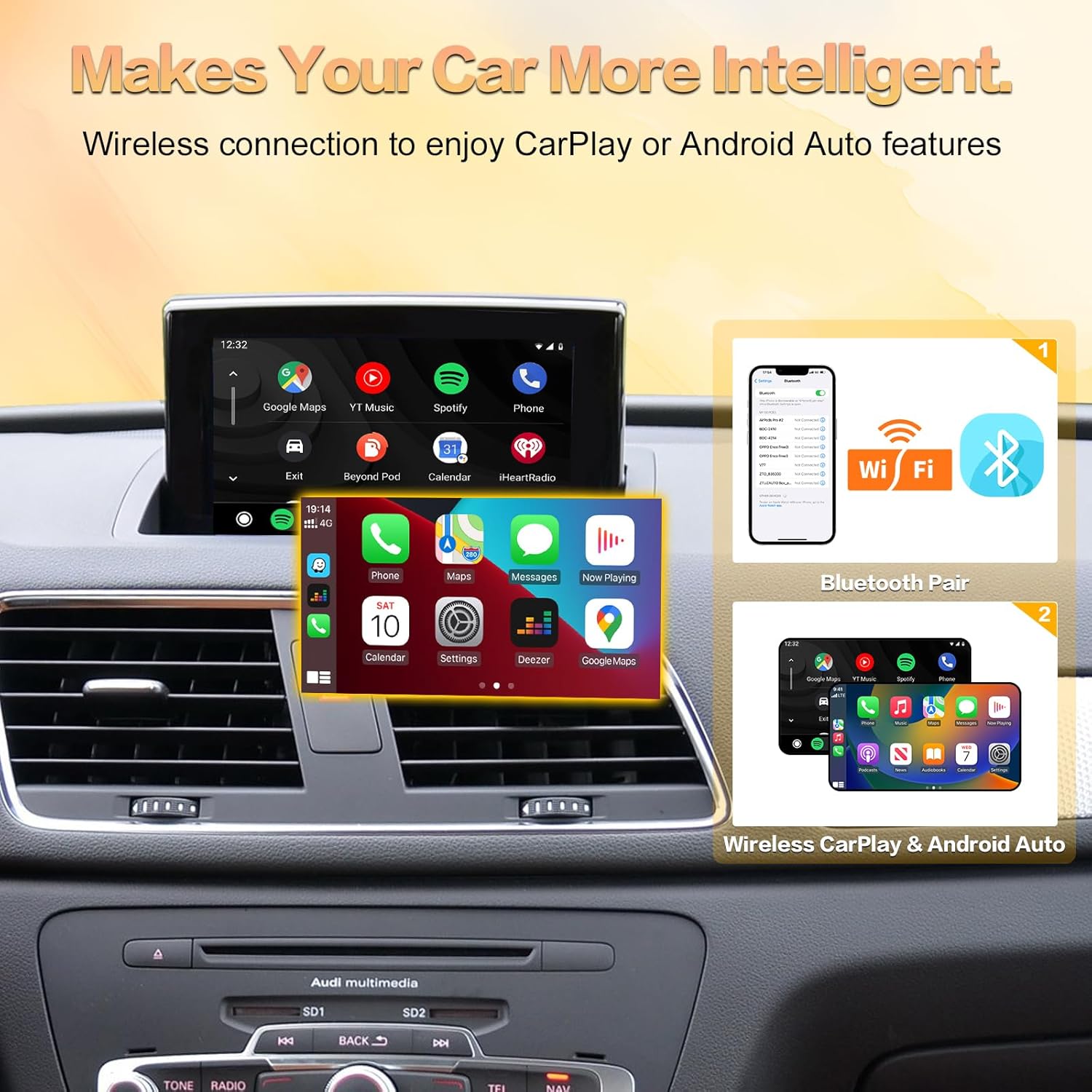
Image: Step-by-step visual guide for connecting your smartphone to the system via Bluetooth and Wi-Fi for wireless CarPlay or Android Auto.
6.2. Trådløs Android Auto-forbindelse
- Sørg for, at din Android-telefons Bluetooth og Wi-Fi er aktiveret.
- On your car's screen, navigate to the Android Auto interface.
- On your Android phone, go to Bluetooth settings and search for the device named "ZTUZAUTO Box_FXX".
- Pair your Android phone with the device. Confirm the pairing code on both your phone and the car screen.
- Once paired via Bluetooth, Android Auto should connect wirelessly.
6.3. Lydopsætning
To ensure audio from the CarPlay/Android Auto module plays through your car's speakers:
- Method 1 (AUX Input):
- Disconnect Bluetooth between your phone and your car's original system.
- Set your car's audio source to "AUX".
- Enter the "Media" interface and select "External audio input".
- Method 2 (Bluetooth):
- Access the Settings interface -> Factory Mode -> Phone Link setting -> Open the option "Disable phone link audio" -> Reboot.
- Then pair your smartphone with the original vehicle's Bluetooth.
- Select the original car Bluetooth for both the phone and music sound sources in the original car media settings.
6.4. Connection Video
Video: Demonstration of wireless CarPlay and Android Auto connection steps, showing phone pairing and interface display.
7. Betjening
7.1. Skift mellem systemer
To switch between the original MMI system and the CarPlay/Android Auto interface, press and hold the "NAV" or "MEDIA" button on your car's controls for approximately 2 seconds.
7.2. Brug af CarPlay/Android Auto
Once connected, your car's screen will display the CarPlay or Android Auto interface. You can interact with it using:
- Original MMI Controls: Use the central control panel (rotary knob and surrounding buttons) to navigate and select options.
- Ratknapper: Utilize the steering wheel controls for volume adjustment, track skipping, and activating voice commands.
- Stemmestyring: Activate Siri (for CarPlay) or Google Assistant (for Android Auto) by pressing the voice command button on your steering wheel or saying "Hey Siri" / "Hey Google" (if enabled).

Image: Demonstration of how the original car's steering wheel buttons and central control panel can be used to operate the CarPlay interface.

Image: Visual guide to using the Intelligent Voice System with Siri for CarPlay and Google Assistant for Android Auto, including exampkommandoerne.
7.3. Spejllink
The Mirror Link function allows you to display your smartphone's screen directly on the car's display. This is useful for apps not natively supported by CarPlay or Android Auto, such as YouTube.
- For iOS devices, use Airplay.
- For Android devices, use AutoLink.
Video: Demonstration of the Road Top Wireless Carplay Android Auto Retrofit Kit in action, showcasing various features including mirror link.
8. Fejlfinding
| Problem | Mulig årsag | Løsning |
|---|---|---|
| Ingen visning efter installation. | Incorrect wiring, loose connections, or incorrect MMI system selection. | Double-check all cable connections. Ensure the LVDS cables are correctly inserted. Verify your MMI system is 2G. |
| No sound from CarPlay/Android Auto. | Incorrect audio source selected in the car's MMI, or phone Bluetooth not properly configured. | Ensure your car's audio source is set to AUX. Follow the audio setup instructions in Section 6.3. |
| Trådløs CarPlay/Android Auto kan ikke oprette forbindelse. | Bluetooth or Wi-Fi issues on phone, incorrect pairing, or module not powered correctly. | Restart your phone and the car's MMI system. Forget the device in your phone's Bluetooth settings and re-pair. Ensure Wi-Fi is enabled on your phone. |
| Steering wheel controls not working with CarPlay/Android Auto. | Module not fully integrated or specific settings required. | Ensure all CANBUS connections are secure. Check module settings for steering wheel control configuration. |
| Voice commands (Siri/Google Assistant) not responding. | Microphone not connected, or system not configured to use the module's microphone. | Verify the microphone is securely connected to the module. Check module settings for microphone input. |
9. Specifikationer
- Produktdimensioner: 0.33 x 5.59 x 0.09 tommer
- Varens vægt: 2.31 pund
- Forbindelse teknologi: Bluetooth, WiFi
- Controller type: Android, Google Assistent, iOS
- Særlige funktioner: Amazon Music, Android Auto, Apple CarPlay, Built-In Bluetooth, Spotify
- Kompatible enheder: Smartphone, højttaler
- Samlet HDMI-porte: 1
- Connector Type: USB, HDMI, RCA
- Lydudgangstilstand: Omgive
- Surround Sound Kanalkonfiguration: 4.0
- Videokodning: H.264, H.265/HEVC, MPEG-4 osv.
10. Garanti og support
This ZTUZAUTO Wireless CarPlay Android Auto Retrofit Kit comes with a 1-års garanti fra købsdatoen.
For technical support, installation assistance, or any questions regarding your product, please contact ZTUZAUTO customer service. We aim to provide after-sales technical support within 24 hours.
For yderligere hjælp, besøg venligst ZTUZAUTO Store on Amazon.
Ask a question about this manual
Ask about setup, troubleshooting, compatibility, parts, safety, or missing instructions. Manuals+ will review the question and use this page’s manual context to help answer it.