
1. Introduktion
This manual provides comprehensive instructions for the iggual VFD 7-inch POS Display, Model IGG319086. This device is designed to enhance transaction transparency for both customers and operators in Point of Sale (POS) environments. Please read this manual thoroughly before operating the device to ensure proper setup and functionality.

Figure 1: iggual VFD 7-inch POS Display. This image shows the front view of the VFD display unit mounted on its adjustable stand, displaying sampteksten.
2. Produktegenskaber og specifikationer
The iggual VFD 7-inch POS Display offers robust features for reliable operation:
- Skærmtype: Vakuumlysstofdisplay (VFD)
- Character Capacity: 40 characters (20 columns x 2 lines)
- Lysstyrke: 500 - 1,000 cd/m²
- Character Type: 95 Alphanumeric, 32 International Character font
- Skrifttype: 5x7 dot matrix
- Tegnstørrelse: 9.02 (H) x 5.25 (W) mm
- Forbindelsesgrænseflade: USB-A (built-in USB cable)
- Kabellængde: 1.5 meter
- Justerbar højde: From 263 mm (min) to 395 mm (max)
- Viewvinkel: Maksimalt 128°
- Vandret rotation: Maksimalt 355°
- Lodret rotation: 0° - 38°
- Command Modes: LD220, EP-POS D101, AEDEX, UTC/S, UTC/P, ADM788, DSP800, CD5220, EMAX, LOGIC CONTROL
- Gennemsnitlig levetid: 30,000 timer
- Strømforbrug: 5V to 24V (DC)
- Varens vægt: 2.64 pund (ca. 1.2 kg)
3. Opsætning og installation
Follow these steps to set up your iggual VFD POS Display:
3.1 Udpakning
Carefully remove all components from the packaging. Ensure the display unit, stand, and USB cable are present.
3.2 Fysisk samling
- Attach the display unit to the adjustable column.
- Secure the adjustable column to the base.
- Adjust the height of the display column to your preferred viewing level. The height can be adjusted from 263 mm to 395 mm.

Figure 2: Display Dimensions. This image illustrates the physical dimensions of the iggual VFD display, including its panel size, base size, and adjustable height range.
3.3 Connecting the Display
- Locate the built-in USB-A cable extending from the display unit.
- Connect the USB-A connector to an available USB port on your Point of Sale (POS) system or computer.
- The display is powered via the USB connection.

Figure 3: Connection Interface. This image shows the USB-A connection interface and the 1.5-meter cable length for the iggual VFD display.
3.4 Driverinstallation (hvis nødvendigt)
In most modern operating systems, the display will be recognized automatically as a standard HID (Human Interface Device) or serial device. If your POS software or operating system requires specific drivers, please refer to your POS system's documentation or the iggual support webwebsted for download af drivere.
4. Betjening
Once connected and recognized by your POS system, the iggual VFD display will begin to show information transmitted from your POS software.
4.1 Visning af information
The display operates by receiving commands and data from your POS software. Ensure your POS application is configured to output data to the VFD display using one of the supported command modes (e.g., LD220, EP-POS D101, AEDEX, UTC/S, UTC/P, ADM788, DSP800, CD5220, EMAX, LOGIC CONTROL).
4.2 Justering Viewing Angle and Rotation
The display unit offers flexibility for optimal viewing:
- Vandret rotation: The display can be rotated horizontally up to 355° on its stand.
- Lodret rotation: The display head can be tilted vertically from 0° to 38°.
- Viewvinkel: The VFD technology provides a wide viewing angle of up to 128°.

Figure 4: Adjustable Properties. This image illustrates the horizontal and vertical rotation capabilities, as well as the wide viewing angle of the VFD display.

Figure 5: Character and Brightness Specifications. This image highlights the display's character capacity (40 characters, 2 lines) and brightness range (500-1000 cd/m²).
5. Vedligeholdelse
Proper maintenance ensures the longevity and optimal performance of your VFD display.
- Rensning: Use a soft, dry, lint-free cloth to clean the display surface. For stubborn smudges, slightly dampRengør kluden med vand eller et mildt, ikke-slibende skærmrensemiddel. Sprøjt ikke væsker direkte på skærmen.
- Undgå barske kemikalier: Do not use alcohol, ammonia-based cleaners, or abrasive materials, as these can damage the display surface.
- Miljøforhold: Operate the display within recommended temperature and humidity ranges to prevent damage. Avoid exposing the unit to extreme temperatures or direct sunlight for extended periods.
6. Fejlfinding
If you encounter issues with your iggual VFD display, refer to the following troubleshooting steps:
- Displayet er tomt:
- Ensure the USB cable is securely connected to both the display and the POS system/computer.
- Verify that the POS system/computer is powered on and functioning correctly.
- Check if the POS software is configured to send data to the display.
- Try connecting the display to a different USB port or another computer to rule out port issues.
- Incorrect characters or garbled text:
- Confirm that the correct command mode is selected in your POS software, matching one of the supported modes (LD220, EP-POS D101, etc.).
- Ensure the baud rate settings in your POS software match the display's default or configured baud rate.
- Check for any driver updates for the display or your POS system.
- Displayet er svagt eller flimrende:
- Ensure the display is receiving adequate power from the USB port. Try a powered USB hub if available.
- Check for environmental factors like extreme temperatures.
- Kontakt teknisk support, hvis problemet fortsætter.
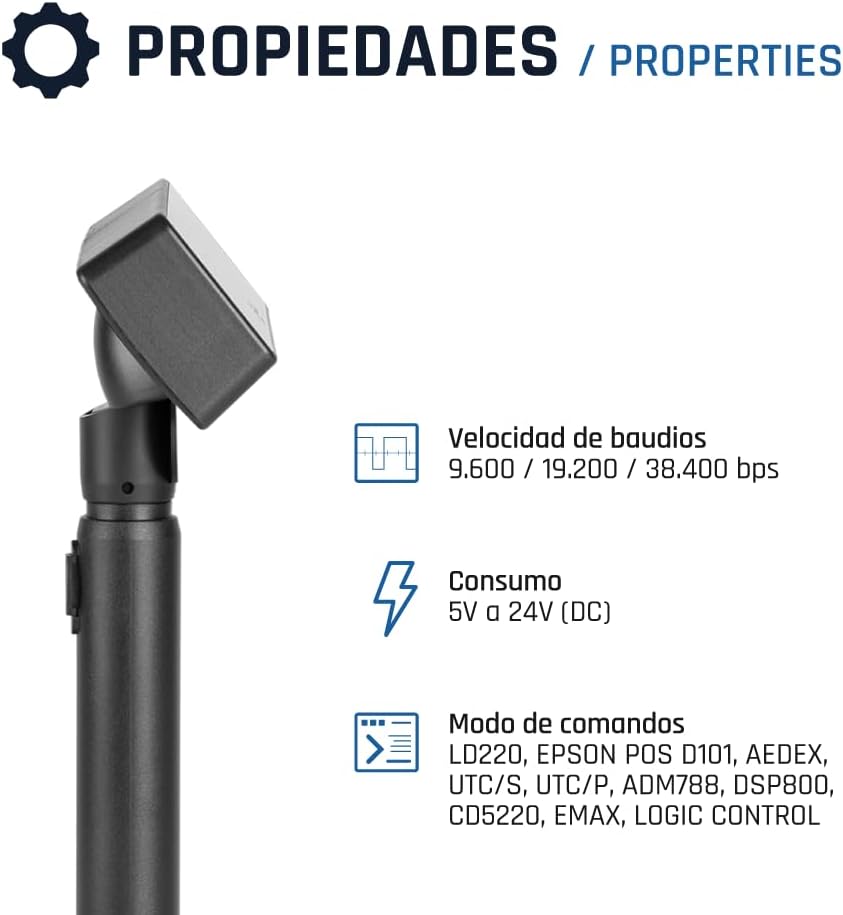
Figure 6: Technical Specifications. This image details the supported baud rates (9.600 / 19.200 / 38.400 bps), power consumption (5V to 24V DC), and command modes for the display.
7. Garanti og support
For warranty information, please refer to the warranty card included with your product or visit the official iggual website. If you require technical assistance or have questions not covered in this manual, please contact iggual customer support through their official channels.
Online support: www.iggual.com/support