
1. Introduktion
The BoxWave AllReader SD Card Reader is a versatile and compact device designed for easy file transfer between various digital devices and SD or microSD cards. It features multiple interfaces to ensure broad compatibility with smartphones, tablets, laptops, and desktop PCs. This manual provides instructions for setting up, operating, and maintaining your AllReader SD Card Reader.
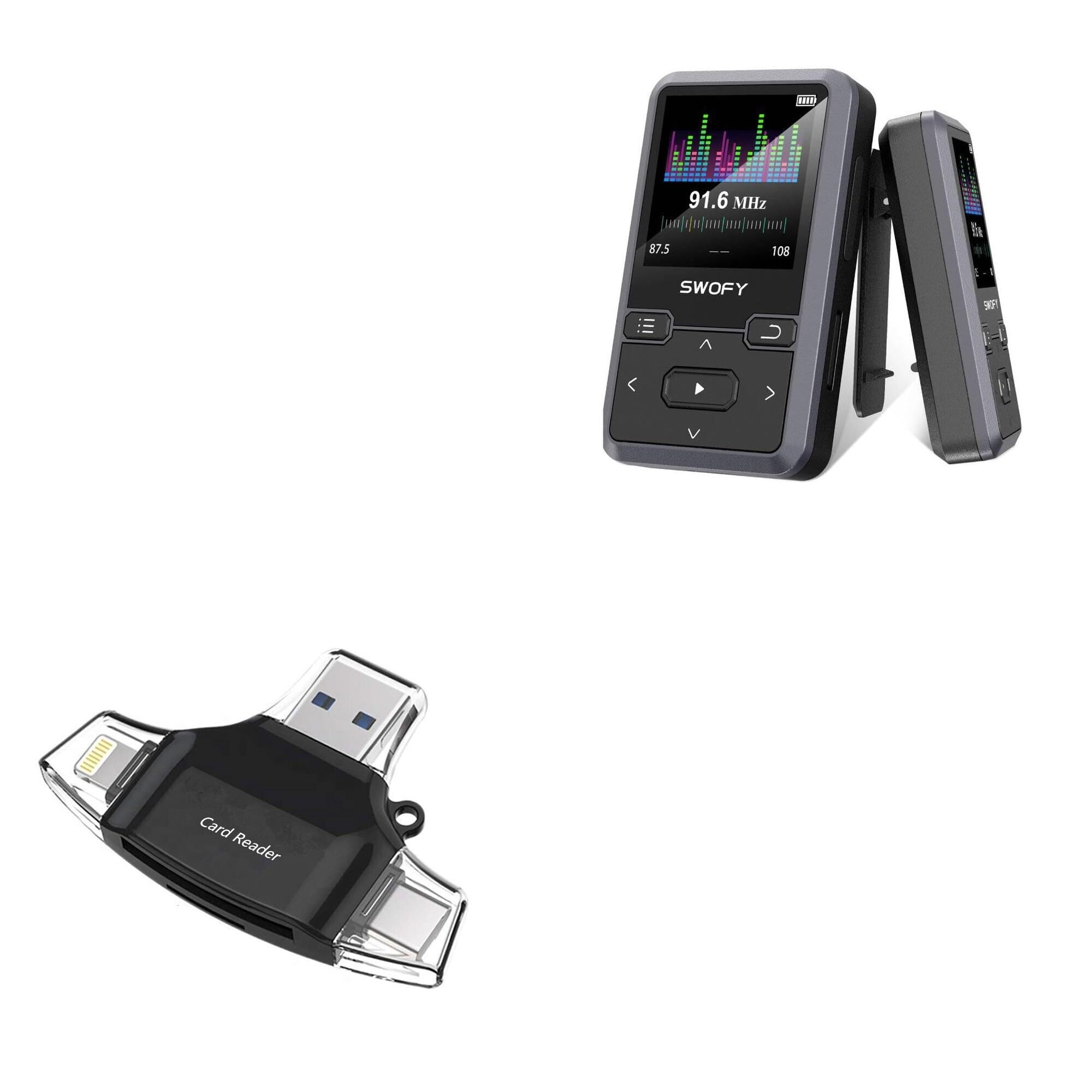
Image: The BoxWave AllReader SD Card Reader, showcasing its compact design and various connector types.
2. Produktfunktioner
- Four Interfaces: Equipped with USB-C, USB-A, Micro-USB, and Apple/Lightning connectors for maximum device compatibility.
- Let File Overførsel: Facilitates quick and straightforward transfer of photos, videos, music, and other files between your memory cards and devices.
- Plug and Play: No drivers or complex software installation required. Simply connect and use.
- Kompakt design: Small and portable, designed to fit easily in your pocket, bag, or purse.
- Universal Card Compatibility: Supports both standard SD cards and microSD cards.
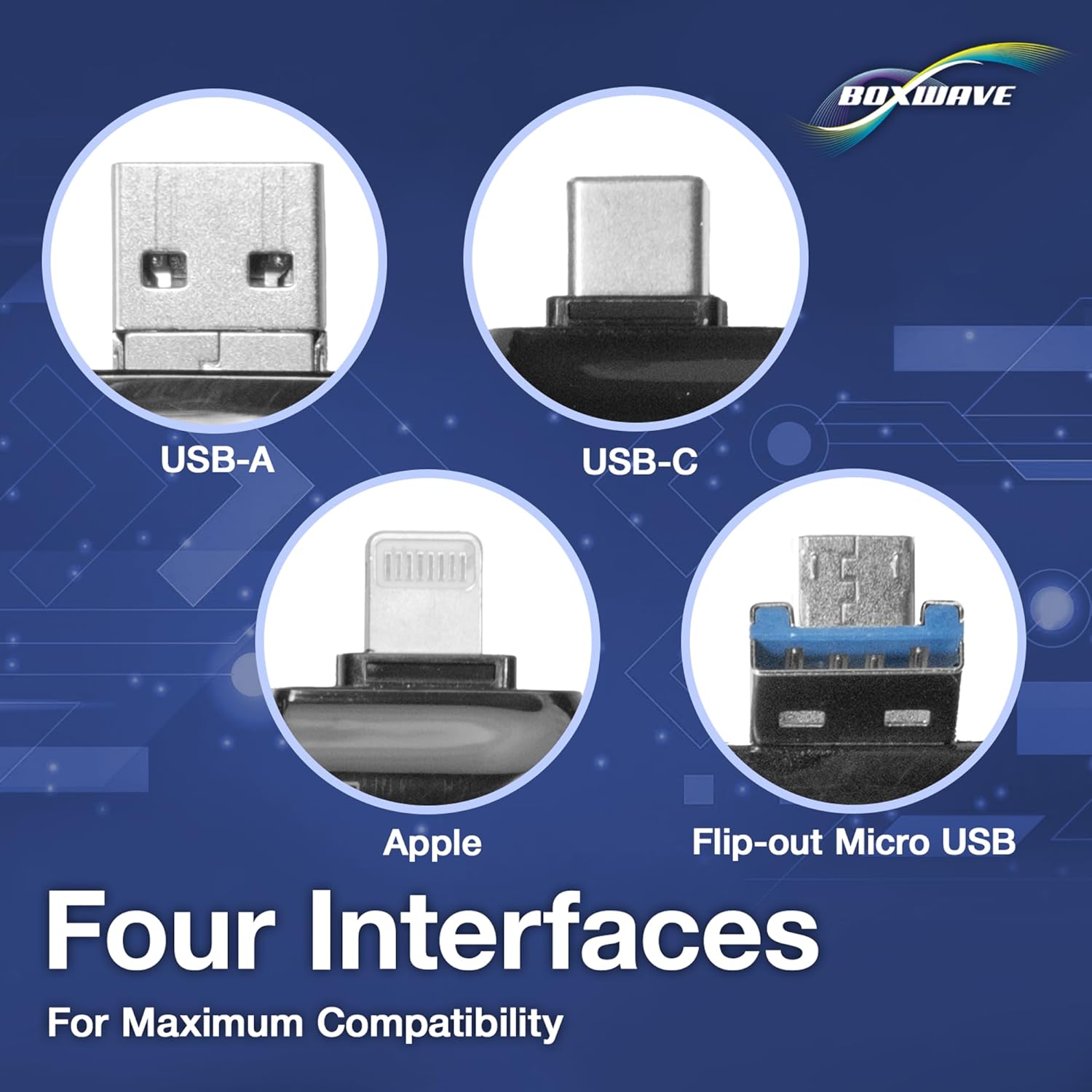
Billede: Detaljeret view of the four distinct interfaces on the AllReader SD Card Reader.
3. Opsætningsvejledning
Setting up your BoxWave AllReader SD Card Reader is a simple plug-and-play process.
- Indsæt hukommelseskort: Gently insert your SD card or microSD card into the appropriate slot on the AllReader. Ensure the card is fully seated.
- Opret forbindelse til enhed: Select the correct connector (USB-C, USB-A, Micro-USB, or Apple/Lightning) for your smartphone, tablet, laptop, or desktop PC. Plug the AllReader into your device's port.
- Adgang Files: Your device should automatically detect the AllReader and the inserted memory card. You can then navigate to the card's contents through your device's file manager eller fotoapplikation.

Image: The AllReader connected to a tablet with an SD card, illustrating the ease of setup and file adgang.
4. Betjeningsvejledning
Once connected, the AllReader allows for seamless data management.
- File Gennemse: On most devices, the inserted memory card will appear as an external storage device. Open your device's file leder (f.eks. "Files" on iOS, "My Files" på Android, "File Explorer" on Windows, "Finder" on macOS) to browse the contents of the card.
- Overfører Files: At overføre files, simply copy and paste or drag and drop files between the memory card and your device's internal storage or other connected storage.
- Sikker fjernelse: Before disconnecting the AllReader from your computer, always safely eject the device through your operating system to prevent data corruption. For mobile devices, simply unplugging is generally safe after file transfers are complete.

Image: The AllReader facilitating file transfers across various devices including smartphones, tablets, laptops, and desktop PCs.
5. Vedligeholdelse
To ensure the longevity and optimal performance of your BoxWave AllReader SD Card Reader, follow these maintenance guidelines:
- Hold rent: Brug en blød, tør klud til at rengøre enhedens yderside. Undgå at bruge flydende rengøringsmidler eller opløsningsmidler.
- Beskyt stik: Keep the connectors free from dust and debris. Avoid touching the metal contacts directly.
- Opbevar korrekt: When not in use, store the card reader in a cool, dry place, away from direct sunlight and extreme temperatures.
- Håndteres med forsigtighed: Undgå at tabe enheden eller udsætte den for kraftige stød, da dette kan beskadige de interne komponenter.
6. Fejlfinding
If you encounter issues with your AllReader SD Card Reader, consider the following troubleshooting steps:
- Enhed ikke genkendt:
- Ensure the AllReader is firmly plugged into your device's port.
- Try connecting to a different port on your device or a different device altogether to rule out port issues.
- Genstart din enhed, og prøv igen.
- Hukommelseskort ikke fundet:
- Ensure the SD or microSD card is correctly and fully inserted into the AllReader.
- Try using a different memory card to determine if the issue is with the card or the reader.
- Check the memory card for physical damage or a locked switch (for SD cards).
- Langsomme overførselshastigheder:
- Transfer speeds can vary based on the memory card's speed class and the device's USB port version.
- Ensure your device's USB port is functioning correctly.
If these steps do not resolve the issue, please contact BoxWave customer support.
7. Specifikationer
| Feature | Detalje |
|---|---|
| Produktnavn | BoxWave AllReader SD Card Reader |
| Modelnummer | B0CS4HCWLK |
| Grænseflader | USB-C, USB-A, Micro-USB, Apple/Lightning |
| Kortkompatibilitet | SD, microSD |
| Vægt | 6 ounce |
| Fabrikant | BoxWave |
| Design | Compact, portable |
8. Garanti og support
BoxWave is committed to providing high-quality accessories and excellent customer service. If you have any questions, require assistance, or experience any issues with your AllReader SD Card Reader, please do not hesitate to contact our customer support team. We are dedicated to offering real answers and helpful advice to ensure your satisfaction.
For support, please refer to the contact information provided with your product packaging or visit the official BoxWave webwebsted.