
1. Introduktion
Thank you for choosing the KOLINK Umbra X 120mm PWM ARGB Fan. This fan is designed to provide efficient cooling for your computer system while offering customizable ARGB lighting effects. Featuring a 28mm thick frame for enhanced airflow and a durable hydraulic bearing, the Umbra X delivers quiet and reliable performance. This manual provides essential information for proper installation, operation, and maintenance.
2. Sikkerhedsoplysninger
- Sørg for, at dit computersystem er slukket og taget stikket ud af stikkontakten inden installation.
- Håndter ventilatoren og dens komponenter forsigtigt for at undgå skader.
- Do not attempt to modify the fan or its cables. Unauthorized modifications may void your warranty and cause damage.
- Hold ventilatoren væk fra væsker og overdreven fugt.
- This product is intended for use within computer systems. Do not use it for other purposes.
3. Pakkens indhold
The KOLINK Umbra X Single Pack includes the following items:
- 1x KOLINK Umbra X 120mm PWM ARGB Fan
- 4x monteringsskruer
- Necessary connection cables (PWM and ARGB)
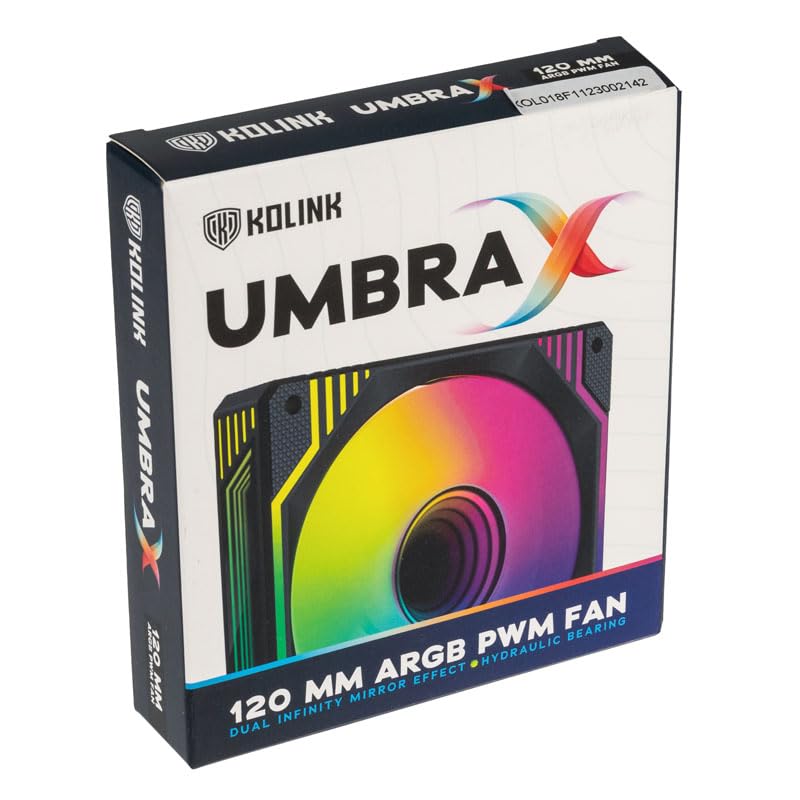
Image: KOLINK Umbra X 120mm PWM ARGB Fan product box.
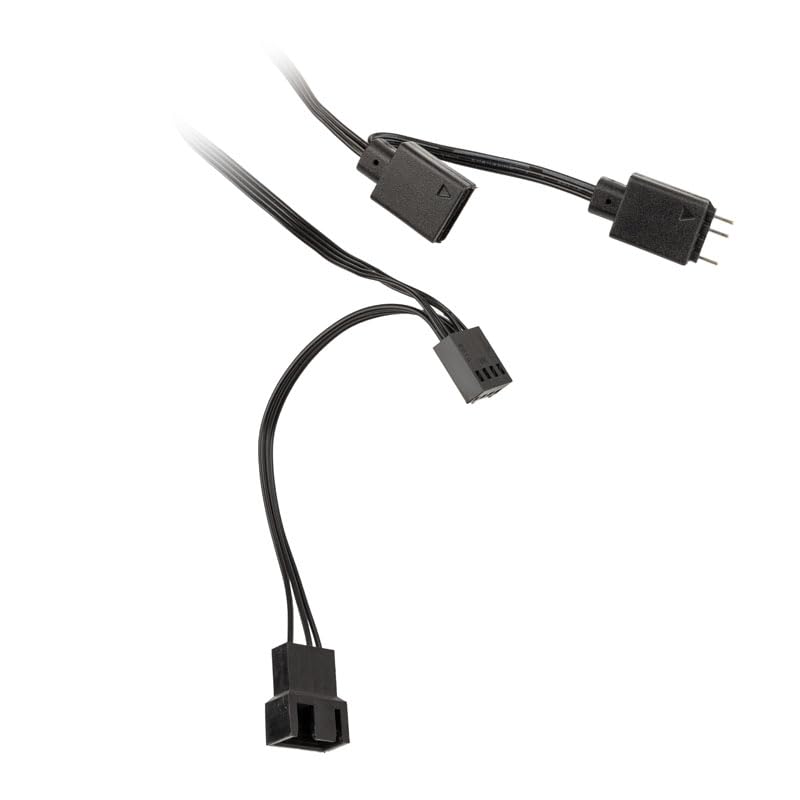
Image: Included PWM and ARGB connection cables for the fan.
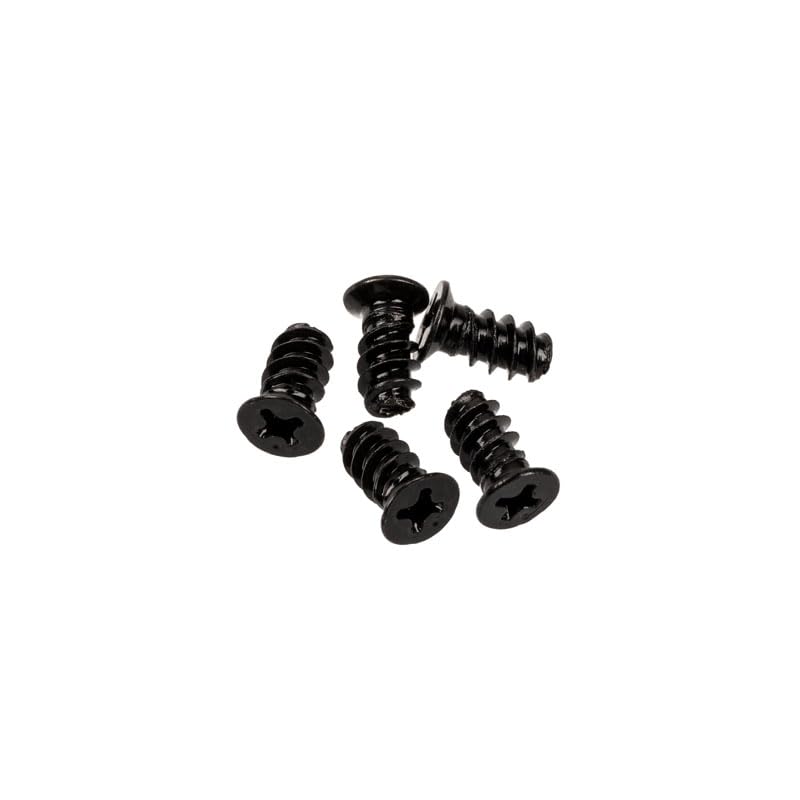
Image: Four black mounting screws for fan installation.
4. Specifikationer
| Feature | Specifikation |
|---|---|
| Model | Umbra X Single Pack (539470) |
| Dimensioner (L x B x H) | 120 x 120 x 28 mm |
| Blæserhastighed | Op til 1600 RPM |
| Støjniveau | 24 dBA (maksimum) |
| Leje Type | Hydraulisk leje |
| MTBF (Mean Time Between Failures) | 40,000 timer |
| Connector Type | 4-pin PWM (Fan Control), 3-pin ARGB (5V) |
| Afkølingsmetode | Luft |
| Kompatible enheder | Stationære computere |
5. Installation (Opsætning)
Follow these steps to install your KOLINK Umbra X fan:
- Forbered dit system: Power off your computer and unplug it from the power outlet. Open your computer case to access the fan mounting locations.
- Identificér monteringssted: Determine where you want to install the fan (e.g., front, rear, top, or bottom of the case, or on a radiator). Ensure there is sufficient space.
- Monter blæseren: Position the fan in the desired location. Ensure the airflow direction is correct (usually indicated by an arrow on the fan frame). Use the four included mounting screws to secure the fan to the case or radiator. Tighten screws until snug, but do not overtighten.
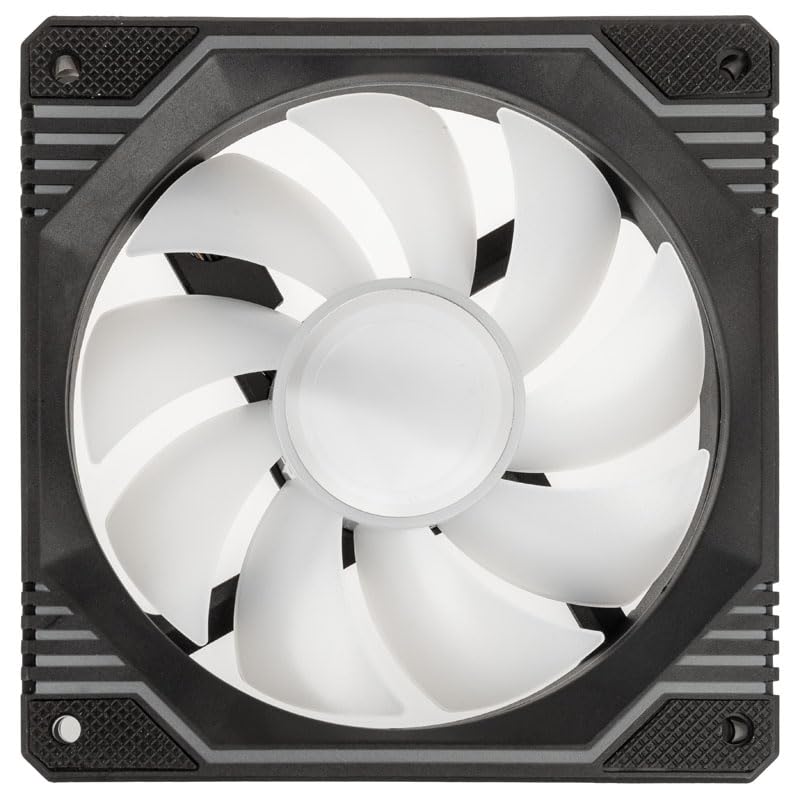
Billede: Top-down view of the KOLINK Umbra X fan, showing the fan blades and mounting holes.
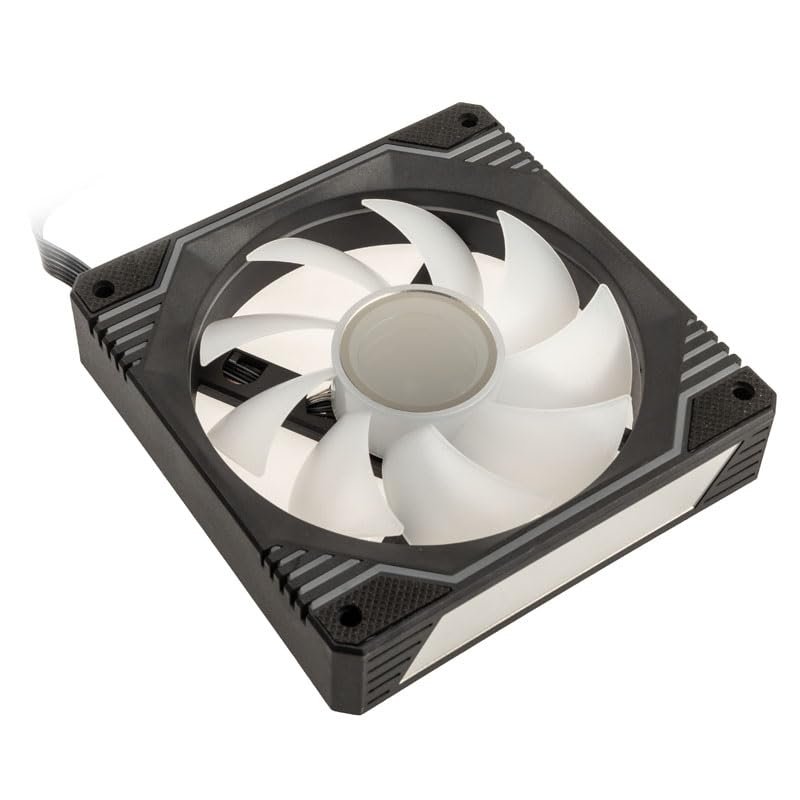
Billede: Vinklet view of the KOLINK Umbra X fan, highlighting its design and mounting points.
- Tilslut PWM-kabel: Locate a 4-pin fan header on your motherboard (often labeled CPU_FAN, SYS_FAN, or CHA_FAN). Connect the fan's 4-pin PWM cable to this header. This allows your motherboard to control the fan speed.
- Tilslut ARGB-kablet: Locate a 3-pin 5V ARGB header on your motherboard (often labeled ADD_HEADER, JRAINBOW, or D_LED). Connect the fan's 3-pin ARGB cable to this header. Ensure the arrow on the connector aligns with the +5V pin on the motherboard header to prevent damage. Do not connect to a 4-pin 12V RGB header.
- Kabelstyring: Route the cables neatly to avoid interference with other components and to improve airflow within the case.
- Luk kassen og tænd: Close your computer case, plug in the power cable, and power on your system. Verify that the fan spins and the ARGB lighting illuminates.
6. Betjening
The KOLINK Umbra X fan operates with two primary functions: fan speed control and ARGB lighting control.
Ventilatorhastighedskontrol (PWM)
The fan's speed is controlled via the 4-pin PWM connection to your motherboard. You can manage fan speed settings through your motherboard's BIOS/UEFI or through compatible software provided by your motherboard manufacturer. This allows for dynamic adjustment of fan speed based on system temperature, optimizing cooling performance and noise levels.
ARGB-lysstyring
The ARGB lighting features two Infinity Mirror effects on the fan hub and frame edges. The lighting is controlled via the 3-pin 5V ARGB connection to your motherboard. You can customize lighting effects, colors, and patterns using your motherboard's ARGB synchronization software (e.g., ASUS Aura Sync, MSI Mystic Light Sync, Gigabyte RGB Fusion, ASRock Polychrome Sync). Ensure your motherboard supports 3-pin 5V ARGB.
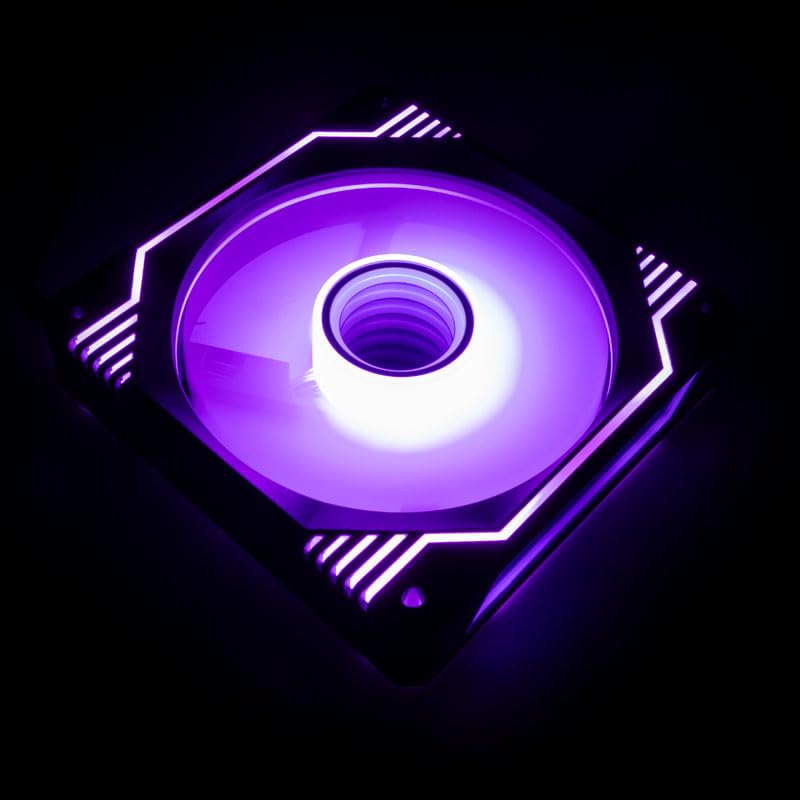
Image: KOLINK Umbra X fan illuminated with purple ARGB lighting, showcasing uendelighedsspejleffekten.

Image: KOLINK Umbra X fan illuminated with green ARGB lighting.
7. Vedligeholdelse
Regelmæssig vedligeholdelse er med til at sikre optimal ydeevne og levetid for din ventilator.
- Rensning: Periodically clean the fan blades and frame to remove dust buildup. Use a can of compressed air or a soft, dry cloth. Ensure the system is powered off and unplugged before cleaning.
- Inspektion: Occasionally check the fan for any signs of damage or loose connections.
- Undgå smøring: The hydraulic bearing is sealed and does not require external lubrication. Attempting to lubricate it may cause damage.
8. Fejlfinding
If you encounter issues with your KOLINK Umbra X fan, refer to the following common solutions:
- Ventilatoren drejer ikke:
- Sørg for, at 4-bens PWM-kablet er korrekt tilsluttet til en funktionel blæserheader på bundkortet.
- Check BIOS/UEFI settings to ensure the fan header is enabled and configured correctly (e.g., not set to 0 RPM).
- Verify that your power supply is providing adequate power to the motherboard and components.
- ARGB-belysning virker ikke:
- Ensure the 3-pin ARGB cable is securely connected to a 5V ARGB header on the motherboard. Må ikke tilsluttes en 12V RGB-header.
- Check your motherboard's ARGB software to ensure lighting effects are enabled and configured.
- Verify that the ARGB header on your motherboard is functioning correctly.
- Overdreven støj:
- Kontroller, om der er kabler eller forhindringer, der berører ventilatorbladene.
- Ensure the fan is securely mounted and screws are tightened appropriately.
- Juster blæserhastighedsindstillingerne i dit bundkorts BIOS/UEFI eller software til en lavere omdrejning, hvis støj er et problem.
- Rengør eventuelt støvophobning på ventilatorbladene.
- Dårlig køleydelse:
- Verify the fan's airflow direction is appropriate for your case configuration (e.g., intake or exhaust).
- Sørg for, at der ikke er nogen forhindringer, der blokerer luftstrømmen til eller fra ventilatoren.
- Increase fan speed settings if temperatures are too high.
9. Garanti og support
KOLINK products are manufactured to high-quality standards. For warranty information and technical support, please refer to the official Kolink webwebstedet eller kontakt din forhandler. Gem din købsbevis til garantikrav.