
Indledning
This manual provides detailed instructions for the installation, operation, and maintenance of your GREATHTEK HDMI KVM Switch. This device allows you to control up to four computers using a single monitor, keyboard, and mouse, enhancing workspace efficiency and reducing cable clutter. Please read this manual thoroughly before use to ensure proper functionality and to maximize your product experience.
Pakkens indhold
Bekræft, at alle nedenstående varer er inkluderet i din pakke. Hvis der mangler eller er beskadigede varer, bedes du kontakte kundesupport.
- KVM Switch Unit x1
- HDMI 2.0 kabel x1
- USB 3.0 kabel x4
- USB C Power Cable x1
- Desktop Controller x1
- Brugsanvisning x1
- Fodpude x4

Produktegenskaber
- 4-Port KVM Functionality: Control up to four computers (PCs) with a single set of keyboard, mouse, and monitor.
- Høj opløsning support: Supports resolutions up to 4K@60Hz (3840x2160@60Hz), and is backward compatible with 2K and 1080P. Ensure your source devices, monitor, and HDMI cables all support 4K@60Hz for optimal performance.
- High-Speed USB 3.0 Ports: Equipped with 3 USB 3.0 ports and 1 USB C port, offering data transfer speeds up to 5 Gbit/s, which is ten times faster than USB 2.0. These ports can connect keyboards, mice, USB drives, printers, scanners, and other USB devices.
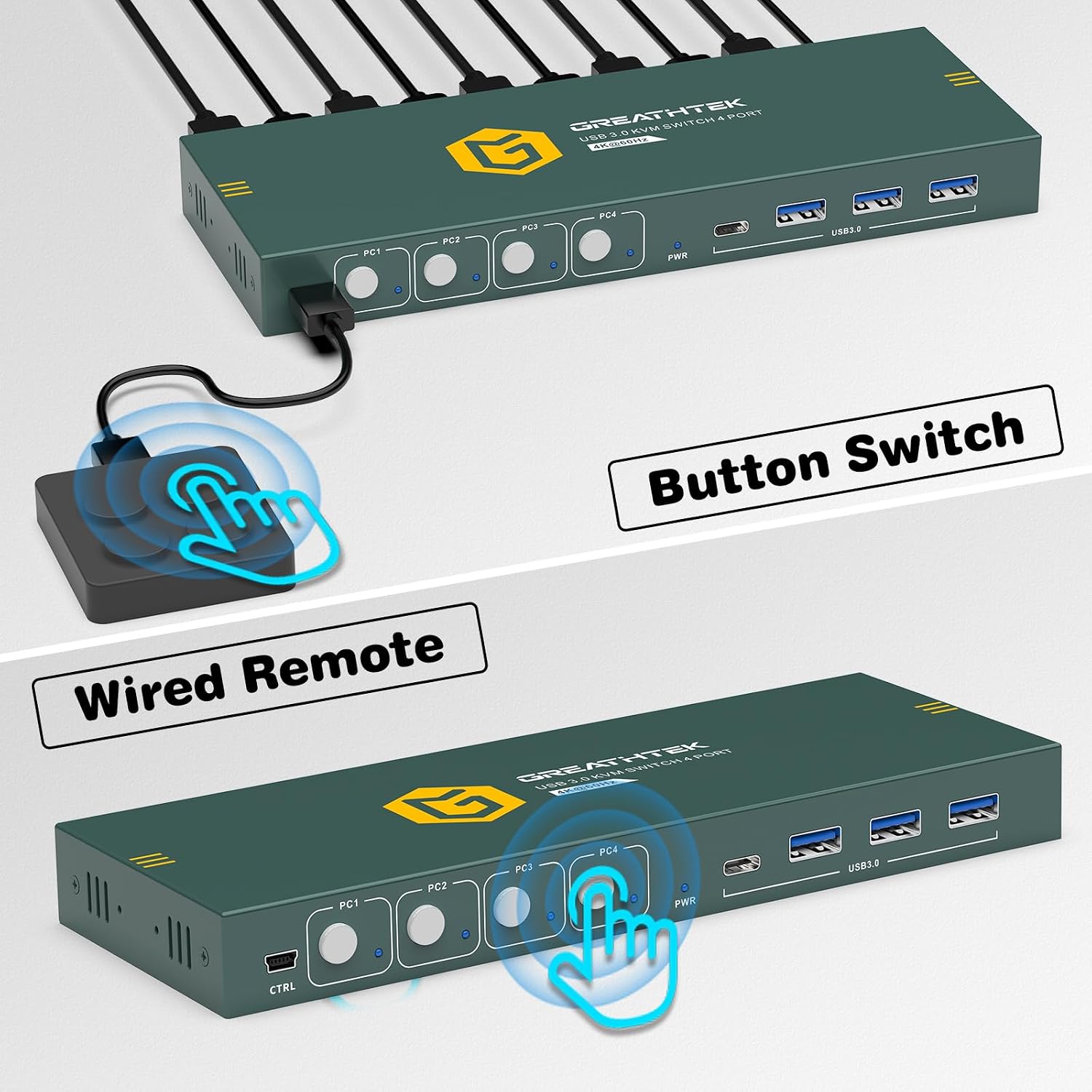
- Dobbelte omskiftningsmetoder: Easily switch between connected computers using either the physical button on the KVM switch or the included 1.5m wired desktop controller.
- EDID Adaptation: Features EDID adaptation to maintain consistent window and resolution settings when switching between computers, preventing display disruption.
- Bred kompatibilitet: Compatible with various operating systems including Windows, Linux, Unix, and Mac.


Opsætningsinstruktioner
Follow these steps to properly set up your GREATHTEK HDMI KVM Switch:
- Sluk alle enheder: Before starting, ensure all computers and your monitor are powered off and unplugged from their power sources.
- Tilslut skærmen: Connect your monitor to the "HD OUT" port on the KVM switch using an HDMI cable.
- Tilslut computere (HDMI): For each computer, connect an HDMI cable from the computer's HDMI output to an available "HD IN" port (PC1, PC2, PC3, PC4) on the KVM switch.
- Tilslut computere (USB): For each computer, connect a USB 3.0 cable from the computer's USB port to the corresponding "USB 3.0" input port (PC1, PC2, PC3, PC4) on the KVM switch. These connections enable keyboard, mouse, and other USB device sharing.
- Tilslut tastatur og mus: Connect your keyboard and mouse to the dedicated USB 3.0 ports on the KVM switch. You can also connect other USB peripherals like a USB drive or printer to the remaining USB 3.0 ports.
- Tilslut strøm: Connect the USB C power cable to the KVM switch's power input and then to a suitable USB power adapter (not included) or a powered USB port.
- Tænd: Power on the KVM switch, then your monitor, and finally your computers.

Betjeningsvejledning
Once the KVM switch is set up, you can easily switch between your connected computers.
Skift mellem computere
The GREATHTEK HDMI KVM Switch offers two methods for switching:
- Frontpanelknap: Press the corresponding button (PC1, PC2, PC3, or PC4) on the front panel of the KVM switch to select the desired computer. The LED indicator next to the button will illuminate to show the active computer.
- Kablet desktop-controller: Use the included wired desktop controller. Press the button on the controller to cycle through the connected computers. This allows for convenient switching without reaching for the KVM unit itself.

Opretholdelse
For at sikre din KVM-switchs levetid og optimale ydeevne skal du følge disse vedligeholdelsesretningslinjer:
- Rensning: Use a soft, dry cloth to clean the exterior of the device. Avoid using liquid cleaners or aerosols, which may damage the unit.
- Ventilation: Sørg for, at KVM-switchen er placeret et godt ventileret område for at forhindre overophedning. Bloker ikke ventilationsåbninger.
- Kabelstyring: Keep cables organized and free from kinks or excessive bending to prevent damage and ensure stable connections.
- Miljøforhold: Undgå at udsætte enheden for ekstreme temperaturer, fugt eller direkte sollys.
Fejlfinding
Hvis du støder på problemer med din KVM-switch, kan du se følgende almindelige problemer og løsninger:
- Ingen skærmoutput:
- Sørg for, at alle HDMI-kabler er korrekt tilsluttet til både KVM-switchen og computerne/skærmen.
- Kontroller, at KVM-switchen er tændt.
- Check if the correct input source is selected on your monitor.
- Prøv at genstarte KVM-switchen og de tilsluttede computere.
- Confirm that your HDMI cables support the desired resolution (e.g., 4K@60Hz).
- Tastatur/mus reagerer ikke:
- Ensure the USB 3.0 cables from the computers to the KVM switch are properly connected.
- Verify that the keyboard and mouse are connected to the dedicated USB 3.0 ports on the KVM switch.
- Prøv at tilslutte tastaturet og musen direkte til computeren for at bekræfte, at de fungerer.
- Some specialized gaming keyboards/mice may require direct connection or specific drivers; try a standard keyboard/mouse first.
- Display Resolution/Refresh Rate Issues:
- Ensure all connected devices (computers, monitor, HDMI cables) support the desired resolution and refresh rate (e.g., 4K@60Hz).
- Adjust display settings on your computer to match the capabilities of your monitor and KVM switch.
- Skifteforsinkelse:
- A slight delay during switching is normal as the system re-establishes connections. Excessive delays might indicate a cable issue; try replacing HDMI or USB cables.
If these steps do not resolve your issue, please contact GREATHTEK customer support for further assistance.
Specifikationer
| Feature | Specifikation |
|---|---|
| Modelnummer | GHT-S7415H-01 |
| Mærke | STORTEK |
| KVM-porte | 4 Computers, 1 Monitor |
| Video opløsning | Op til 4K@60Hz (3840x2160@60Hz) |
| USB-porte | 3 x USB 3.0, 1 x USB C |
| USB-overførselshastighed | Op til 5 Gbit/s |
| Skiftemetoder | Knapkontakt, desktopcontroller |
| Desktop Controller Cable Length | 1.5m |
| Kompatibilitet | Windows, Linux, Unix, Mac |
| Connector Type | HDMI, USB-A, USB-C |
| Materiale | Kobber (kontaktmateriale) |
| Farve | Sort |
| Dimensioner (pakke) | 25.2 x 18.3 x 6.9 cm |
| Vægt (pakke) | 810 g |
Garanti og support
GREATHTEK products are designed for reliability and performance. This product comes with a standard manufacturer's warranty. For specific warranty details, please refer to the warranty card included in your package or contact GREATHTEK customer support.
If you encounter any issues or have questions regarding your KVM switch, please do not hesitate to contact our customer support team. We are committed to providing prompt and helpful assistance.