
X68
VGN X68 Mechanical Gaming Keyboard User Manual
Model: X68 | Brand: Generic
1. Introduktion
Thank you for choosing the VGN X68 Mechanical Gaming Keyboard. This user manual provides detailed instructions on setting up, operating, and maintaining your new keyboard. The VGN X68 is a versatile mechanical keyboard designed for gaming and productivity, featuring three connectivity modes (wired, 2.4G wireless, and Bluetooth 5.0), vibrant RGB backlighting, and hot-swappable switches for personalized customization.

Image: The VGN X68 Mechanical Gaming Keyboard with its retail packaging, showcasing dens design og RGB-belysning.
2. Pakkens indhold
Kontroller venligst, at alle nedenstående varer er inkluderet i din pakke:
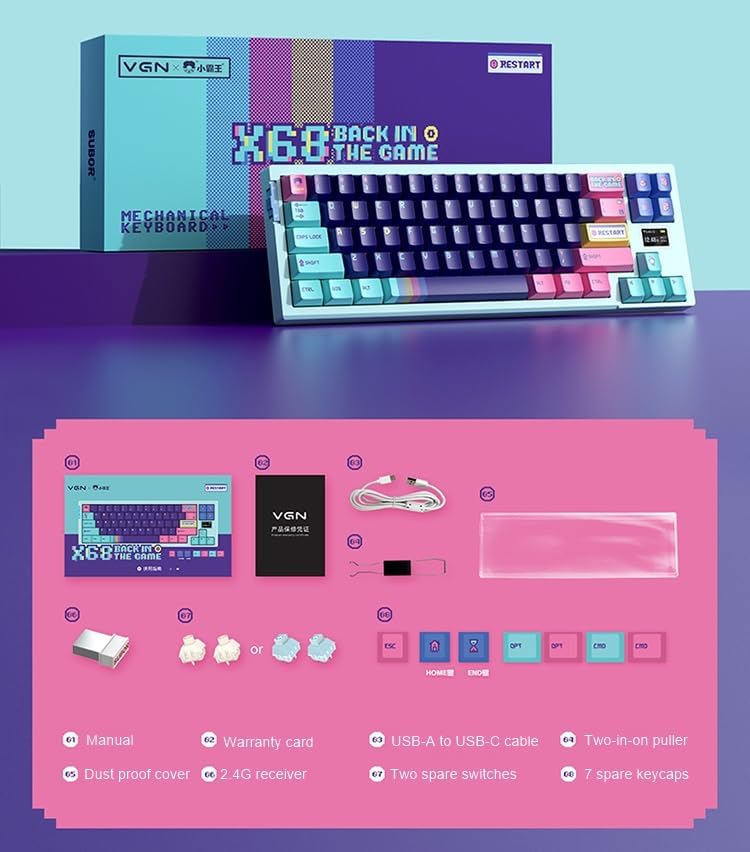
Image: A visual representation of all items included in the VGN X68 keyboard package.
- VGN X68 Mechanical Gaming Keyboard
- Brugermanual
- Garantikort
- USB-A til USB-C kabel
- Two-in-one Puller (for keycaps and switches)
- Støvtæt dæksel
- 2.4G trådløs modtager
- Two Spare Switches
- Seven Spare Keycaps
3. Opsætning
3.1 Indledende opladning
Before first use, it is recommended to fully charge the keyboard. Connect the provided USB-A to USB-C cable to the keyboard's Type-C port and a USB power source (e.g., computer USB port, wall adapter). The charging indicator will show the charging status.
3.2 Tilslutning af dit tastatur
The VGN X68 supports three connection modes: Wired, 2.4G Wireless, and Bluetooth 5.0. Use the switch located on the keyboard to select your desired mode.

Billede: En detaljeret view of the physical switch on the keyboard used to toggle between 2.4G wireless, wired, and Bluetooth modes.
3.2.1 Kablet tilstand
- Set the mode switch to 'Wired' (usually indicated by a cable icon or 'USB').
- Tilslut USB-C-enden af kablet til tastaturet og USB-A-enden til din computer.
- The keyboard will be automatically recognized by your operating system (e.g., Windows 10) and ready for use.
3.2.2 2.4G trådløs tilstand
- Set the mode switch to '2.4G' (usually indicated by a wireless icon).
- Slut den trådløse 2.4G-modtager til en ledig USB-port på din computer.
- The keyboard should connect automatically. If not, press Fn + R (or a similar key combination indicated in the manual) to initiate pairing.
3.2.3 Bluetooth-tilstand
- Indstil tilstandsknappen til 'BT' (Bluetooth).
- Aktiver Bluetooth på din computer eller enhed, og søg efter nye enheder.
- The keyboard will appear as 'VGN X68' or similar. Select it to pair.
- You may need to press Fn + 1/2/3 to select a Bluetooth profile if the keyboard supports multiple Bluetooth connections.
4. Betjeningsvejledning
4.1 Nøglefunktioner og layout
The VGN X68 is a 61-key mechanical keyboard. Many functions are accessed via the 'Fn' key in combination with other keys. Refer to the keycap legends for specific shortcuts.
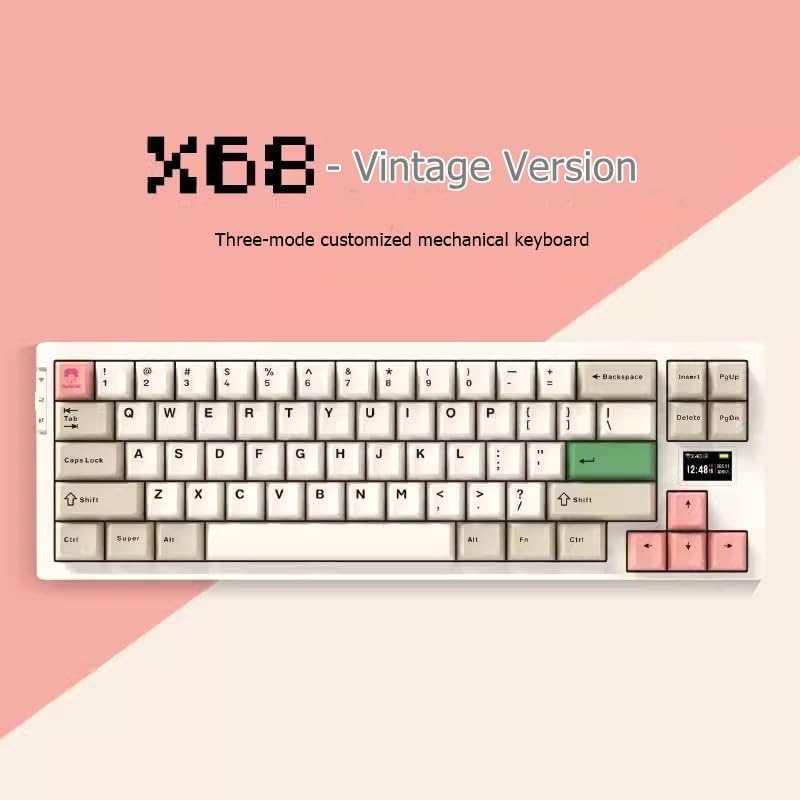
Image: The VGN X68 keyboard, showcasing dens kompakte layout og tastaturdesign.
4.2 RGB-baggrundsbelysningskontrol
The keyboard features multicolor RGB backlighting. Use the following key combinations to control the lighting effects:
- Fn + \|: Skift mellem forskellige RGB-belysningstilstande.
- Fn + ↑/↓: Juster baggrundsbelysningens lysstyrke.
- Fn + ←/→: Juster lyseffektens hastighed eller retning.
- Fn + Del: Skift baggrundsbelysningens farve (for statiske tilstande).
4.3 Screen Display Functions
The VGN X68 features a small screen display that provides useful information at a glance:
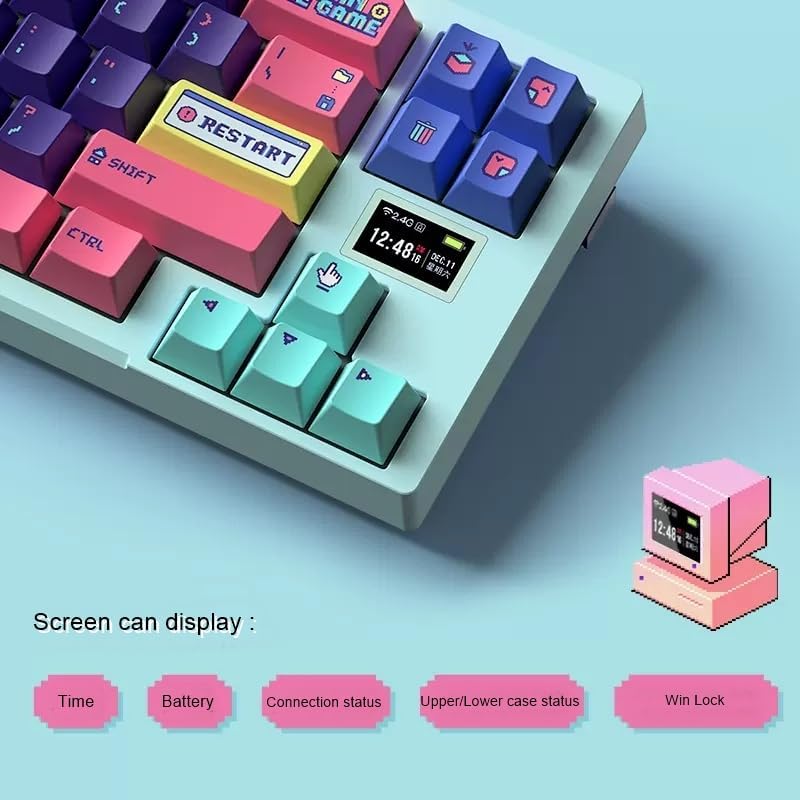
Image: A close-up of the keyboard's integrated screen, displaying icons for time, battery level, connection status, case status, and Win Lock.
- Tid: Viser det aktuelle klokkeslæt.
- Batteri: Viser det aktuelle batteriniveau.
- Forbindelse Status: Indicates the active connection mode (Wired, 2.4G, or Bluetooth).
- Upper/Lower Case Status: Shows if Caps Lock is enabled.
- Vindlås: Indicates if the Windows key is locked (to prevent accidental presses during gaming).
5. Vedligeholdelse
5.1 Rengøring
Sådan bevarer du dit tastaturs ydeevne og udseende:
- Frakobl tastaturet fra computeren, før du rengør det.
- Brug en blød børste eller trykluft til at fjerne støv og snavs mellem tasterne.
- Wipe the keycaps and keyboard surface with a slightly damp, fnugfri klud. Undgå for meget fugt.
- Use the provided dust proof cover when the keyboard is not in use to prevent dust accumulation.
5.2 Udskiftning af tastehætte og kontakt
The VGN X68 features hot-swappable switches, allowing you to easily change switches without soldering. Use the provided two-in-one puller for both keycaps and switches.
- To remove a keycap: Use the keycap puller end of the tool to gently pull the keycap straight up.
- Sådan fjerner du en kontakt: Use the switch puller end of the tool to grasp the switch from its top and bottom clips, then gently pull it straight up.
- Sådan installeres en afbryder: Juster stifterne på den nye kontakt med hullerne på printkortet, og tryk godt ned, indtil den klikker på plads. Sørg for, at stifterne ikke er bøjede.
- To install a keycap: Juster tastaturhætten med kontaktens stilk, og tryk godt ned.
6. Fejlfinding
If you encounter issues with your VGN X68 keyboard, please refer to the following common solutions:
- Tastaturet reagerer ikke: Ensure the keyboard is charged. Check the connection mode switch (Wired, 2.4G, Bluetooth) and ensure it matches your connection method. For wired, try a different USB port. For wireless, ensure the receiver is properly plugged in or Bluetooth is paired.
- Nøgler registreres ikke: Check if any keycaps or switches are loose. Re-seat them if necessary. Test on another device to rule out software issues.
- Backlight not working/flickering: Ensure the keyboard is charged. Try cycling through backlight modes (Fn + \|) or adjusting brightness (Fn + ↑/↓).
- Bluetooth-forbindelse ustabil: Ensure no other devices are interfering with the Bluetooth signal. Try re-pairing the keyboard. Ensure your device's Bluetooth drivers are up to date.
- 2.4G wireless lag: Ensure the receiver is not too far from the keyboard. Avoid placing the receiver near other wireless devices that might cause interference.
If problems persist, please refer to the Warranty and Support section.
7. Specifikationer
| Feature | Specifikation |
|---|---|
| Mærke | Generisk |
| Model | X68 |
| Fabrikant | Genie |
| Farve | Cyan |
| Operativsystemkompatibilitet | Windows 10 |
| Forbindelsesteknologi | Bluetooth 5.0, 2.4G trådløs, Type-C kablet |
| Tastaturbeskrivelse | Mekanisk |
| Anbefalede anvendelser | Spil |
| Speciel funktion | Baggrundsbelyst |
| Antal nøgler | 61 |
| Understøttelse af tastaturbaggrundsbelysningsfarve | RGB (rød, grøn, blå) |
| Stil | Moderne |
| Udskrivning af taster | Dobbeltskud |
| Keycap materiale | PBT plast |
| Hot-swappable switche | Ja |
| Switch Manufacturer | Kaih |
| Axis Body-mærke | Kailh Box |
| Full-size Keyboard | Ingen |
| Wrist Rest Support | Ingen |
8. Garanti og support
Your VGN X68 Mechanical Gaming Keyboard comes with a manufacturer's warranty. For any product issues, including damaged or incorrect items, please do not hesitate to contact our support team. We are committed to providing prompt assistance and will respond to your inquiries within 24 hours.
Se venligst garantikortet, der følger med din pakke, for specifikke vilkår og betingelser.