
1. Introduktion
This manual provides detailed instructions for the assembly, operation, and maintenance of your MUSETEX K2 ATX Mid Tower PC Case. Designed for both visual appeal and ease of installation, the K2 offers a spacious interior with full view tempered glass panels, catering to high-performance PC builds.
Video 1.1: Official MUSETEX K2 White PC case overview, visasing its 270° full view tempered glass design, internal layout, and various component compatibility.
2. Nøglefunktioner
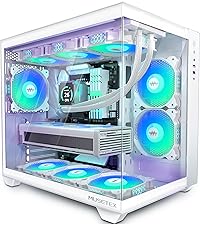
- 270° Fuld View Dual Tempered Glass: Tilbyder en ekspansiv view of internal components and custom builds.
- Forinstallerede ventilatorer: Includes 3 non-LED fans for immediate cooling.
- Højhastigheds-I/O-panel: Equipped with 2x USB 3.0 and 1x Type-C interface for fast data transfer and connectivity.
- Rummeligt interiør: Supports GPU up to 420mm, CPU cooling height up to 178mm, top-mounted liquid radiators up to 360mm, and PSUs up to 238mm.
- Optimeret luftstrøm: Innovative air duct design with side panel apertures and pre-installed side fans for efficient cooling.
- Støvfiltrering: Features magnetic dust filters at the top and a power supply dust filter at the bottom to minimize dust accumulation.

Billede 2.1: The MUSETEX K2 PC Case featuring its 270° full view dual tempered glass design, providing an unobstructed view af de interne komponenter.
3. Pakkens indhold
Upon unpacking your MUSETEX K2 PC Case, please ensure all the following items are present:
- MUSETEX K2 ATX Mid Tower PC Case
- Instruktionsmanual
- Accessory Box (containing various screws for power supply, motherboard, and other components)
- Kabelbindere til kabelhåndtering
- Long Screws for mounting bottom fans
4. Opsætning og installation
4.1. Generelle sikkerhedsforanstaltninger
Before attempting to remove any panels, especially the tempered glass, it is highly recommended to lay the PC case flat on a stable, soft surface to prevent accidental damage or breakage. Always handle glass panels with extreme care.
4.2. Afmontering af sidepaneler
To access the interior of the case, you will need to remove the tempered glass side panel. This panel is secured by four thumb screws. Carefully remove these screws and gently lift the glass panel. For the rear metal panel, remove the two silver thumb screws and pull the panel straight back to detach it.

Billede 4.1: The MUSETEX K2 PC Case with the side tempered glass panel removed, showing the interior layout.
4.3. Installation af bundkort
The K2 case supports ATX, M-ATX, and Mini ITX motherboards. Install your motherboard onto the pre-installed standoffs. Ensure all mounting screws are securely fastened.

Billede 4.2: Indre view highlighting the spacious layout and compatibility with ATX, M-ATX, and Mini ITX motherboards.
4.4. GPU-installation
The case accommodates graphics cards up to 420mm in length. It supports both horizontal and vertical GPU mounting. For vertical mounting, remove the dedicated bracket at the rear of the case (secured by a single thumb screw) and install your vertical GPU mount (not included).

Billede 4.3: Close-up of the GPU mounting area, illustrating the space available for large graphics cards and the vertical mounting bracket.
4.5. Opbevaringsinstallation
The K2 offers versatile storage options. It supports up to three 2.5" SSDs and two 3.5" HDDs. Two 2.5" SSD mounts are located behind the motherboard tray, accessible by removing a thumb screw. A removable drive cage at the bottom of the case supports two 3.5" HDDs or can be adapted for additional 2.5" SSDs.

Billede 4.4: Internal layout showing designated areas for SSD and HDD installation, including the removable drive cage.
4.6. Installation af strømforsyning
Install your power supply unit (PSU) at the bottom rear of the case. The maximum supported PSU length is 238mm. Slide the PSU into position and secure it with screws. Soft pads are provided to protect the PSU and case from scratches.

Billede 4.5: The power supply mounting area at the bottom of the case, indicating maximum PSU length and protective pads.
4.7. Installation af ventilator og radiator
The K2 case offers extensive cooling options:
- Top: Supports up to three 120mm or two 140mm fans, or a liquid radiator up to 360mm/280mm/240mm.
- Side: Understøtter to 120 mm blæsere.
- Bag: Supports one 120mm or 140mm fan, or a 120mm/140mm radiator.
- Bund: Supports three 120mm fans.
The case comes with 3 non-LED fans pre-installed. If you wish to install additional fans or radiators, use the appropriate screws provided in the accessory kit.

Billede 4.6: Diagram illustrating the various fan and radiator mounting locations and supported sizes within the MUSETEX K2 case.
4.8. Connecting Front I/O Cables
Connect the front I/O panel cables to your motherboard. These include connectors for USB 3.0, Type-C, HD Audio (microphone and headphone jacks), power button, reset button, and LED indicators. Use the provided Velcro straps for cable management to maintain a clean interior.

Billede 4.7: Close-up of the top I/O panel, showing the USB 3.0, Type-C, and audio ports.
5. Betjening af dit pc-kabinet
Once all components are installed and connected, you can power on your system using the power button on the top I/O panel. The reset button is available for system restarts. Utilize the USB 3.0 and Type-C ports for connecting peripherals and external storage devices, and the audio jacks for headphones and microphones.
6. Vedligeholdelse
Regular maintenance helps ensure optimal performance and longevity of your PC components. The MUSETEX K2 case is designed with ease of maintenance in mind:
- Støvfiltre: The top panel features a magnetic dust filter that can be easily removed for cleaning. A dedicated dust filter is also located at the bottom for the power supply. Regularly clean these filters to prevent dust buildup and maintain efficient airflow.
- Generel rengøring: Use a soft, dry cloth to clean the exterior and glass panels. For interior cleaning, use compressed air to remove dust from fans and components.
Billede 6.1: The magnetic dust filter on the top panel, designed for easy removal and cleaning.
7. Fejlfinding
If you encounter any issues during installation or operation, please consider the following:
- Komponenttilpasning: Ensure all components (GPU, CPU cooler, PSU) adhere to the maximum dimensions specified in this manual.
- Glass Panel Handling: Always lay the case flat when removing or installing glass panels to prevent damage.
- Power/Connectivity: Double-check all internal cable connections, especially the front I/O panel cables, to ensure they are correctly seated on the motherboard.
8. Specifikationer
| Feature | Detalje |
|---|---|
| Mærke | MUSETEX |
| Modelnavn | K2 |
| Sagstype | Mid Tower |
| Farve | Hvid |
| Materiale | Metal, hærdet glas |
| Bundkort kompatibilitet | ATX, M-ATX, Mini ITX |
| GPU-længde (maks.) | 420 mm (16.54") |
| CPU-kølerhøjde (maks.) | 178 mm |
| Strømforsyningslængde (maks.) | 238 mm (9.37") |
| Top Radiator Support | Up to 360mm/280mm/240mm |
| Bageste ventilatorstøtte | 120mm/140mm |
| Side Fan Support | 2 x 120 mm |
| Bottom Fan Support | 3 x 120 mm |
| Forinstallerede blæsere | 3x ikke-LED-blæsere |
| Front I / O-porte | 2x USB 3.0, 1x Type-C, Audio (Headphone/Mic) |
| Varens vægt | 19.66 pund |
| Produktmål (LxBxH) | 16.7 x 9.05 x 18.5 tommer |
9. Garanti og support
MUSETEX is committed to providing excellent customer support. If you encounter any problems with your K2 PC case, please do not hesitate to contact us. You can reach out by clicking on "Sold by MUSETEX" on the product page and then selecting "Ask a question" or "Contact seller."

Billede 9.1: Visual guide on how to locate MUSETEX support options on the product page.