
1. Introduktion
This manual provides essential information for the safe and efficient operation of your NETUM PDA58-02 Portable Receipt Printer. Please read it thoroughly before using the device and keep it for future reference.
The NETUM PDA58-02 is a versatile portable terminal designed for various business applications. It integrates receipt printing, 1D barcode scanning, and supports multiple connectivity options including 3G, Wi-Fi, and Bluetooth 4.0. Running on Android 6.0, it offers a stable and user-friendly experience with its 5.5-inch IPS capacitive touch screen.
2. Sikkerhedsoplysninger
- Udsæt ikke enheden for ekstreme temperaturer, direkte sollys eller høj luftfugtighed.
- Undgå at tabe eller udsætte enheden for kraftige stød.
- Use only the original charger and accessories provided with the device.
- Forsøg ikke selv at skille enheden ad eller reparere den. Kontakt kvalificeret servicepersonale.
- Hold enheden væk fra vand og andre væsker.
- Sørg for tilstrækkelig ventilation under opladning for at forhindre overophedning.
3. Pakkens indhold
Bekræft at alle varer er til stede i pakken:
- NETUM PDA58-02 Portable Receipt Printer
- Charger Adapter (UK Plug)
- User Manual (English and Chinese)
- Thermal Printer Paper Roll (58 x 35mm)

Image: NETUM PDA58-02 printer and its accessories including charger, manual, and paper roll.
4. Produktet er slutview
The NETUM PDA58-02 features a compact design with an integrated thermal printer and a large touch screen for easy interaction. It includes a built-in barcode scanner for efficient data capture.

Billede: Forside view of the NETUM PDA58-02 portable printer, showing the screen displaying time and date.

Image: NETUM PDA58-02 portable printer with the paper compartment open, showing a printed receipt.
5. Opsætning
5.1 Opladning af enheden
Before first use, fully charge the device. Connect the provided charger adapter to the DC charging port (12V 1.5A) on the device and plug it into a power outlet. The battery indicator will show charging status.
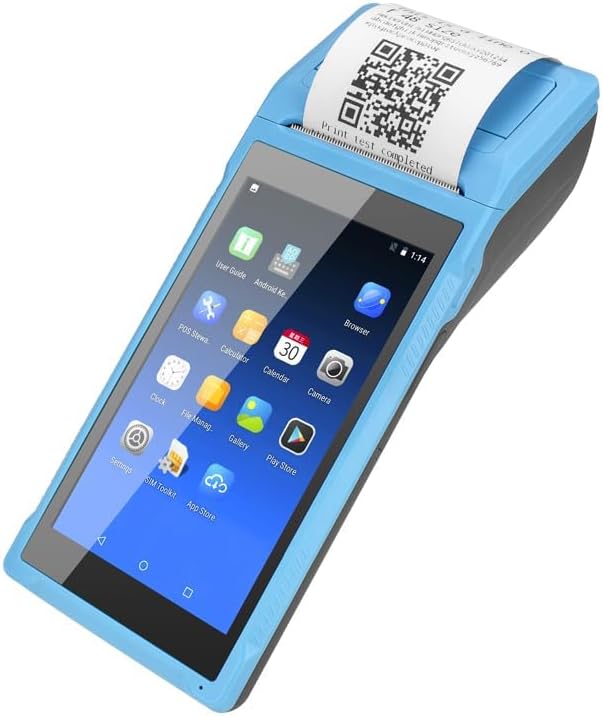
Image: Close-up of the charging port on the NETUM PDA58-02, with a charger cable connected, highlighting the 5000mAh rechargeable battery.
5.2 Ilægning af termopapir
- Open the printer cover by gently pushing the latch.
- Insert a 58 x 35mm thermal paper roll into the compartment, ensuring the printing side faces the print head.
- Træk en lille mængde papir ud forbi skæreenheden.
- Luk printerdækslet godt, indtil det klikker på plads.
5.3 Tænd/sluk
- To power on: Press and hold the power button until the screen lights up.
- To power off: Press and hold the power button, then select 'Power off' from the options on the screen.
6. Betjeningsvejledning
6.1 Grundlæggende navigation
The device runs on Android 6.0. Navigate the interface using the 5.5-inch capacitive touch screen. Swipe, tap, and use gestures similar to a standard Android smartphone.

Image: NETUM PDA58-02 portable printer displaying various Android application icons on its screen, indicating its smart functionality.
6.2 Forbindelse
- Wi-Fi: Go to Settings > Wi-Fi to connect to available wireless networks (802.11 b/g/n).
- Bluetooth: Go to Settings > Bluetooth to pair with other Bluetooth 4.0 enabled devices.
- 3G: Insert a compatible SIM card (if applicable) and configure network settings under Settings > More > Mobile networks for 3G connectivity (GSM850/900/1800/1900, WCDMA B1).
- USB: Connect the device to a computer using the Micro USB 2.0 port for data transfer or charging.
6.3 Udskrivning af kvitteringer
The integrated thermal printer allows for fast receipt printing. Use compatible POS applications or built-in printing functions to generate receipts. Ensure paper is loaded correctly.
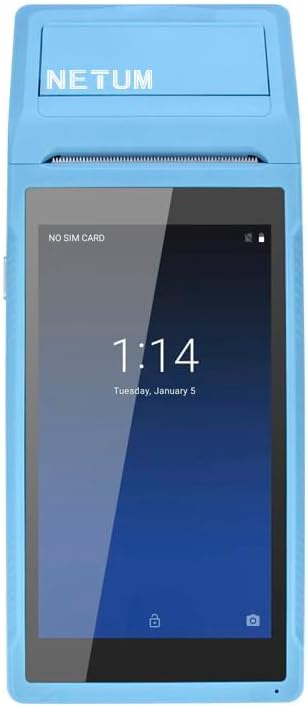
Image: NETUM PDA58-02 portable printer showing a receipt with a QR code being printed, demonstrating its receipt printing capability.
6.4 Stregkodescanning
The device supports 1D barcode scanning. Open the scanning application or a compatible POS application that utilizes the scanner. Point the scanner at the barcode to capture the data.
7. Vedligeholdelse
7.1 Rengøring af enheden
Wipe the exterior of the device with a soft, dry cloth. For stubborn dirt, use a slightly damp cloth and then dry immediately. Do not use harsh chemicals or abrasive cleaners.
7.2 Rengøring af printhoved
If print quality degrades, the thermal print head may need cleaning. Use a cotton swab lightly dampmed isopropylalkohol for forsigtigt at tørre printhovedet af. Lad det tørre helt inden brug.
7.3 Pleje af batterier
To prolong battery life, avoid fully discharging the battery frequently. Charge the device regularly. If storing the device for an extended period, charge it to about 50% and store in a cool, dry place.
8. Fejlfinding
- Enheden tænder ikke: Sørg for, at batteriet er opladet. Tilslut opladeren, og prøv igen. Hvis problemet fortsætter, skal du kontakte support.
- Printeren udskriver ikke: Check if thermal paper is loaded correctly and if the printer cover is closed. Verify that the application is sending print commands.
- Dårlig udskriftskvalitet: Clean the thermal print head as described in the Maintenance section. Ensure you are using suitable thermal paper.
- Forbindelsesproblemer (Bluetooth/Wi-Fi): Ensure Bluetooth/Wi-Fi is enabled in settings. Check if the device is within range of the network/paired device. Restart the device and try reconnecting.
- Berøringsskærmen reagerer ikke: Genstart enheden. Hvis problemet fortsætter, skal du kontakte support.
9. Specifikationer
| Feature | Detalje |
|---|---|
| Model | PDA58-02 |
| Farve | Blå |
| Konfiguration | 3G + Camera |
| CPU | Quad-core 1.3GHz MT6580V/WA |
| VÆDDER | 1 GB |
| NAND Flash | 8 GB |
| Operativsystem | Android 6.0 |
| Hovedskærm | 5.5 inch IPS Capacitive Touch Screen 1280*720 |
| Kommunikationsmetode | 3G (supports all network types) |
| Bagkamera | 8 MP |
| Batteri | 7.4V, 5000mAh |
| Opladningsgrænseflade | DC Charging, 12V 1.5A |
| Hovedtelefongrænseflade | Standard 3.5mm Headphone |
| OTG support | Ja |
| USB interface | Micro USB 2.0 x 1 |
| Lydsystem | Built-in Speaker, Buzzer, Microphone |
| Wi-Fi | 802.11 b/g/n |
| GSM | 850/900/1800/1900 |
| WCDMA | B1 |
| Bluetooth | Bluetooth 4.0 |
| Udskrivningsteknologi | Termisk printer |
| Papirrullestørrelse | 58 x 35 mm (inkluderet) |
| Printermål (L x B x H) | 21.5 x 8.6 x 5.3 cm / 8.46 x 3.39 x 2.1 tommer |
| Printerens vægt | 462 g / 16.3 oz |
| Udgangstype | Monokrom |
| Max Mono Print Speed | 1 (unit not specified, likely pages/minute or lines/second) |
| Kontroltype | Android, Touch |
| Medietype | Etiketter |
| Scanner type | Transportabel |
| Display Type | LCD |
| Kompatible enheder | Smartphones |
| Yderligere printerfunktioner | Scan |
| Antal processorer | 4 |
| Max mediestørrelse | 5.5 x 8.5 tomme |
| Duplex udskrivning | Ingen |
| Hardware-interface | USB, USB 2.0 |
| Samlet USB-porte | 1 |
10. Garantioplysninger
NETUM products are covered by a manufacturer's warranty. Please refer to the warranty card included in your package or visit the official NETUM webwebstedet for detaljerede garantivilkår og -betingelser. Gem din købskvittering som købsbevis i tilfælde af garantikrav.
11. Support
For technical assistance, troubleshooting, or product inquiries, please contact NETUM customer support. Contact information can typically be found on the official NETUM webwebstedet eller i garantidokumentationen.
Online ressourcer: Visit the NETUM official webwebsted med ofte stillede spørgsmål, softwareopdateringer og yderligere supportmaterialer.