
Indledning
This manual provides instructions for the proper use and maintenance of your BoxWave AllReader SD Card Reader. Please read this manual thoroughly before using the device to ensure optimal performance and longevity. The AllReader SD Card Reader is designed to facilitate easy file transfer between various devices and SD/microSD cards.
Produkt overview
The BoxWave AllReader SD Card Reader is a compact device featuring multiple interfaces for broad compatibility with various electronic devices. It supports both standard SD cards and microSD cards.
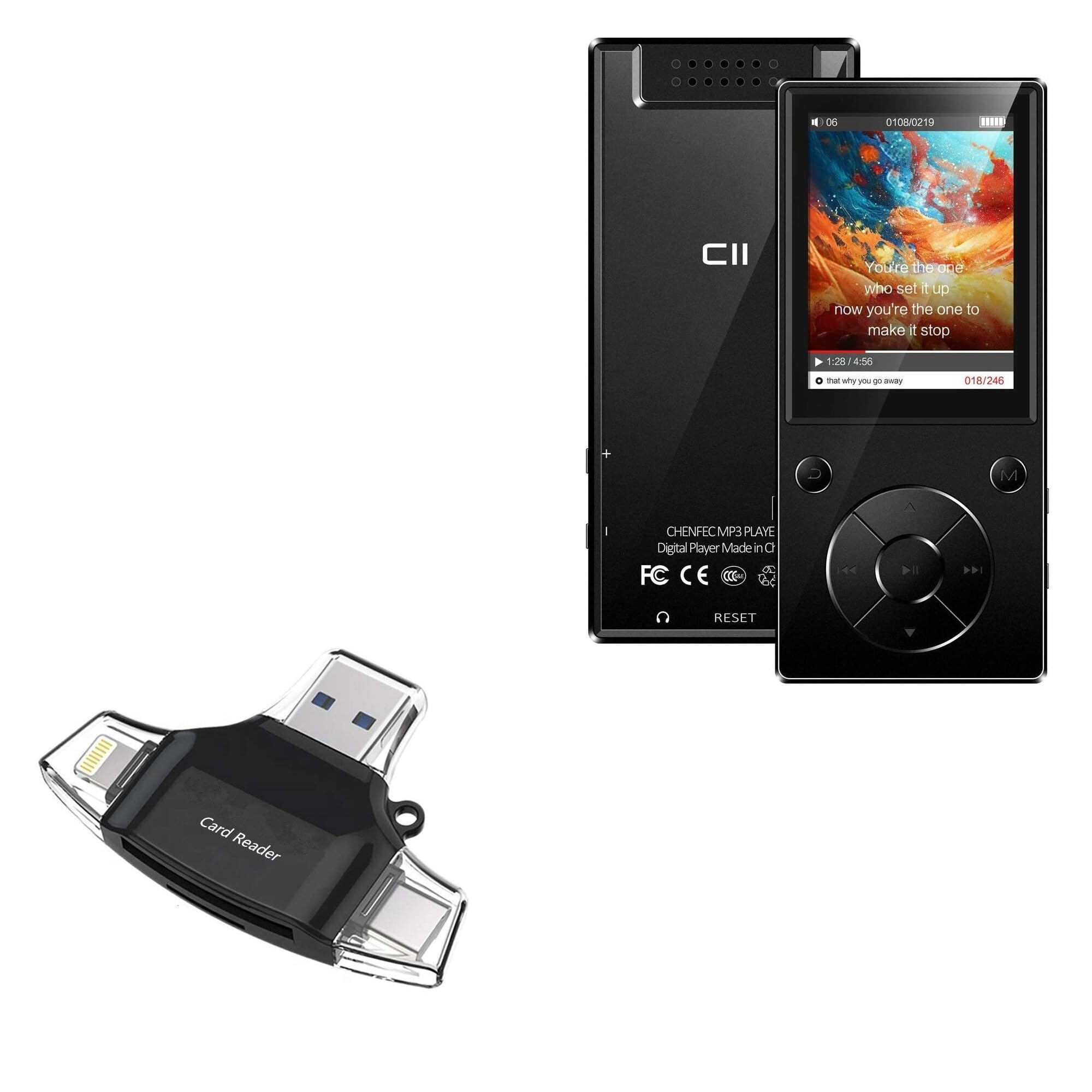
Image: The BoxWave AllReader SD Card Reader, showing its compact design and various connectors.
Nøglefunktioner:
- Four Interfaces: Equipped with USB-C, USB-A, Micro-USB, and Apple (Lightning) connectors for wide device compatibility.
- Let File Overførsel: Enables direct transfer of files between memory cards and connected devices.
- Plug and Play: Ingen drivere eller softwareinstallation kræves til de fleste operativsystemer.
- Kompakt design: Small and portable for convenient use on the go.
- Understøttelse af hukommelseskort: Compatible with both SD and microSD card formats.
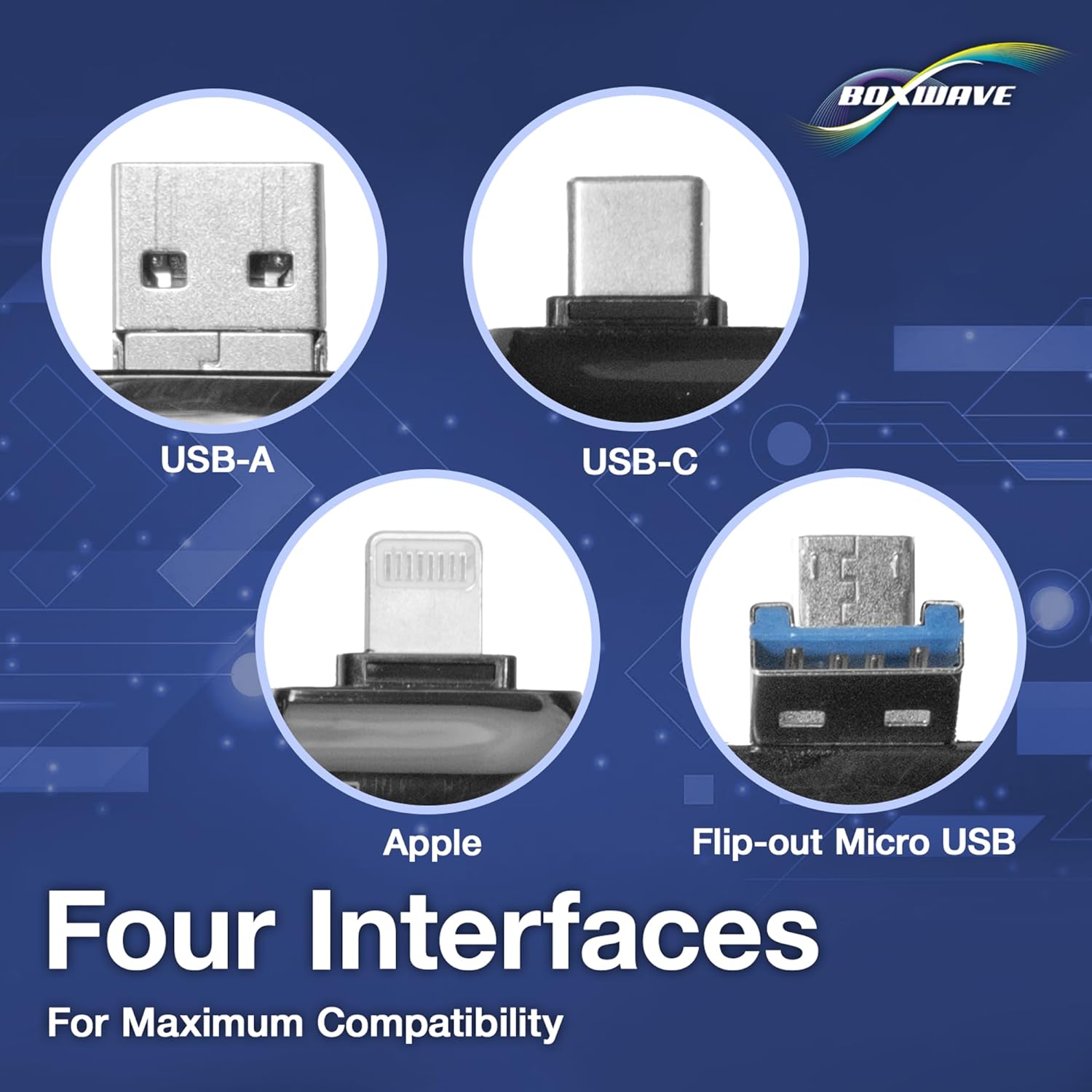
Billede: Detaljeret view of the four integrated interfaces: USB-A, USB-C, Apple (Lightning), and Flip-out Micro USB.
Opsætning
- Indsæt hukommelseskort: Gently insert your SD or microSD card into the appropriate slot on the AllReader SD Card Reader until it clicks into place. Ensure the card is inserted in the correct orientation.
- Opret forbindelse til enhed: Select the appropriate connector (USB-C, USB-A, Micro-USB, or Apple Lightning) for your host device (e.g., smartphone, tablet, laptop, desktop PC). Plug the AllReader into your device's port.
- Enhedsgenkendelse: Your device should automatically detect the card reader and the inserted memory card. A notification or file browser window may appear, indicating that the storage is ready for access.
Note: For some mobile devices, you may need to use a file management application to browse the contents of the connected memory card.

Image: The AllReader with an SD card inserted, connected to a tablet, illustrating the setup for file overførsel.
Betjeningsvejledning
Overfører Files:
- Ensure the AllReader is properly connected to your device and the memory card is inserted.
- Åbn din enheds file manager or photo gallery application.
- Locate the external storage device, typically labeled as "USB Storage," "SD Card," or similar.
- Browse to the desired files på hukommelseskortet.
- Vælg files du ønsker at overføre.
- Use the "Copy" or "Move" function within your device's file leder til at overføre files to your device's internal storage or another connected storage.
- At overføre files from your device to the memory card, reverse the process: select files from your device's storage and copy/move them to the external storage (memory card).

Image: The AllReader connected to various devices including smartphones, tablets, laptops, and desktop PCs, demonstrating its versatility for file overførsel.
Safely Removing the Device:
Before disconnecting the AllReader from your computer, always safely eject the device through your operating system's options (e.g., "Safely Remove Hardware" on Windows, "Eject" on macOS). For mobile devices, ensure no file transfers are active before unplugging.
Opretholdelse
- Rensning: Brug en blød, tør klud til at rengøre kortlæserens yderside. Undgå at bruge flydende rengøringsmidler eller opløsningsmidler.
- Opbevaring: Store the AllReader in a cool, dry place away from direct sunlight and extreme temperatures.
- Håndtering: Avoid dropping the device or subjecting it to strong impacts. Do not force memory cards or connectors into slots.
- Vedligeholdelse af stik: Keep the connectors free from dust and debris. If necessary, use a soft brush or compressed air to clean them.
Fejlfinding
| Problem | Mulig løsning |
|---|---|
| Enheden blev ikke genkendt. |
|
| Kan ikke få adgang files på hukommelseskortet. |
|
| Langsom file overførselshastigheder. |
|
Specifikationer
- Modelnavn: AllReader SD Card Reader
- Mærke: BoxWave
- Grænseflader: USB-C, USB-A, Micro-USB, Apple (Lightning)
- Kortkompatibilitet: SD, microSD
- Farve: Jet Black
- Varens vægt: 6 ounce
- ASIN: B0CNSDX7WD
- Dato først tilgængelig: 13. november 2023
Garanti og support
For warranty information and technical support, please refer to the official BoxWave webwebstedet eller kontakt deres kundeservice direkte. Gem din købskvittering til garantikrav.
BoxWave Customer Service: www.boxwave.com/support