
Indledning
This manual provides essential information for setting up, operating, maintaining, and troubleshooting your HP Pro Mini 400 G9 Business Mini Desktop Computer. This compact and powerful system is designed for business environments, featuring a 12th Gen Intel Core i5-12500T processor, 16GB DDR4 RAM, and a 512GB PCIe NVMe SSD, running Windows 11 Pro.
Please read this manual thoroughly before using your new computer to ensure proper operation and to maximize its lifespan.
Hvad er der i æsken
Kontroller, at alle varer er til stede i emballagen:
- HP Pro Mini 400 G9 Desktop PC
- Kablet tastatur
- Wired Mouse
- Strømadapter og kabel
- Dokumentation (hurtigstartguide, garantioplysninger)
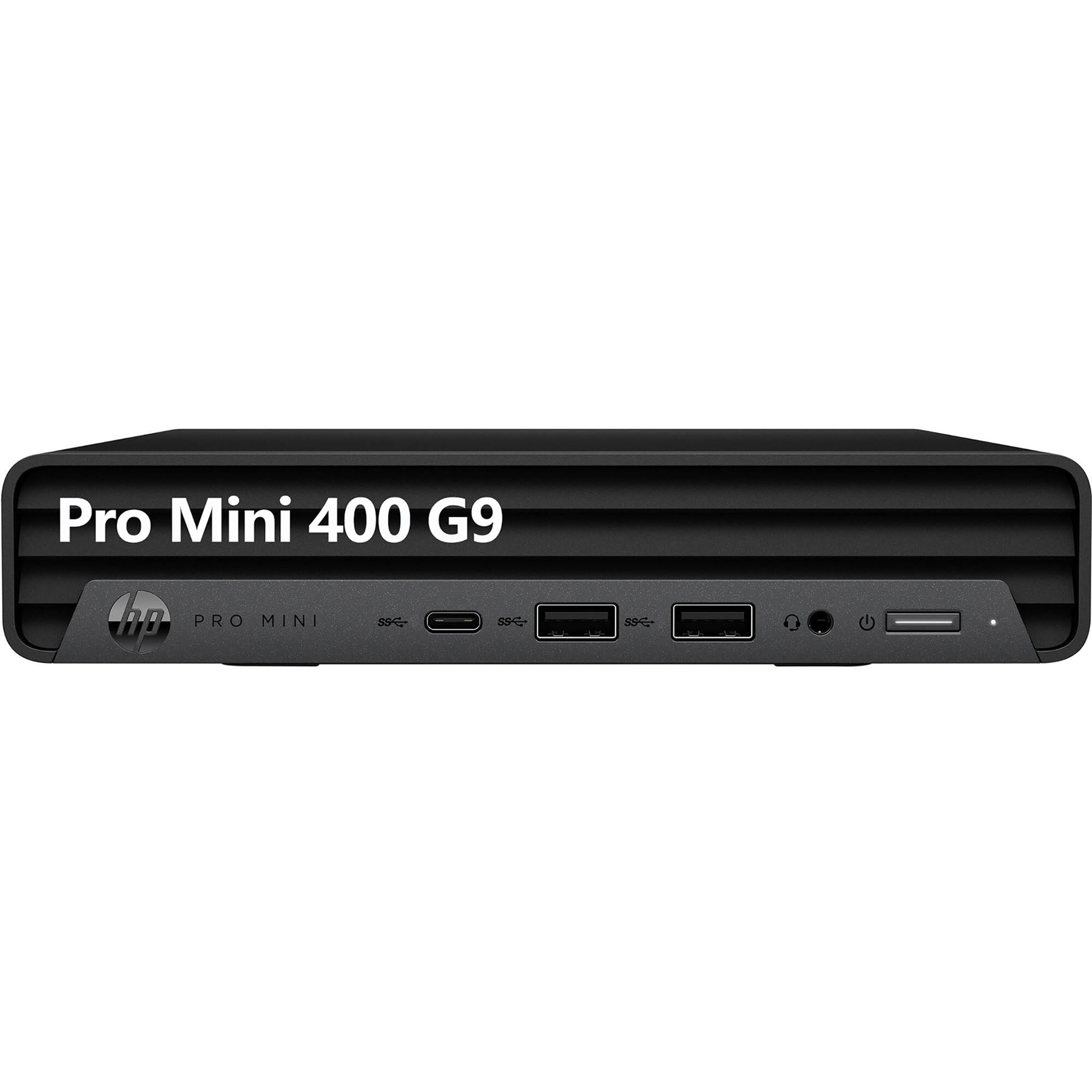
Image: The HP Pro Mini 400 G9 desktop computer shown with its accompanying wired keyboard and mouse.
Opsætning
Follow these steps to set up your HP Pro Mini 400 G9 desktop computer:
- Tilslut ydre enheder:
- Connect the wired keyboard to an available USB Type-A port on the front or rear of the computer.
- Connect the wired mouse to another available USB Type-A port.
- Connect your monitor(s) to the DisplayPort or HDMI ports on the rear of the computer. The system supports up to two DisplayPort 1.4 and one HDMI 2.1 output.
- Tilslut til strøm:
- Connect the power cable to the power connector on the rear of the computer.
- Sæt den anden ende af strømkablet i en jordet stikkontakt.
- Netværksforbindelse (valgfrit):
- For a wired connection, connect an Ethernet cable from your router or network switch to the RJ-45 port on the rear of the computer.
- For wireless connectivity, the system includes Wi-Fi 6 (802.11ax) and Bluetooth 5.2. Configuration will occur during initial Windows setup or via Windows settings.
- Første opstart:
- Tryk på tænd/sluk-knappen, der er placeret på forsiden af computeren.
- Follow the on-screen instructions to complete the Windows 11 Pro setup process. This includes setting up your user account, network preferences, and other initial configurations.

Image: Front panel of the HP Pro Mini 400 G9, highlighting USB-C, USB-A ports, headphone/microphone jack, and power button.

Image: Rear panel of the HP Pro Mini 400 G9, showing DisplayPort, HDMI, USB-A ports, RJ-45 Ethernet, and power connector.
Betjeningsvejledning
Tænd/sluk
- For at tænde: Tryk på tænd/sluk-knappen på frontpanelet.
- For at lukke ned: Klik på Start-knappen i Windows, og vælg derefter Strøm > Luk ned.
- For at genstarte: Klik på Start-knappen i Windows, og vælg derefter Tænd/sluk > Genstart.
- At sove: Klik på Start-knappen i Windows, og vælg derefter Strøm > Slumretilstand.
Tilslutning af enheder
- USB-enheder: Use the SuperSpeed USB Type-A (10Gbps and 5Gbps signaling rate) and SuperSpeed USB Type-C (20Gbps signaling rate) ports for connecting external drives, printers, and other USB peripherals. One front USB Type-A port supports charging.
- Lydenheder: Connect headphones or a headset to the headphone/microphone combo jack on the front panel.
- Displayenheder: Connect up to three displays using the two DisplayPort 1.4 and one HDMI 2.1 ports on the rear.
Trådløs forbindelse
- Wi-Fi: To connect to a wireless network, open Windows Settings, navigate to Network & internet > Wi-Fi, and select your desired network.
- Bluetooth: To pair Bluetooth devices, open Windows Settings, navigate to Bluetooth & devices, and turn on Bluetooth. Select "Add device" to pair new devices.
Opretholdelse
Rensning
- Sørg for, at computeren er slukket og frakoblet stikket, inden rengøring.
- Brug en blød, fnugfri klud lidt dampende med vand eller en mild rengøringsopløsning for at aftørre de udvendige overflader.
- Use compressed air to clear dust from ventilation grilles and ports. Avoid spraying liquid directly into openings.
Softwareopdateringer
- Regularly check for and install Windows updates to ensure system security and performance. Go to Settings > Windows Update.
- Keep device drivers updated. HP provides driver updates through their support webwebsted eller HP Support Assistant-software.
Lagerstyring
- Slet periodisk unødvendige files and empty the Recycle Bin to free up storage space.
- Overvej at bruge cloud-lagring eller eksterne drev til store files to maintain optimal performance of the internal 512GB M.2 PCIe NVMe SSD.
Fejlfinding
Ingen strøm
- Sørg for, at strømkablet er korrekt tilsluttet til både computeren og stikkontakten.
- Kontroller, at stikkontakten fungerer ved at tilslutte en anden enhed.
- Kontroller strømadapteren for eventuelle skader.
Ingen skærm
- Confirm that the monitor is powered on and its input source is correctly selected (e.g., HDMI, DisplayPort).
- Ensure the video cables (HDMI/DisplayPort) are securely connected to both the computer and the monitor.
- Prøv at tilslutte skærmen til en anden videoport på computeren, hvis en sådan er tilgængelig.
Problemer med netværksforbindelse
- wired: Check if the Ethernet cable is properly connected to the RJ-45 port and your router/modem. Verify router/modem status.
- Trådløs: Ensure Wi-Fi is enabled in Windows Settings. Restart your router/modem. Try forgetting and re-connecting to the Wi-Fi network.
Systemnedbremsning
- Luk unødvendige programmer, der kører i baggrunden.
- Tjek Jobliste (Ctrl+Shift+Esc) for processer, der bruger mange CPU-, hukommelses- eller diskressourcer.
- Sørg for, at Windows og drivere er opdaterede.
- Run a disk cleanup and check for malware.
Specifikationer
| Mærke | HP |
| Modelnavn | Pro Mini 400 G9 |
| Operativsystem | Windows 11 Pro |
| CPU model | 12th Gen Intel Core i5-12500T (6 Cores, 12 Threads, 2.00 GHz to 4.40 GHz Turbo) |
| Grafik | Intel UHD Graphics 770 (Integreret) |
| RAM-hukommelse | 16GB DDR4 RAM (Max 64GB) |
| Opbevaring | 512 GB M.2 PCIe NVMe SSD |
| Trådløs forbindelse | Realtek RTL8852BE Wi-Fi 6 (2x2) and Bluetooth 5.2 combo |
| Forreste porte |
|
| Bageste porte |
|
| Dimensioner (H x B x D) | 1.34 x 6.97 x 6.89 tommer (ca.) |
| Strømforbrug | 90 watt |
Garantioplysninger
This HP Pro Mini 400 G9 desktop computer typically comes with a 1-year limited warranty. The warranty covers defects in materials and workmanship under normal use. Specific terms and conditions may vary by region and retailer.
For detailed warranty information, please refer to the warranty documentation included with your product or visit the official HP support webwebsted.
Støtte
If you encounter issues that cannot be resolved using the troubleshooting steps in this manual, or if you require further assistance, please contact HP customer support.
- Online support: Besøg embedsmanden HP Support webwebsted for drivere, manualer og fejlfindingsvejledninger.
- Telefonsupport: Refer to your product documentation for regional phone support numbers.
- HP Support Assistant: Utilize the pre-installed HP Support Assistant software for system diagnostics, updates, and direct access to support resources.