
Indledning
This manual provides detailed instructions for the setup, operation, and maintenance of your GHome G2 Smart WiFi Gateway. The G2 Gateway acts as a central hub for various Tuya smart home devices, including smart locks, light sources, sensors, water valves, plugs, and switches, enabling remote control and smart automation.
Opsætningsvejledning
Pakkens indhold
- GHome G2 Smart Gateway x 1
- Brugsanvisning x 1
- Strømkabel x 1
Første opsætning og app-parring
Follow these steps to set up your GHome G2 Smart WiFi Gateway and connect it to the GHome App (or Tuya Smart/Smart Life App).
- Download og oprettelse af konto: Create an account and log in to the GHome App (or Tuya Smart/Smart Life App).
- Aktivér Bluetooth og Wi-Fi: Turn on Bluetooth and WiFi on your smartphone. Ensure your WiFi network is 2.4GHz, as 5GHz networks are not supported for pairing.
- Tænd gatewayen: Power on the G2 Gateway. Press and hold the reset button for 5-8 seconds until the blue light is on and the red light is blinking.
- Tilføj enhed i appen: In the app, click the "+" icon in the upper right corner. The app will automatically search for nearby devices. Select the G2 Gateway and click "Add".
- Bekræft forbindelse: Wait for the successful connection confirmation and then name your gateway.

Image: Step-by-step guide for pairing the GHome G2 Gateway with the mobile application.
Adding Compatible Devices
Once your G2 Gateway is set up, you can add compatible smart devices like smart locks to enable remote control.
- Access Gateway Interface: Open the G2 Gateway interface within the GHome App.
- Tilføj enhed: Click "Add device" or "Add existing".
- Select and Confirm: Select the device you wish to add from the list and confirm.

Image: Visual guide showing how to add compatible smart devices to the G2 Gateway via the app.
Video: How to add smart devices to the G2 gateway.
Betjeningsvejledning
Fjernstyring og overvågning
The G2 Gateway allows you to control and monitor your connected smart devices remotely through the GHome App (or Tuya Smart/Smart Life App). This includes managing smart locks, lights, sensors, and other compatible devices from anywhere with an internet connection.
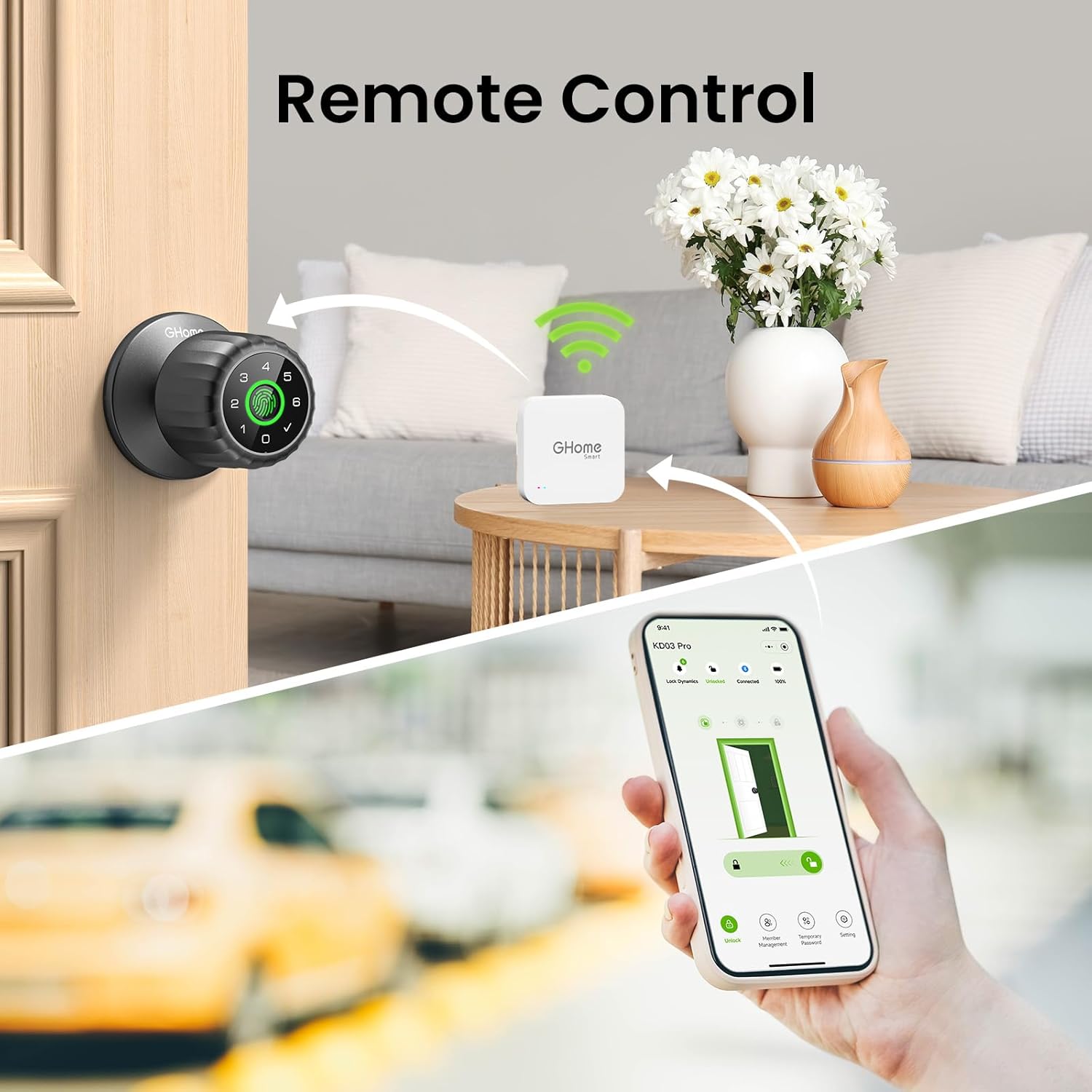
Image: A smartphone displaying the GHome app controlling a smart lock remotely, facilitated by the G2 Gateway.
Stemmestyringsintegration
The G2 Gateway is compatible with Alexa and Google Assistant, enabling voice commands for your smart home devices. Note that GHome Smart door locks may not support direct voice control even through the gateway.

Image: The GHome G2 Gateway shown with Amazon Alexa and Google Assistant logos, indicating voice control compatibility for connected devices.
Bred enhedskompatibilitet
The G2 Gateway supports a wide range of Tuya smart home devices, including:
- Smart låse
- Lyskilder
- Sensors (e.g., T&H sensors)
- Vandventiler
- Smart stik
- Afbrydere

Image: An illustration of a smart home showing various devices like smart cameras, light sources, switches, door locks, T&H sensors, and water valves connected via the GHome G2 Gateway.
Opretholdelse
To ensure optimal performance and longevity of your GHome G2 Smart WiFi Gateway, consider the following maintenance tips:
- Rensning: Gently wipe the exterior of the gateway with a soft, dry cloth. Avoid using liquid cleaners or abrasive materials.
- Firmwareopdateringer: Regularly check the GHome App for available firmware updates for your gateway. Keeping the firmware updated ensures the latest features, security patches, and performance improvements.
- Placering: Ensure the gateway is placed in a well-ventilated area, away from direct sunlight, excessive heat, or moisture. Maintain a clear path for its signal to connected devices.
Fejlfinding
If you encounter issues with your GHome G2 Smart WiFi Gateway, refer to the following common troubleshooting steps:
- Gateway Not Connecting to WiFi:
- Ensure your WiFi network is 2.4GHz. The G2 Gateway does not support 5GHz networks.
- Verify that both your smartphone and the gateway are connected to the same 2.4GHz WiFi network during the initial setup.
- Check your router settings to confirm 2.4GHz is enabled. Some routers may combine 2.4GHz and 5GHz bands; you might need to separate them or ensure your device connects to the 2.4GHz band.
- Poor Connection or Range Issues:
- For optimal performance, keep the gateway within 33 feet (10 meters) of your smart lock or other connected devices.
- Avoid placing the gateway near large metal objects, thick walls, or other sources of interference that could block the signal.
- Devices Not Adding to Gateway:
- Ensure the smart device you are trying to add is compatible with the G2 Gateway (Tuya-compatible Bluetooth devices).
- Make sure the device is in pairing mode as per its own instruction manual.
- Try resetting the gateway by pressing the reset button for 5-8 seconds until the blue light is on and the red light is blinking, then attempt to add devices again.
- Gateway Light Status Indicators:
- Red light flashing, blue light remains on: Waiting to connect to the app.
- Red and blue lights remain on: Working status after networking.
- Blue light remains on, red light goes out: Network disconnection.

Image: Diagram illustrating the GHome G2 Gateway's light status indicators and recommended placement for optimal signal range.
Specifikationer
| Feature | Detalje |
|---|---|
| Produktnavn | Bluetooth Mesh Gateway |
| Modelnummer | G2 |
| Netværkskompatibilitet | Only supports 2.4GHz WiFi |
| Mikroindgang | DC 5V/1A |
| Arbejdstemperatur | 32 ° F ~ 122 ° F (0 ° C ~ 50 ° C) |
| Arbejdsfugtighed | 10 % ~ 85 % RH |
| Opbevaringstemperatur | 32 ° F ~ 158 ° F (0 ° C ~ 70 ° C) |
| Opbevaring Fugtighed | 5 % ~ 95 % RH |
| Dimensioner | 1.96 x 1.96 x 0.43 tommer |
| Varens vægt | 1.13 ounce |
| Farve | Hvid |

Image: Detailed product specifications for the GHome G2 Bluetooth Mesh Gateway, including network, input, temperature, humidity, and physical dimensions.
Garanti og support
The GHome G2 Smart WiFi Gateway comes with a 12 måneders garanti. GHome Smart also provides lifetime online support for sine produkter.
If you require assistance, please contact the professional support team via phone or email for prompt service. Refer to the contact information provided in your product packaging or on the official GHome Smart webwebsted.