
WONLINK AX1800
WONLINK AX1800 WiFi 6 Extender User Manual
Model: AX1800
1. Introduktion
Thank you for choosing the WONLINK AX1800 WiFi 6 Extender. This device is engineered to expand your wireless network coverage and enhance internet speeds, eliminating dead zones and ensuring a stable connection throughout your home or office. Utilizing the latest WiFi 6 (802.11ax) technology, it delivers high-speed dual-band performance for demanding online activities.
This manual provides detailed instructions for setting up, operating, and maintaining your WiFi extender. Please read it carefully before use to ensure proper installation and optimal performance.
2. Produktfunktioner
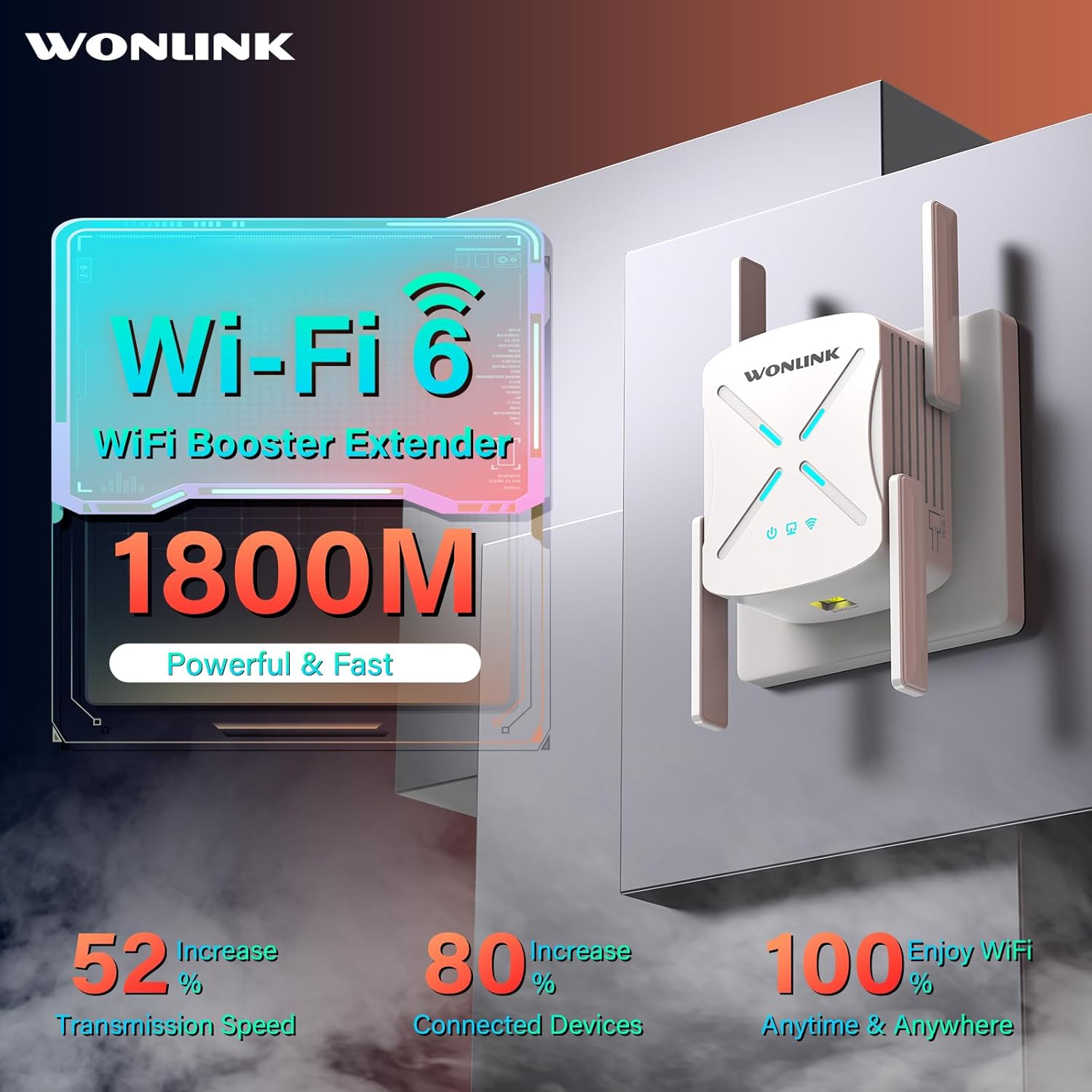
- Lightning-Fast WiFi 6 Speed: Supports WiFi 6 technology, offering up to 1800Mbps combined speed (1201Mbps on 5GHz, 576Mbps on 2.4GHz) for smooth HD video streaming, online gaming, and web konferencer.
- Udvidet signaldækning: Equipped with 4 high-gain antennas and performance power amplifiers, providing up to 10,000+ sq ft of coverage, penetrating walls and floors to eliminate WiFi dead spots.
- Simultaneous Device Support: Features a powerful three-core processor and supports MU-MIMO and OFDMA technologies, allowing connection of 64+ devices simultaneously with low latency.
- Gigabit Ethernet-port: Includes a Gigabit Ethernet port for high-speed wired connections to devices like smart TVs, gaming consoles, or PCs, ensuring stable and fast data transfer.
- Avanceret sikkerhed: Incorporates the latest WPA3 security encryption protocols to protect your network from unauthorized access and external threats.
- Flere driftstilstande: Supports Repeater, Access Point (AP), Client, Bridge, and Router modes to meet various networking needs.



3. Pakkens indhold
Kontroller venligst, at alle varer er til stede i din pakke:
- 1 x WONLINK AX1800 WiFi 6 Extender
- 1 x RJ45 Ethernet-kabel
- 1 x brugermanual
4. Opsætningsvejledning
The WONLINK AX1800 WiFi 6 Extender offers two primary methods for quick setup: WPS (Wi-Fi Protected Setup) and Web Browser opsætning.

Metode 1: WPS (Wi-Fi-beskyttet opsætning)
- Tænd: Plug your WiFi extender into a power outlet near your main router. Wait for approximately 30 seconds for the device to power on and initialize.
- Press WPS Button on Extender: Locate the WPS button on the side of the WONLINK AX1800 extender and press it. The WPS indicator light on the extender should start blinking.
- Press WPS Button on Router: Within 2 minutes, press the WPS button on your main WiFi router. Ensure your router supports WPS functionality.
- Tilslutningsbekræftelse: The extender's indicator light will turn solid, indicating a successful connection. The extended WiFi network will have the same name as your main network with '_EXT' or '_Plus' appended (e.g., MyHomeWiFi_EXT).
- Flyt forlænger: Once connected, unplug the extender and move it to a location halfway between your router and the area with poor WiFi signal. Plug it into a power outlet and wait for it to reconnect. Ensure the signal strength indicator on the extender shows a good connection.
Metode 2: Web Browser Setup (Recommended for non-WPS routers)
- Tænd: Plug your WiFi extender into a power outlet near your main router. Wait for approximately 30 seconds for the device to power on and initialize.
- Connect to Extender's WiFi: On your computer or smartphone, connect to the extender's default WiFi network (SSID) which will typically be named something like "WONLINK-XXXX-2G" or "WONLINK-XXXX-5G". No password is required for the initial connection.
- Adgangsopsætningsside: Åbn a web browser (e.g., Chrome, Firefox, Safari) and type http://192.168.10.1 ind i adresselinjen. Tryk på Enter.
- Login: You will be prompted to create a new login password for the extender's management page. Follow the on-screen instructions.
- Vælg tilstand: Choose "Repeater Mode" (or your desired mode) from the setup options. The extender will scan for available WiFi networks.
- Vælg dit netværk: Select your main WiFi network (SSID) from the list and enter its password.
- Konfigurer udvidet netværk: You can choose to keep the same SSID for the extended network or create a new one. It is recommended to use a different SSID (e.g., MyHomeWiFi_EXT) to easily distinguish between networks.
- Anvend indstillinger: Click "Apply" or "Save" to finalize the settings. The extender will restart.
- Flyt forlænger: Once restarted and connected, unplug the extender and move it to a location halfway between your router and the area with poor WiFi signal. Plug it into a power outlet and wait for it to reconnect. Ensure the signal strength indicator on the extender shows a good connection.
5. Driftstilstande
The WONLINK AX1800 WiFi 6 Extender supports multiple operating modes to suit various networking requirements:

5.1. Repeatertilstand (standard)
In Repeater Mode, the extender wirelessly connects to your existing router's WiFi network and re-broadcasts it, extending the coverage area. This is ideal for eliminating WiFi dead zones in larger homes or offices.
5.2. Adgangspunktstilstand (AP)
In AP Mode, the extender connects to your router via an Ethernet cable and transforms your wired network connection into a wireless access point. This is useful for adding WiFi capability to a wired-only network or creating a new WiFi network in a specific area.
5.3. Routertilstand
In Router Mode, the extender functions as a standalone router. You can connect it directly to a modem via an Ethernet cable to create a new private wireless network. This mode is suitable for small offices or homes that do not have an existing router.
6. Generel drift
6.1. Optimal placering
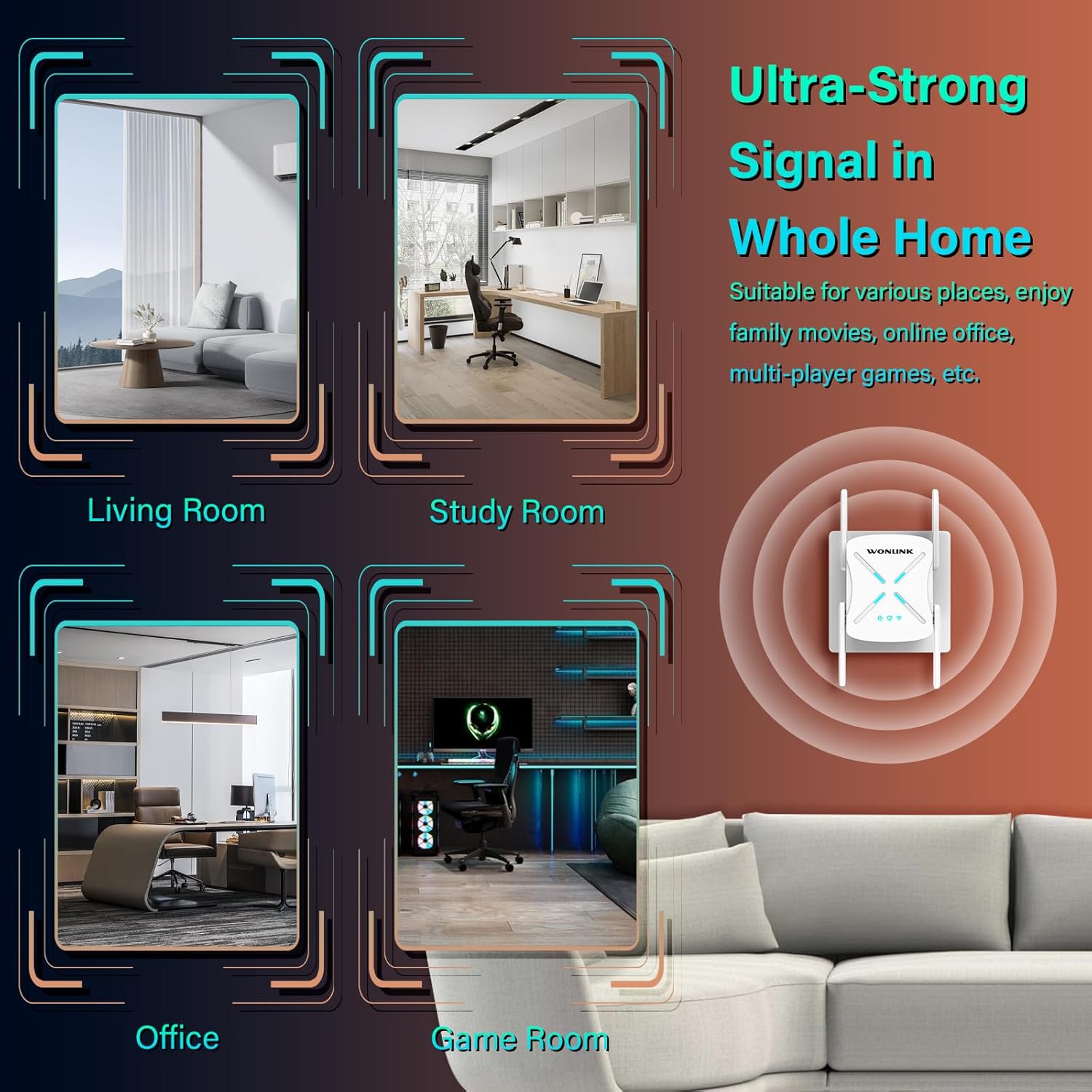
For best performance, place the extender halfway between your main router and the area where you need improved WiFi coverage. Avoid placing it near large metal objects, concrete walls, or other electronic devices that may cause interference. The signal indicator lights on the extender can help you find an optimal location.
6.2. Tilslutning af enheder
Once the extender is set up, your devices (smartphones, tablets, laptops, smart TVs, etc.) can connect to the extended WiFi network just like they would to any other WiFi network. Look for the extended SSID (e.g., MyHomeWiFi_EXT) in your device's WiFi settings.
6.3. Brug af Ethernet-porten
The Gigabit Ethernet port can be used to connect a wired device (e.g., desktop computer, gaming console) to the network, providing a stable and high-speed connection. Simply connect an Ethernet cable from the device to the extender's LAN/WAN port.
7. Vedligeholdelse
- Rensning: Use a soft, dry cloth to clean the exterior of the extender. Do not use liquid cleaners or aerosols.
- Ventilation: Ensure the cooling holes on the device are not obstructed to prevent overheating and ensure stable operation.
- Firmwareopdateringer: Kontroller jævnligt producentens webwebsted for firmwareopdateringer. At holde din enheds firmware opdateret kan forbedre ydeevnen, tilføje nye funktioner og forbedre sikkerheden.
- Genstart: Hvis du oplever netværksproblemer, kan du prøve at genstarte extenderen ved at tage stikket ud af stikkontakten i 10 sekunder og derefter sætte den i igen.
8. Fejlfinding
If you encounter issues with your WONLINK AX1800 WiFi 6 Extender, please refer to the following common problems and solutions:
| Problem | Mulig årsag/løsning |
|---|---|
| Extenderen tænder ikke. | Ensure the power outlet is working and the extender is properly plugged in. Try a different outlet. |
| Cannot connect to the extender's default WiFi for setup. | Ensure the extender is powered on and wait for 30 seconds. Try restarting the extender. Ensure your device's WiFi is enabled. |
| WPS-opsætning mislykkes. | Ensure your router supports WPS and that you press both WPS buttons within the 2-minute window. Try the web browseropsætningsmetode i stedet. |
| Ingen internetadgang efter tilslutning til det udvidede netværk. | Verify that your main router has internet access. Re-run the setup process to ensure the extender is properly connected to your main router. Relocate the extender closer to the main router if the signal is weak. |
| Lave hastigheder på det udvidede netværk. | Relocate the extender to an optimal position (halfway between router and dead zone). Ensure there are no major obstructions. Check for interference from other electronic devices. Your main router's speed also affects the extended network. |
| Extended network disappears or disconnects frequently. | This could indicate a weak signal from the main router. Try moving the extender closer to the router. Ensure the extender is not overheating. |
| Security concerns or unusual network behavior. | Ensure you have set a strong password for the extender's management page and for the extended WiFi network. Verify that WPA3 encryption is enabled. If issues persist, perform a factory reset and reconfigure. |
Fabriksindstilling
If the extender is not functioning correctly, you may need to perform a factory reset. With the extender powered on, use a paperclip or pin to press and hold the Reset button (usually located in a small hole) for about 5-10 seconds until the lights flash. The extender will restart with factory default settings, and you will need to set it up again.
9. Specifikationer
| Feature | Detalje |
|---|---|
| Model | AX1800 |
| Standard for trådløs kommunikation | 802.11a/b/g/n/ac, 802.11ax (WiFi 6) |
| Dataoverførselshastighed | Op til 1800 Mbps (1201 Mbps på 5 GHz, 576 Mbps på 2.4 GHz) |
| Frekvensbåndsklasse | Dobbeltbånd (2.4 GHz og 5 GHz) |
| Ethernet-port | 1 x Gigabit Ethernet Port (LAN/WAN) |
| Antenner | 4 x High Gain Omnidirectional Antennas |
| Sikkerhedsprotokoller | WPA3, WPA2-PSK, WPA-PSK |
| Dimensioner | 5.39 x 4.61 x 3.46 tommer |
| Varens vægt | 14.6 ounce |
| Fabrikant | WONLINK |
10. Garanti og support
For detailed warranty information, please refer to the documentation included with your purchase or contact WONLINK customer support. If you require further assistance or have questions not covered in this manual, please visit the official WONLINK webwebsted eller se den omfattende brugervejledning, der er tilgængelig online:
Officiel brugervejledning (PDF): Download brugervejledning
Gem venligst dit købsbevis for garantikrav.
Ask a question about this manual
Ask about setup, troubleshooting, compatibility, parts, safety, or missing instructions. Manuals+ will review the question and use this page’s manual context to help answer it.