
Indledning
Thank you for choosing the RedThunder K62 60% Wireless Gaming Keyboard and Mouse Combo. This manual provides essential information for the proper setup, operation, and maintenance of your new gaming peripherals. Please read these instructions carefully before use to ensure optimal performance and longevity of your product.
Hvad er der i æsken
- One 60% Wireless Keyboard
- One Wireless Honeycomb Mouse
- One USB Charging Cable
- One USB Receiver (located in the bottom of the mouse)

Image: The RedThunder K62 60% Wireless Gaming Keyboard and Mouse Combo, including the compact keyboard, honeycomb mouse, and the small USB receiver.
Opsætningsinstruktioner
1. Opladning af enhederne
The keyboard is equipped with an 1850 mAh battery, and the mouse with a 500 mAh battery. For transportation safety, the product is not fully charged. Please fully charge both devices before first use.
- Connect the provided USB charging cable to the USB-C port on the keyboard and the micro-USB port on the mouse.
- Plug the other end of the cable into a computer's USB port or a compatible USB power adapter.
- Charge for approximately 8 hours for the initial charge. The mouse scroll wheel will light up during charging and turn off when fully charged.

Billede: Et nærbillede view of the USB-C charging port located on the side of the keyboard.

Billede: Et nærbillede view of the micro-USB charging port on the front of the mouse.
2. Connecting the Devices (Plug and Play)
The keyboard and mouse share a single 2.4G USB receiver. The devices are pre-paired at the factory.
- Find USB-modtageren, der er opbevaret i rummet i bunden af musen.
- Sæt USB-modtageren i en ledig USB-port på din computer.
- Turn on the keyboard using its power switch (usually located on the back or side).
- Turn on the mouse using its power switch (located on the bottom). There are typically three positions: OFF, ON (mouse only), and ON (mouse + LED light).
- Your computer should automatically detect and install the necessary drivers. The devices are now ready for use.

Image: A diagram illustrating the mouse's charging port, the three-position power switch (Off, On, On with LED), and the storage compartment for the USB receiver.
Betjeningsvejledning
Tastatur funktioner
The K62 keyboard is a 60% compact layout, meaning some functions are accessed via the Fn nøgle i kombination med andre nøgler.
RGB-baggrundsbelysningskontrol
- Fn + I: Turn On/Off Backlight
- Fn + K: Switch between 4 RGB backlight modes and 7 monochrome backlight modes.
- Fn + U / J: Juster baggrundsbelysningens lysstyrke (4 niveauer).

Image: The keyboard displaying various RGB backlight modes, with instructions for controlling them using Fn key combinations.
Multimedie- og funktionstaster
Many standard function keys (F1-F12) and multimedia controls are accessed by holding the Fn key and pressing the corresponding key.
| Kombination | Fungere |
|---|---|
| Fn + 1 | F1 |
| Fn + 2 | F2 |
| ... | ... |
| Fn + = | F12 |
| Fn + Q | Forrige spor |
| Fn + W | Afspil/pause |
| Fn + E | Næste spor |
| Fn + R | Lydstyrke ned |
| Fn + T | Lydstyrke op |
| Fn + Y | Stum |
| Fn + Win | Lås/lås Windows-nøgle op |
Musefunktioner
DPI justering
The mouse features 3 adjustable DPI (Dots Per Inch) settings for sensitivity control. A dedicated button, usually located behind the scroll wheel, allows you to cycle through these settings: 1200, 2400, and 3200 DPI.

Image: The RedThunder K62 mouse highlighting the DPI adjustment button and its ergonomic, lightweight honeycomb shell design.
RGB belysning
The mouse has a built-in 7-color cyclic gradual lighting effect. Note that the mouse scroll wheel lights up only when charging; it stays off when not charging.
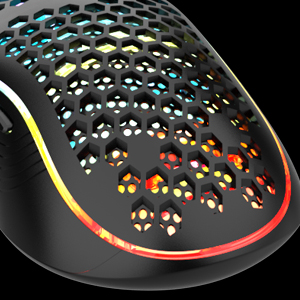
Billede: Et nærbillede view of the mouse's honeycomb shell design, showcasing the internal RGB lighting effects.
Strømstyring
Both the keyboard and mouse are equipped with smart energy-saving functions to extend battery life.
- If there is no operation on the keyboard for 30 minutes, it will automatically enter sleep mode. The keyboard lights will turn off after 2 minutes of inactivity.
- If there is no operation on the mouse for 1.5 minutes, it will automatically enter sleep mode, and its lights will turn off.
- To wake up either device, simply press any key on the keyboard or move/click the mouse.

Image: A visual representation of the smart sleep mode, showing the keyboard lights turning off after 2 minutes and the keyboard/mouse entering sleep after 30 minutes/1.5 minutes respectively.
Opretholdelse
- Rensning: Brug en blød, tør klud til at rengøre overfladerne på tastaturet og musen. Ved genstridigt snavs kan du bruge en let tør klud.amp en klud kan bruges, så det sikres, at der ikke kommer væske ind i enhederne.
- Batteripleje: To prolong battery life, avoid fully discharging the devices frequently. Recharge them when the low battery indicator appears or when performance degrades.
- Opbevaring: Opbevar enhederne et køligt, tørt sted væk fra direkte sollys og ekstreme temperaturer.
- USB-modtager: Når USB-modtageren ikke er i brug, skal den opbevares i det dertil indrettede rum i bunden af musen for at forhindre tab.
Fejlfinding
Forbindelsesproblemer
- Enheder svarer ikke: Ensure both the keyboard and mouse are turned ON. Check if the USB receiver is securely plugged into a working USB port on your computer.
- Intermitterende forbindelse: Ensure there are no significant obstructions between the devices and the USB receiver. Move the receiver closer if possible. Avoid using the devices near strong electromagnetic interference sources.
- Genparring: If the receiver and devices lose connection, you may need to re-pair them. Refer to the manufacturer's website or contact customer support for specific re-pairing instructions if the standard plug-and-play does not re-establish connection.
Opladningsproblemer
- Enheder oplader ikke: Verify the USB charging cable is properly connected to both the device and the power source. Try a different USB port or power adapter. Ensure the cable is not damaged.
- Kort batterilevetid: Ensure devices are fully charged. Reduce backlight brightness on the keyboard or turn off mouse LEDs if extended battery life is needed.
Keyboard Specific Issues
- Taster reagerer ikke: Check for debris under the keycap. If multiple keys are affected, try re-pairing the keyboard.
- Forkert nøgleudgang: Ensure the Windows key lock is not active (Fn + Win). If issues persist, a factory reset (if available) or re-pairing might be necessary.
Specifikationer
| Feature | Detalje |
|---|---|
| Modelnummer | K62 |
| Forbindelsesteknologi | 2.4G trådløs |
| Tastaturets batterikapacitet | 1850 mAh |
| Musens batterikapacitet | 500 mAh |
| Tastaturbaggrundslys | RGB (4 modes, 7 monochrome, 4 brightness levels) |
| Musebelysning | 7-color cyclic gradual effect (scroll wheel lights during charging) |
| Mus DPI-indstillinger | 1200/2400/3200 |
| Keyboard Keystroke Lifetime | 10,000,000 tastetryk |
| Kompatible enheder | Personlig computer |
| Varens vægt | 1.39 pund (ca.) |
| Fabrikant | Rød Torden |
Garanti og support
RedThunder products are designed for reliability and performance. For warranty information, technical support, or further assistance, please refer to the official RedThunder webwebstedet eller kontakt deres kundeservice direkte. Gem din købskvittering som købsbevis i tilfælde af garantikrav.