
1. Introduktion
This manual provides detailed instructions for the installation, operation, maintenance, and troubleshooting of your Gigastone 22-inch VA LED Monitor. Please read this manual thoroughly before using the product to ensure proper setup and optimal performance. Keep this manual for future reference.
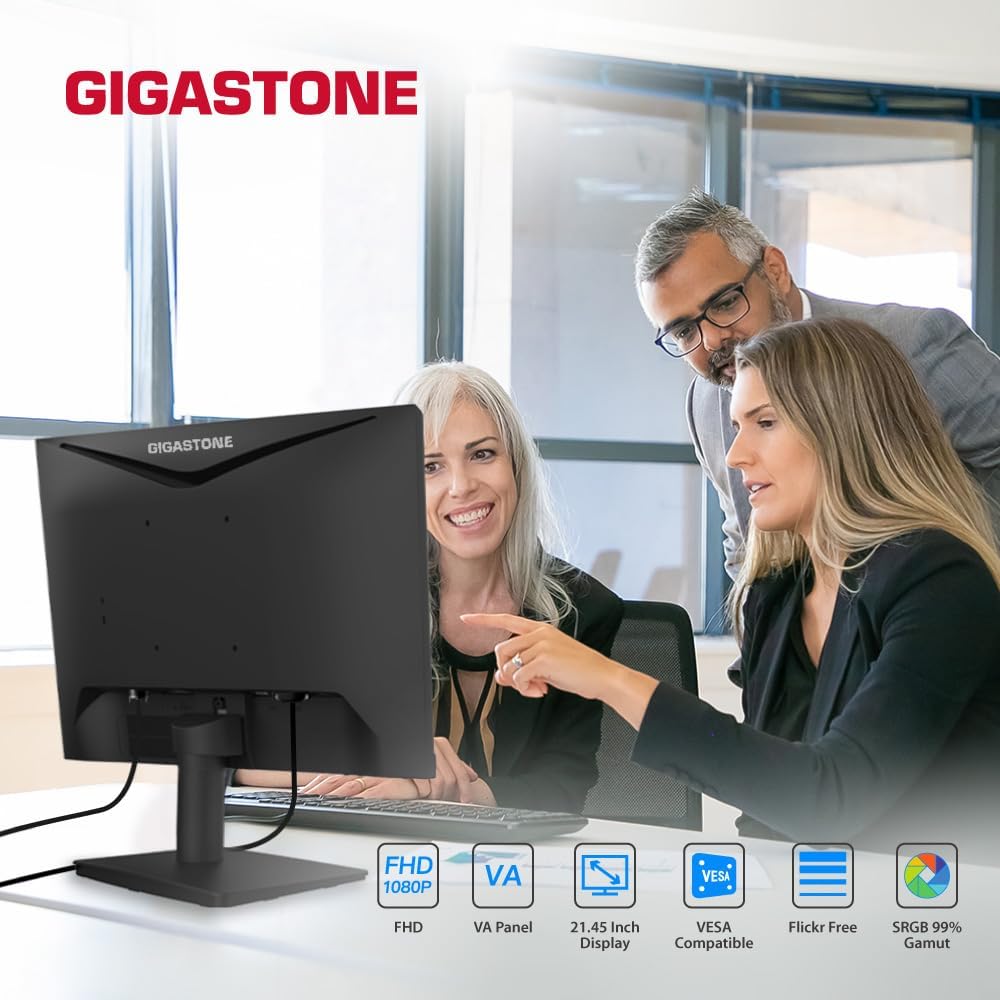
Figure 1.1: Gigastone 22-inch VA LED Monitor in use.
Nøglefunktioner:
- Full HD (FHD) 1920x1080p Resolution: Leverer skarpe og klare billeder.
- 75 Hz opdateringshastighed: Provides smoother image transitions and reduced screen tearing.
- VA panelteknologi: Offers superior contrast ratios and wide viewing angles of 178°.
- Øjenplejeteknologi: Features Low Blue Light and Anti-Flicker technologies to reduce eye strain during extended use.
- Rammeløst design: Maximizes screen space and provides a sleek appearance.
- Alsidig tilslutning: Includes HDMI and VGA ports.
- VESA Mount kompatibel: Allows for flexible mounting options (100x100mm).
- Adaptive-Sync (FreeSync) Compatible: Synchronizes the display's refresh rate with the graphics card's frame rate to eliminate screen tearing and stuttering.
2. Opsætningsvejledning
2.1 Udpakning af monitoren
Carefully remove all components from the packaging. Ensure all items listed in the packing list are present and undamaged. Retain the original packaging for future transport or service needs.
2.2 Samling af stativet
- Placer skærmen med forsiden nedad på en blød, ren overflade for at forhindre ridser.
- Attach the stand base to the stand neck. Secure it with the provided screw(s) by turning clockwise until firm.
- Align the assembled stand with the mounting slot on the back of the monitor. Push firmly until it clicks into place or secure with the provided screw(s). Ensure the stand is securely fastened to prevent instability.
- Carefully lift the monitor and place it on a stable, flat surface.
2.3 Tilslutningskabler
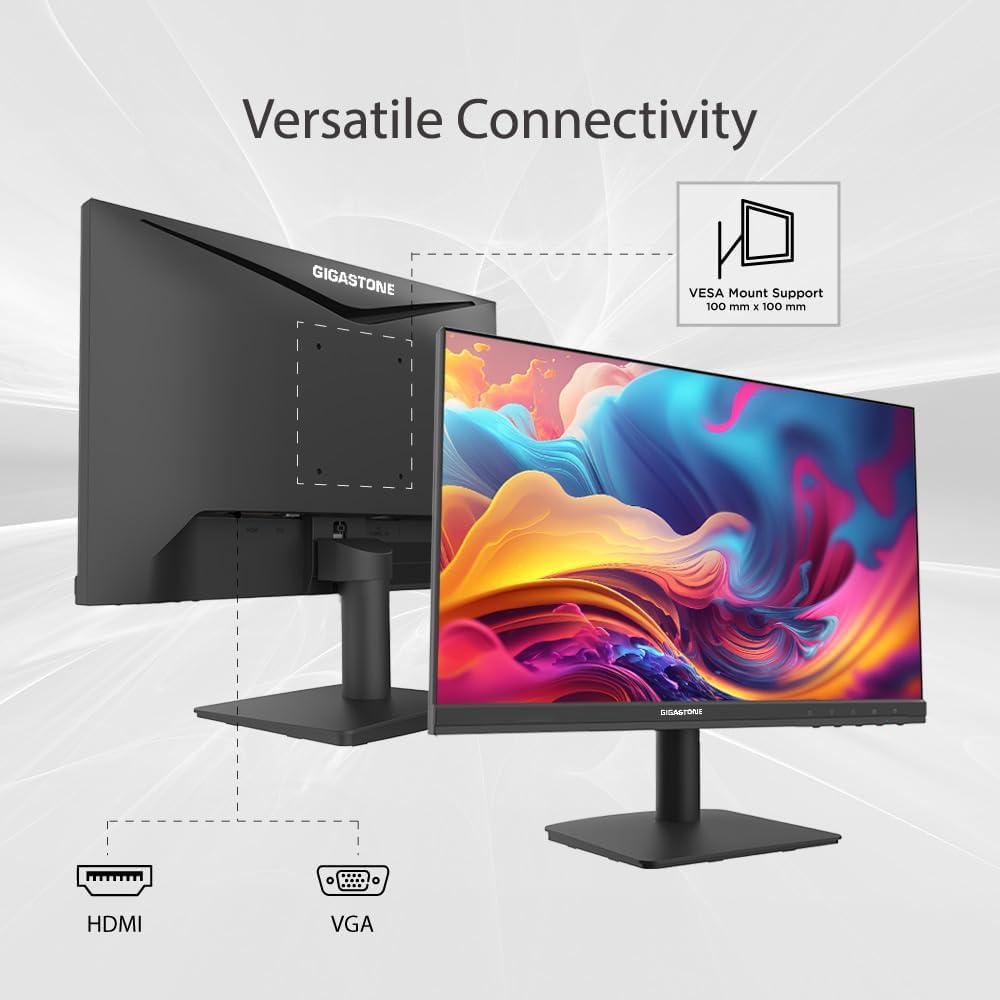
Figure 2.1: Monitor connectivity ports and VESA mount.
- Strømkabel: Connect one end of the power cable to the monitor's power input and the other end to a power outlet.
- Video kabel: Vælg en af følgende forbindelser:
- HDMI: Tilslut den ene ende af HDMI-kablet til skærmens HDMI-port og den anden ende til HDMI-udgangsporten på din computer.
- VGA: Connect one end of the VGA cable to the monitor's VGA port and the other end to the VGA output port on your computer.
- Sørg for, at alle forbindelser er sikre.
2.4 VESA-montering (valgfrit)
The monitor supports VESA mounting (100x100mm). To mount the monitor on a wall or an articulating arm, first remove the stand. Follow the instructions provided with your VESA-compatible mounting kit for proper installation.
3. Betjeningsvejledning
3.1 Tænd/sluk
Press the power button, usually located on the bottom right side of the monitor, to turn the monitor on or off. The power indicator light will illuminate when the monitor is on.
3.2 On-Screen Display (OSD) menu
The OSD menu allows you to adjust various monitor settings. Use the buttons located on the bottom right of the monitor to navigate and select options.
Almindelige OSD-menuindstillinger:
- Lysstyrke/kontrast: Juster den samlede luminans og forskellen mellem lyse og mørke områder.
- Farveindstillinger: Rediger farvetemperatur, farvetone og mætning.
- Inputkilde: Vælg manuelt mellem HDMI- og VGA-indgange.
- Billedtilstand: Choose from preset display modes (e.g., Standard, Game, Movie).
- Øjenplejetilstand: Activate Low Blue Light and Anti-Flicker features.
- Adaptive-Sync (FreeSync): Enable or disable this feature for compatible graphics cards.
3.3 Eye Care Technology
The monitor incorporates Low Blue Light and Anti-Flicker technologies to minimize eye strain. These features can be enabled or adjusted through the OSD menu. Reducing blue light can help alleviate eye fatigue, especially during prolonged use.
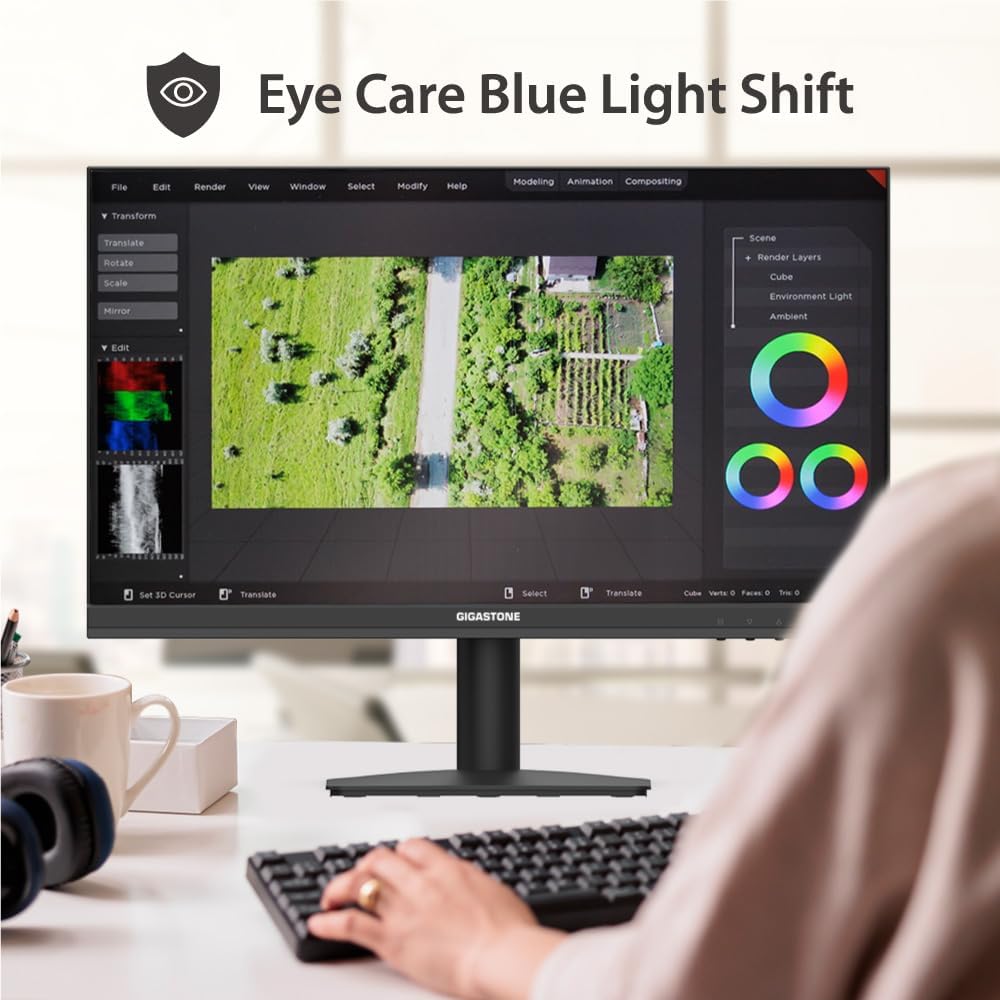
Figure 3.1: Eye Care Blue Light Shift feature in action.
3.4 Adaptive-Sync (FreeSync)
This monitor is compatible with Adaptive-Sync technology, which helps eliminate screen tearing and stuttering by synchronizing the monitor's refresh rate with your graphics card's frame rate. To use this feature, ensure your graphics card supports Adaptive-Sync/FreeSync and enable it in both your graphics card settings and the monitor's OSD menu.
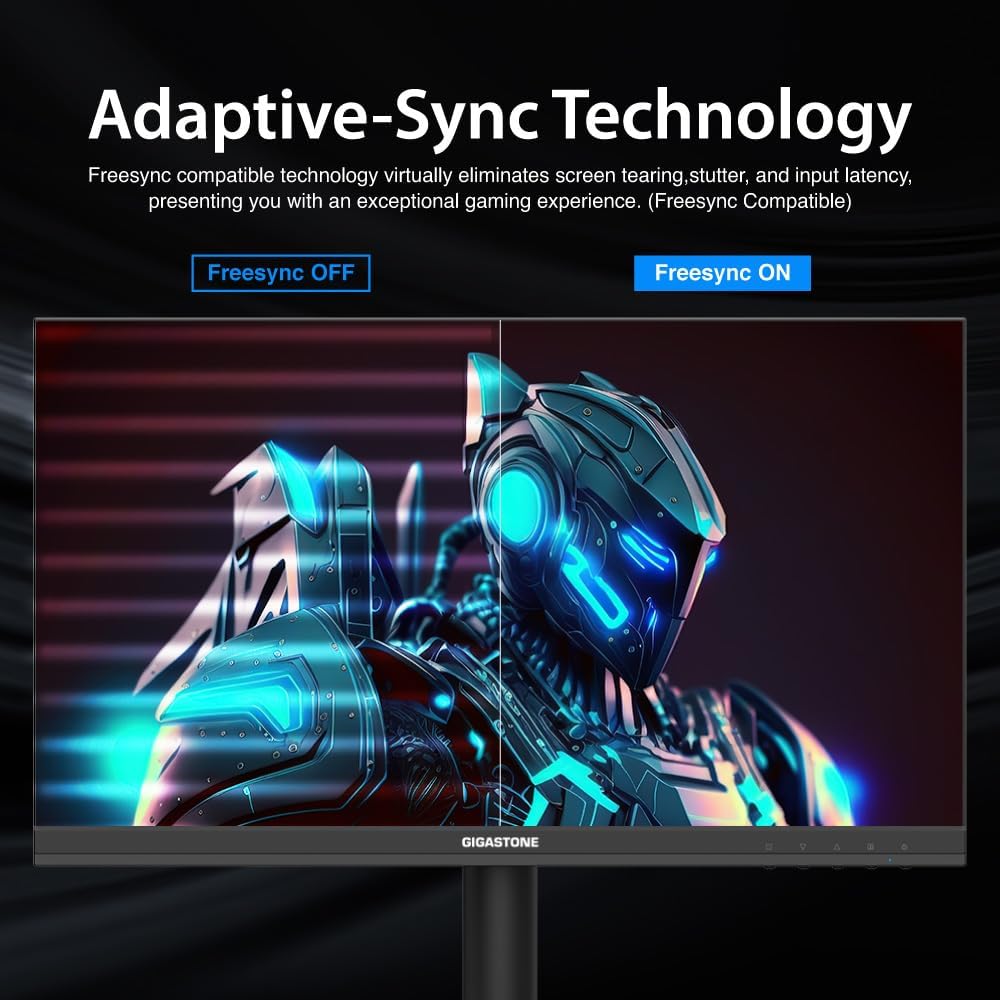
Figure 3.2: Visual representation of Adaptive-Sync (FreeSync) technology.
4. Vedligeholdelse
4.1 Rengøring af monitoren
- Tag altid stikket ud af stikkontakten før rengøring.
- Brug let en blød, fnugfri klud damprengøres med vand eller et ikke-slibende skærmrensemiddel.
- Do not spray cleaner directly onto the screen or casing.
- Undgå at bruge benzen, fortynder, ammoniakbaserede rengøringsmidler eller slibende materialer, da disse kan beskadige skærmens overflade.
4.2 Generel pleje
- Hold skærmen væk fra direkte sollys, overdreven varme og fugtighed.
- Sørg for tilstrækkelig ventilation omkring skærmen for at forhindre overophedning.
- Placer ikke tunge genstande på skærmen eller dens kabler.
5. Fejlfinding
If you encounter issues with your monitor, refer to the following troubleshooting guide. If the problem persists, contact customer support.
| Problem | Mulig årsag | Løsning |
|---|---|---|
| Ingen strøm | Power cable not connected; Power outlet faulty; Monitor off | Ensure power cable is securely connected; Test power outlet; Press power button on monitor |
| Intet signal | Videokabel ikke tilsluttet; Forkert indgangskilde valgt; Computeren sender ikke signal | Check video cable connections (HDMI/VGA); Select correct input source via OSD; Ensure computer is on and outputting video |
| Billede flimrer eller er forvrænget | Loose video cable; Incorrect resolution/refresh rate; Graphics card driver issue | Secure video cable; Set display resolution to 1920x1080 and refresh rate to 75Hz; Update graphics card drivers |
| OSD menu not responding | Buttons are locked; Temporary software glitch | Refer to monitor's specific instructions for unlocking OSD buttons (if applicable); Power cycle the monitor |
| Adaptive-Sync (FreeSync) not working | Feature not enabled; Graphics card not compatible; Outdated drivers | Enable FreeSync in monitor OSD and graphics card control panel; Ensure compatible graphics card; Update graphics drivers |
6. Produktspecifikationer
| Feature | Specifikation |
|---|---|
| Mærke | Gigastone |
| Modelnummer | GS-LM-27FF2 |
| Skærmstørrelse | 22 tommer |
| Opløsning | FHD 1080p (1920 x 1080 pixels) |
| Aspektforhold | 16:9 |
| Opdateringshastighed | 75 Hz |
| Svartid | 4 millisekunder |
| Displayteknologi | VA LED Back Light |
| Viewi vinkel | 178 grader |
| Lysstyrke | 250 cd/m2 |
| Kontrastforhold | 1000:1 |
| Forbindelse | HDMI, VGA |
| Adaptiv synkronisering | FreeSync |
| Monteringstype | VESA Wall Mount (100x100mm) |
| Varedimensioner (D x B x H) | 1.85" D x 19.4" B x 6.7" H |
7. Garantioplysninger
This Gigastone monitor is covered by a 3 års producentgaranti fra købsdatoen. Denne garanti dækker defekter i materialer og udførelse ved normal brug. Den dækker ikke skader forårsaget af misbrug, ulykker, uautoriserede ændringer eller eksterne faktorer.
Gem venligst dit købsbevis for garantikrav.
8. Kundesupport
For technical assistance, warranty claims, or any other inquiries, please contact Gigastone customer service. We offer 24/7 world-wide customer service to assist you.
For the most up-to-date contact information, please visit the official Gigastone webwebstedet eller se de kontaktoplysninger, der følger med din produktemballage.
Du kan også besøge Gigastone Store on Amazon for yderligere produktinformation og supportressourcer.