
1. Introduktion
Thank you for choosing the KEEPRO Pencil 2nd Generation. This stylus is designed to enhance your iPad experience with features like magnetic wireless charging, palm rejection, and tilt sensitivity. Please read this manual carefully to ensure proper use and maintenance of your device.
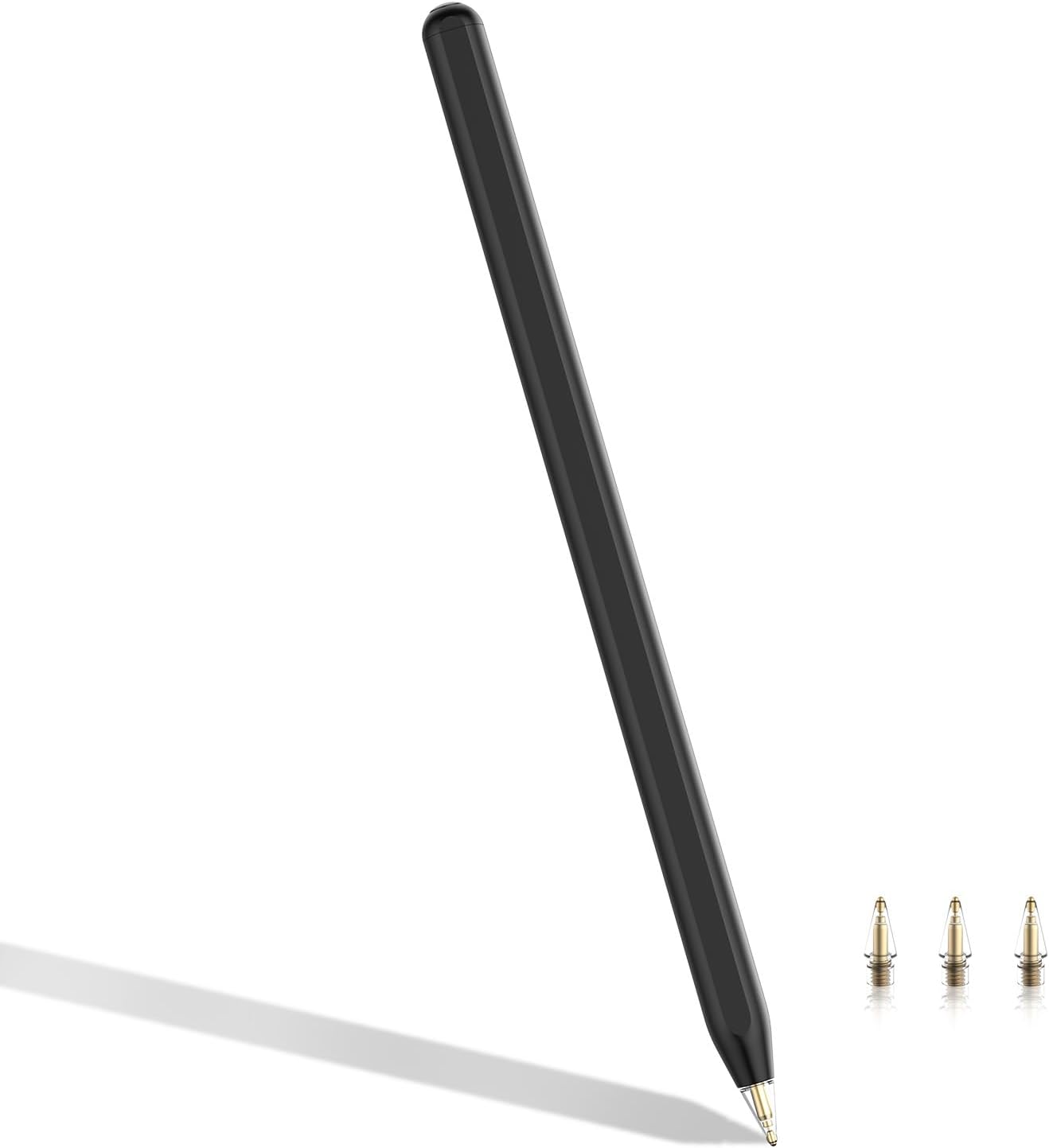
Image 1: KEEPRO Pencil 2nd Generation with included replacement tips.
2. Kompatibilitet
The KEEPRO Pencil 2nd Generation is specifically designed for certain iPad models. Please verify your iPad model before use.
2.1 Compatible iPad Models:
- iPad mini (6. generation)
- iPad Air (4. og 5. generation)
- iPad Pro 11" (1st, 2nd, 3rd, and 4th generation)
- iPad Pro 12.9" (3rd, 4th, 5th, and 6th generation)
2.2 Inkompatible enheder:
Denne stylus er ikke kompatibel med følgende enheder:
- iPad (1st to 10th generation)
- iPad mini (1st to 5th generation)
- iPad Air (1st to 3rd generation)
- iPad Pro 12.9" (1st and 2nd generation)
- iPhone, Android devices, Microsoft devices, and other non-Apple tablets.

Image 2: Visual guide to compatible iPad models and their corresponding model numbers.
3. Opsætning og parring
3.1 Initial Charging and Pairing
- Sørg for, at Bluetooth er aktiveret på din iPad.
- Attach the KEEPRO Pencil magnetically to the side of your compatible iPad. The pencil will automatically pair and begin charging wirelessly.
- A battery indicator will appear on your iPad screen, showing the pencil's charge level.

Image 3: Magnetic attachment and wireless charging with real-time power display on iPad.
3.2 Tænd/sluk
- For at tænde: The pencil automatically powers on when attached to a compatible iPad or when you begin using it.
- For at slukke: Long press the hotkey button (located at the top of the pencil) for 3 seconds. The pencil will also automatically shut off after 5 minutes of idleness to conserve battery.
4. Betjeningsvejledning
4.1 Grundlæggende funktioner
- At skrive og tegne: Use the KEEPRO Pencil directly on your iPad screen. Its pixel-perfect precision and low latency provide a natural writing and drawing experience.
- Håndfladeafvisning: Rest your palm comfortably on the iPad screen while writing or drawing. The iPad will only register input from the pencil, preventing accidental marks from your hand.
- Vippefølsomhed: Adjust the angle of the pencil to create different line weights and shading effects, similar to a traditional pencil.

Image 4: Demonstrating palm rejection and tilt sensitivity for varied line thickness.
4.2 Hotkey Functions
The KEEPRO Pencil features a hotkey button for quick access to common iPad functions:
- Enkelt klik: Returns to the iPad's homepage.
- Dobbeltklik: Enters the multi-tasking view (App Switcher).
- Langt tryk (3 sekunder): Powers the pencil ON/OFF.
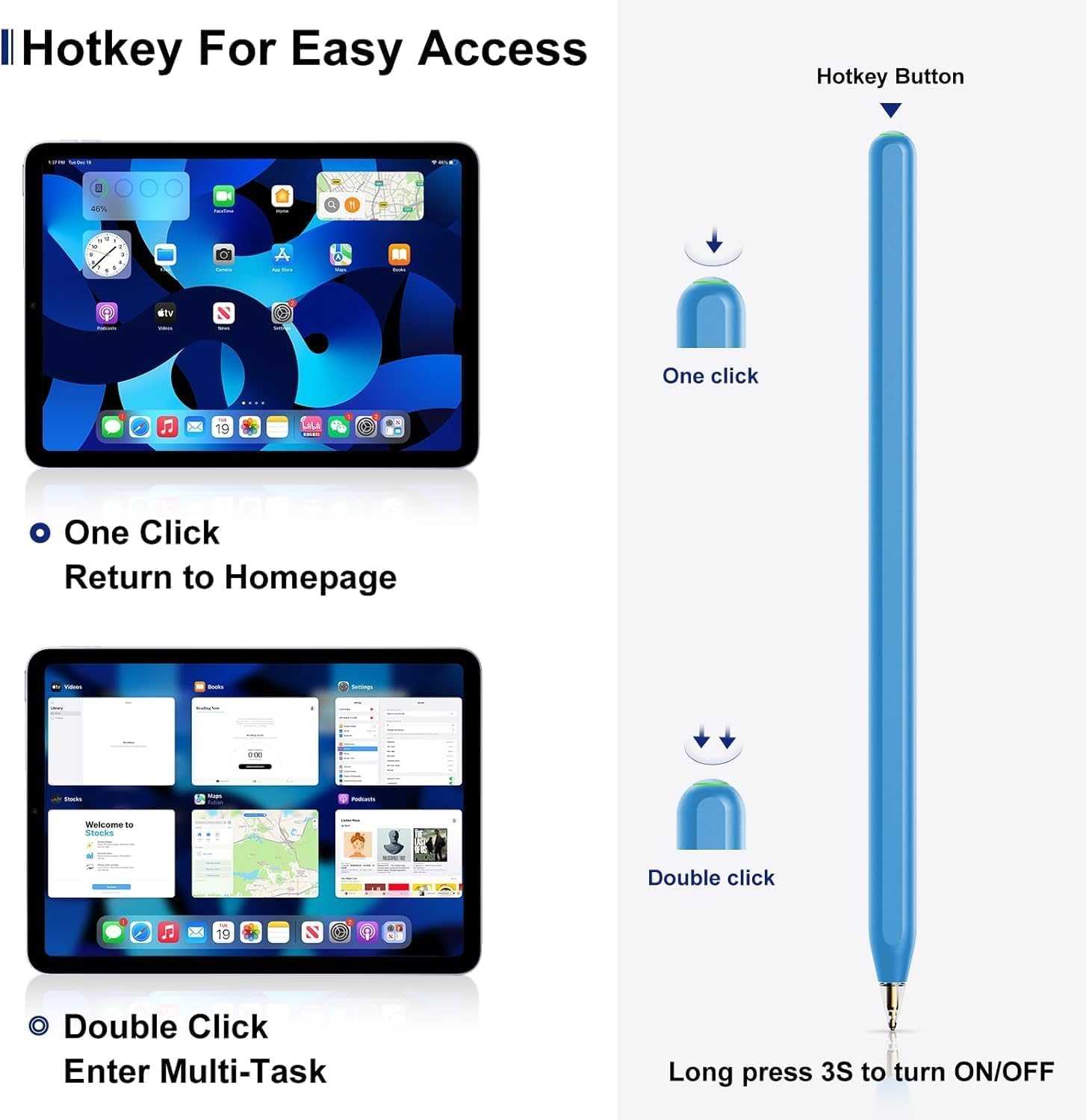
Image 5: Hotkey button functions for quick navigation.
4.3 Replacing the Pencil Tip
The KEEPRO Pencil comes with additional replaceable tips. The tips are also compatible with Apple Pencil (1st and 2nd generation) tips, allowing for easy replacements.
- Drej forsigtigt den gamle spids mod uret for at fjerne den.
- Align the new tip with the pencil's thread.
- Twist the new tip clockwise until it is securely fastened. Do not overtighten.

Image 6: Illustration of how to replace the pencil tip.
5. Vedligeholdelse
5.1 Rengøring
To clean your KEEPRO Pencil, gently wipe it with a soft, damp, lint-free cloth. Avoid using abrasive materials or harsh chemicals, as these can damage the finish or internal components.
5.2 Opbevaring
When not in use, store the KEEPRO Pencil attached to your iPad for convenient charging and to prevent loss. If storing for an extended period, ensure the pencil has some charge to maintain battery health. Avoid extreme temperatures and direct sunlight.
5.3 Pleje af batterier
The pencil features an automatic shut-off after 5 minutes of inactivity to conserve battery life. For optimal battery longevity, avoid fully discharging the battery frequently.
6. Fejlfinding
- Blyanten parrer eller opretter ikke forbindelse:
- Ensure your iPad model is listed in the compatible devices section (Section 2.1).
- Sørg for, at Bluetooth er aktiveret på din iPad.
- Attach the pencil firmly to the magnetic connector on your iPad.
- Genstart din iPad, og prøv at parre igen.
- Blyanten oplader ikke:
- Verify that your iPad supports wireless magnetic charging for styluses (refer to Section 2.1).
- Ensure the pencil is correctly aligned and securely attached to the magnetic charging area of your iPad.
- Check your iPad's battery level; the pencil may not charge if the iPad's battery is critically low.
- Pencil not responding or intermittent response:
- Check the pencil's battery level.
- Ensure the tip is securely attached and not damaged. Replace if necessary.
- Clean the iPad screen and the pencil tip to remove any debris.
- Disconnect and re-pair the pencil via Bluetooth settings on your iPad.
- Palm-afvisning virker ikke:
- Sørg for, at din iPads software er opdateret.
- Some apps may have specific settings for stylus input; check app settings if the issue is isolated to a particular application.
7. Specifikationer
| Feature | Detalje |
|---|---|
| Modelnummer | iPen-Black |
| Mærke | HOLD PRO |
| Farve | Sort |
| Materiale | Aluminium |
| Forbindelser | Bluetooth |
| Kompatible enheder | Specific iPad models (see Section 2.1) |
| Batteritype | Lithiumpolymer (1 medfølger) |
| Gennemsnitlig batterilevetid (standby) | 120 timer |
| Varens vægt | 35 gram |
| Dimensioner (L x B x H) | 16.5 x 0.9 x 0.9 centimeter |
| Særlige funktioner | Magnetic Wireless Charging, Palm Rejection, Tilt Sensitivity, Hotkey Functions |
8. Garanti og support
8.1 Garantioplysninger
For detailed warranty information, please refer to the warranty card included with your product packaging or visit the official KEEPRO webGarantibetingelserne kan variere fra region til region.
8.2 Kundesupport
If you encounter any issues or have questions not covered in this manual, please contact KEEPRO customer support through the contact information provided on the official KEEPRO website or your purchase platform. Please have your product model number (iPen-Black) and purchase details ready when contacting support.