
1. Introduktion
This manual provides instructions for the proper setup, operation, and maintenance of your Tera 3106-2 1D USB Wired Barcode Scanner. Please read this manual thoroughly before using the device to ensure optimal performance and longevity.
2. Produktet er slutview
The Tera 3106-2 is a high-speed, accurate 1D barcode scanner designed for various applications including retail, small businesses, libraries, and warehouses. It features a plug-and-play USB connection and supports multiple customization options.

Figur 2.1: The Tera 3106-2 scanner is designed to be eye-safe, operating without a visible laser.
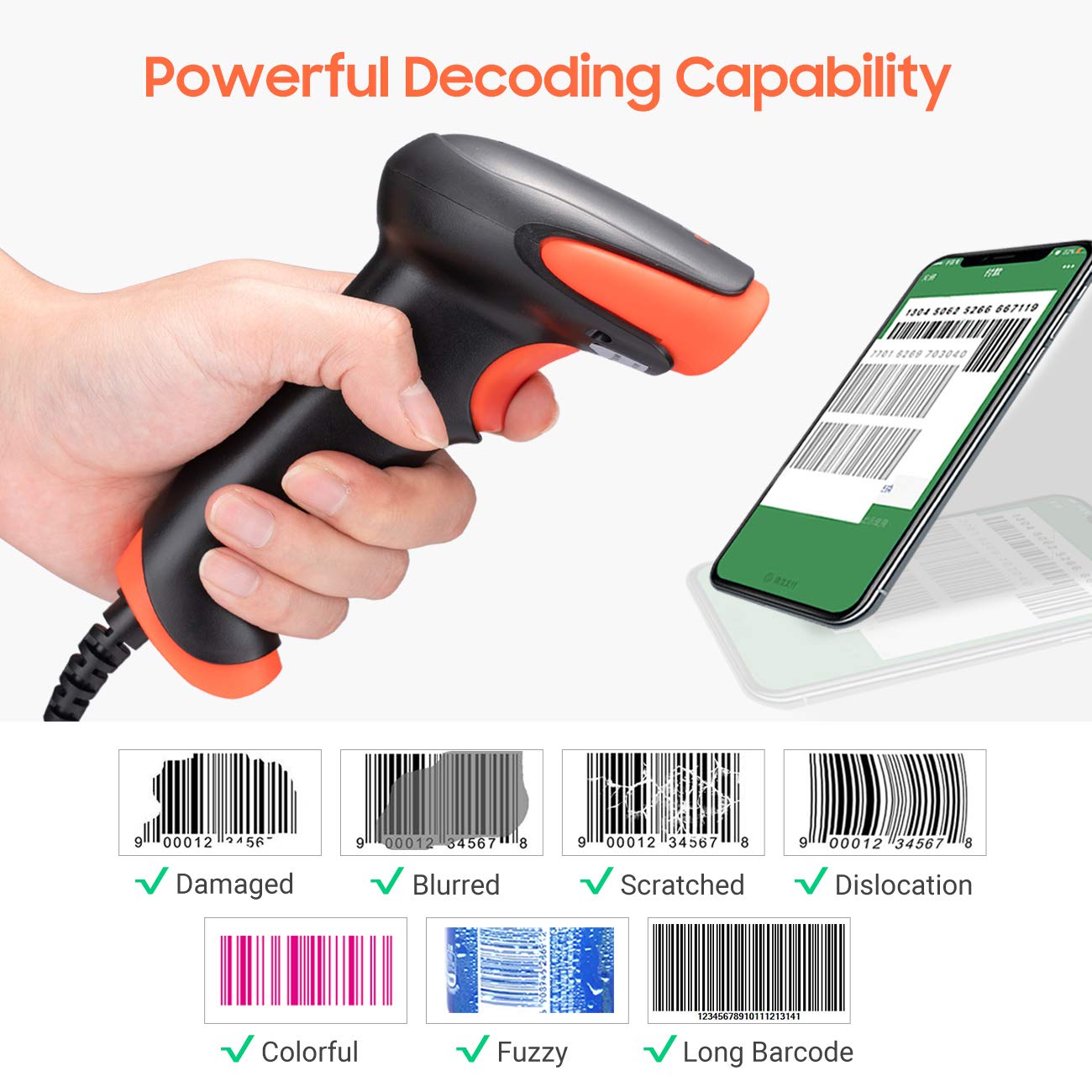
Figur 2.2: The scanner offers powerful decoding capabilities, accurately reading damaged, blurred, scratched, dislocated, colorful, fuzzy, and long 1D barcodes.
3. Pakkens indhold
- Tera 3106-2 Barcode Scanner x1
- Brugervejledning x1
4. Opsætning
The Tera 3106-2 barcode scanner is designed for simple plug-and-play operation. No additional drivers or software installation is required for most systems.
- Tilslut USB-kablet: Plug the USB cable of the scanner into an available USB 2.0 port on your computer (desktop or laptop).
- Systemgenkendelse: Your operating system (Windows, Linux, macOS, iOS, Android) will automatically detect and install the necessary device drivers. This process may take a few moments.
- Klar til brug: Once the system indicates that the device is ready, the scanner can be used with applications such as Word, Excel, Novell, or other common software that accepts keyboard input.

Figur 4.1: The scanner is compatible with various devices and operating systems, including Windows, Linux, macOS, iOS, and Android.
5. Betjeningsvejledning
5.1 Grundlæggende scanning
To scan a barcode, aim the scanner's light beam at the center of the barcode. A successful scan will typically be indicated by an audible beep and/or a visual confirmation (e.g., LED indicator). The decoded data will appear in the active input field on your connected device.
5.2 Scanningstilstande
Scanneren understøtter to primære scanningstilstande:
- Manuel scanning: Tryk på udløserknappen for at starte en scanning. Dette er standardtilstanden.
- Auto Continuous Scanning: The scanner continuously emits a scan beam, automatically reading barcodes presented to it without needing to press the trigger.
To switch between these modes, refer to the configuration barcodes provided in the supplementary user guide or quick start sheet that came with your scanner. Scan the appropriate barcode to change the mode.
6. Tilpasningsmuligheder
The Tera 3106-2 scanner offers various customization settings to adapt to your specific needs. These settings are typically configured by scanning special barcodes found in the included user guide.
- Præfiks/suffiks: Tilføj brugerdefinerede tegn før eller efter scannede data.
- Bind: Adjust the sound level of the scan confirmation beep.
- Terminator: Configure the character sent after the barcode data (e.g., Carriage Return, Tab).
- Upper/Lower Case: Convert scanned data to all uppercase or all lowercase.
- Tastatursprog: Select the appropriate keyboard layout for your region. Supported languages include English, Spanish, German, French, Italian, Japanese, and more.
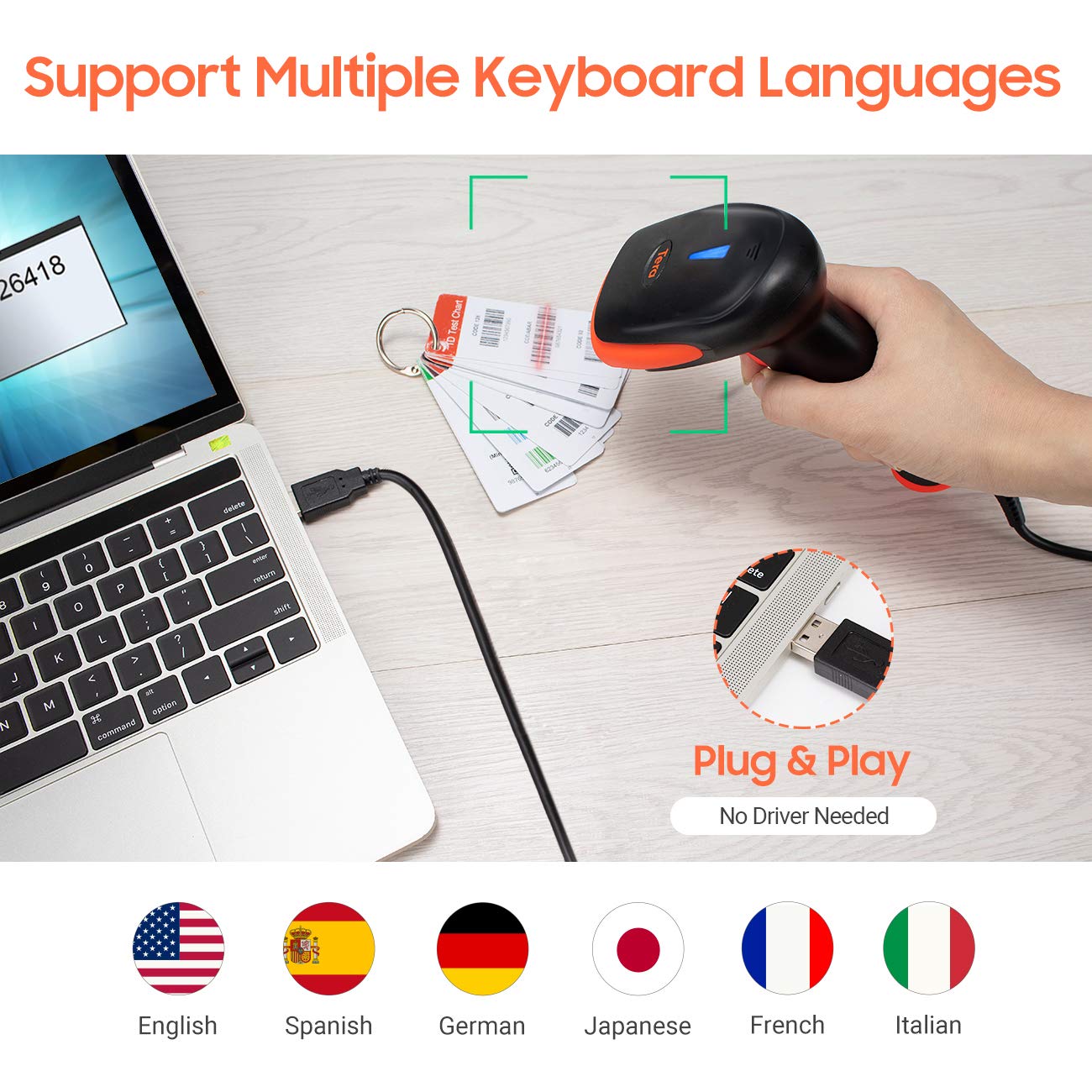
Figur 6.1: The scanner supports multiple keyboard languages for diverse international use.

Figur 6.2: Customize barcode output by adding prefixes, suffixes, or hiding specific digits.
7. Understøttede stregkoder
This scanner is compatible with a wide range of 1D barcode symbologies, including but not limited to:
- UPC&EAN (UPC-A, UPC-E, EAN-8, EAN-13)
- Kode 39, KODE32, Kode 93, KODE11, Kode 128, UCC-EAN128
- ISSN, ISBN
- CODABAR, MSI
- Interleaved 2 of 5, Matrix 2 of 5, Industrial 2 of 5
- Og mere.
The scanner also supports reading 1D barcodes directly from digital screens.
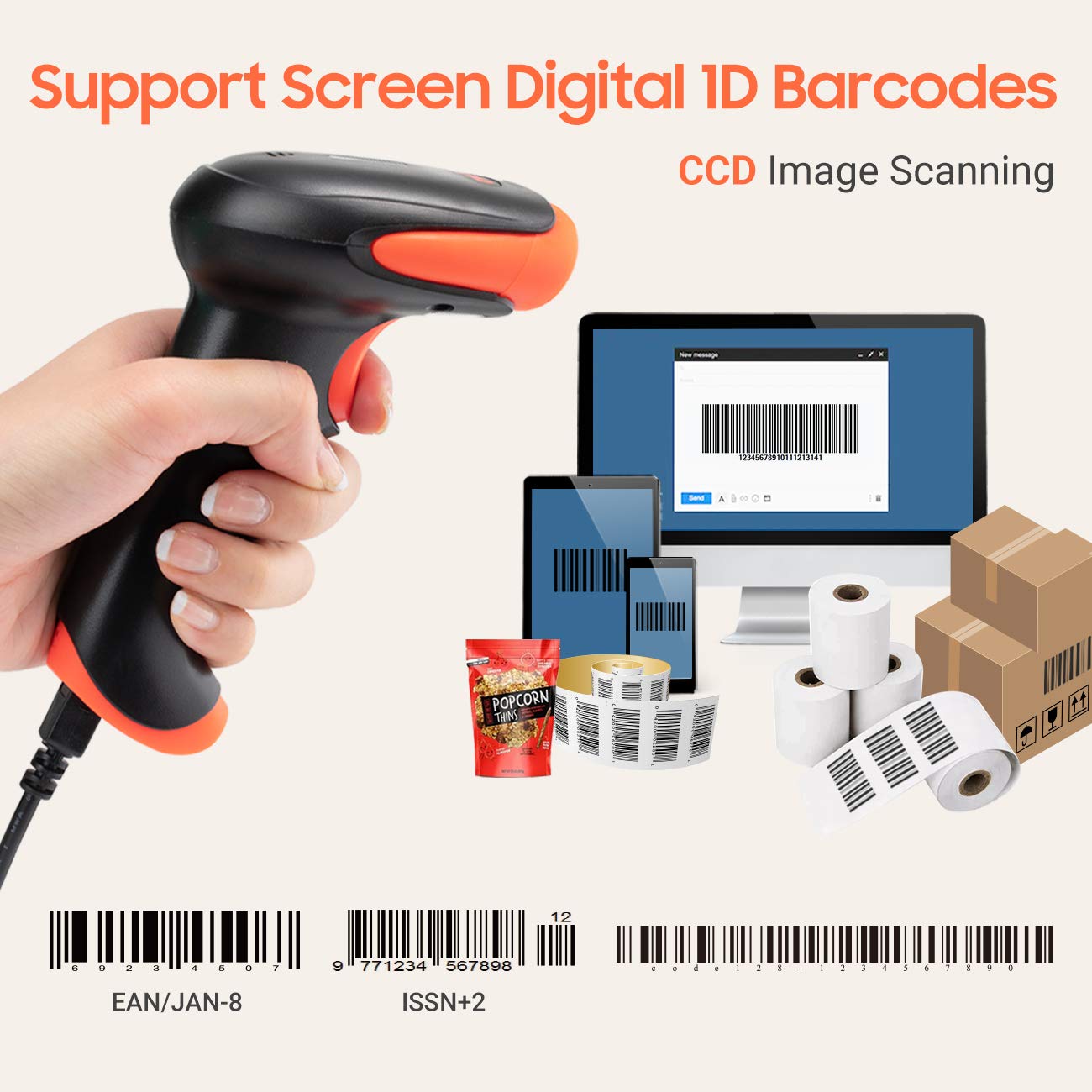
Figur 7.1: The scanner supports reading 1D barcodes from various sources, including digital screens and printed labels.
8. Vedligeholdelse
- Rensning: Brug en blød, tør klud til at rengøre scannerens yderside. Brug en blød, fnugfri klud, der er let tørret af scanningsvinduet.amprengøres med vand eller et mildt, ikke-slibende rengøringsmiddel. Undgå skrappe kemikalier.
- Opbevaring: Opbevar scanneren et køligt, tørt sted væk fra direkte sollys og ekstreme temperaturer.
- Håndtering: Avoid dropping the scanner or subjecting it to strong impacts. Do not attempt to disassemble the device.
9. Fejlfinding
| Problem | Mulig årsag | Løsning |
|---|---|---|
| Scanneren tænder ikke eller reagerer ikke. | USB-kablet er ikke korrekt tilsluttet, eller USB-porten er defekt. | Sørg for, at USB-kablet er korrekt tilsluttet både scanneren og computeren. Prøv en anden USB-port. |
| Scanner reads barcodes slowly or inaccurately. | Barcode is damaged, blurred, or poorly printed. Insufficient lighting. Scanner window is dirty. | Ensure the barcode is clear and well-lit. Clean the scanner window. Try scanning from a different angle or distance. |
| Scanner does not read barcodes from digital screens. | Screen brightness is too low or glare is present. | Increase screen brightness. Adjust the angle of the scanner to minimize glare. Ensure the barcode is fully displayed on the screen. |
| Scanned data appears incorrectly (e.g., wrong characters, missing digits). | Incorrect keyboard language setting. Prefix/suffix or other data formatting settings are active. | Verify the keyboard language setting matches your computer's keyboard layout. Review and adjust prefix/suffix or other data formatting settings using the configuration barcodes. |
| Scanneren bipper, men der sendes ingen data. | Applikationen er ikke i fokus eller accepterer ikke input. | Ensure the cursor is in the desired input field of your application. Test with a simple text editor like Notepad. |
10. Specifikationer
| Feature | Detalje |
|---|---|
| Model | 3106-2 |
| Scanningstype | 1D Laser (Eye Safe) |
| Forbindelse | USB-kablet (USB 2.0) |
| Scanningshastighed | Op til 300 scanninger i sekundet |
| Fejlrate | 1 in 5 million scans |
| Kompatible enheder | Stationær, bærbar |
| Kompatible systemer | Windows, Linux, macOS, iOS, Android |
| Strømkilde | Ledningsbaseret elektrisk (via USB) |
| Produktmål (D x B x H) | 7.9 x 19.3 x 10.4 centimeter |
| Understøttede 1D-stregkoder | UPC&EAN, UPC-A, UPC-E, Code 39, CODE32, Code 93, CODE11, Code 128, UCC-EAN128, EAN-8, EAN-13, ISSN, ISBN, CODABAR, MSI, Interleaved 2 of 5, Matrix 2 of 5, Industrial 2 of 5, etc. |
11. Garanti og support
For warranty information, technical support, or service inquiries, please refer to the contact details provided with your purchase documentation or visit the official Tera webwebsted. Gem venligst din købsbevis til garantikrav.