
Teamgee B0CD7HS1KM
Teamgee 14-inch FHD IPS Triple Portable Monitor User Manual
Model: B0CD7HS1KM
1. Introduktion
Thank you for choosing the Teamgee 14-inch FHD IPS Triple Portable Monitor. This device is designed to significantly enhance your productivity by providing a multi-display solution for your laptop. It supports various display modes, including expansion and mirroring, allowing you to manage multiple tasks simultaneously. Its portable design makes it ideal for office presentations, remote work, and business travel.

Image: The Teamgee 14-inch Triple Portable Monitor in use, demonstrating its multi-screen capability.
2. Sikkerhedsoplysninger
- Udsæt ikke enheden for ekstreme temperaturer eller fugt.
- Undgå at tabe eller udsætte enheden for kraftige stød.
- Brug kun de medfølgende kabler og tilbehør for at undgå skader.
- Hold enheden væk fra vand og andre væsker.
- Forsøg ikke selv at adskille eller reparere enheden. Kontakt kundesupport for at få hjælp.
- Sørg for tilstrækkelig ventilation under brug for at forhindre overophedning.
3. Pakkens indhold
Kontroller venligst pakkens indhold ved udpakning for at sikre, at alle varer er til stede:
- Triple Screen Monitor (x1)
- Opbevaringspose (x1)
- Brugervejledning (x1)
- Hurtig startguide (x1)
- USB-C til USB-C-kabel (x2)
- USB-A til USB-C-kabel (x2)
- HDMI til Type-C-kabel (x2)

Billede: Detaljeret view of the package contents, including the triple screen monitor, cables, and accessories.
4. Produktet er slutview
The Teamgee Triple Portable Monitor features a thoughtful design for portability and ease of use. Key components include:
- Dobbelte højttalere: Integrated speakers on each screen for audio output.
- Justerbart beslag: Built-in stand for stable positioning.
- Stretchable Frame: Allows adjustment to fit various laptop sizes (13.3 to 17.3 inches).
- Top Bracket: Secures the monitor to the top of your laptop screen.
- Multifunktionsknap: Controls various display settings.
- 180° rotation: Each screen can rotate up to 180 degrees for flexible viewing angles and easy folding.
- Beskyttende polstring: Anti-pinch rubber mats for laptop protection.

Billede: Eksploderet view of the monitor's components and their functions.
5. Opsætningsvejledning
5.1 Indledende opsætning
- Carefully unpack the triple screen monitor and all accessories.
- Place your laptop on a stable, flat surface.
- Extend the stretchable frame of the Teamgee monitor to fit your laptop screen size (13.3 to 17.3 inches).
- Gently attach the monitor to the top of your laptop screen using the top bracket and ensure the anti-pinch rubber mats are in place to protect your laptop.
- Adjust the integrated adjustable bracket for stability.
5.2 Tilslutningsmetoder
The Teamgee monitor offers versatile connectivity options. No drivers are required for most operating systems.

Billede: Overview af kompatible enheder og forbindelsestyper.
- Full-featured Type-C Connection (Recommended):
If your laptop has two full-featured Type-C ports, connect each monitor directly to your laptop using the provided USB-C to USB-C cables. This method typically provides both video and power.

Image: Connection using two USB-C to USB-C cables.
- Mixed Connection (Type-C, USB-A, HDMI):
If your laptop has one full-featured Type-C port, one USB-A port, and one HDMI port:
- First, connect one monitor using a USB-C to USB-C cable to the full-featured Type-C port.
- Then, connect the other monitor using a USB-A to USB-C cable for power and an HDMI to Type-C cable for video.

Image: Connection using a combination of USB-C, USB-A, and HDMI cables.
5.3 Kompatibilitet
The Teamgee monitor is compatible with a wide range of devices and operating systems, including:
- Windows
- Mac (M1 Max and M1 Pro only)
- Chrome OS
- Android
- Linux
- Samsung Dex
- Nintendo Switch
It is designed to fit laptops ranging from 13.3 to 17.3 inches.
6. Betjeningsvejledning
6.1 Skærmtilstande
The monitor supports two primary display modes:
- Udvidelsestilstand: Extends your desktop across all three screens, allowing for increased workspace and multitasking.
- MirrorMode: Duplicates your main laptop screen onto the external monitors, useful for presentations or sharing content.
You can switch between these modes and adjust display settings through your operating system's display settings (e.g., Display Settings on Windows, System Preferences > Displays on Mac).

Image: The triple monitor setup enabling efficient multitasking.
6.2 Justering af skærmindstillinger
Each screen is equipped with a multifunction button for quick adjustments. Refer to the Quick Start Guide for specific button functions, which typically include:
- Justering af lysstyrke
- Kontrastjustering
- Farvetemperaturindstillinger
- Valg af inputkilde
6.3 Portability and Rotation
The monitor's design allows for easy portability and flexible viewing:
- The screens can be rotated up to 180 degrees, allowing for various viewing angles or folding for compact storage and transport.
- The integrated adjustable bracket provides stability on different surfaces.
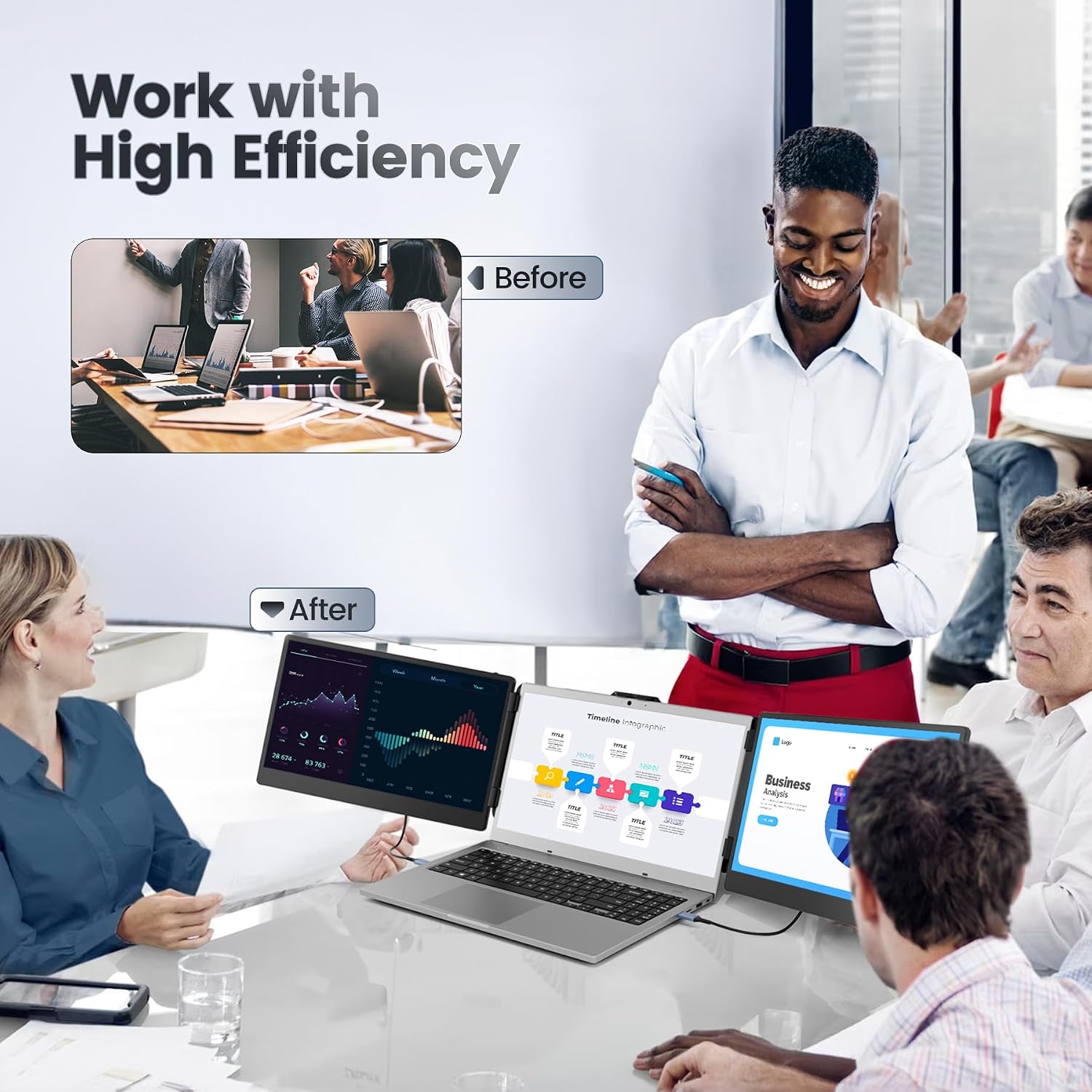
Image: The monitor in a professional setting, highlighting its contribution to high efficiency.
7. Vedligeholdelse
- Rensning: Use a soft, lint-free cloth to gently wipe the screens and exterior. For stubborn smudges, slightly dampRengør kluden med vand eller en skærmsikker rengøringsopløsning. Undgå skrappe kemikalier eller slibende materialer.
- Opbevaring: When not in use, fold the monitor compactly and store it in the provided storage bag to protect it from dust and scratches.
- Håndtering: Always handle the monitor by its frame, avoiding direct pressure on the screens.
8. Fejlfinding
| Problem | Mulig årsag | Løsning |
|---|---|---|
| No display on one or both screens. |
|
|
| Flimrende eller ustabil skærm. |
|
|
| Lyden virker ikke. |
|
|
| Laptop feels unstable or heavy. |
|
|
If you encounter issues not listed here or if the solutions do not resolve your problem, please contact Teamgee customer support.
9. Specifikationer
| Feature | Detalje |
|---|---|
| Mærke | Teamgee |
| Modelnummer | B0CD7HS1KM |
| Skærmstørrelse | 14 cm (hver) |
| Opløsning | FHD 1080p (1920 x 1080) |
| Displayteknologi | IPS |
| Aspektforhold | 16:9 |
| Kontrastforhold | 1000:1 |
| Lysstyrke | 300 nit |
| Farveskala | 72 % NTSC |
| Svartid | 1 millisekund |
| Forbindelse | HDMI, USB-A, Type-C |
| Særlige funktioner | Anti-glare screen, Integrated Dual Speakers, Adjustable Bracket, Stretchable Frame, 180° Rotation |
| Compatible Laptop Sizes | 13.3-17.3 tommer |
| Kompatible enheder | Windows, Mac (M1 Max/Pro), Chrome, Android, Linux, Dex, Switch |

Image: Visual representation of the display's key specifications.
10. Garanti og support
Teamgee is dedicated to providing comprehensive customer service.
- Garanti: All Teamgee products come with a one-year warranty from the date of purchase.
- Kundesupport: If you find any missing accessories, or have questions regarding compatibility or connectivity, please do not hesitate to contact us. We aim to provide a solution within 24 hours.
- Kontaktoplysninger: Please refer to the contact details provided on the product packaging or in the Quick Start Guide for the most up-to-date support information.
Ask a question about this manual
Ask about setup, troubleshooting, compatibility, parts, safety, or missing instructions. Manuals+ will review the question and use this page’s manual context to help answer it.