
Indledning
The DYMO LabelManager 160 is a portable label maker designed for creating high-quality, professional labels. With its intuitive QWERTY keyboard and one-touch fast-formatting keys, you can easily customize labels with various font sizes, text styles, symbols, and clip art. This manual provides essential information for setting up, operating, maintaining, and troubleshooting your device, ensuring optimal performance and longevity.
Opsætning
1. Batteriinstallation
The LabelManager 160 requires 6 AAA batteries (not included). To install:
- Åbn batterirummets dæksel på bagsiden af enheden.
- Isæt 6 AAA-batterier, og sørg for at polerne vender korrekt (+/-).
- Luk batterirummets dæksel forsvarligt.
2. Installation af etiketkassette
The device uses DYMO D1 label cassettes. To install a new cassette:
- Open the label compartment cover on the back of the device.
- Insert the label cassette with the label tape facing the print head. Ensure the cassette clicks into place.
- Luk dækslet til etiketrummet.
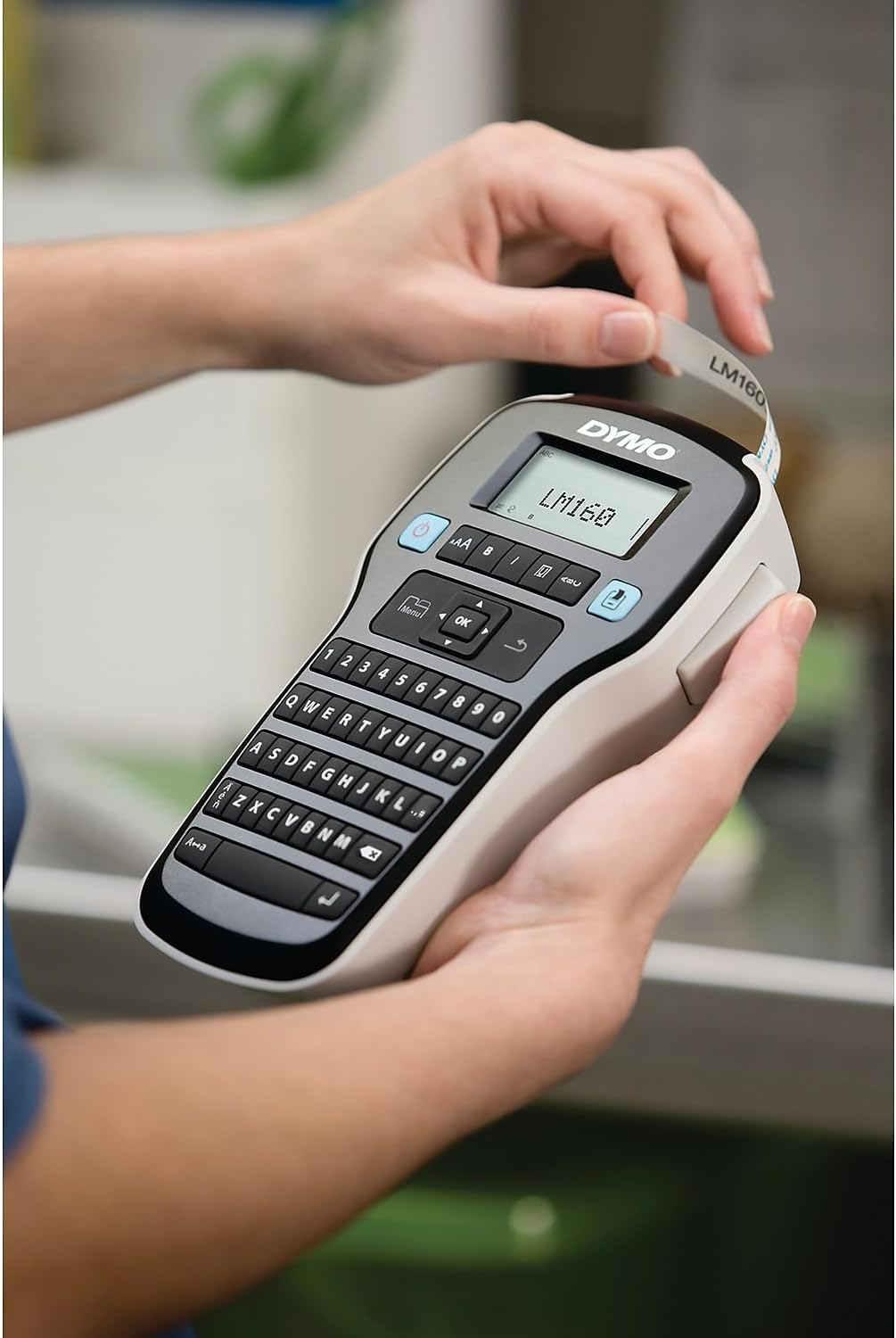
Figure 1: Inserting a label cassette into the LabelManager 160.
3. Tænd/sluk
Press the blue power button located on the top left of the keyboard to turn the device on or off. The device features an auto power-off function to conserve battery life when not in use.
Betjeningsvejledning
1. Indtastning af tekst
Use the QWERTY keyboard to type your desired text. The display screen will show your input.
2. Formatting Text
The LabelManager 160 offers various formatting options:
- Skriftstørrelse: Press the 'Aa' button to cycle through 6 available font sizes.
- Text Styles: Use the 'B' (Bold), 'I' (Italic), 'U' (Underline), and 'Box' buttons to apply different styles. You can also select vertical text.
- Symbols & Clip Art: Access over 200 symbols and clip art by pressing the 'Symbol' button.
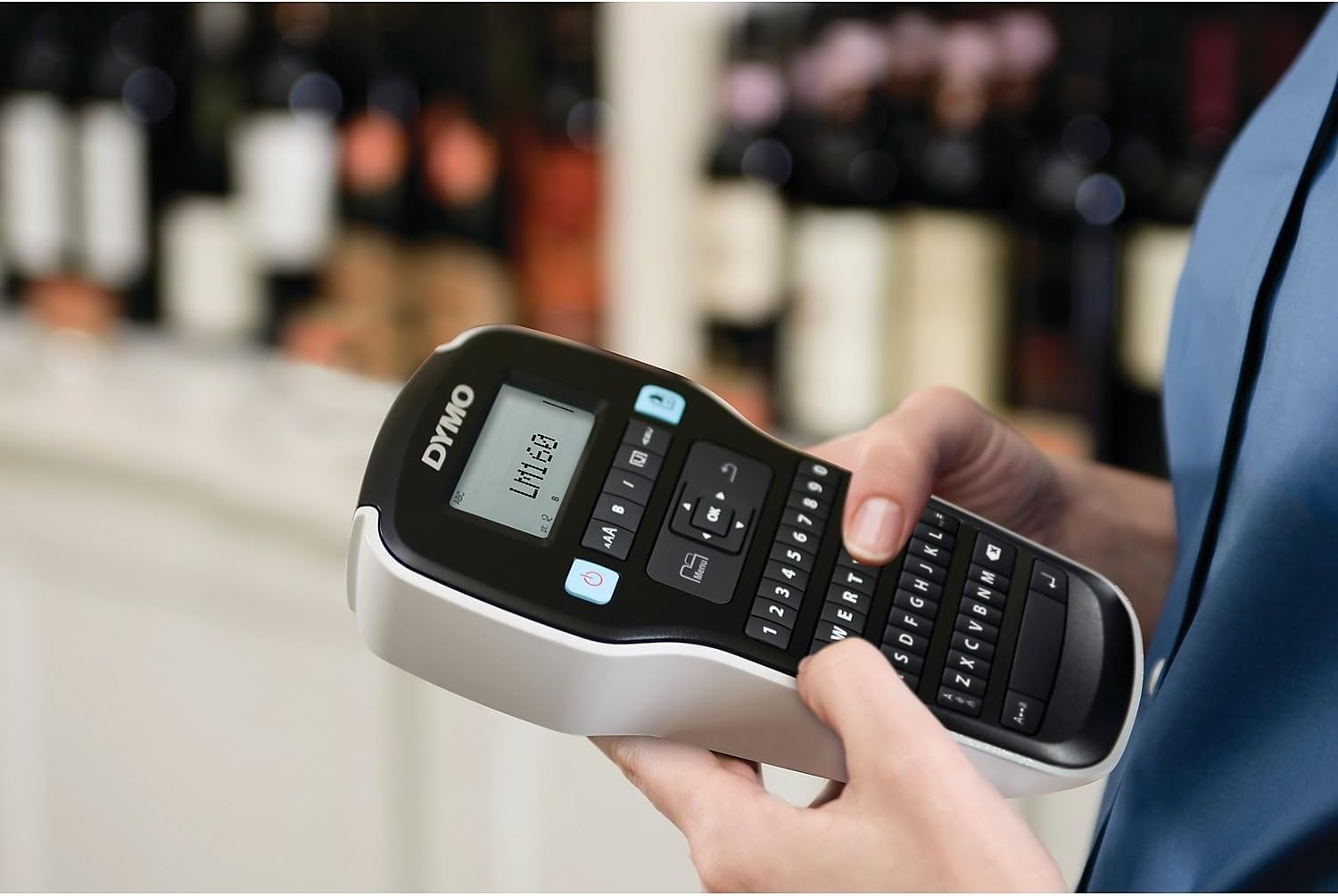
Figure 2: Typing and formatting text on the LabelManager 160.
3. Udskrivning af en etiket
Once your text is formatted as desired, press the blue 'Print' button (printer icon) to print the label.

Figure 3: A label being printed from the LabelManager 160.
4. Skæring af etiketten
After printing, push the cutter button located on the left side of the device to cleanly cut the label.
5. Applying the Label
Peel the backing from the printed label to expose the adhesive, then firmly apply the label to your desired surface.
Opretholdelse
1. Cleaning the Print Head and Cutter Blade
Regular cleaning ensures optimal print quality and extends the life of your device. Use a soft, lint-free cloth to gently wipe the print head and cutter blade. Do not use abrasive cleaners or sharp objects.
2. Udskiftning af etiketkassetter
When the label tape runs out or you wish to change tape types, follow the label cassette installation steps to replace the cassette.
3. Batteripleje
To maximize battery life, ensure the device is turned off when not in use. The auto power-off feature helps with this. If storing the device for an extended period, remove the batteries to prevent leakage.
Fejlfinding
- Ingen tryk/svag tryk: Check if the label cassette is installed correctly and if there is enough tape. Clean the print head.
- Label Jamming: Open the label compartment, carefully remove any jammed tape, and ensure the cassette is properly seated.
- "Low Battery" Message: Udskift AAA -batterierne.
- Enheden tænder ikke: Sørg for, at batterierne er korrekt installeret og opladet. Prøv nye batterier.
Specifikationer
| Feature | Detalje |
|---|---|
| Produktdimensioner | 4.65" D x 10" B x 1.93" H |
| Maksimal mediestørrelse | 1 x 10 tommer (2.54 x 25.4 cm) |
| Trykte medier | Etiketter |
| Max input arkkapacitet | 6 |
| Maksimal udskrivningshastighed (sort/hvid) | 1 ppm |
| Kompatible enheder | Keyboard, Printer |
| Maksimal udskriftsopløsning | 200-300 dpi |
| Udskrivningsteknologi | Dot Matrix (Thermal) |
| Forbindelsesteknologi | USB |
| Blækfarve | Sort |
| Varens vægt | 13.7 ounce (0.39 kilo) |
| Modelnummer | 2175086 |
| UPC | 071701063427 |
Garanti og support
For warranty information and technical support, please refer to the documentation included with your product or visit the official DYMO webwebsted. Gem din købskvittering som købsbevis i tilfælde af garantikrav.


