
1. Introduktion
This manual provides detailed instructions for the setup, operation, and maintenance of your Magene C206Pro GPS Road MT Bike Computer. Please read this manual thoroughly before using the device to ensure optimal performance and safety.
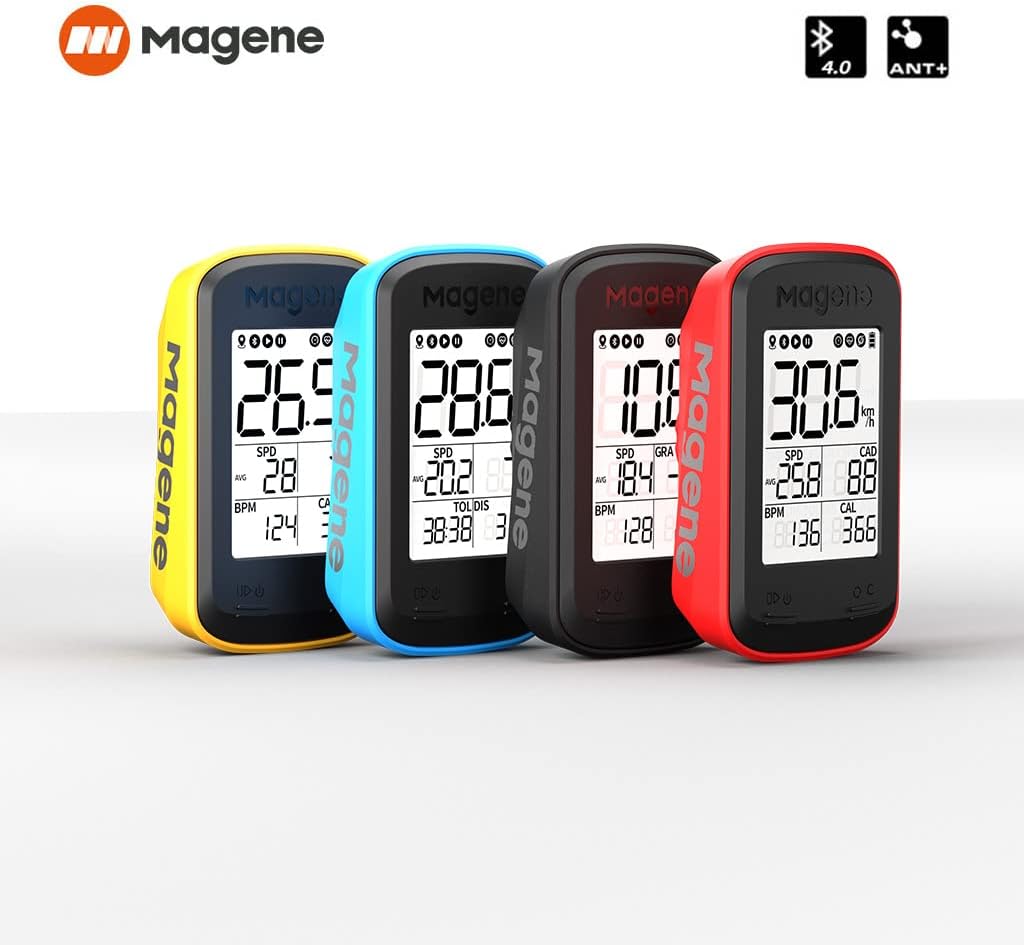
Image 1.1: Magene C206Pro GPS Bike Computer showcasindens design og display.
2. Pakkens indhold
Bekræft, at alle nedenstående varer er inkluderet i din pakke:
- Magene C206Pro Bike Computer
- Type-C opladerkabel
- Rem
- Cykelcomputerholder
- Replacement Base for Bike Computer Rack
- 4x gummibånd
- Instruktionsmanual (dette dokument)
3. Opsætning
3.1. Bike Computer Installation
Follow these steps to properly install your bike computer on your handlebar:
- Wrap a rubber band around your handlebar.
- Secure the bike computer mount using the bottom's bayonet.
- It is recommended to install the provided replacement base on a suitable bike computer rack to ensure perfect compatibility.
- Press the bike computer onto the mount and rotate it until it locks securely.
- Ensure the bike computer is facing upward for optimal GPS signal reception.
Image 3.1: Illustrates the process of mounting the bike computer on a handlebar.
3.2. Configuring the Bike Computer (App Pairing)
To configure your bike computer and manage data, you need to use the companion app. Please note that the video provided in the product listing refers to a different model (CC500) and is not directly applicable to the C206Pro for app pairing steps.
- Download and install the official Magene app (e.g., OnelapFit) on your smartphone. You can usually find it by searching in your device's app store.
- Complete the registration and log in to the app.
- After logging in, complete your personal information within the app.
- Tap the bike computer icon in the top right corner of the app.
- Tap "+ Add my device" and select your C206Pro model from the list.
- Follow the on-screen prompts to connect and bind your bike computer.
- Each time you open the app, it will automatically search for and connect to your bike computer. It will also check for new ride records and automatically sync the new data.

Image 3.2: The Onelapfit app interface for connecting to the bike computer.
4. Betjening af enheden
4.1. Function Operation (App)
The app provides various functions to manage your cycling data and device settings:
- Click on "Me" in the bottom right corner of the app to enter the function operation page.
- After finishing a ride, the bike computer will automatically sync and save the ride records when connected to the app.
- Click on "Activities" to view your activity records. You can also view detailed data for each ride.
- Click on the "Share" button in the upper right corner to share or upload data to third-party platforms.
- Click on the "More" button for additional options related to your ride data.
- Click on "My Bike Computer" to add a new bike computer or manage your existing one.
- Click on "My Other Device" to manage your sensor connections (e.g., heart rate monitor, cadence sensor).

Image 4.1: The C206Pro display showing various data fields.
4.2. Setting Up the Cycling Data Page
Customize the data displayed on your bike computer:
- Click on the bike computer icon in the top right corner of the app.
- Enter "Page Setup".
- Click on "Edit" to set the data items you wish to display. You can set up to 30 pages.
- Save your changes and click "Apply" to sync them to your bike computer.
4.3. Personal Profile
Setting up your personal profile in the app helps in accurate data analysis:
- Enter accurate information on the personal profile page in the app. This includes basic data like birthday and height, as well as comprehensive personal data such as weight, FTP (Functional Threshold Power), maximum heart rate (MHR), and lactate threshold heart rate (LTHR).
- This information will help calculate and analyze your exercise data more accurately.
- The app provides tips and explanations for these concepts to help you understand them better.
4.4. App Authorization (Third-Party Platforms)
The app offers convenient third-party platform data distribution services:
- Currently, it supports account binding and data distribution functions for platforms like Strava and TrainingPeaks.
- After binding, data from your C206Pro can be distributed to these platforms after synchronization.

Image 4.2: App interface for authorizing data distribution to third-party platforms.
4.5. Starting a Ride
Operating the physical buttons on your C206Pro:
- Venstre knap:
- Short press: Start or pause a ride.
- Long press: Power on or off the bike computer.
- Højre knap:
- Short press: Switch between data pages.
- Long press: End the current ride.
- Øverste knap:
- Short press: Count a lap during a ride.
- Long press: Turn on or off the backlight.

Image 4.3: The C206Pro features automatic backlight and time calibration.
5. Vedligeholdelse
- Rensning: Tør enheden af med en blød, damp klæde. Undgå at bruge skrappe kemikalier eller slibende rengøringsmidler.
- Opladning: Use the provided Type-C charging cable. Ensure the charging port is dry before connecting the cable.
- Opbevaring: Opbevar enheden et køligt, tørt sted væk fra direkte sollys og ekstreme temperaturer.
- Vandtæthed: The device has an IP67 international protection rating, meaning it is protected from dust and can withstand immersion in water up to 1 meter for up to 30 minutes. However, it is not recommended for prolonged underwater use.
6. Fejlfinding
| Spørgsmål | Mulig løsning |
|---|---|
| Enheden tænder ikke | Ensure the device is fully charged. Press and hold the left button for several seconds. |
| GPS-signal ikke modtaget | Ensure the device is mounted facing upward and you are in an open area with a clear view of the sky. Allow a few minutes for signal acquisition. |
| Appen opretter ikke forbindelse til enheden |
|
| Data not syncing to third-party platforms | Ensure your accounts are correctly bound in the app's "Authorized Apps" section and you have an active internet connection. |
7. Specifikationer
- Mærke: mave
- Modelnummer: C206 PRO
- Skærmstørrelse: 1.9 tommer
- Skærmtype: LCD
- Native opløsning: 240x320
- Sensortype: Cadence Sensor, GPS Sensor
- Forbindelse teknologi: ANT+, Bluetooth
- Batteritype: Lithium polymer
- Monteringstype: Styrmontering
- Human Interface Input: Knapper
- International beskyttelsesvurdering: IP67
- Inkluderede komponenter: Bike computer, charging cable, manual, bike computer mount, rubber bands (x4)
8. Garanti
The Magene C206Pro GPS Road MT Bike Computer comes with a 1 års garanti fra købsdatoen. Gem venligst din købsbevis i tilfælde af garantikrav. Garantien dækker fabrikationsfejl, men dækker ikke skader forårsaget af misbrug, ulykker, uautoriserede ændringer eller normal slitage.
9. Support
For further assistance, technical support, or warranty inquiries, please contact Magene customer service through their official website or the contact information provided in your purchase documentation. You can also refer to the FAQ section on the Magene webhjemmeside for almindelige spørgsmål og løsninger.