
Hitron CODA-4589
Hitron CODA-4589 DOCSIS 3.1 Kabelmodem Router Brugermanual
Model: CODA-4589
1. Introduktion
This manual provides detailed instructions for the installation, operation, maintenance, and troubleshooting of your Hitron CODA-4589 DOCSIS 3.1 Cable Modem Router. The CODA-4589 is a high-performance gateway designed to deliver multi-Gigabit speeds, ultra-HD video streaming, and robust networking capabilities for both home and small business environments. It integrates a DOCSIS 3.1 modem, an 802.11ac Wave 2 Wi-Fi router, MoCA 2.0, and voice ports into a single device.
2. Hvad er der i æsken
Kontroller venligst, at alle varer er til stede i pakken:
- Hitron CODA-4589 Cable Modem Router
- Strømforsyning
- CAT5 Ethernet-kabel
- User Manual Guide (this document)
3. Produktet er slutview
3.1 Frontpanel
The front panel of the CODA-4589 features LED indicators that provide status information about the device's operation.
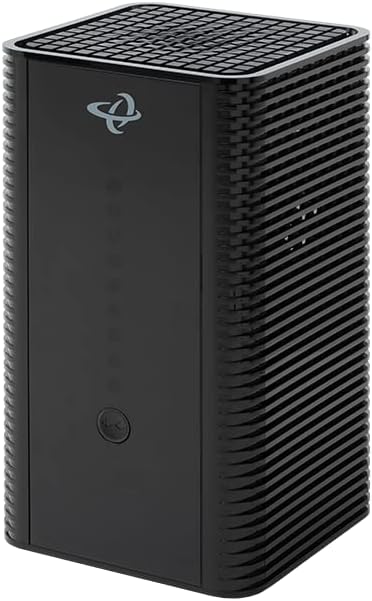
Billede: Forside view of the Hitron CODA-4589 Cable Modem Router, showing its sleek black design and LED indicators.
Refer to the LED Indicator section for detailed descriptions of each light.
3.2 Bagpanel
The rear panel contains all the necessary ports for connecting the CODA-4589 to your cable service, network devices, and power supply.

Billede: Bagside view of the Hitron CODA-4589 Cable Modem Router, displaying the coaxial input, Ethernet ports, power input, and voice ports.
- COAX Port: Forbindes til din kabeltjenestelinje.
- Ethernet Ports (LAN 1-4): Fire Gigabit Ethernet-porte til kablede forbindelser til computere, spillekonsoller eller andre netværksenheder.
- TEL 1/2 Ports: For connecting telephone lines for voice services.
- Genstarts knap: Bruges til at nulstille enheden til fabriksindstillingerne.
- POWER Port: Tilsluttes den medfølgende strømadapter.
3.3 LED-indikatorer
| Indikator | Status | Beskrivelse |
|---|---|---|
| Magt | Solid grøn | Enheden er tændt. |
| DS (nedstrøms) | Solid grøn | DOCSIS 3.0 channel bonding is complete. |
| USA (opstrøms) | Solid grøn | DOCSIS 3.0 channel bonding is complete. |
| Online | Solid grøn | Internetforbindelse er etableret. |
| 2.4G Wi-Fi | Solid grøn | 2.4 GHz Wi-Fi is active. |
| 5G Wi-Fi | Solid grøn | 5 GHz Wi-Fi is active. |
| Tlf 1/2 | Solid grøn | Voice service is active. |
4. Opsætning
4.1 Før du begynder
- Ensure you have an active cable internet service subscription.
- Locate a suitable place for the modem, away from direct sunlight, heat sources, and obstructions.
- Have your account information ready for service activation.
4.2 Connecting Your CODA-4589
- Tilslut koaksialkabel: Connect one end of the coaxial cable (not included) to the COAX port on the rear of the CODA-4589 and the other end to a cable wall outlet. Ensure the connection is finger-tight.
- Tilslut Ethernet-kabel (valgfrit): For a wired connection, connect one end of the supplied CAT5 Ethernet cable to any of the yellow Ethernet ports (LAN 1-4) on the CODA-4589 and the other end to the Ethernet port on your computer or other network device.
- Tilslutning af telefonlinjer (valgfrit): If you have voice service, connect your telephone(s) to the TEL 1 and/or TEL 2 ports on the rear of the CODA-4589.
- Tilslut strømadapter: Connect the supplied power adapter to the POWER port on the CODA-4589 and then plug the adapter into an electrical outlet.
- Tænd: The modem will automatically power on. Wait for the LED indicators on the front panel to stabilize. The Power, DS, US, and Online LEDs should turn solid green, indicating a successful connection to your cable provider's network.
- Aktivér tjeneste: Once the Online LED is solid green, open a web browser on a connected device. You may be redirected to your cable provider's activation page. Follow the on-screen instructions or call your cable provider to activate your service.

Image: A network diagram illustrating typical connections for the Hitron CODA-4589, including connections to the cable plant, wired devices (PC, NAS, printer), and wireless devices (smartphones, tablets, TVs, security cameras).
5. Operating Your CODA-4589
5.1 Wi-Fi-netværkskonfiguration
The CODA-4589 broadcasts both 2.4 GHz and 5 GHz Wi-Fi networks. The default Wi-Fi network name (SSID) and password (Wi-Fi Key) are typically found on a label on the bottom or back of the device.
- Tilslutning til Wi-Fi: On your wireless device (smartphone, laptop, tablet), search for available Wi-Fi networks. Select the SSID matching your CODA-4589 and enter the Wi-Fi Key when prompted.
- Changing Wi-Fi Settings: To customize your Wi-Fi network name or password, access the modem's web management interface. Open a web browser and enter the default IP address (e.g., 192.168.0.1 or 192.168.1.1). Log in with the default username and password (also found on the device label or in your provider's documentation). Navigate to the Wireless settings to make changes.
- WPS (Wi-Fi Protected Setup): The CODA-4589 supports WPS for easy connection of WPS-compatible devices. Press the WPS button on the modem (if available) and then activate WPS on your device within two minutes.
5.2 MoCA Network Extension
The CODA-4589 includes integrated MoCA 2.0, allowing you to extend your home network over existing coaxial cabling. This provides a high-speed wired backbone for devices in different rooms without running new Ethernet cables. For optimal performance, use Hitron MoCA extenders, which can be securely set up using Hitron's AutoSync software.
5.3 Taletjenester
If your service plan includes voice telephony, the CODA-4589's two HD voice ports (TEL 1/2) enable you to connect standard telephones. Once activated by your service provider, the Tel 1/2 LEDs on the front panel will illuminate, indicating that voice services are ready for use.
6. Vedligeholdelse
To ensure optimal performance and longevity of your CODA-4589, consider the following maintenance tips:
- Ventilation: Ensure the modem is placed in a well-ventilated area to prevent overheating. Do not block the ventilation holes.
- Rensning: Tør forsigtigt enhedens yderside af med en blød, tør klud. Brug ikke flydende rengøringsmidler eller aerosoler.
- Firmwareopdateringer: Firmware updates are typically managed automatically by your cable service provider. Do not attempt to manually update the firmware unless instructed by your provider.
- Power Cycle: If you experience minor connectivity issues, try power cycling the modem by unplugging the power adapter for 10-15 seconds and then plugging it back in.
7. Fejlfinding
This section provides solutions to common issues you might encounter with your CODA-4589.
| Problem | Mulig årsag | Løsning |
|---|---|---|
| Ingen Power LED | Strømadapteren er ikke tilsluttet, eller der er en defekt stikkontakt. | Ensure power adapter is securely connected to the modem and a working electrical outlet. Try a different outlet. |
| DS/US/Online LEDs blinking or off | No signal from cable provider or service not activated. | Check coaxial cable connection. Ensure service is activated with your provider. Contact your cable provider if issue persists. |
| No Internet connection (Online LED solid) | Device connected incorrectly or network configuration issue. | Ensure Ethernet cables are properly connected. Restart your computer/device. Power cycle the modem. Verify Wi-Fi settings. |
| Slow Internet speeds | Netværksbelastning, Wi-Fi-interferens eller begrænsninger i serviceplanen. | Try a wired connection to rule out Wi-Fi issues. Reduce number of active devices. Check for Wi-Fi interference. Contact your provider about your service plan. |
| Wi-Fi not working | Wi-Fi disabled or incorrect password. | Check 2.4G/5G Wi-Fi LEDs. Ensure Wi-Fi is enabled in modem settings. Verify Wi-Fi password. |
| Ingen opkaldstone på telefonen | Voice service not active or phone not connected properly. | Ensure Tel 1/2 LED is solid green. Check phone cable connection. Contact your voice service provider. |
If the problem persists after trying these solutions, please contact your cable service provider for further assistance.
8. Specifikationer
| Feature | Detalje |
|---|---|
| Modelnavn | CODA-4589 |
| DOCSIS-standarden | DOCSIS 3.1 (backward compatible with DOCSIS 3.0) |
| Downstream-kanaler | Up to 32 SC-QAM / 2 OFDM (DOCSIS 3.0 / 3.1) |
| Opstrømskanaler | Up to 8 SC-QAM / 2 OFDMA (DOCSIS 3.0 / 3.1) |
| Wi-Fi-standard | 802.11ac Wave 2 (Dual-Band Concurrent MU-MIMO) |
| Wi-Fi hastighed | Up to 2.3 Gbps (combined) |
| Ethernet-porte | 4 x Gigabit Ethernet (RJ-45) |
| Voice Ports | 2 x HD Voice (RJ-11) |
| MoCA | MoCA 2.0 Bonding |
| Dimensioner | 5 x 5 x 9 tommer |
| Vægt | 3.27 pund |
| Strømforsyning | Ekstern strømadapter |
9. Garanti og support
For warranty information and technical support, please refer to the documentation provided by your cable service provider or visit their official support website. Hitron products are typically supported directly by the Internet Service Provider (ISP) that distributes them. Do not attempt to open or service the device yourself, as this may void your warranty.
For general inquiries about Hitron products, you may visit the official Hitron website, but direct technical support for this device is usually handled by your service provider.
Ask a question about this manual
Ask about setup, troubleshooting, compatibility, parts, safety, or missing instructions. Manuals+ will review the question and use this page’s manual context to help answer it.