
1. Introduktion
Thank you for choosing the MAGIC-REFINER K75 81 Keys Mechanical Gaming Keyboard. This compact, high-performance keyboard is designed for both gaming and office use, featuring a transparent body, customizable RGB backlighting, and hot-swappable switches. This manual provides detailed instructions to help you set up, operate, and maintain your new keyboard.
2. Nøglefunktioner
- Customized Mechanical Design: Equipped with a high-performance RY 1060 single-chip microcomputer, full-speed USB communication protocol, and dual ISSP noise reduction for crisp key presses and reduced cavity sound.
- Kompakt layout med 81 tangenter: The K75 features an 81-key wired design with a highly transparent PC shell, independent direction keys, and all necessary F keys. Double bracket feet allow for adjustable typing angles, and it includes a detachable USB data cable.
- Full-Key Hot-Swappable Switches: Features PC transparent keycaps with pad printing + UV technology for clear, fade-resistant characters. Equipped with self-developed linear glass switches for fast feedback. Supports both 3-pin and 5-pin switches.
- Cool RGB-baggrundsbelyst effekt: Independent monochrome lighting with 256-level PWM and 18 types of lighting effects. Customize and switch lighting effects based on scene, music, game, or microphone audio changes.
- Bred kompatibilitet: Supports Windows 8/10, Android, iOS, and Mac operating systems.
- Ergonomisk design: Udviklet til komfortabel brug i længere perioder.
3. Pakkens indhold
- MAGIC-REFINER K75 Mechanical Gaming Keyboard
- USB Type-C-kabel
4. Opsætningsvejledning
4.1 Tilslutning af tastaturet
- Locate the USB Type-C port on the back of your K75 keyboard.
- Tilslut den ene ende af det medfølgende USB Type-C-kabel til tastaturet.
- Connect the other end of the USB cable to an available USB port on your computer (Windows, Mac) or compatible device (Android, iOS).
- Tastaturet vil automatisk blive genkendt af dit operativsystem.
4.2 Justering af skrivevinkel
The K75 keyboard features double bracket feet on the underside. Flip these feet out to adjust the keyboard to a more ergonomic typing angle for improved comfort.

Image: The MAGIC-REFINER K75 keyboard showcasing its ergonomic design and adjustable feet for comfortable typing.
4.3 Driver Software Installation (Optional)
For advanced customization and features, you may need to install the dedicated driver software. Follow these steps:
- Besøg embedsmanden webwebsted: www.manba-snake.com
- Vælg dit foretrukne sprog på webwebsted.
- Navigate to the 'SOFTWARE' section on the navigation bar.
- Locate and click on 'K75' to download the driver software.
- Pak den downloadede ud file using a third-party software (e.g., WinRAR).
- Run the 'setup.exe' file og følg instruktionerne på skærmen for at fuldføre installationen.

Image: A screenshot illustrating the process of downloading the driver software for the keyboard from the official webwebsted.
5. Betjeningsvejledning
5.1 RGB-baggrundsbelysningskontrol
The K75 keyboard offers 18 distinct RGB lighting effects. You can cycle through these effects and customize them to match your preference or environment.
- To cycle through the 18 lighting effects, press the FN + INS nøgler samtidigt.
- Further customization options may be available through the dedicated driver software.

Image: The K75 keyboard illuminated with vibrant RGB backlighting, demonstrating its customizable lighting effects.
5.2 Media Control Knob
Metalknappen øverst til højre på tastaturet giver praktisk mediestyring:
- Drej knappen for at justere lydstyrken.
- Press the knob to turn the keyboard's lighting on or off.
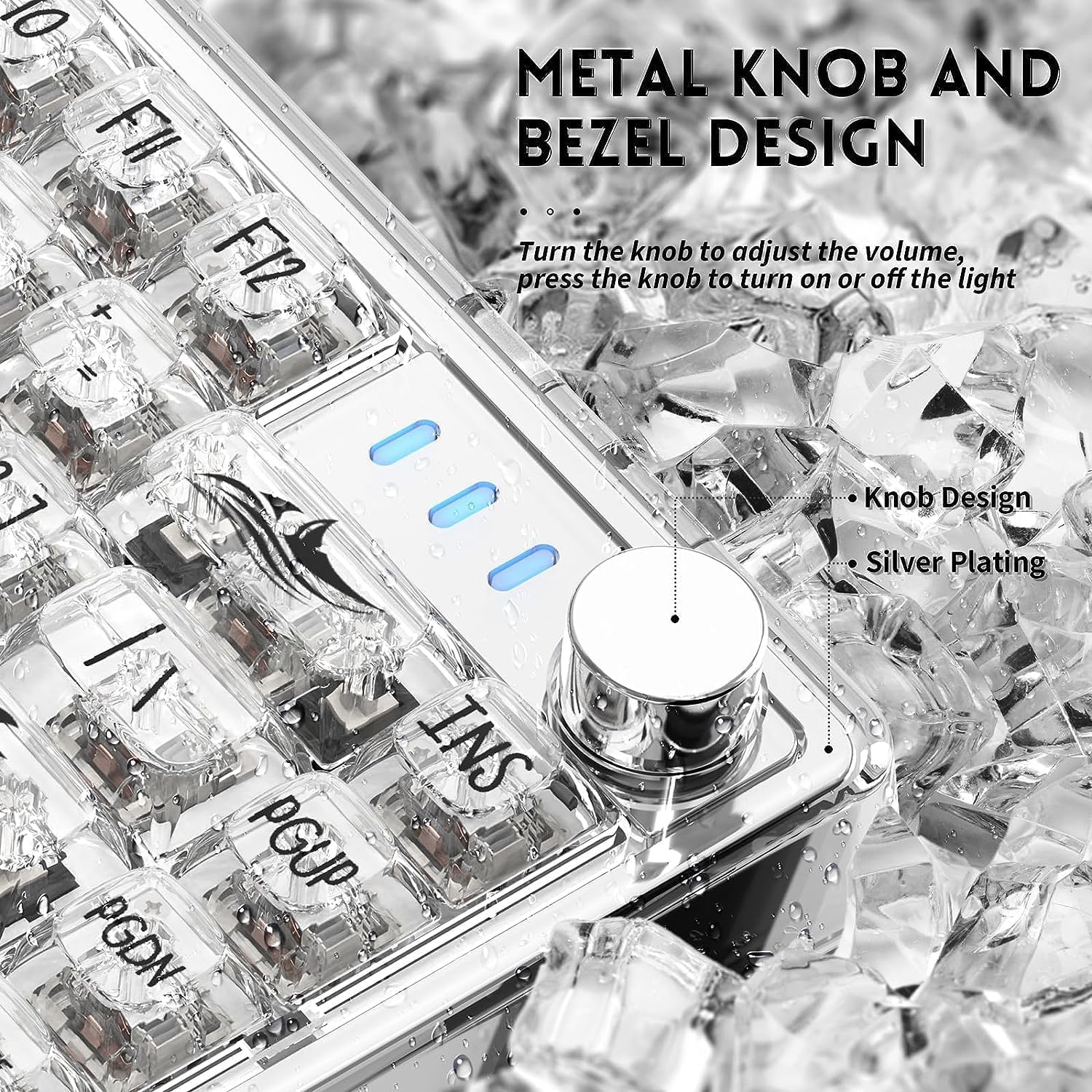
Billede: En detaljeret view of the metal knob on the K75 keyboard, highlighting its function for volume and lighting control.
5.3 Hot-swap-kontakter
The K75 keyboard features hot-swappable switch sockets, allowing you to easily change switches without soldering. This supports both 3-pin and 5-pin mechanical switches.
- Using a switch puller tool (not included), carefully grip the switch and pull it straight up to remove it.
- Juster stifterne på den nye kontakt med hullerne på printkortet. Sørg for, at stifterne er lige for at undgå at de bøjes.
- Tryk forsigtigt den nye kontakt på plads, indtil den klikker sikkert.
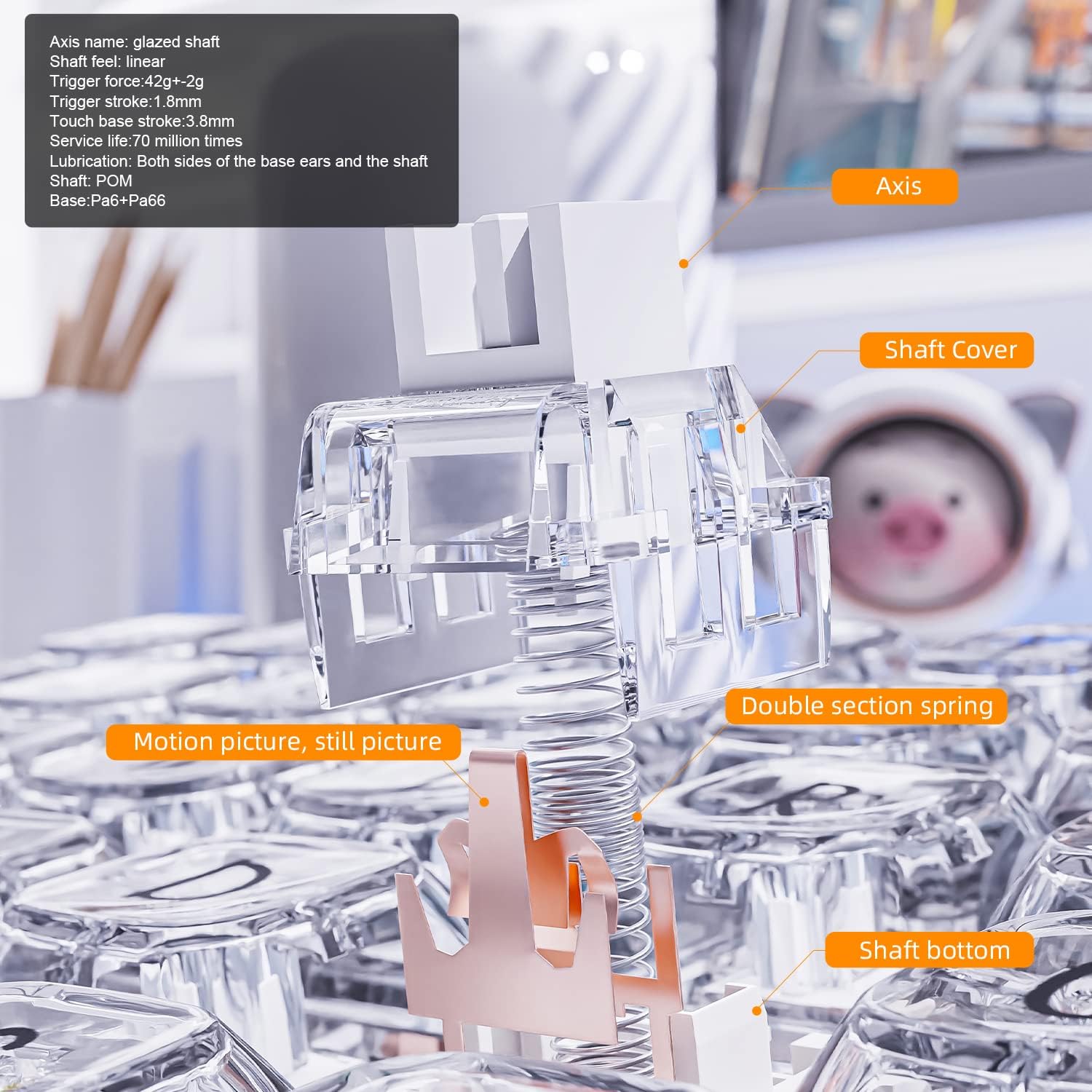
Billede: En eksploderet view diagram illustrating the components of a mechanical switch, including the axis, shaft cover, double section spring, and shaft bottom.
Image: A keycap puller tool, used for safely removing keycaps from the keyboard.
Image: A switch puller tool, essential for removing hot-swappable switches from the keyboard's PCB.
5.4 Transparent Keycaps
The K75 features highly transparent PC keycaps with characters applied using pad printing and UV technology, ensuring clarity and resistance to fading.

Billede: Et nærbillede view of the K75's highly transparent keycaps, highlighting their clear characters and durable finish.
6. Vedligeholdelse
- Rensning: Use a soft, dry cloth to wipe the keyboard surface. For deeper cleaning, remove keycaps and use compressed air to clear debris. Avoid harsh chemicals.
- Pleje af tastekapsler: The transparent PC keycaps are durable but can scratch. Handle with care when removing or installing.
- Skiftepleje: When hot-swapping switches, ensure proper alignment to prevent bending pins.
- Kabelstyring: Keep the USB cable untangled to prevent damage.
7. Fejlfinding
- Tastaturet reagerer ikke:
- Sørg for, at USB-kablet er korrekt tilsluttet til både tastaturet og computeren.
- Prøv at tilslutte tastaturet til en anden USB-port på din computer.
- Test tastaturet på en anden computer for at udelukke et systemspecifikt problem.
- RGB Backlight Not Working/Changing:
- Press the media control knob to ensure the lighting is not turned off.
- Use the FN + INS key combination to cycle through lighting effects.
- If using driver software, ensure it is installed correctly and settings are applied.
- Nøgler registreres ikke:
- For hot-swappable switches, ensure the switch is fully seated and its pins are not bent. Remove and re-insert the switch if necessary.
- Avoid using excessive force when operating the keyboard, as this can damage mechanical parts.
- Softwareproblemer:
- Geninstaller driversoftwaren fra den officielle webwebsted.
- Sørg for, at dit operativsystem er opdateret.
8. Specifikationer
| Feature | Detalje |
|---|---|
| Mærke | MAGI-RAFFINER |
| Modelnummer | K75 |
| Antal nøgler | 81 |
| Switch Type | Magic-Refiner Linear Glass (Hot-Swappable) |
| Forbindelsesteknologi | USB Type-C (kablet) |
| Baggrundsbelysning | RGB (18 effects, customizable) |
| Materiale | PC Transparent Body and Keycaps |
| Kompatible enheder | PC (Windows 8/10), Android, iOS, Mac |
| Særlige funktioner | Backlit, Ergonomic, Hot-Swappable, Media Control Knob |
9. Produktvideoer
9.1 MAGIC-REFINER K75 81 Keys Compact Gaming Keyboard Overview
Video: En officiel overview of the MAGIC-REFINER K75 81 Keys Compact Gaming Keyboard, highlighting its design and features.
9.2 MAGIC-REFINER 81 Keys Compact Gaming Keyboard Features
Video: A demonstration of various features of the MAGIC-REFINER 81 Keys Compact Gaming Keyboard, including its lighting and build.
10. Garanti og support
No explicit warranty information is provided with this product. For any questions, technical support, or assistance, please contact the seller directly through the platform where you purchased the keyboard. They will be able to provide the most accurate and up-to-date support information.