
1. Introduktion
Thank you for choosing the FIFINE AmpliGame H9 Gaming Headset. This manual provides essential information for setting up, operating, and maintaining your headset to ensure optimal performance and longevity. The H9 headset is designed to deliver immersive audio and clear communication for an enhanced gaming experience across multiple platforms.

FIFINE AmpliGame H9 Gaming Headset, showcasing its main components: the headset, detachable microphone, and USB control box.
2. Hvad er der i æsken
- FIFIN AmpliGame H9 Gaming Headset
- Aftagelig mikrofon
- USB kontrolboks
- Brugermanual
3. Nøglefunktioner
- 7.1 Surround Sound: Immerse yourself in rich, detailed audio for an enhanced gaming experience.
- 50 mm dynamiske drivere: Delivers powerful and clear sound reproduction.
- Bred kompatibilitet: Connects via USB (PC, PS4, PS5, Switch Docked Mode) or 3.5mm jack (Xbox, Switch, mobile devices).
- Aftagelig mikrofon: Flexible and sensitive microphone for clear voice capture (-42dB sensitivity).
- USB Control Box: Intuitive inline controls for headset volume, microphone volume, and mute switch.
- Passiv støjreduktion: Over-ear design provides isolation from ambient noise.
- Let og komfortabel: Weighs approximately 329 grams with soft earcups and an adjustable headband for extended use.
- Holdbart design: Features a metal bridge for enhanced durability.

Experience immersive 7.1 virtual surround sound with the H9 headset, bringing your games to life.

The H9 headset features a lightweight design (approx. 329g) and comfortable earpads for extended gaming sessions.
4. Opsætning
4.1 Connecting the Detachable Microphone
Align the 3.5mm jack of the detachable microphone with the port on the left earcup of the headset. Push firmly until it clicks into place.

The detachable microphone easily plugs into the headset for clear communication.
4.2 Tilslutning til enheder
FIFINE AmpliGame H9 offers two primary connection methods:
4.2.1 3.5mm TRRS stik
Plug the 3.5mm jack directly into your device's audio port. This method is compatible with:
- Xbox controllers
- Nintendo Switch (handheld mode)
- Mobile Players (smartphones, tablets)
- PC/Computer (if your PC has a combined 3.5mm audio jack)
When using the 3.5mm connection, volume control is typically managed directly through your connected device.
4.2.2 USB Connector (via USB Control Box)
For enhanced features like 7.1 surround sound and independent volume controls, connect the headset to the provided USB Control Box, then plug the USB-A connector into your device. This method is compatible with:
- Computers (PC/Mac)
- PlayStation (PS4, PS5)
- Nintendo Switch (Docked-tilstand)

The H9 headset offers versatile connectivity with both 3.5mm and USB options for a wide range of gaming devices.
5. Betjeningsvejledning
5.1 USB Control Box Functions
The USB Control Box provides convenient access to audio settings:
- Headset Volume Control (+/-): Adjust the overall listening volume.
- Mic Volume Control (+/-): Juster mikrofonens indgangsniveau.
- Mikrofon-lydløs kontakt: Toggle the microphone on/off. Ensure the switch is in the "mic on" position for the microphone to function.
- 7.1 Surround Sound Mode Button: Press the central "7.1" button to activate or deactivate 7.1 virtual surround sound. The button will illuminate when active.

The intuitive USB Control Box allows for easy adjustment of audio and microphone settings.
5.2 Justering af hovedbøjle
The headset features an adjustable headband. Gently slide the earcups up or down along the metal frame to find a comfortable fit for your head.
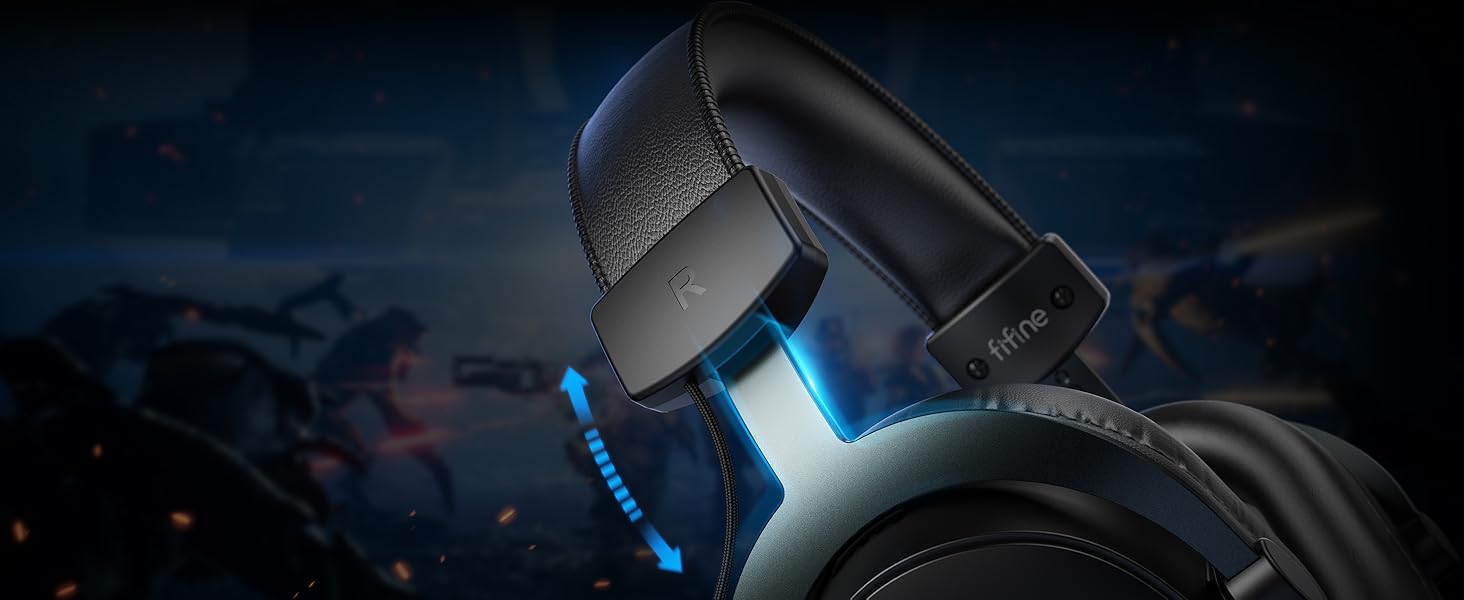
Adjust the headband for a personalized and comfortable fit during long gaming sessions.
6. Vedligeholdelse
- Rensning: Use a soft, dry cloth to clean the headset and earcups. Avoid using harsh chemicals or abrasive materials.
- Opbevaring: Opbevar headsettet et køligt, tørt sted væk fra direkte sollys og ekstreme temperaturer.
- Kabelpleje: Undgå skarpe bøjninger eller overdreven trækkraft i kablerne for at forhindre skader.
- Mikrofonpleje: When not in use, you can detach the microphone to prevent accidental damage.
7. Fejlfinding
7.1 Ingen lyd / Lav lydstyrke
- Ensure the headset is securely connected to the device (3.5mm jack or USB).
- Check the volume levels on the USB Control Box and your connected device.
- If using the USB Control Box, ensure the 7.1 button is illuminated if surround sound is desired, or off if not.
- Test headsettet med en anden enhed for at udelukke enhedsspecifikke problemer.
7.2 Mikrofonen virker ikke
- Ensure the detachable microphone is fully inserted into the headset.
- Check the Mic Mute switch on the USB Control Box; it should be in the "mic on" position.
- Adjust the microphone volume using the +/- buttons on the USB Control Box.
- Bekræft mikrofonindgangsindstillingerne på din computer eller konsol.
7.3 Sound Distortion
- Lower the volume on both the headset and the connected device.
- If using 7.1 surround sound, try disabling it to see if the distortion persists.
- Ensure no other audio enhancements or equalizers on your device are causing interference.
8. Specifikationer
| Feature | Detalje |
|---|---|
| Modelnavn | H9 |
| Forbindelsesteknologi | Kablet (USB, 3.5 mm) |
| Audio driver type | Dynamisk Driver |
| Audio driver størrelse | 50 millimeter |
| Frekvensområde | 20 Hz - 20,000 Hz |
| Impedans | 32 Ohm |
| Mikrofonfølsomhed | -42dB |
| Støjkontrol | Passiv støjreduktion |
| Varens vægt | 329 gram (ca. 11.6 ounces) |
| Produktdimensioner | 7.61 x 6.57 x 2.6 tommer |
| Materiale | Læder, Metal |
| UPC | 850052511036 |
9. Garanti og support
FIFINE products typically come with a limited warranty. Please refer to the warranty card included in your product packaging or visit the official FIFINE webhjemmeside for detaljerede garantivilkår.
For technical support, troubleshooting assistance, or any inquiries regarding your FIFINE AmpliGame H9 headset, please contact FIFINE customer support through their official webwebstedet eller kontaktoplysningerne i din produktdokumentation.