
1. Introduktion
Thank you for choosing the Gigastone 24 inch 165Hz IPS Gaming Monitor. This manual provides essential information for setting up, operating, and maintaining your monitor. Please read it thoroughly before use to ensure optimal performance and safety.
This monitor features a 23.8-inch Full HD (1920x1080) IPS panel with a 165Hz refresh rate and 5ms response time, designed to deliver a smooth and immersive visual experience. It includes FreeSync technology to reduce screen tearing and stuttering, and Eye Care technology for comfortable viewing during extended use. The monitor also comes with built-in speakers and supports VESA mounting.
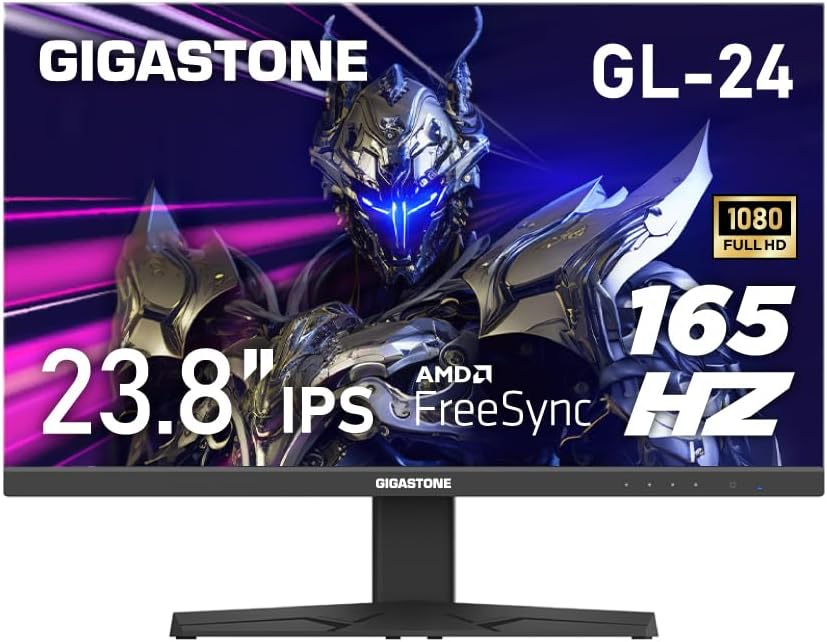
Figur 1: Forside view of the Gigastone 24 inch 165Hz IPS Gaming Monitor.
2. Pakkens indhold
Kontroller venligst pakkens indhold for at sikre, at alle varer er til stede:
- Gigastone 24 inch 165Hz IPS Gaming Monitor
- Monitorstativ (base og hals)
- Strømadapter
- HDMI kabel
- DisplayPort (DP)-kabel
- Brugervejledning (dette dokument)
3. Opsætning
3.1 Samling af skærmstativet
- Tag forsigtigt skærmen ud af emballagen, og placer den med forsiden nedad på en blød, ren overflade for at forhindre ridser.
- Fastgør stativets hals til skærmpanelet ved at justere tappene og skubbe, indtil den klikker på plads.
- Fastgør stativets base til stativets hals. Fastgør den med den medfølgende skrue, der er placeret i bunden af basen.
3.2 Tilslutning af skærmen
Tilslut skærmen til din computer eller andre enheder ved hjælp af de relevante kabler.

Figur 2: Bagside view af skærmen med portmærkater.
- Strømtilslutning: Connect the power adapter to the monitor's power input port, then plug the other end into a power outlet.
- HDMI-forbindelse: Connect one end of the HDMI cable to the HDMI port on your computer's graphics card and the other end to one of the HDMI ports (HDMI Ver 2.0) on the monitor.
- DisplayPort (DP)-forbindelse: Connect one end of the DP cable to the DisplayPort on your computer's graphics card and the other end to the DP Ver 1.2 port on the monitor.
- Lydudgang: For external speakers or headphones, connect them to the Audio Out port on the monitor. The monitor also has built-in speakers.
3.3 VESA-montering
The monitor supports VESA 100x100mm mounting standards, allowing you to attach it to a compatible wall mount or monitor arm (sold separately). To do this, remove the stand and attach the VESA mount using appropriate screws.

Figure 3: Monitor highlighting VESA 100x100mm mounting points.
4. Betjening af monitoren
4.1 Tænd/sluk
Tryk på tænd/sluk-knappen nederst til højre på skærmen for at tænde eller slukke den. Strømindikatorlampen lyser, når skærmen er tændt.
4.2 On-Screen Display (OSD) menu
OSD-menuen giver dig mulighed for at justere forskellige skærmindstillinger. Brug kontrolknapperne (normalt placeret nederst til højre eller bag på skærmen) til at navigere i menuen.
- Navigation: Brug retningsknapperne til at navigere gennem menupunkterne.
- Udvælgelse: Press the central button to select an option or confirm a setting.
- Udgang: Brug knappen 'Afslut' eller 'Tilbage' for at vende tilbage til den forrige menu eller afslutte OSD-menuen.
4.3 Nøglefunktioner og indstillinger
- Opdateringshastighed (165Hz): This monitor supports a high refresh rate of 165Hz, providing smoother motion and reduced input lag, especially beneficial for gaming. Ensure your graphics card and connection cable (DisplayPort or high-speed HDMI) support 165Hz at 1920x1080 resolution. You may need to adjust this setting in your computer's display settings.
- FreeSync / Adaptive-Sync: This technology synchronizes the monitor's refresh rate with your graphics card's frame rate, eliminating screen tearing and reducing stuttering. To enable FreeSync, ensure it is activated in the monitor's OSD menu and in your graphics card's control panel (e.g., AMD Radeon Software).
- Øjenplejeteknologi: The monitor incorporates features like Blue Light Shift and Anti-Flicker technology to reduce eye strain during prolonged use. These settings can typically be adjusted within the OSD menu.
- Valg af inputkilde: If you have multiple devices connected, use the OSD menu to switch between HDMI 1, HDMI 2, or DisplayPort inputs.
- Lydindstillinger: Adjust the volume of the built-in speakers or connected external audio devices via the OSD menu.

Figure 4: Visual comparison demonstrating the smoothness of 165Hz refresh rate versus 75Hz.

Figure 5: Visual comparison showing the effect of FreeSync technology on screen tearing.
Video 1: An official product video demonstrating the monitor's features and gaming experience. This video highlights the visual quality and performance aspects of the Gigastone gaming monitor.
5. Vedligeholdelse
Korrekt vedligeholdelse sikrer din skærms levetid og optimale ydeevne.
- Rengøring af skærmen: Tør forsigtigt skærmen af med en blød, fnugfri klud. Fjern genstridige mærker ved atampen the cloth slightly with water or a monitor-specific cleaning solution. Gør ikke sprøjt væske direkte på skærmen.
- Rengøring af Casing: Brug en blød, tør klud til at rengøre skærmenasing. Undgå at bruge slibende rengøringsmidler eller opløsningsmidler.
- Ventilation: Sørg for, at skærmens ventilationsåbninger ikke er blokerede for at forhindre overophedning.
- Sluk: Sluk altid skærmen, og tag stikket ud af stikkontakten, før du rengør den, eller hvis den ikke skal bruges i længere tid.
6. Fejlfinding
Hvis du støder på problemer med din skærm, kan du se følgende almindelige fejlfindingstrin:
| Problem | Mulig løsning |
|---|---|
| Intet billede på skærmen |
|
| Image is flickering or distorted |
|
| Ingen lyd fra højttalerne |
|
If the problem persists after trying these steps, please contact Gigastone customer support for further assistance.
7. Specifikationer
| Feature | Detalje |
|---|---|
| Modelnummer | GL-24FF3 |
| Skærmstørrelse | 24 Inches (23.8" actual) |
| Paneltype | IPS |
| Opløsning | 1920 x 1080 (FHD) |
| Opdateringshastighed | 165 Hz |
| Svartid | 5 ms |
| Aspektforhold | 16:9 |
| Viewi vinkel | 178° bred View |
| Lysstyrke | 300 Candela |
| Kontrastforhold | 1000:1 |
| Forbindelse | 2x HDMI (Ver 2.0), 1x DisplayPort (Ver 1.2), Audio Out |
| VESA Mount | 100x100 mm |
| Særlige funktioner | FreeSync, Eye Care Technology (Blue Light Shift & Anti-Flicker), Built-in Speakers |
| Produktmål (L x B x H) | 1.87 x 21.26 x 16.39 tommer |
| Varens vægt | 12.41 pund |
8. Garanti og support
This Gigastone monitor comes with a 3 års producentgaranti. For warranty claims, technical support, or any inquiries, please contact Gigastone customer service. They offer 24/7 world-wide customer service.
Please refer to the official Gigastone website or your purchase documentation for the most up-to-date contact information and detailed warranty terms and conditions.