
FLAMMA FX150
FLAMMA FX150 Multieffektprocessor Brugermanual
Comprehensive instructions for setup, operation, and maintenance of your FLAMMA FX150.
1. Introduktion
Thank you for choosing the FLAMMA FX150 Multi Effects Processor. This device is designed to provide a wide range of guitar effects, amplifier models, and cabinet simulations in a compact and user-friendly format. It features a touchscreen interface, customizable footswitches, and extensive connectivity options for various musical applications. Please read this manual thoroughly to understand the full capabilities of your FX150 and ensure optimal performance.

Figure 1: FLAMMA FX150 Multi Effects Processor with expression pedal.
2. Produktet er slutview
2.1 Betjeningselementer på frontpanelet
- Touchscreen display: Main interface for navigating menus, selecting effects, and adjusting parameters.
- MASTER knap: Styrer den overordnede udgangslydstyrke.
- VALUE-knap: Used for data entry, scrolling through options, and confirming selections.
- EXP Pedal: Built-in expression pedal for real-time control of various effects parameters (e.g., volume, wah).
- Footswitches A, B, C: Assignable footswitches for preset changes, effect toggling, looper control, and tuner activation.
2.2 Bagpaneltilslutninger
The rear panel of the FX150 provides all necessary input and output ports for connecting to your guitar, amplifier, computer, and other audio devices.

Figur 2: Detaljeret view of the FLAMMA FX150 rear panel connections.
- Afbryderen: Slår enheden til/fra.
- DC IN: Power port (9V DC, 300mA recommended). Use the original power supply.
- USB: Type-C port for computer connection (preset management, IR file import, firmware updates, audio interface).
- AUX IN: 1/8" stereo audio input jack for connecting external audio devices.
- EXP2: 1/4" stereo audio input jack for connecting an external expression pedal (use a 1/4" TRS cable).
- INPUT: 1/4" mono audio input jack for guitar or other pedal output.
- SENDE: 1/4" mono audio output jack of FX LOOP. Connect to external pedal input or amplifier input (four-cable method).
- RETURNERING: 1/4" mono audio input jack of FX LOOP. Connect to external pedal output or amplifier send (four-cable method).
- OUTPUT (L/MONO, R): 1/4" stereo audio output jacks. L/MONO for unbalanced signal or mono audio setup.
- TELEFON: 1/8" stereo headphone output.
3. Opsætning
3.1 Strømtilslutning
Connect the provided 9V DC power adapter to the DC IN port on the rear panel. Ensure the power switch is in the OFF position before connecting. Once connected, you can toggle the power switch to ON.
3.2 Grundlæggende forbindelser
The FX150 offers various connection methods depending on your setup.
- Tilslutning til en Amplifier's Return (FX Loop):

Figure 3: Connect your guitar to the FX150 INPUT. Connect the FX150 OUTPUT to the RETURN of your amplifier's FX Loop or directly to a power amplivligere.
- Connecting to Studio Monitors, Sound Cards, or Headphones:

Figure 4: Connect your guitar to the FX150 INPUT. Connect the FX150 OUTPUT to full-frequency devices such as studio monitors, sound cards, stage monitors, or PA systems. Connect headphones to the PHONES output.
- Tilslutning til en Amplifier's Input:

Figure 5: Connect your guitar to the FX150 INPUT. Connect the FX150 OUTPUT to the INPUT of your amplivligere.
- Four-Cable Method Connection:

Figure 6: Connect your guitar to the amplifier's INPUT. Connect the amplifier's SEND to the FX150 INPUT. Connect the FX150 SEND to the amplifier's RETURN. Connect the FX150 OUTPUT to the amplifier's RETURN.
4. Betjeningsvejledning
4.1 Navigering på berøringsskærmen
The FX150 features a high-quality touchscreen for intuitive navigation and parameter adjustment. Tap icons and menus to select, and use the VALUE knob for fine-tuning.

Figure 7: Interacting with the touchscreen to select and adjust sounds.
4.2 Effects Chain and Presets
The FX150 allows you to customize your effects chain with 10 freely movable effects blocks and 160 built-in effects. There are 180 editable user effects slots to save your personalized tones.
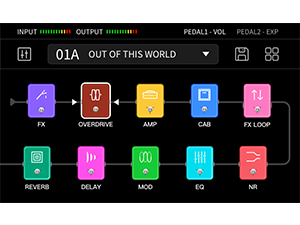
Figure 8: Visual representation of the customizable effects chain on the FX150.
- Amp Simuleringer: Supports 1024-point impulse response (IR) files for detailed amp emulering.
- Cabinet Simulations: Includes 30 high-quality preinstalled cab emulations. These can be replaced with edited versions or third-party IR files using the FX150 editing software.
- Effektredigering: Select an effect block on the touchscreen to access its parameters. Use the VALUE knob to adjust settings.
- Gem forudindstillinger: After customizing your effects chain and settings, save your preset to one of the 180 user slots for quick recall.

Figure 9: Illustration of the non-linear amp modeling technology with 1024-point sampnøjagtighed.
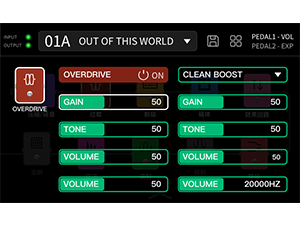
Figur 10: Eksample of adjusting overdrive effect parameters on the touchscreen.
4.3 Trommemaskine og Looper
The FX150 includes a built-in drum machine and looper for practice and creative use.
- Trommemaskine: Features 80 drum machine variations and 10 metronome variations.
- Looper: Offers looping functionality up to 52 seconds.
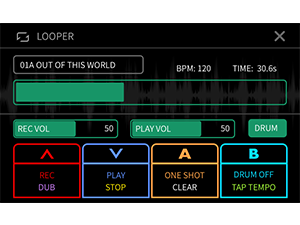
Figure 11: The looper interface showing recording and playback controls, and drum machine integration.
4.4 Customizable Footswitches
The footswitches (A, B, C) can be configured to control various functions, including turning effects on/off, controlling specific parameters, or activating the tuner/looper.

Figure 12: Menu for customizing footswitch assignments and expression pedal functions.
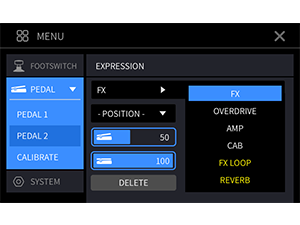
Figure 13: Menu for calibrating the expression pedal and assigning its functions.
4.5 Using the Editor Software
Connect the FX150 to your computer via the USB-C port to use the dedicated editor software. This software provides a visual interface for managing presets, importing IR files, and updating firmware.

Figure 14: The FLAMMA FX150 connected to a computer running the editor software for advanced control.
5. Vedligeholdelse
- Rensning: Brug en blød, tør klud til at rengøre enheden. Undgå slibende rengøringsmidler eller opløsningsmidler.
- Opbevaring: Opbevar enheden et tørt, køligt sted væk fra direkte sollys og ekstreme temperaturer.
- Strømforsyning: Always use the original power adapter or a compatible 9V DC (center negative) power supply with sufficient current (300mA or higher).
- Firmwareopdateringer: Regularly check the official FLAMMA webwebsted for firmwareopdateringer for at sikre optimal ydeevne og adgang til nye funktioner.
6. Fejlfinding
| Problem | Mulig løsning |
|---|---|
| Ingen strøm | Ensure the power adapter is correctly connected and the power switch is ON. Verify the power adapter specifications (9V DC, center negative, 300mA minimum). |
| Ingen lydudgang | Check all audio cable connections. Verify the MASTER volume knob is turned up. Ensure the selected preset has active effects and appropriate volume levels. Check your amplifier/monitor volume. |
| Distorted or unwanted sound | Check input gain levels on the FX150 and your amplifier. Adjust individual effect parameters (e.g., gain on overdrive/distortion). Ensure correct connection method for your setup (e.g., amp modeling should be off when connecting to an amp's input). |
| Fodkontakter reagerer ikke | Check footswitch assignments in the settings menu. Ensure the unit is not in a mode that overrides footswitch functions (e.g., tuner mode). |
| Kan ikke oprette forbindelse til computer | Ensure the USB-C cable is securely connected. Install the necessary drivers for the FX150 on your computer. Try a different USB port or cable. |
7. Specifikationer
| Feature | Detalje |
|---|---|
| Model | FX150 |
| Mærke | FLAMMA |
| Varens vægt | 6.16 pund (2.8 kilo) |
| Produktdimensioner | 10.7 x 5.9 x 2.2 tommer |
| Strømkilde | Elektrisk ledning (9 volt DC) |
| Materiale Type | Metal |
| Hardware-interface | USB |
| Signalformat | Analog |
| Amp Simuleringer | Supports 1024-point Impulse Response (IR) files |
| Kabinetsimuleringer | 30 preinstalled, supports 3rd-party IR files |
| Indbyggede effekter | 160 unique types |
| User Effects Slots | 180 editable slots |
| Trommemaskine | 80 variations, 10 metronome variations |
| Looper | Op til 52 sekunder |
8. Garanti og support
For warranty information, technical support, or service inquiries, please contact FLAMMA customer support directly. Refer to the official FLAMMA webwebstedet for de mest opdaterede kontaktoplysninger og supportressourcer.
Official FLAMMA Webwebsted: www.flamma.shop
Ask a question about this manual
Ask about setup, troubleshooting, compatibility, parts, safety, or missing instructions. Manuals+ will review the question and use this page’s manual context to help answer it.