
Keenetic KN-2112-01TR
Keenetic Extra DSL AC1200 Wi-Fi Mesh VDSL2/ADSL2+ Modem Gigabit Fiber Router User Manual
Model: KN-2112-01TR
Indledning
This manual provides comprehensive instructions for the setup, operation, maintenance, and troubleshooting of your Keenetic Extra DSL AC1200 Wi-Fi Mesh VDSL2/ADSL2+ Modem Gigabit Fiber Router. Please read this manual carefully before using the device to ensure optimal performance and safety.
The Keenetic Extra DSL AC1200 is a versatile networking device designed to provide high-speed internet access and robust Wi-Fi coverage. It supports VDSL2/ADSL2+ connections and features Gigabit Ethernet ports for wired connectivity, along with dual-band Wi-Fi for seamless wireless networking.
Pakkens indhold
Før du fortsætter med opsætningen, skal du kontrollere, at alle varer er til stede i din pakke:
- Keenetic Extra DSL AC1200 Router (KN-2112-01TR)
- Strømadapter
- Ethernet kabel
- DSL kabel
- Lynvejledning (Denne manual fungerer som en detaljeret vejledning)
Fysisk overview
Familiarize yourself with the various ports and indicators on your Keenetic Extra DSL router.

Figur 1: Forsiden view of the Keenetic Extra DSL AC1200 Router, showing its compact design and antenna configuration.
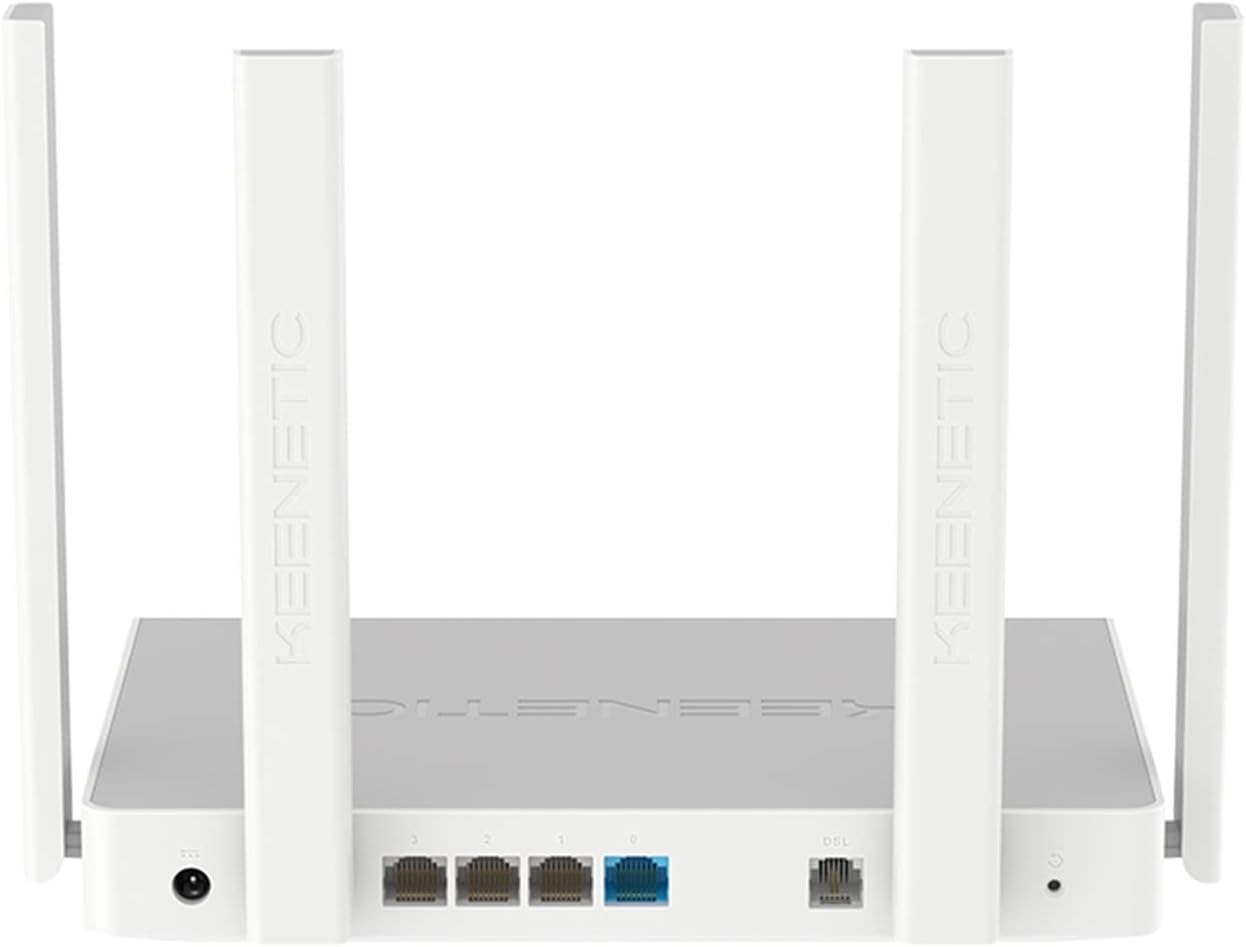
Figur 2: Bag view of the Keenetic Extra DSL AC1200 Router, highlighting the DSL port, four Gigabit Ethernet ports, and the USB 2.0 port.
- DSL-port: Connects to your VDSL2/ADSL2+ line.
- Ethernet Ports (LAN/WAN): Four 1Gbit/s ports for wired devices or WAN connection.
- USB 2.0-port: For connecting external storage or 3G/4G modems.
- Strømindgang: Tilsluttes den medfølgende strømadapter.
- Nulstil knap: Bruges til at gendanne fabriksindstillingerne.
Opsætning
1. Hardwareforbindelse
- Tilslut DSL-linjen: Plug one end of the DSL cable into the DSL port on the router and the other end into your wall's DSL jack.
- Tilslut til strøm: Connect the power adapter to the router's power input and then plug it into a power outlet. The router will power on automatically.
- Tilslut kablede enheder (valgfrit): Use an Ethernet cable to connect your computer or other wired devices to any of the Gigabit Ethernet ports on the router.
- Vent på initialisering: Allow a few minutes for the router to boot up and establish a connection. The indicator lights on the front panel will show the status of the connection.
2. Indledende konfiguration
The Keenetic Extra DSL features a user-friendly interface for easy setup.
- Få adgang til Web Interface: Åbn a web browser on a device connected to the router (either wired or wirelessly using the default Wi-Fi name and password found on the router's label). Type
my.keenetic.netor192.168.1.1ind i adresselinjen og tryk på Enter. - Følg opsætningsguiden: The first time you access the interface, a setup wizard will guide you through the initial configuration steps, including setting up your internet connection (VDSL/ADSL parameters), Wi-Fi network name (SSID), and password.
- Indstil administratoradgangskode: Create a strong administrator password for accessing the router's settings.
- Gem indstillinger: Gem dine indstillinger efter konfigurationen, og genstart routeren, hvis du bliver bedt om det.
Betjening af routeren
Wi-Fi-forbindelse
The router supports dual-band Wi-Fi (2.4 GHz and 5 GHz) for optimal wireless performance.
- Tilslutning af enheder: On your wireless device, search for available Wi-Fi networks. Select your configured network name (SSID) and enter the password.
- Wi-Fi Mesh: This router supports Wi-Fi Mesh technology. For extending coverage, additional Keenetic devices can be added to create a seamless mesh network. Refer to the Keenetic website for detailed instructions on mesh setup.
Avancerede funktioner
The Keenetic OS provides a wide range of features accessible through the web grænseflade:
- Gæste-Wi-Fi-netværk: Opret et separat Wi-Fi-netværk til gæster for at isolere dem fra dit primære netværk.
- Forældrekontrol: Manage internet access for specific devices or users.
- Portvideresendelse: Configure rules for specific applications or services.
- VPN Server/Client: Establish secure connections.
- USB-applikationer: Utilize the USB 2.0 port for file sharing (FTP/SMB), connecting a printer, or using a 3G/4G USB modem as a backup internet source.
Opretholdelse
- Firmwareopdateringer: Tjek regelmæssigt for og installer firmwareopdateringer via routerens web grænseflade. Opdateringer inkluderer ofte forbedringer af ydeevnen, sikkerhedsrettelser og nye funktioner.
- Placering af router: Placer routeren et centralt sted, væk fra forhindringer og interferenskilder (f.eks. mikrobølgeovne, trådløse telefoner) for at maksimere Wi-Fi-dækningen.
- Rensning: Hold routeren ren og fri for støv. Brug en blød, tør klud til rengøring. Brug ikke flydende rengøringsmidler.
- Genstart: Hvis du oplever netværksproblemer, kan du prøve at genstarte routeren ved at tage strømadapteren ud i 10 sekunder og derefter sætte den i igen.
Fejlfinding
| Problem | Mulig årsag | Løsning |
|---|---|---|
| Ingen internetadgang | DSL line not connected, incorrect ISP settings, modem not synced. | Check DSL cable connection. Verify ISP settings in the router's web interface. Restart the router and wait for DSL sync. Contact your ISP if the issue persists. |
| Svagt Wi-Fi-signal | Router placement, interference, too many devices. | Relocate the router to a central, open area. Avoid placing near other electronics. Consider adding a Keenetic Wi-Fi Mesh extender. |
| Kan ikke få adgang til routeren Web Interface | Incorrect IP address, network configuration issues. | Ensure your device is connected to the router. Try my.keenetic.net or 192.168.1.1. Clear browser cache. Try a different browser. If all else fails, perform a factory reset (see below). |
| Langsom internethastighed | Network congestion, outdated firmware, ISP issues. | Update router firmware. Limit bandwidth-intensive activities. Perform a speed test directly connected to the router. Contact your ISP. |
Fabriksindstilling
If you encounter persistent issues, you may need to perform a factory reset. This will erase all custom settings and restore the router to its default configuration.
- Med routeren tændt, skal du finde Nulstil button (usually a small pinhole button) on the back panel.
- Use a paperclip or a thin object to press and hold the Reset button for approximately 10 seconds until the system LED blinks rapidly.
- Release the button and wait for the router to restart. You will then need to reconfigure the router from scratch.
Specifikationer
| Feature | Detalje |
|---|---|
| Modelnavn | KN-2112-01TR |
| Mærke | Keenetisk |
| Trådløs Standard | 802.11ac, 802.11n |
| Frekvensbåndsklasse | Dual Band |
| Nøglefunktioner | Wi-Fi Mesh, User-Friendly Interface |
| Ethernet-porte | 4 x Gigabit (1Gbit/s) |
| USB-porte | 1 x USB 2.0 |
| Dimensioner (L x B x H) | 37 x 28.6 x 6.2 cm |
| Vægt | 1 kilo |
| Farve | Hvid |
| Oprindelsesland | Kina |
Garanti og support
For warranty information and technical support, please refer to the official Keenetic website or contact Keenetic customer service. Specific warranty terms may vary by region and retailer.
Note: No specific warranty duration or detailed support contact information was provided in the product data. Please consult your purchase documentation or the manufacturer's official resources for the most accurate and up-to-date information.
Ask a question about this manual
Ask about setup, troubleshooting, compatibility, parts, safety, or missing instructions. Manuals+ will review the question and use this page’s manual context to help answer it.