
1. Produktet er slutview
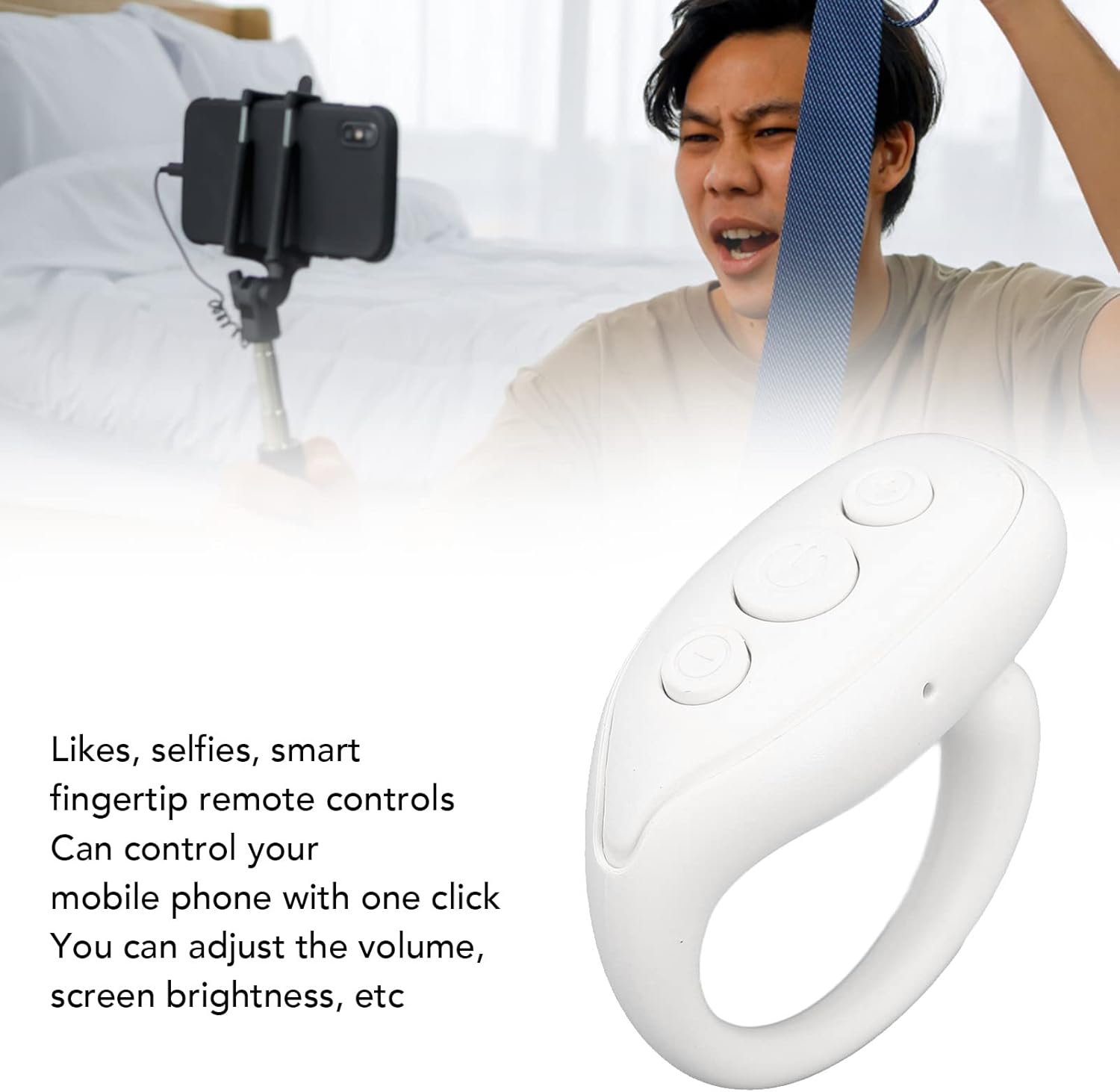
The Sonew BT Remote Control Page Turner is a compact, ring-shaped device designed to enhance your mobile phone experience. It allows for remote control of various functions, including taking photos, navigating videos, and turning pages in e-books, providing convenience and comfort.
Nøglefunktioner omfatter:
- Kontrol med én knap: Simplifies operations for photos, videos, and e-books.
- Multifunktionel: Beyond photos, it adjusts video volume, screen brightness, and supports fast forward/rewind.
- Ergonomisk design: Ring-shaped for comfortable wear, promoting relaxed viewing stillinger.
- Bred kompatibilitet: Supports various mainstream short video, camera, and novel applications.
- Transportabel: Lille og let for nem transport.

Billede: Forside view of the Sonew BT Remote Control Page Turner, showing the three control buttons.
2. Specifikationer
| Varetype | Mobile Phone BT Remote |
| Materiale | ABS |
| BT version | BT 5.3 |
| Standby tid | Cirka 4 måneder |
| Anvendeligt system | Video, reading, selfie remote control |
| Støtte | For iOS 15.0, for Android 8.0 and above |
| Batteri | Built-in Polymer 30mAh |
| Farve | Hvid |
3. Pakkens indhold
Pakken indeholder følgende varer:
- 1 x Mobile Phone BT Remote
- 1 x brugsanvisning
- 1 x ladekabel

Image: The Sonew BT Remote Control Page Turner shown alongside its USB charging cable.
4. Opsætning og parring
4.1 Opladning af enheden
Before first use, ensure the remote control is fully charged. Connect the provided charging cable to the remote's charging port and a suitable USB power source.
Billede: Nærbillede view of the Sonew BT Remote Control Page Turner, highlighting the USB-C charging port on the side.
4.2 Bluetooth -parring
- Ensure your mobile phone's Bluetooth is enabled.
- Long press the power button on the remote control to turn it on. The indicator light will flash, indicating it's in pairing mode.
- On your phone, search for available Bluetooth devices.
- Select "BT Remote" or a similar name from the list of devices to connect.
- Once connected, the indicator light on the remote will stop flashing or show a steady light.
5. Betjeningsvejledning
The remote control features three main buttons for various functions. The central button is the power/pause button, and the other two buttons control navigation and volume.

Billede: Top-down view of the remote, showing the three distinct buttons for control.
5.1 Generelle kontroller
- Long press (Center Button): Tænd/sluk enheden.
- Click (Center Button): Pause/Play for media, or trigger the camera shutter for photos.
- Double click (Center Button): "Like" function in supported apps.
5.2 Navigation and Volume Controls
The two side buttons are primarily used for navigation and volume adjustments, depending on the application.
| Knaphandling | Function (Left Button) | Function (Right Button) |
| Klik | Turn page up / Scroll up | Turn page down / Scroll down |
| Dobbeltklik | Turn page left | Turn page right |
| Langt tryk | Øg volumen | Sænk volumen |
Note: Specific functions may vary slightly depending on the application being used (e.g., video player, e-reader, camera app).

Image: An individual using the remote control to capture a photo with a smartphone mounted on a selfie stick, demonstrating its use for remote photography.

Image: A person comfortably using the ring-shaped remote to interact with their phone, illustrating its benefit for hands-free operation and comfort.
6. Vedligeholdelse
- Hold enheden tør. Undgå udsættelse for fugt eller væsker.
- Rengør enheden med en blød, tør klud. Brug ikke slibende rengøringsmidler eller opløsningsmidler.
- Opbevar enheden på et køligt, tørt sted, når det ikke er i brug.
- Undgå at tabe eller udsætte enheden for kraftige stød.
7. Fejlfinding
| Problem | Løsning |
| Enheden tændes ikke. | Ensure the device is charged. Connect it to a power source using the charging cable. |
| Kan ikke parres med telefonen. |
|
| Knapperne reagerer ikke. |
|
| Page turning does not work for horizontal scrolling. | This device is primarily designed for vertical scrolling and page turning (up/down). Horizontal scrolling functionality may not be supported by all applications or the device's default mapping. |
8. Garanti og support
For warranty information or technical support, please refer to the seller's policy on the purchase platform or contact Sonew customer service directly. Keep your purchase receipt for warranty claims.
Fabrikant: Sonew
Dato først tilgængelig: 9. maj 2023