
1. Introduktion
Welcome to the BOSGAME H77 Mini PC user manual. This guide provides essential information for setting up, operating, maintaining, and troubleshooting your new mini PC. Please read this manual thoroughly to ensure proper usage and to maximize the performance and longevity of your device.
2. Produktet er slutview
The BOSGAME H77 is a compact yet powerful mini PC designed for a wide range of applications, from daily productivity to light gaming. It features an AMD Ryzen 7 7735HS processor, 32GB DDR5 RAM, and a 512GB NVMe M.2 SSD, offering high performance in a small form factor.

Figure 2.1: Powerful Performance. This image illustrates the core specifications of the BOSGAME H77 Mini PC, emphasizing its AMD Ryzen 7 7735HS processor with 8 cores, 16 threads, a clock speed range of 3.2 to 4.75GHz, and a Thermal Design Power (TDP) of 35W. A benchmark comparison for Cinebench R23 (Multi-Core) is also shown, positioning the 7735HS favorably against other Ryzen models.

Figure 2.2: Speedy Response. This image highlights the gaming capabilities of the BOSGAME H77 Mini PC, powered by AMD Radeon 680M integrated graphics. It displays estimated frames per second (FPS) for popular games such as League of Legends (148.0 FPS), Fortnite (132.0 FPS), CS:GO (135.0 FPS), Grand Theft Auto (98.0 FPS), and DOTA 2 (178.0 FPS), indicating smooth performance. The image also notes the system's 32GB DDR5 RAM, 512GB SSD, and support for up to 2TB HDD.

Figure 2.3: Triple Screen Display Support. This image demonstrates the BOSGAME H77 Mini PC's ability to support up to three displays simultaneously. It features two HDMI 2.0 ports and one Type-C (USB4.0) port, allowing for a versatile multi-monitor setup suitable for daily tasks, work, and entertainment. Key features like Wi-Fi 6, Bluetooth 5.2, cooling fan with heat sink, and 4K 60Hz support are also highlighted.
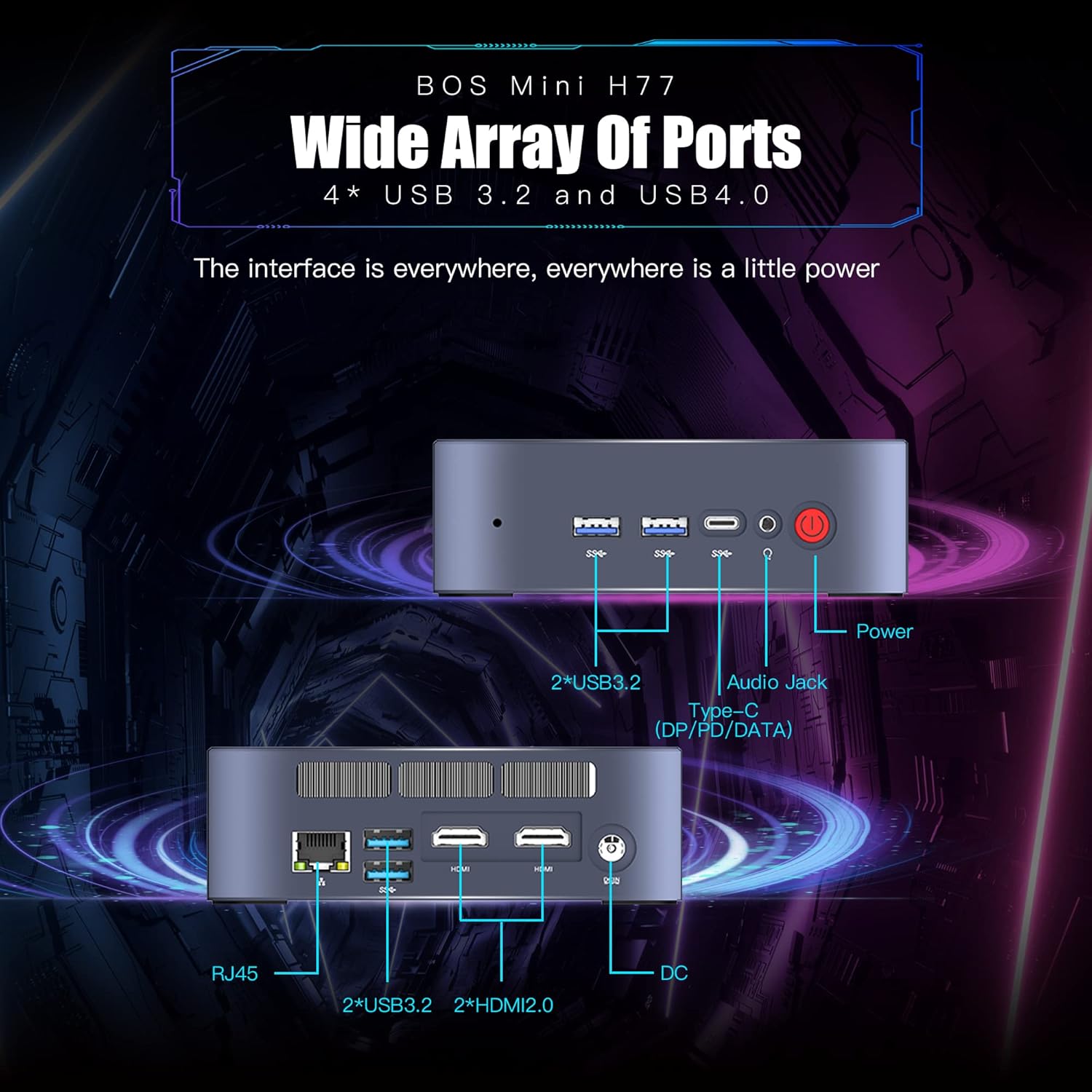
Figure 2.4: Wide Array of Ports. Dette billede giver en detaljeret view of the BOSGAME H77 Mini PC's connectivity options. The front panel includes two USB 3.2 ports, one USB4.0 Type-C port (supporting DP/PD/DATA), an audio jack, and the power button. The rear panel features an RJ45 Ethernet port, two additional USB 3.2 ports, two HDMI 2.0 ports, and the DC power input. This comprehensive selection of ports ensures broad compatibility with various peripherals and displays.

Figur 2.5: Kompakt design. This image emphasizes the compact and space-saving design of the BOSGAME H77 Mini PC. With a 0.6L body and dimensions of 126mm (length), 112mm (width), and 40.8mm (height), its honeycomb design is both aesthetically pleasing and functional, allowing it to fit into various environments without occupying much space.
3. Opsætningsvejledning
3.1 Pakkens indhold
Før du fortsætter, skal du sørge for, at alle varer er til stede i pakken:
- BOSGAME H77 Mini PC
- Strømadapter
- HDMI kabel
- Brugervejledning (dette dokument)
3.2 Tilslutning af eksterne enheder
- Tilslut skærm: Use the provided HDMI cable to connect your monitor to one of the HDMI ports on the rear of the Mini PC. For triple display, connect additional monitors using the second HDMI port and the USB4.0 Type-C port (requires a compatible adapter, not included).
- Tilslut tastatur og mus: Plug your USB keyboard and mouse into any available USB 3.2 ports on the front or rear of the Mini PC.
- Tilslut strøm: Tilslut strømadapteren til DC-indgangsporten på bagsiden af Mini PC'en, og sæt derefter adapteren i en stikkontakt.
- Netværksforbindelse (valgfrit): For a wired connection, plug an Ethernet cable into the RJ45 port on the rear. For wireless, ensure Wi-Fi is enabled during initial setup or via Windows settings.
3.3 Første opstart
- Tryk på tænd/sluk-knappen på forsiden af Mini PC'en. Strømindikatorlampen lyser.
- Follow the on-screen instructions to complete the Windows 11 Pro setup. This typically involves selecting your region, language, creating a user account, and connecting to a network.
4. Betjeningsvejledning
4.1 Tænd/sluk
- Tænd: Tryk én gang på tænd/sluk-knappen.
- Luk ned: Click the Windows Start button, then select Power > Shut down. Do not unplug the power adapter directly without proper shutdown to prevent data loss.
- Genstart: Klik på Windows Start-knappen, og vælg derefter Tænd/sluk > Genstart.
4.2 Netværksforbindelse
- Wi-Fi: To connect to a wireless network, click the Wi-Fi icon in the taskbar, select your desired network, and enter the password. The device supports Wi-Fi 6 for fast wireless speeds.
- Ethernet: If an Ethernet cable is connected, the system will automatically detect and connect to the wired network.
- Bluetooth: To connect Bluetooth devices (e.g., headphones, speakers), go to Windows Settings > Bluetooth & devices, and pair your device. The Mini PC supports Bluetooth 5.2.
4.3 Brug af USB-porte
The BOSGAME H77 features multiple USB 3.2 ports and a versatile USB4.0 Type-C port. These ports can be used for connecting external storage, peripherals, or for data transfer.
- USB 3.2: Provides high-speed data transfer for compatible devices.
- USB4.0 Type-C: This port supports DisplayPort (DP) for video output, Power Delivery (PD) for charging compatible devices, and high-speed data transfer.
4.4 Opsætning af tredobbelt skærm
To utilize the triple display feature:
- Connect your primary monitor to one HDMI port.
- Connect your second monitor to the other HDMI port.
- Connect your third monitor to the USB4.0 Type-C port using a compatible USB-C to DisplayPort or USB-C to HDMI adapter (sold separately).
- Once connected, right-click on the desktop, select "Display settings," and configure your displays (extend, duplicate, etc.) as needed.
5. Vedligeholdelse
5.1 Cleaning the Mini PC
Regelmæssig rengøring hjælper med at opretholde optimal ydeevne og forlænger din enheds levetid.
- Ydre: Use a soft, dry, lint-free cloth to wipe the exterior surfaces. For stubborn marks, slightly dampSkyl kluden med vand. Undgå skrappe kemikalier.
- Ventilation: Brug jævnligt trykluft til at fjerne støv fra ventilationsgitrene for at sikre korrekt luftgennemstrømning og forhindre overophedning.
5.2 Softwareopdateringer
Keep your Windows 11 Pro operating system and drivers updated to ensure security, stability, and performance.
- Windows-opdateringer: Gå til Windows-indstillinger > Windows-opdatering, og tjek efter tilgængelige opdateringer.
- Driver opdateringer: Besøg den officielle BOSGAME-konto website for the latest drivers for your H77 Mini PC.
5.3 Lagerstyring
The 512GB NVMe M.2 SSD provides fast storage. To maintain performance:
- Slet regelmæssigt unødvendige files og applikationer.
- Utilize Windows Disk Cleanup tool to free up space.
- Consider external storage solutions for large files if the internal SSD becomes full.
6. Fejlfinding
This section addresses common issues you might encounter with your BOSGAME H77 Mini PC.
6.1 Ingen strøm
- Sørg for, at strømadapteren er korrekt tilsluttet både mini-pc'en og en fungerende stikkontakt.
- Kontroller, at stikkontakten fungerer ved at tilslutte en anden enhed.
- Kontroller strømadapteren for synlige skader.
6.2 Ingen visning
- Confirm the HDMI cable (or USB-C display cable) is securely connected to both the Mini PC and the monitor.
- Ensure the monitor is powered on and set to the correct input source (HDMI 1, HDMI 2, DisplayPort, etc.).
- Try connecting the Mini PC to a different monitor or TV to rule out monitor issues.
6.3 Problemer med netværksforbindelse
- Wi-Fi: Check if Wi-Fi is enabled in Windows settings. Restart your router/modem. Ensure you are within range of your Wi-Fi network.
- Ethernet: Verify the Ethernet cable is properly connected. Check your router/modem for internet access.
6.4 Systemnedgang eller frysning
- Luk unødvendige programmer, der kører i baggrunden.
- Tjek Jobliste (Ctrl+Shift+Esc) for processer, der bruger meget CPU, RAM eller disk.
- Ensure your system is up-to-date with the latest Windows and driver updates.
- Perform a disk cleanup and check for malware.
Hvis du støder på problemer, der ikke er dækket her, bedes du henvise til supportafsnittet for yderligere hjælp.
7. Specifikationer
| Feature | Specifikation |
|---|---|
| Mærke | BOSGAME |
| Modelnummer | H77 |
| Operativsystem | Windows 11 Pro |
| CPU model | AMD Ryzen 7 7735HS (8 Cores, 16 Threads) |
| CPU hastighed | Up to 4.75 GHz (Base 3.2 GHz) |
| Grafik coprocessor | Integreret AMD Radeon 680M-grafik |
| Installeret RAM-hukommelsesstørrelse | 32 GB DDR5 SDRAM |
| Hukommelsespladser til rådighed | 2 |
| Harddisk beskrivelse | 512 GB NVMe M.2 SSD |
| Video Output Interface | 2x HDMI, 1x USB4.0 Type-C (DP support) |
| Skærmopløsning Maksimal | 3840 x 2160 pixels (4K) |
| Samlet USB-porte | 4x USB 3.2, 1x USB4.0 Type-C |
| Forbindelsesteknologi | Ethernet, HDMI, LAN, Wi-Fi |
| Trådløs kompatibilitet | Wi-Fi 6 (802.11ax), Bluetooth 5.2 |
| Afkølingsmetode | Luft |
| Farve | Sort |
| Yderligere funktioner | Hukommelseskortlæser |
8. Garanti og support
Your BOSGAME H77 Mini PC comes with a standard manufacturer's warranty. Please refer to the warranty card included in your package for specific terms and conditions, including warranty duration and coverage details.
For technical support, troubleshooting assistance, or warranty claims, please visit the official BOSGAME webwebstedet eller kontakt deres kundeservice. Hav din købskvittering og produktets serienummer ved hånden, når du søger support.