
1. Introduktion
This manual provides detailed instructions for the setup, operation, maintenance, and troubleshooting of your Cosmic Byte ARES Wired Controller for PC. Designed for an enhanced gaming experience, this controller features Hall Effect joysticks and triggers, dual vibration, and customizable Turbo functions.
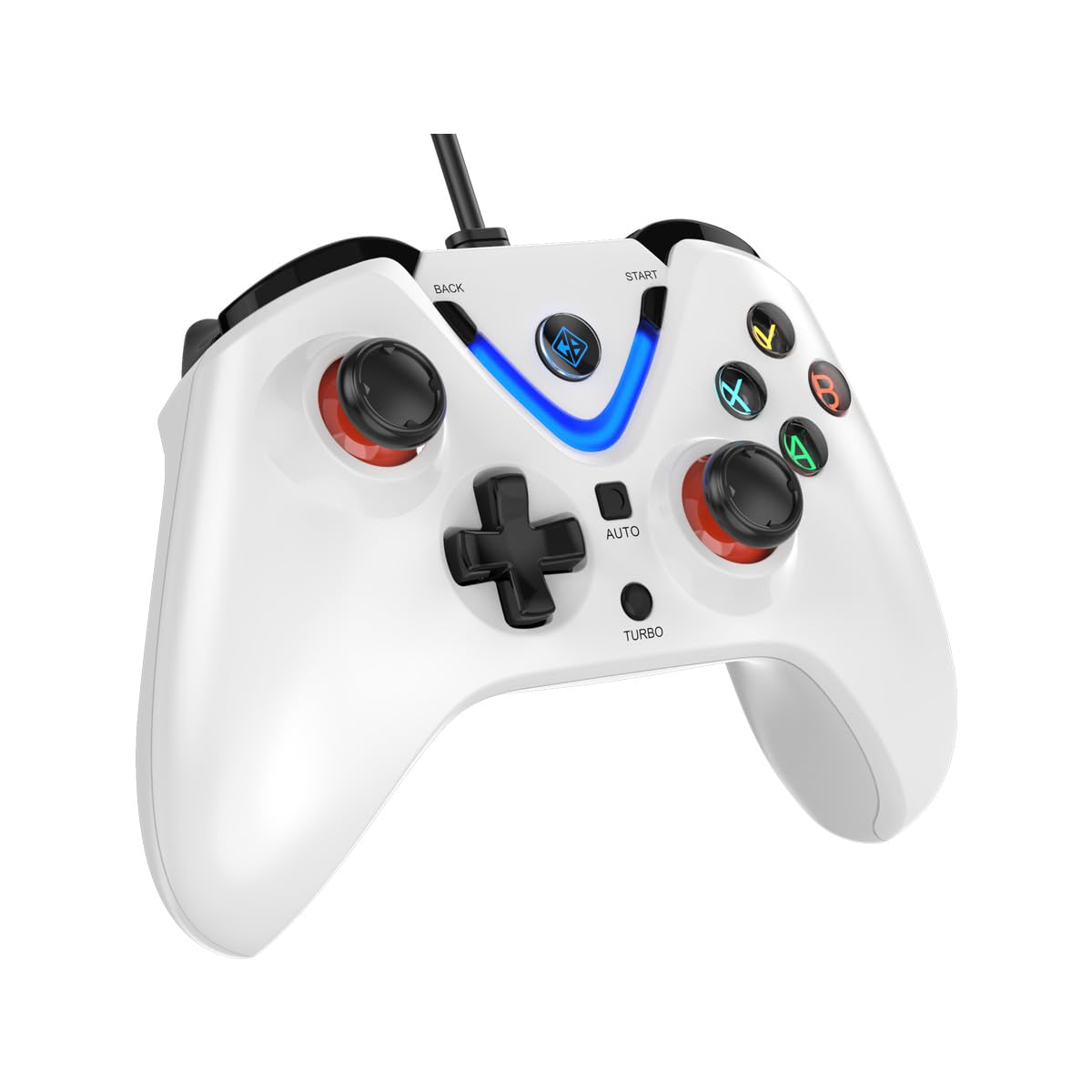
Image 1: The Cosmic Byte ARES Wired Controller in white, showcasindens ergonomiske design.
2. Opsætningsvejledning
2.1 Tilslutning til pc
- Sørg for, at din pc er tændt.
- Find en ledig USB-port på din computer.
- Plug the USB connector of the Cosmic Byte ARES Wired Controller into the USB port.
- Operativsystemet vil automatisk registrere og installere de nødvendige drivere. Denne proces kan tage et par øjeblikke.
- Når installationen er færdig, er controlleren klar til brug.

Image 2: The controller connected via its wired USB connection, ensuring fast response.
3. Betjeningsvejledning
3.1 Grundlæggende kontroller
The Cosmic Byte ARES controller features standard gamepad layouts, including:
- Left and Right Analog Joysticks: For præcis bevægelse og kamerakontrol.
- D-Pad: Til retningsbestemt input, ofte brugt i menuer eller til specifikke spilhandlinger.
- Handlingsknapper (A, B, X, Y): For primary game interactions.
- Skulderknapper (L1, R1) og aftrækkere (L2, R2): For various in-game functions like shooting, aiming, or accelerating.
- Start- og Tilbage-knapper: For pausing games, accessing menus, or specific in-game commands.
- Turbo knap: Til aktivering af hurtigskydningsfunktioner.
- Auto -knap: For activating automatic rapid-fire functions.
3.2 Hall-effekt joysticks og triggere
The controller is equipped with Hall Effect joysticks and triggers, which use magnetic sensors instead of physical contacts. This technology provides:
- Forbedret præcision: More accurate and responsive input.
- Øget holdbarhed: Reduces wear and tear, preventing stick drift over time.
- Glat betjening: Consistent and linear response for triggers, allowing for nuanced control in games.

Billede 3: En eksploderet view illustrating the Hall Effect joystick mechanism and the Hall Effect triggers.
3.3 Dobbelt vibrationsfeedback
The controller features dual vibration motors that provide tactile feedback during gameplay, enhancing immersion by simulating in-game events such as impacts, explosions, or engine rumbling.
3.4 Backlit LED Buttons
The action buttons (A, B, X, Y) and the central V-shaped indicator feature LED backlighting, providing visibility in low-light conditions and adding to the controller's aesthetic.

Image 4: The controller with its LED buttons illuminated and visual representation of vibration effects.
3.5 Turbo and Auto Turbo Functions
The Turbo and Auto Turbo functions allow for rapid, repeated input of a button press without continuously pressing the button.
- Aktivering af turbo: Press and hold the desired action button (e.g., A) and then press the Turbo button. The button will now rapidly repeat its input as long as you hold it down.
- Activating Auto Turbo: Press and hold the desired action button (e.g., A) and then press the Auto button. The button will now rapidly repeat its input automatically without needing to be held down.
- Deactivating Turbo/Auto Turbo: To deactivate, repeat the activation steps for the specific button, or press the Klar button (if available) or disconnect and reconnect the controller.

Image 5: Close-up of the controller showing the Turbo and Auto function buttons.
4. Vedligeholdelse
- Rensning: Brug en blød, tør klud til at rengøre controlleren. Ved genstridigt snavs, gnid letamp cloth can be used, ensuring no liquid enters the controller. Avoid harsh chemicals or abrasive cleaners.
- Opbevaring: Opbevar controlleren et køligt og tørt sted, væk fra direkte sollys og ekstreme temperaturer. Undgå at placere tunge genstande oven på controlleren.
- Kabelpleje: Do not sharply bend or pull the USB cable. Always grasp the plug when disconnecting from the PC.
5. Fejlfinding
- Controlleren genkendes ikke:
- Sørg for, at USB-kablet er korrekt tilsluttet til både controlleren og pc'en.
- Prøv at tilslutte controlleren til en anden USB-port.
- Genstart din computer.
- Check Device Manager on Windows to see if the controller is listed and if there are any driver issues.
- Knapper/joysticks reagerer ikke:
- Verify the controller is recognized by your PC (see above).
- Test the controller in a different game or a controller testing utility to rule out game-specific issues.
- Sørg for, at ingen andre inputenheder forstyrrer.
- Vibration virker ikke:
- Tjek indstillingerne i spillet for at sikre, at vibrationsfeedback er aktiveret.
- Some games may not support vibration or may have limited vibration effects.
6. Specifikationer
| Feature | Detalje |
|---|---|
| Mærke | Kosmisk byte |
| Modelnavn | Ares |
| Kompatible enheder | PC |
| Controller type | Gamepad |
| Forbindelsesteknologi | USB |
| Produktegenskaber | Ergonomisk |
| Knap Antal | 16 |
| Hardware platform | PC |
| Strømkildetype | Elektrisk med ledning, USB-kabel |
| Varens vægt | 220 gram |
| Emnedimensioner | 6 x 10 x 4 centimeter |
| Farve | Hvid |
| Oprindelsesland | Kina |

Image 6: A comparison table highlighting features of different ARES controller models.
7. Garanti og support
7.1 Garantioplysninger
The Cosmic Byte ARES Wired Controller comes with a 1 års garanti mod fabrikationsfejl fra købsdatoen. Gem venligst din købsbevis i tilfælde af garantikrav.
7.2 Fabrikantens kontaktoplysninger
For support, service, or warranty inquiries, please contact:
Kosmisk bytePrakash Warehousing, S. No.163, Hissa No 1-2-3-4-5A-5B/2/1,
Phursungi, Pune 412308, Maharashtra, India
For further assistance, please visit the official Cosmic Byte webwebsted eller kontakt deres kundeservice.