
1. Introduktion
Welcome to the user manual for your Havit Gaming Mouse MS1032. This document provides essential information for setting up, operating, maintaining, and troubleshooting your device. Please read it carefully to ensure optimal performance and longevity of your mouse.
The Havit MS1032 is a gaming mouse featuring six adjustable DPI settings, a comfortable ergonomic design, and a non-slip surface. It is engineered for smooth and quiet operation, aiming to reduce fatigue during extended use.
2. Opsætning
2.1 Pakkens indhold
- Havit Gaming Mouse MS1032
- Brugermanual
2.2 Systemkrav
- Operating System: Windows XP, Windows 7, Linux
- Tilgængelig USB-port
2.3 Tilslutning af musen
- Unpack the Havit Gaming Mouse MS1032 from its packaging.
- Find en ledig USB-port på din computer.
- Sæt USB-stikket på musen i USB-porten.
- Dit operativsystem burde automatisk registrere og installere de nødvendige drivere. Denne proces kan tage et par øjeblikke.
- Når installationen er færdig, er musen klar til brug.
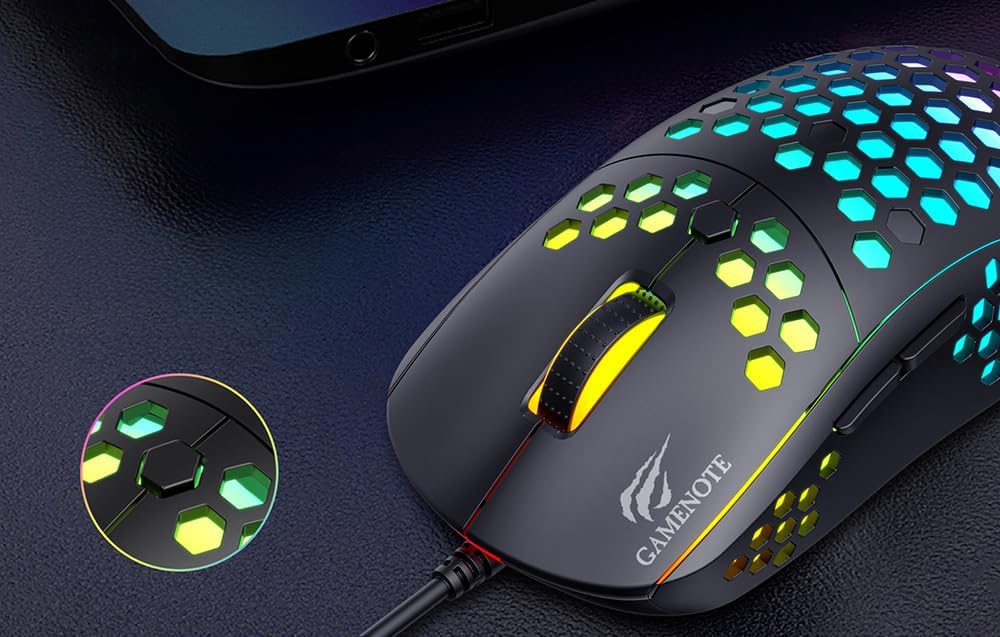
Figure 1: Havit MS1032 Gaming Mouse connected via USB.
3. Betjeningsvejledning
3.1 Grundlæggende funktioner
- Venstre klik: Primær handling, selektion, aktivering.
- Højreklik: Opens context menus, performs secondary actions.
- Scrollhjul: Scrolls up/down documents or web sider. Kan også trykkes ned for at bruge midterklikfunktionen.
- Sideknapper: Bruges typisk til navigation fremad/tilbage i web browsers or custom functions in games.
3.2 DPI-justering
The Havit MS1032 features six adjustable DPI (Dots Per Inch) settings, allowing you to change the mouse sensitivity on the fly. This is useful for adapting to different tasks, such as precise aiming in games or fast navigation across multiple monitors.
To adjust the DPI, locate the DPI button, typically positioned behind the scroll wheel. Press this button to cycle through the available DPI settings. The LED lighting on the mouse may change to indicate the current DPI level, providing visual feedback for your selection.
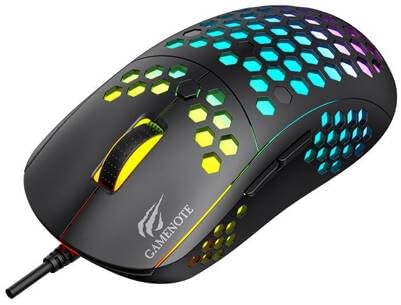
Figure 2: Location of the DPI button (behind the scroll wheel).
4. Vedligeholdelse
4.1 Rengøring
For at opretholde optimal ydeevne og udseende, skal du rengøre din mus regelmæssigt:
- Frakobl musen fra computeren, før du rengør den.
- Brug en blød, fnugfri klud lidt damprengøres med vand eller en mild, ikke-slibende rengøringsopløsning.
- Tør forsigtigt musens overflade af.
- For crevices and the optical sensor, use a cotton swab or compressed air to remove dust and debris.
- Avoid using harsh chemicals, abrasive cleaners, or excessive moisture, as these can damage the mouse's finish or internal components.
4.2 Opbevaring
When not in use, store the mouse in a clean, dry environment away from direct sunlight and extreme temperatures to prevent damage.
4.3 Generel pleje
- Undgå at tabe musen eller udsætte den for hårde stød.
- Do not attempt to disassemble the mouse, as this will void the warranty and may cause irreparable damage.
- Keep the mouse away from liquids to prevent electrical damage.
5. Fejlfinding
If you encounter issues with your Havit Gaming Mouse MS1032, please refer to the following common solutions:
5.1 Musen reagerer ikke
- Tjek USB-forbindelse: Sørg for, at USB-kablet er korrekt tilsluttet en fungerende USB-port på din computer. Prøv en anden USB-port.
- Genstart computeren: Nogle gange kan en simpel genstart af computeren løse forbindelsesproblemer.
- Test på en anden computer: Hvis det er muligt, så test musen på en anden computer for at afgøre, om problemet skyldes musen eller computerens opsætning.
5.2 Markørbevægelsen er uregelmæssig eller hoppende
- Rengør sensor: Sørg for, at den optiske sensor i bunden af musen er ren og fri for støv eller snavs.
- Tjek overflade: Use the mouse on a clean, non-reflective, and uniform surface (e.g., a mouse pad). Avoid glass or highly reflective surfaces.
- Juster DPI: If the cursor is too fast or too slow, adjust the DPI setting using the DPI button.
5.3 Knapper virker ikke
- Tjek for forhindringer: Sørg for, at der ikke sidder snavs fast under knapperne.
- Softwarekonflikt: If you have custom mouse software installed, try uninstalling it temporarily to see if it resolves the issue.
5.4 LED-lys virker ikke
- Tjek forbindelsen: Sørg for, at musen er korrekt tilsluttet computeren.
- Power Cycle: Disconnect and reconnect the mouse to reset its power.
6. Specifikationer

Figure 3: Havit MS1032 Gaming Mouse design overview.
| Feature | Detalje |
|---|---|
| Model | MS1032 |
| Mærke | Havit |
| Dimensioner | 15 x 8 x 5.2 cm |
| Vægt | 200 g |
| DPI-indstillinger | 6 justerbare niveauer |
| Operativsystemer | Linux, Windows 7, Windows XP |
| Forbindelse | Kablet USB |
| Batterier påkrævet | Ingen |
7. Garanti og support
For detailed warranty information and technical support, please refer to the official Havit website or contact your local retailer where the product was purchased. It is recommended to keep your purchase receipt as proof of purchase for any warranty claims.
Fabrikant: Havit
Modelnummer: MS1032