
1. Introduktion
This manual provides instructions for the symcode HX-5500-Wireless 2D QR Desktop Barcode Scanner. This device is designed for efficient and versatile barcode scanning in various environments. It features a TFT color LCD screen, multiple connectivity options (Bluetooth, 2.4GHz Wireless, Wired USB), and omnidirectional scanning capabilities.
Nøglefunktioner:
- Skærmvisning: TFT Color LCD screen with white backlight for real-time viewing of barcode content, type, number, length, battery status, signal strength, and transmission status.
- Forbindelse: Supports 2.4G Wireless, Bluetooth, and Wired USB connections.
- Omnidirektionel scanning: Desktop design with a scan window that can rotate 90 degrees for flexible scanning.
- Robust design: Durable ABS material shell, designed to withstand repeated 5ft/1.5m drops to concrete.
- Auto-sensing Scanning: Automatically detects and scans barcodes.
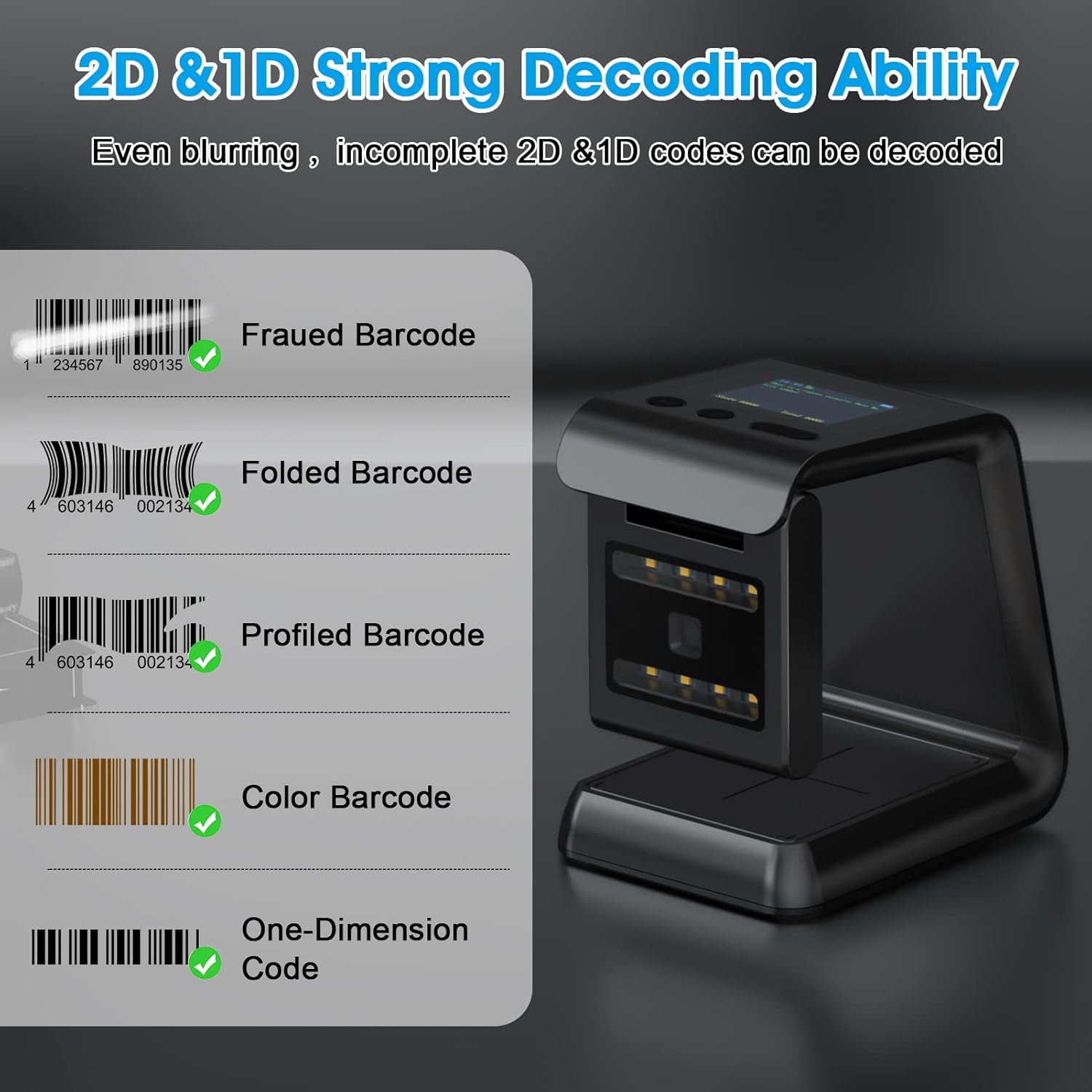
- Afkodningsevne: Capable of scanning 1D and 2D/QR codes from labels, paper, mobile phone, or computer displays, including damaged, distorted, colorful, and reflective barcodes.
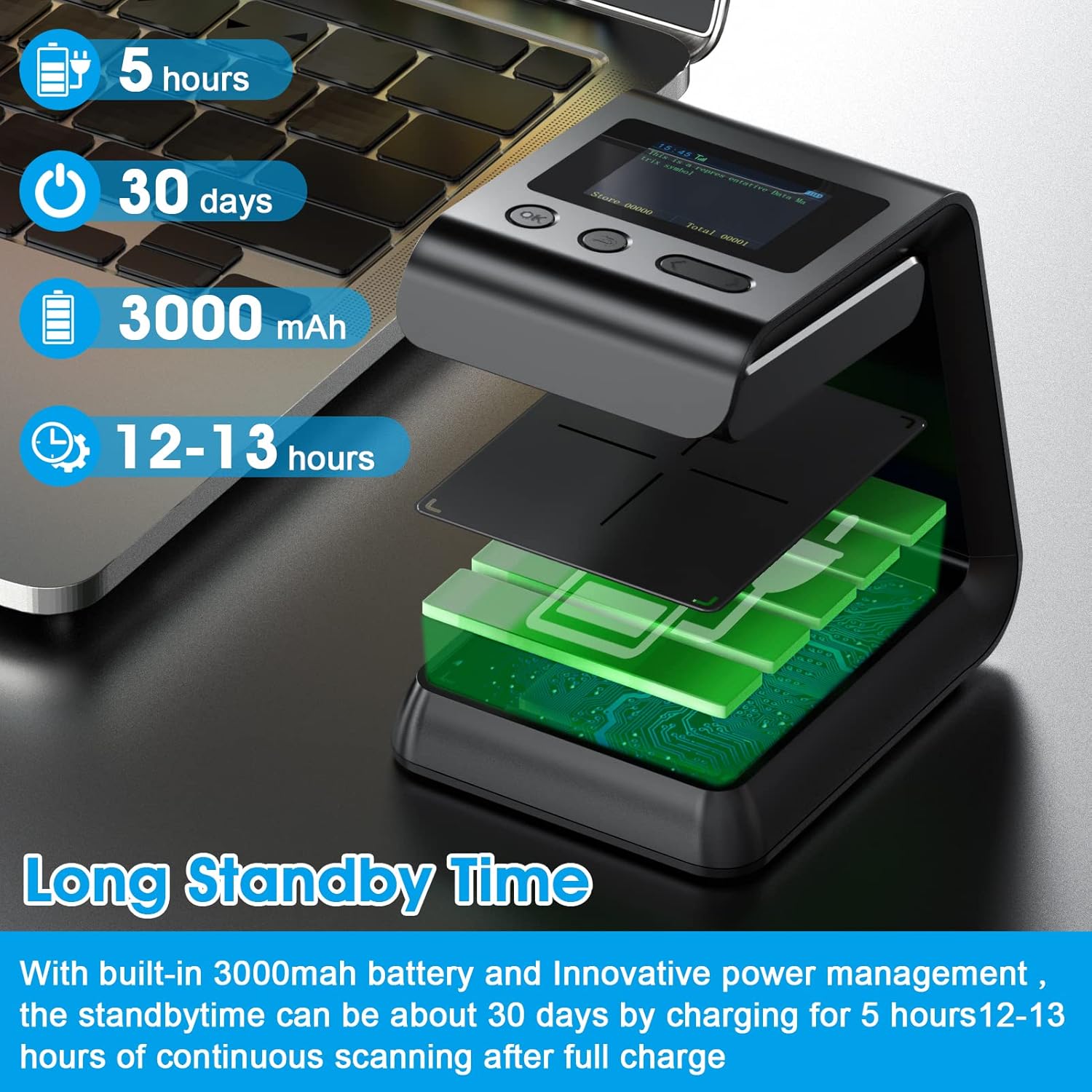
- Lang batterilevetid: Built-in 3000mAh battery provides extended operation time.

2. Pakkens indhold
Kontroller venligst pakkens indhold ved udpakning for at sikre, at alle varer er til stede:
- symcode HX-5500-Wireless Barcode Scanner Unit
- USB kabel
- 2.4 GHz trådløs dongle
- Brugervejledning (dette dokument)

3. Opsætning
3.1 Opladning af scanneren
- Tilslut det medfølgende USB-kabel til scannerens opladningsport.
- Sæt den anden ende af USB-kablet i en strømforsynet USB-port (f.eks. en computer eller USB-vægadapter).
- The screen display will indicate charging status. A full charge typically takes approximately 5 hours.
3.2 Tilslutning af scanneren
The scanner supports multiple connection methods:
3.2.1 2.4 GHz trådløs forbindelse
- Sæt den trådløse 2.4 GHz-dongle i en ledig USB-port på din computer.
- Tænd scanneren. Den burde automatisk parres med donglen.
- The screen display will show the connection status.
3.2.2 Bluetooth-forbindelse
- Sørg for, at din værtsenhed (computer, tablet, smartphone) har Bluetooth aktiveret.
- Turn on the scanner and activate Bluetooth pairing mode (refer to the scanner's on-screen menu or specific barcode commands if needed).
- On your host device, search for available Bluetooth devices and select "symcode HX-5500-Wireless" (or similar name).
- Confirm the pairing. The scanner's screen will indicate a successful connection.
3.2.3 Kablet USB-forbindelse
- Slut scanneren til din computer ved hjælp af det medfølgende USB-kabel.
- The scanner will function as a standard USB HID keyboard device, requiring no additional drivers for basic scanning.


4. Betjeningsvejledning
4.1 Grundlæggende scanning
- Place the item with the barcode in front of the scanner's window.
- The scanner will automatically detect and read the barcode. A successful scan is usually indicated by an audible beep and/or a visual confirmation on the screen.
- The decoded barcode data will be transmitted to your connected device.


4.2 Skærmvisningsoplysninger
The TFT color LCD screen provides real-time feedback:
- Barcode Content: Displays the decoded data.
- Stregkodetype: Identifies the symbology (e.g., QR, Code 128).
- Number and Length: Shows the count and length of scanned barcodes.
- Batteristrøm: Angiver det resterende batteriniveau.
- Signalstyrke: For wireless connections, shows the strength of the signal.
- Transmission Status: Confirms data transmission.
4.3 Scanning Special Barcodes
The scanner is designed to read various barcode conditions:
- Beskadigede stregkoder
- Distorted barcodes
- Farverige stregkoder
- Reflekterende stregkoder
- Barcodes on mobile phone or computer displays
4.4 NFC-funktionalitet
The scanner may include NFC (Near Field Communication) technology for swiping compatible cards such as Metro cards, VIP cards, loyalty cards, gift cards, and cash cards.

5. Vedligeholdelse
5.1 Rengøring
- Use a soft, dry cloth to clean the exterior of the scanner.
- Brug en fnugfri klud, der er let tørret til scanningsvinduet.amprengøres med et mildt, ikke-slibende rengøringsmiddel. Undgå for meget fugt.
- Do not use harsh chemicals or abrasive materials, as these can damage the device.
5.2 Pleje af batterier
- Charge the scanner regularly to maintain battery health.
- Undgå at aflade batteriet helt ofte.
- Opbevar scanneren et køligt og tørt sted, når den ikke er i brug i længere perioder.
6. Fejlfinding
Almindelige problemer og løsninger:
- Scanneren tænder ikke:
- Sørg for, at batteriet er opladet. Tilslut scanneren til en strømkilde med USB-kablet.
- Scanneren opretter ikke trådløs forbindelse:
- For 2.4GHz: Verify the dongle is properly inserted and the scanner is within range.
- For Bluetooth: Ensure Bluetooth is enabled on your host device and the scanner is in pairing mode. Re-pair if necessary.
- Kontroller for forhindringer, der kan forstyrre det trådløse signal.
- Scanneren læser ikke stregkoder:
- Ensure the barcode is clean and undamaged.
- Juster afstanden og vinklen mellem scanneren og stregkoden.
- Verify the barcode symbology is supported by the scanner (refer to specifications).
- Check if the scanner's scanning mode is correctly configured.
- Scanned data not appearing on computer:
- Ensure the scanner is properly connected (wired or wireless).
- Confirm that the cursor is in an active text field on your computer.
- Test with a simple text editor (e.g., Notepad) to rule out application-specific issues.
7. Specifikationer
| Model | HX-5500-Wireless |
| Produktdimensioner | 3.3 x 3.5 x 5.5 tommer |
| Varens vægt | 9.9 ounce |
| Forbindelsesteknologi | Bluetooth, 2.4GHz Wireless, USB Cable |
| Strømkilde | Batteridrevet (lithiumpolymer) |
| Batterikapacitet | 3000mAh |
| Kompatible enheder | Laptop (and other devices supporting HID keyboard input via Bluetooth/2.4GHz/USB) |
| Understøttede 1D-stregkoder | EAN-8, EAN-13, EAN-13 2 add-on, EAN-13 5add-on, ISSN, ISBN, UPC-A, UPC-E, Code11, Code 32, Code 39, Code 93, Code 128, Codabar, Industrial 2 of 5, Interleaved 2 of 5, Matrix 2 of 5, GS1-128, GS1 DataBar (RSS14), GS1 DataBar Limited, GS1 DataBar Expanded |
| Understøttede 2D-stregkoder | PDF417, MicroPDF417, MicroQR, Data Matrix, QR, Aztec |
8. Garanti og support
For warranty information and technical support, please refer to the documentation included with your product packaging or visit the official symcode webKontaktoplysninger til kundeservice findes typisk på producentens supportside.