
Indledning
Thank you for choosing the GEEZER Wireless Keyboard and Mouse Combo, Model G100. This combo provides a full-sized keyboard with 104 round keycaps and a responsive optical mouse, both connecting wirelessly via a single 2.4G USB receiver. Designed for comfort and efficiency, this manual will guide you through the setup, operation, and maintenance of your new peripheral set.
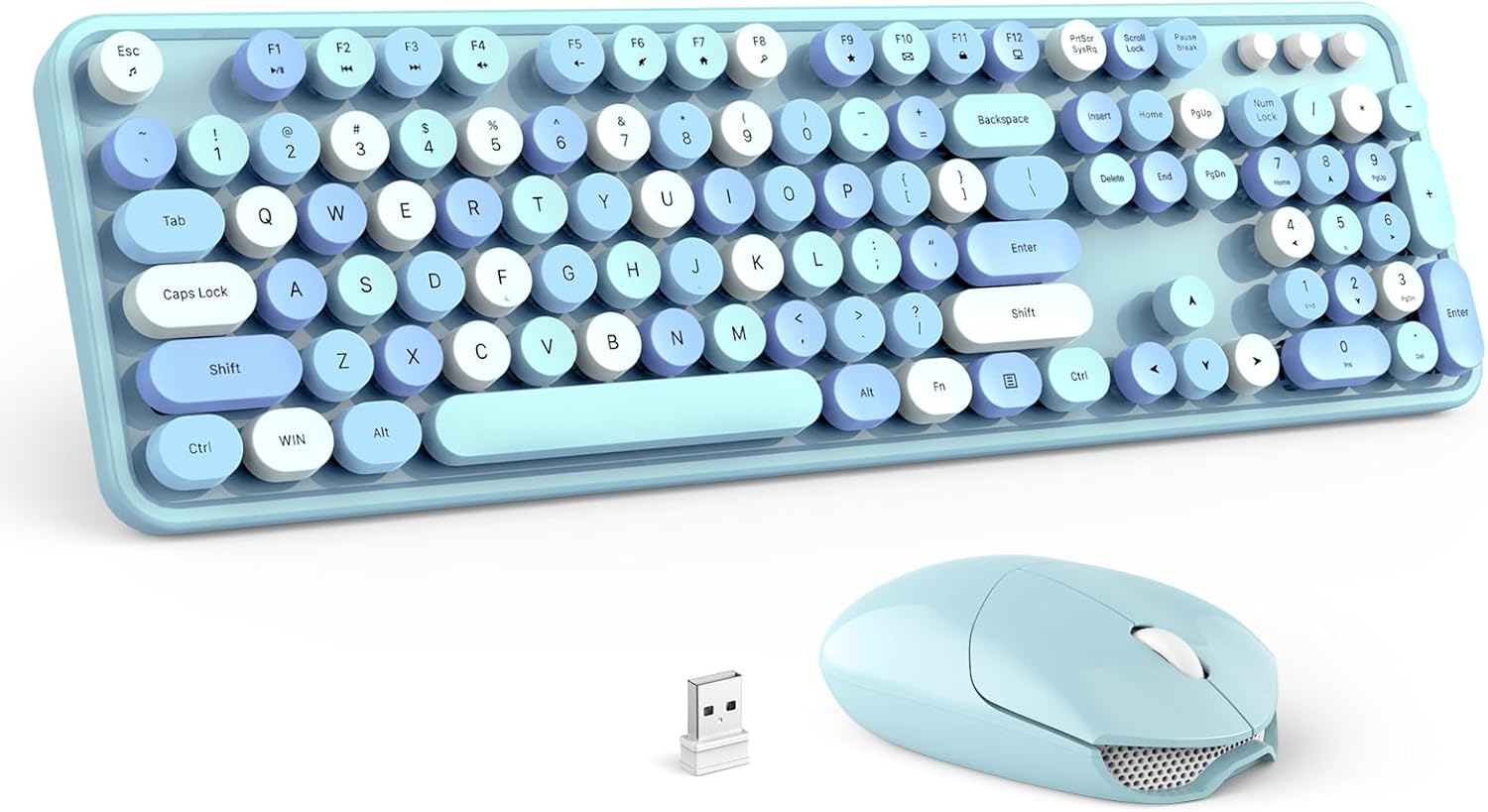
Image: The GEEZER Wireless Keyboard and Mouse Combo in Sky Blue, featuring the keyboard, mouse, and a small USB receiver.
Pakkens indhold
Kontroller venligst, at alle varer er til stede i din pakke:
- 1 x trådløst tastatur
- 1 x trådløs mus
- 1 x Nano USB Receiver (stored inside the mouse)
- 1 x brugsanvisning
Opsætningsinstruktioner
1. Batteriinstallation
- Til musen: Open the battery compartment cover on the underside of the mouse. Insert one (1) AA battery, ensuring correct polarity. Close the cover.
- Til tastaturet: Open the battery compartment cover on the underside of the keyboard. Insert one (1) AA battery, ensuring correct polarity. Close the cover.
2. Tilslut USB-modtageren
- Locate the Nano USB receiver, which is typically stored in a slot within the mouse's battery compartment for safekeeping.
- Plug the Nano USB receiver into an available USB port on your computer (PC, Laptop, Desktop, etc.).

Billede: Et nærbillede view of the Nano USB receiver connected to a laptop, demonstrating the 2.4G wireless connection with an effective range of up to 35 feet.
3. Tænd
- Locate the ON/OFF switch on the underside of both the keyboard and the mouse.
- Slide the switches to the 'ON' position.
4. Automatic Connection (Plug & Play)
The keyboard and mouse should automatically connect to your computer once the USB receiver is plugged in and the devices are powered on. No additional drivers are typically required for most operating systems.
Betjeningsvejledning
Tastatur funktioner
- Standardskrivning: The keyboard features a full-size 104-key QWERTY layout with comfortable round keycaps for a unique typing experience.
- Multimedie-genvejstaster: Utilize the function keys (F1-F12) in conjunction with the 'Fn' key for quick access to multimedia controls and system shortcuts. These include volume control, media playback, and more.

Image: A visual representation of the keyboard's 13 hotkey functions, accessible via the 'Fn' key, for enhanced productivity and media control.
Musefunktioner
- Klik og scroll: The mouse provides standard left-click, right-click, and a scroll wheel for navigation. Its optical design ensures precise and smooth cursor control.
Ergonomisk design
- The keyboard is designed with adjustable foldable stands on the underside, allowing you to set a comfortable typing angle to reduce wrist fatigue during extended use.

Billede: En sideprofile of the GEEZER keyboard, highlighting its ergonomic design with integrated foldable stands and non-slip silicone pads for stability.
Intelligent Auto-Sleep Function
- To conserve battery life, both the keyboard and mouse will enter an automatic sleep mode after a period of inactivity (approximately one minute for the keyboard, 5-10 minutes for the mouse).
- To wake the devices, simply click the mouse or press any key on the keyboard.

Image: The GEEZER keyboard and mouse resting on a desk in a low-light setting, illustrating the intelligent auto-sleep feature that conserves battery power.
Opretholdelse
Rensning
- The keyboard features detachable keycaps, allowing for easy cleaning of dust and debris that may accumulate underneath.
- Use the provided cleaning brush (if included) or a soft, dry cloth to gently clean the keycaps and the keyboard base. Avoid using harsh chemicals or excessive moisture.

Billede: Et nærbillede view of the keyboard with several round keycaps removed, showcasing the included cleaning brush for thorough maintenance.
Udskiftning af batteri
- When the keyboard or mouse performance degrades, it is likely time to replace the batteries. Follow the battery installation steps outlined in the 'Setup Instructions' section.
- Bortskaf brugte batterier ansvarligt i henhold til lokale regler.
Fejlfinding
- Ingen forbindelse eller intermitterende forbindelse:
- Ensure both the keyboard and mouse are switched 'ON'.
- Check that the Nano USB receiver is securely plugged into a working USB port on your computer. Try a different USB port if necessary.
- Verify that the batteries in both devices are fresh and correctly installed.
- Move the keyboard and mouse closer to the USB receiver to ensure they are within the 10m/33ft operating range.
- Undgå at placere modtageren i nærheden af andre trådløse enheder eller store metalgenstande, der kan forårsage interferens.
- Keys Not Responding or Delayed Input:
- Kontroller batteriniveauet, og udskift det, hvis det er lavt.
- Clean under the keycaps to remove any debris that might be obstructing key presses.
- Ensure the keyboard is not in sleep mode; press any key to wake it.
- Mouse Not Responding or Glitchy Movement:
- Kontroller batteriniveauet, og udskift det, hvis det er lavt.
- Ensure the mouse power switch is 'ON'.
- Rengør den optiske sensor på undersiden af musen.
- Ensure the mouse is not in sleep mode; click to wake it.
Specifikationer
| Produkt model | G100 |
| Tastaturstørrelse | 436 x 182 x 24(h) ±2mm |
| Tastaturvægt | 545g ±5g |
| Antal knapper på tastaturet | 106 nøgler |
| Mus størrelse | 103 x 69 x 35(h) ±2mm |
| Musens vægt | 75g ±5g |
| Mouse Button Quantity | 3 nøgler |
| Systemkompatibilitet | Windows XP/X/Win 7/8/10/2000/ME Vista iOS OS, etc. |
| Forbindelsesteknologi | 2.4G trådløs |
| Batterier påkrævet | 2 x AA batteries (one for keyboard, one for mouse) |
| Driftsområde | Op til 10 m / 33 fod |

Image: A detailed diagram illustrating the physical dimensions of the full-size GEEZER Wireless Keyboard and Mouse.

Image: An illustration demonstrating the broad compatibility of the GEEZER Wireless Keyboard and Mouse Combo with operating systems such as Windows XP/Vista, Windows 7/8, Windows 10, and various computer types.
Garanti og support
For any issues encountered during the use of your GEEZER Wireless Keyboard and Mouse Combo, please contact us directly via Amazon email. Our support team aims to respond within 12 hours and provide satisfactory solutions.