
Indledning
Thank you for choosing the Nuvance Wireless LED Bluetooth Mouse. This manual provides detailed instructions on how to set up, operate, and maintain your new mouse. Please read this manual carefully before use to ensure optimal performance and longevity of your device.
Pakkens indhold
Tjek venligst pakken for følgende varer:
- 1 x Nuvance Wireless Bluetooth Mouse
- 1 x USB ladekabel
- 1 x brugermanual
Produktegenskaber
- Dobbelt tilslutning: Connects wirelessly via USB dongle (2.4GHz) or Bluetooth 5.1.
- Ergonomisk design: Lightweight and comfortable for extended use, suitable for both left and right-handed users.
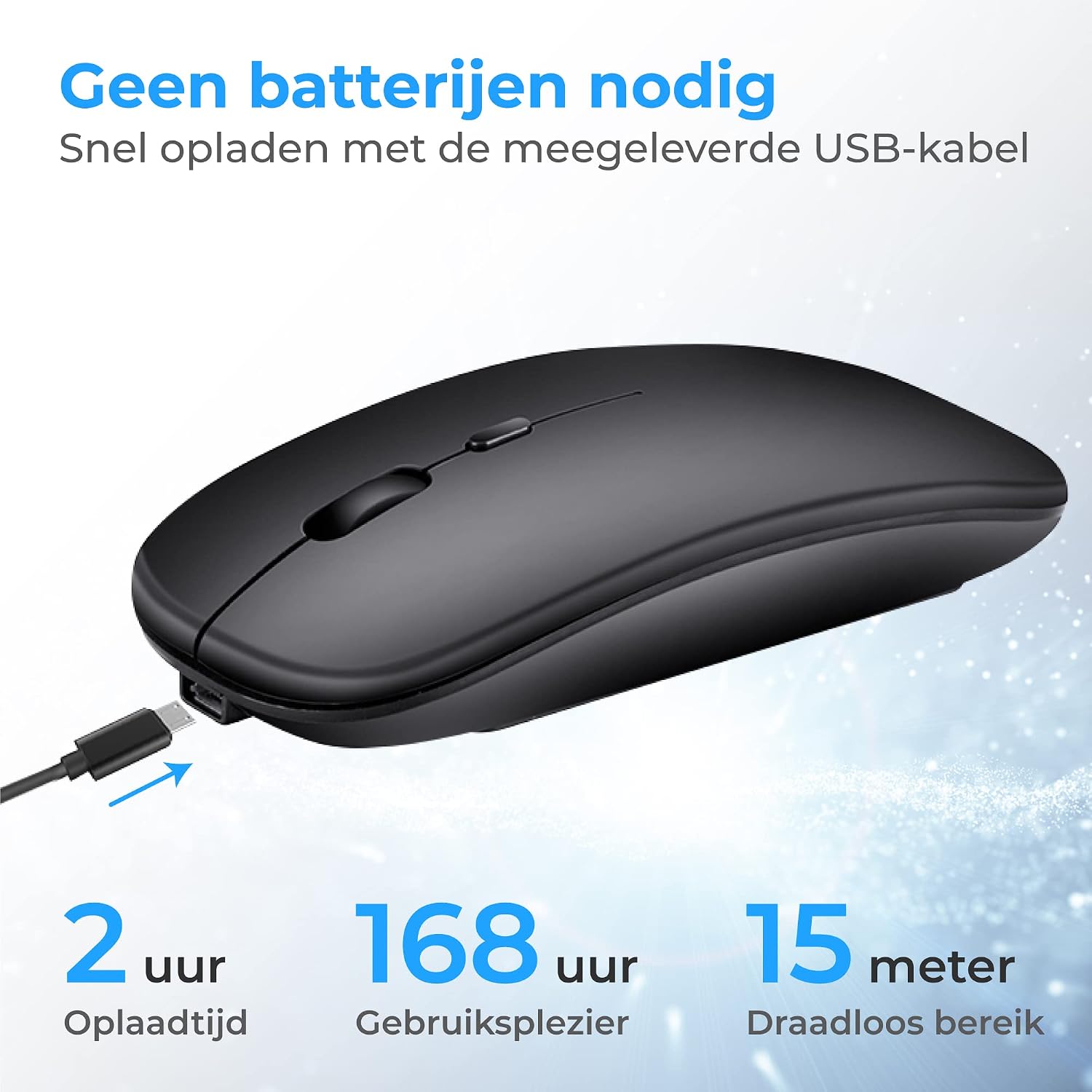
- Genopladeligt batteri: Built-in battery, rechargeable via the included USB cable. Provides up to 168 hours of use on a 2-hour charge.
- Justerbar DPI: Tre DPI-indstillinger (1000, 1200, 1600) for præcis markørkontrol.
- RGB LED belysning: Features 7 different LED colors that cycle automatically.
- Bred kompatibilitet: Compatible with Windows 7 and higher, Mac OS, Android, PC, Laptop, Macbook, and Tablets.
- Lydløse klik: Designet til stille drift.
- Transportabel: Compact size (11.2 x 5 x 2.5 cm) makes it easy to carry.
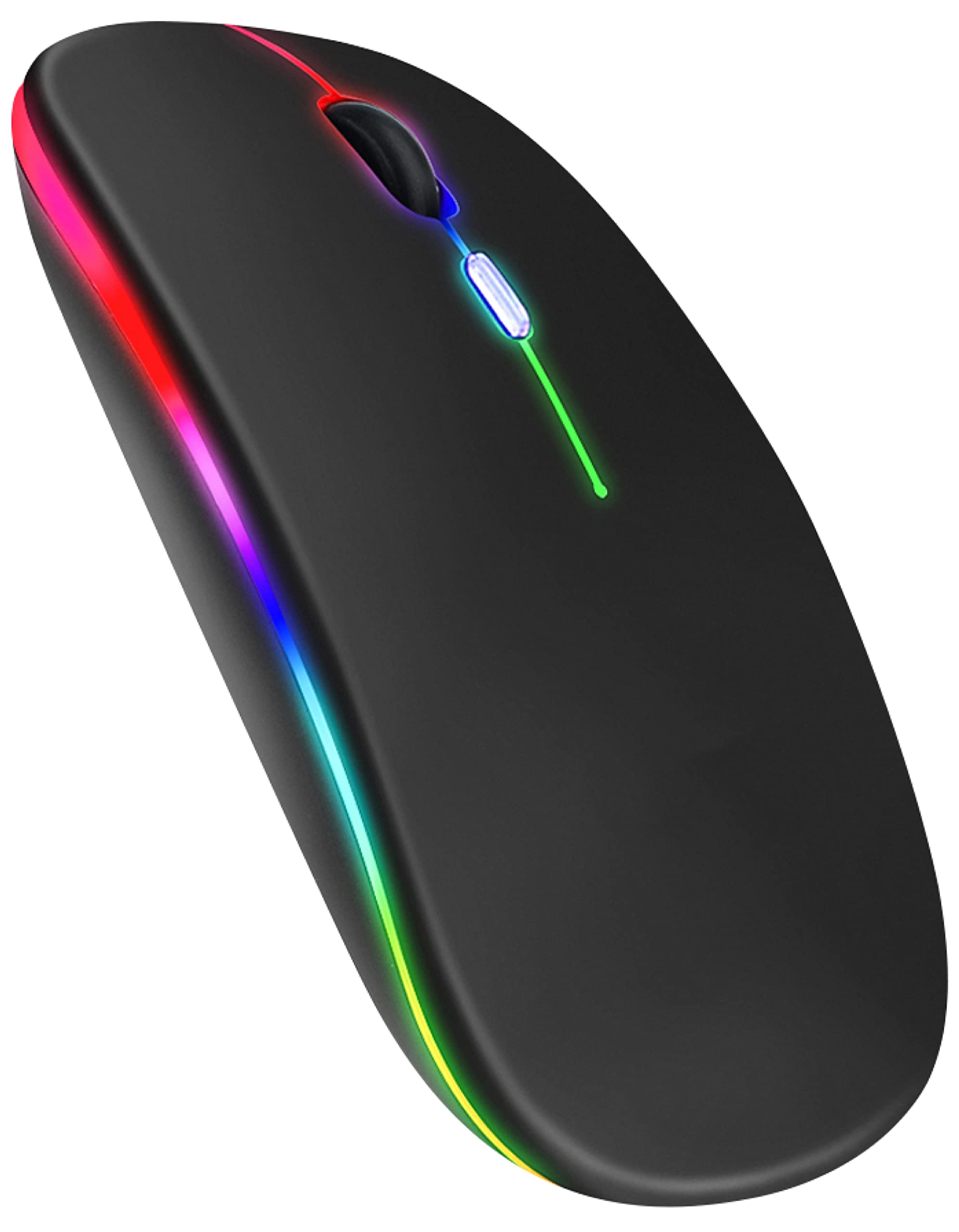
Image: Nuvance Wireless LED Bluetooth Mouse, black color variant.

Image: Ergonomic design of the mouse, showing comfortable hand placement and the USB receiver storage slot.

Image: Dimensions of the Nuvance mouse (11.5cm length, 6cm width, 2.5cm height) highlighting its portability for home, school, and office use.
Opsætning
Connecting via USB Dongle (2.4GHz)
- Locate the USB receiver (dongle) stored in the bottom compartment of the mouse.
- Sæt USB-modtageren i en ledig USB-port på din computer eller enhed.
- Tænd for musen ved hjælp af afbryderknappen i bunden.
- The mouse should automatically connect to your device. No additional drivers are usually required.
Connecting via Bluetooth 5.1
- Sørg for, at musen er tændt.
- On your device (PC, laptop, tablet), go to Bluetooth settings.
- Aktivér Bluetooth, og søg efter nye enheder.
- Select "Nuvance Mouse" or a similar name from the list of available devices to pair.
- Når musen er parret, er den klar til brug.

Image: Illustration showing direct connection options for the Nuvance mouse via USB receiver or Bluetooth 5.1, indicating plug & play functionality.
Operation
Grundlæggende funktioner
- Venstre klik: Primær selektion og aktivering.
- Højreklik: Åbner kontekstmenuer.
- Scrollhjul: Ruller op og ned i dokumenter eller web sider. Kan også klikkes for midterklikfunktion.
Justering af DPI-følsomhed
The mouse features a dedicated DPI button to adjust cursor sensitivity. Press the DPI button (usually located behind the scroll wheel) to cycle through the available DPI settings:
- 1000 DPI (standard)
- 1200 DPI
- 1600 DPI
Choose the DPI setting that best suits your task, whether for precise work or faster movement.
Billede: Top view of the Nuvance mouse, highlighting the scroll wheel and the DPI adjustment button.
Oplader musen
The Nuvance mouse has a built-in rechargeable battery. When the battery is low, the LED indicator may flash or the mouse performance may degrade.
- Connect the included USB charging cable to the charging port on the front of the mouse.
- Plug the other end of the USB cable into a USB power source (e.g., computer USB port, USB wall adapter).
- The LED lighting will indicate charging status. A full charge typically takes about 2 hours.
- Musen kan bruges under opladning.

Image: The Nuvance mouse connected to a USB charging cable, illustrating the charging process and highlighting 2 hours charging time for 168 hours usage and 15 meters wireless range.
LED belysning
The mouse features dynamic RGB LED lighting with 7 different colors that transition automatically. There is no manual control for specific colors; the lighting cycles through the spectrum.

Image: Two Nuvance mice displaying their vibrant RGB LED lighting effects.
Opretholdelse
- Rensning: Brug en blød, tør klud til at rengøre musen. Ved genstridigt snavs, tør letampRengør kluden med vand. Undgå at bruge skrappe kemikalier eller slibende rengøringsmidler.
- Opbevaring: When not in use, store the mouse in a cool, dry place. If using the USB dongle, it can be stored inside the mouse to prevent loss.
- Batteripleje: For at forlænge batteriets levetid, undgå at aflade musen helt ofte. Oplad den, når indikatoren for lavt batteri vises.
Fejlfinding
| Problem | Mulig årsag | Løsning |
|---|---|---|
| Musen reagerer ikke | Low battery, mouse turned off, connectivity issue. | Charge the mouse. Ensure the power switch is ON. Re-pair Bluetooth or re-insert USB dongle. |
| Markørbevægelsen er uregelmæssig eller langsom | Low battery, dirty sensor, incorrect DPI setting, unsuitable surface. | Charge the mouse. Clean the optical sensor. Adjust DPI. Use on a suitable mouse pad or surface. |
| Kan ikke oprette forbindelse via Bluetooth | Bluetooth not enabled on device, mouse not in pairing mode, interference. | Ensure Bluetooth is enabled on your device. Try restarting both the mouse and your device. Move closer to the device. |
| LED-lys virker ikke | Mouse is off, battery is critically low. | Turn on the mouse. Charge the mouse fully. |
Specifikationer
- Modelnummer: MA001
- Dimensioner: 11.2 x 5 x 2.5 cm
- Vægt: 74 g
- Forbindelse: Bluetooth 5.1, 2.4GHz USB Dongle
- DPI-indstillinger: 1000/1200/1600
- Antal knapper: 4
- Bevægelsesdetektering: Laser
- Trådløs rækkevidde: Op til 15 meter
- Batterilevetid: Up to 168 hours (on a 2-hour charge)
- Strømkilde: Rechargeable (via USB cable)
- Håndorientering: Ambidekstrøs
- Materiale: Plast
- Kompatible platforme: Windows 7+, Mac OS, Android, Linux, PC
Garanti og support
Nuvance values the quality of our wireless mouse. Therefore, we offer a 100% guarantee. If you are not satisfied with your purchase, you may return the product within 30 days for a full refund.
For further assistance, troubleshooting, or warranty claims, please contact Nuvance customer support through the retailer where you purchased the product.