
PXN 9607X
PXN 9607X Wireless Controller User Manual
Model: PXN-9607X
For Nintendo Switch, PC, and iOS Devices
Indledning
Thank you for choosing the PXN 9607X Wireless Controller. This manual will guide you through the setup, operation, and maintenance of your new controller. Please read these instructions carefully to ensure optimal performance and longevity of your device.
Produkt overview
The PXN 9607X is a versatile wireless controller designed for an enhanced gaming experience across multiple platforms. It features advanced functionalities such as adjustable vibration, 6-axis motion sensing, Turbo function, NFC, and a convenient wake-up feature for Nintendo Switch consoles.
Nøglefunktioner:
- Trådløs forbindelse
- Adjustable Dual Motor Vibration
- Sensitive 6-Axis Gyroscope (Motion Sensing)
- Turbo Function (Manual and Auto Modes)
- NFC-funktionalitet
- One-Button Wake-up for Nintendo Switch
- Long Battery Life (12-20 hours playtime)
- Type-C opladningsport
Kompatibilitet:
- Nintendo Switch / Switch Lite / Switch OLED
- PC (Windows)
- iOS (Version 16 and above)

Image: PXN 9607X Wireless Controller compatible with Nintendo Switch, Switch Lite, Switch OLED, PC, and iOS (version 16 only).
Opsætning og tilslutning
1. First Wireless Connection (Nintendo Switch)
- Gå til menuen "Controllere" på din Nintendo Switch.
- Vælg "Skift greb/rækkefølge".
- Long press the power button on the back of the PXN 9607X controller for 3 seconds.
- The 4 LED indicators on the controller will flash cyclically, indicating it has entered pairing mode.
- Once successfully paired, the LED indicator(s) will remain solid.

Billede: Bagside view of the PXN 9607X controller, highlighting the power button for initial pairing.

Image: Visual guide for the first wireless connection process, showing the power button and LED indicators.
2. Connecting to iOS Devices (iOS 16+)
- Sørg for, at din iOS-enhed kører iOS 16 eller nyere.
- Long press the power button on the back of the controller to turn it on.
- On your iOS device, go to "Settings" > "Bluetooth".
- Slå Bluetooth til.
- In the "Other Devices" list, select "Pro Controller" to connect.
- Once connected, LED1 on the controller will remain solid.
Video: Demonstrates connecting the PXN 9607X Wireless Switch Controller to an iOS device and setting up Genshin Impact.
3. Tilslutning til pc
The PXN 9607X controller can be connected to a PC via a USB-C cable for wired play or wirelessly via Bluetooth (if your PC has Bluetooth capabilities).
- Kablet forbindelse: Connect the controller to your PC using the provided USB-C cable. The PC should automatically detect and install the necessary drivers.
- Bluetooth-forbindelse:
- Sørg for, at din pc har Bluetooth aktiveret.
- Long press the power button on the back of the controller to turn it on.
- Gå til "Indstillinger" > "Enheder" > "Bluetooth og andre enheder" på din pc.
- Klik på "Tilføj Bluetooth eller anden enhed", og vælg "Bluetooth".
- Choose "Pro Controller" from the list of available devices.
- Once connected, the LED indicator(s) on the controller will remain solid.
Betjeningsvejledning
Turbofunktion
The Turbo function allows for rapid, repeated button presses, giving you an advantage in certain games. The controller supports two Turbo modes: Manual and Auto.
- Manuel turbo: Press and hold the desired action button (e.g., A, B, X, Y) and then press the 'T' (Turbo) button. The button will now rapidly repeat as long as you hold it down.
- Auto Turbo: Press the desired action button and then press the 'T' (Turbo) button twice. The button will now rapidly repeat automatically without needing to be held down. To deactivate, press the action button and 'T' button once more.

Image: The PXN 9607X controller showing the Turbo function in action during gameplay on a Nintendo Switch.
Justerbar vibrationsfunktion
The controller features built-in dual motors with 3 levels of adjustable vibration (Weak, Medium, Strong) to enhance your gaming immersion.
- To adjust vibration intensity, press the Vibration button (often represented by a wave icon or similar) and use the D-pad Up/Down to cycle through the levels.
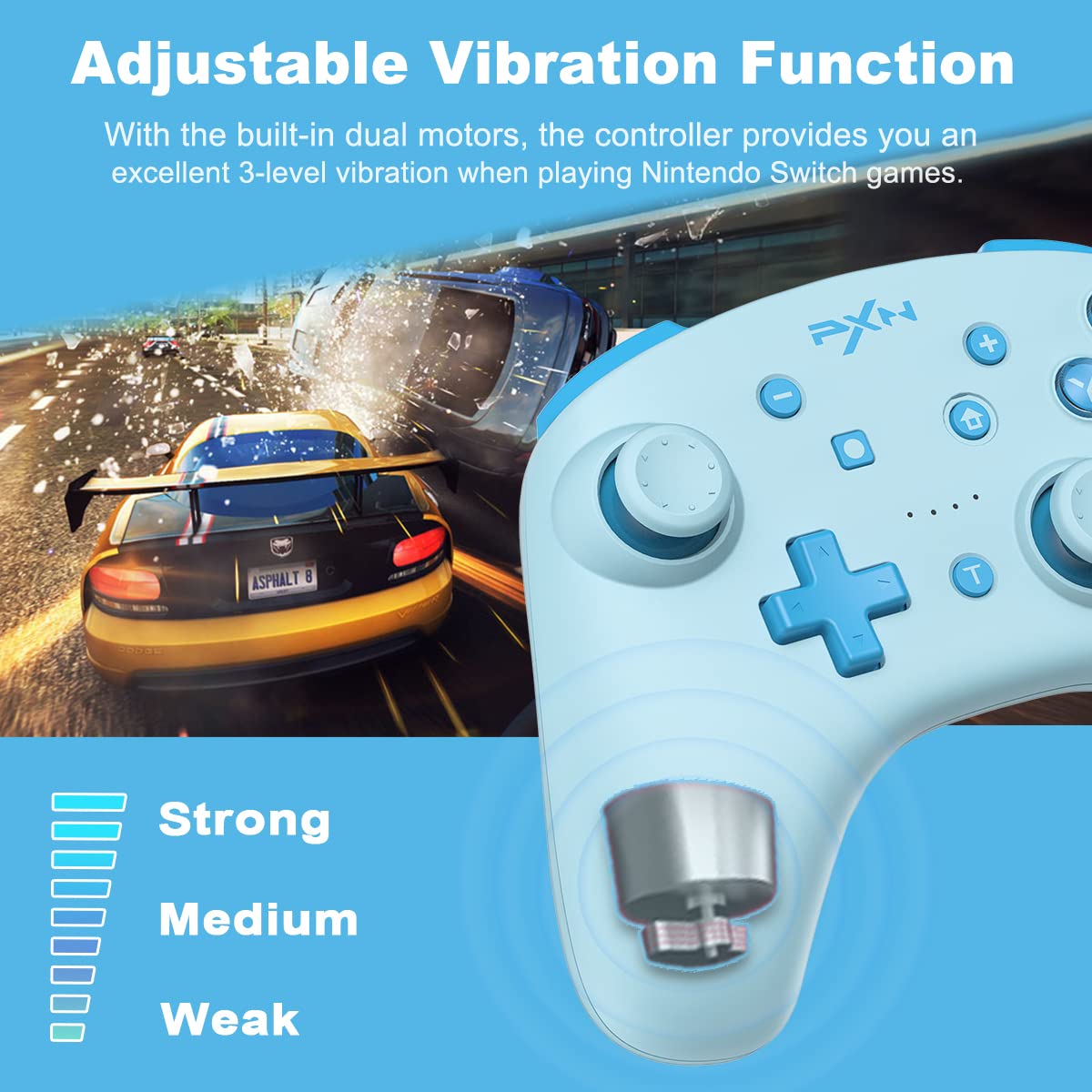
Image: Diagram showing the three adjustable vibration levels (Strong, Medium, Weak) of the PXN 9607X controller.
6-Axis Gyroscope (Motion Sensing)
The built-in 6-axis gyro chip provides precise motion control, making aiming movements smoother and faster in compatible games.
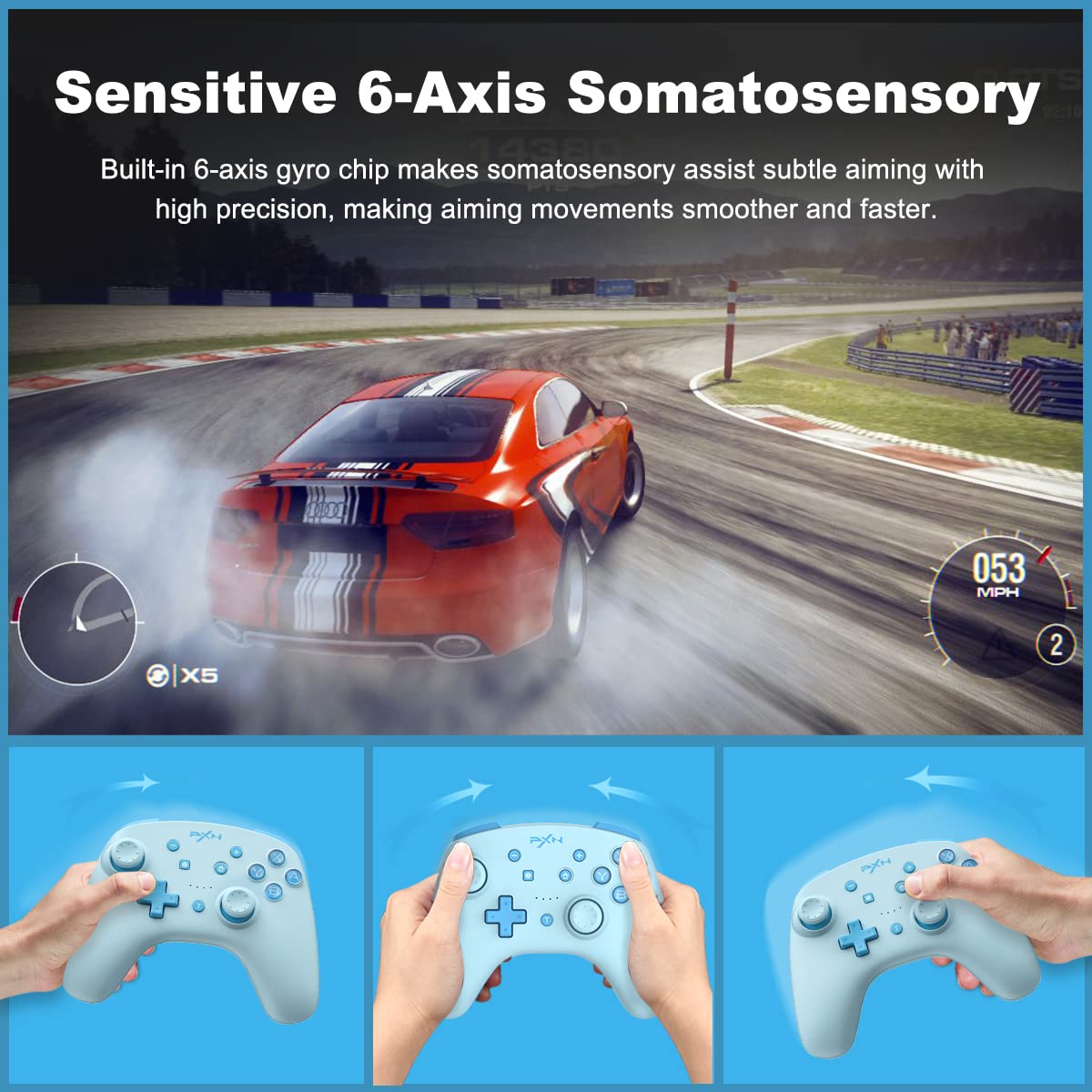
Image: The PXN 9607X controller being used for 6-axis somatosensory control in a racing game.
NFC-funktion
The PXN 9607X controller includes an NFC function, allowing you to use Amiibo figures or cards with compatible Nintendo Switch games. Simply tap your Amiibo to the NFC touchpoint on the controller to activate its in-game features.

Image: The PXN 9607X controller demonstrating its built-in NFC function with various Amiibo figures.
One-Button Wake-up for Nintendo Switch
To quickly resume your game, simply press and hold the Home button on the controller to remotely wake up your Nintendo Switch console.

Image: The Home button on the PXN 9607X controller being pressed to wake up a Nintendo Switch console.
Opladning og batterilevetid
The PXN 9607X controller is equipped with a 550mAh battery, providing extended playtime.
- Opladningstid: Cirka 2.0 timer for en fuld opladning.
- Arbejdstid: 12-20 hours of continuous gameplay on a full charge.
- Auto-søvn: The controller will automatically enter sleep mode after 5 minutes of inactivity to conserve battery.
- Opladningsindikator: The LED indicators will show charging status and turn off when fully charged.

Image: Information on the PXN 9607X controller's battery life, including 2.0 hours charging time, 12-20 hours working time, and 5-minute auto-sleep.
Firmwareopdatering
To ensure your PXN 9607X controller is always performing at its best and to access the latest features, it is recommended to keep its firmware updated. Follow these steps to update the firmware:
- Visit the official PXN webwebsted: www.e-pxn.com.
- Navigate to the "Support" section and click on "Tools".
- Find "PXN-9607X Firmware Update" (ensure it matches your model, e.g., V1.26) and click "Download".
- Åbn den downloadede file and run the "9607X V1.26 Firmware.exe" application.
- Long press the L3 button (left joystick click) on the controller.
- While holding L3, connect the controller to your PC via the USB-C cable.
- Once the software detects the controller, click "Update Firmware" and follow the on-screen prompts.
- Do not disconnect the USB cable during the upgrade process.
- A "Success!" message will appear upon completion.
Note: Please use a PC with Windows 7 or above to upgrade the firmware. Only 9607X controllers with SN starting with "P21H" can be upgraded to V1.26 firmware.
Fejlfinding
- Controlleren forbinder ikke: Ensure the controller is charged. Verify Bluetooth is enabled on your device and the controller is in pairing mode. For Switch, ensure "Pro Controller Wired Communication" is enabled in system settings if using wired.
- Inputforsinkelse eller afbrydelse: Move closer to your device to reduce interference. Ensure no other strong wireless signals are nearby.
- Knapper reagerer ikke: Check if the controller is properly paired. Try resetting the controller by pressing the small reset button on the back (if available, usually a pinhole).
- Vibration virker ikke: Ensure the game supports vibration and it's enabled in both game and system settings. Check the controller's vibration intensity setting.
- Problemer med firmwareopdatering: Ensure you are using a compatible Windows PC and following the steps precisely. Do not disconnect during the update.
Specifikationer
| Modelnummer: | PXN-9607X |
| Forbindelse: | Trådløs (Bluetooth), Kablet (USB-C) |
| Batterikapacitet: | 550mAh |
| Opladningstid: | Ca. 2.0 timer |
| Arbejdstid: | 12-20 timer |
| Auto-søvn: | 5 minutters inaktivitet |
| Dimensioner: | 6.02 x 2.4 x 4.37 tommer |
| Vægt: | 13.12 ounce |
Garanti & Support
For warranty information, technical support, or further assistance, please visit the official PXN webwebstedet eller kontakt deres kundeservice direkte. Gem din købskvittering som købsbevis i tilfælde af garantikrav.
Officiel Webwebsted: www.e-pxn.com
Ask a question about this manual
Ask about setup, troubleshooting, compatibility, parts, safety, or missing instructions. Manuals+ will review the question and use this page’s manual context to help answer it.