
1. Produktet er slutview
The havit GK59 Gaming Microphone is designed for clear audio capture during gaming, streaming, and voice communication. It features a condenser microphone for high-quality sound and a versatile design for ease of use.

Figur 1.1: Forside view of the havit GK59 Gaming Microphone, showcasing its main body, stand, and control buttons.
Nøglefunktioner:
- Nem at bruge: Enkel plug-and-play-funktionalitet.
- Good Performance: Delivers clear and consistent audio.
- Good Quality: Durable construction for reliable use.
- Bærbart design: Kompakt og nem at transportere.
- Justerbart stativ: Giver mulighed for fleksibel positionering.
2. Opsætningsvejledning
2.1 Pakkens indhold
Tjek venligst pakken for følgende varer:
- havit GK59 Gaming Microphone
- USB -tilslutningskabel
- Brugervejledning (dette dokument)
2.2 Tilslutning af mikrofonen
The GK59 microphone offers versatile connectivity options for various devices.
- USB-forbindelse: Connect the provided USB cable to the USB-C port on the back of the microphone and the other end to an available USB port on your computer or gaming console. The microphone is plug-and-play and should be automatically recognized by most operating systems.
- 3.5mm Jack Connection: For devices supporting a 3.5mm auxiliary input, connect a 3.5mm audio cable (not included) to the 3.5mm jack on the back of the microphone and to your device's audio input.
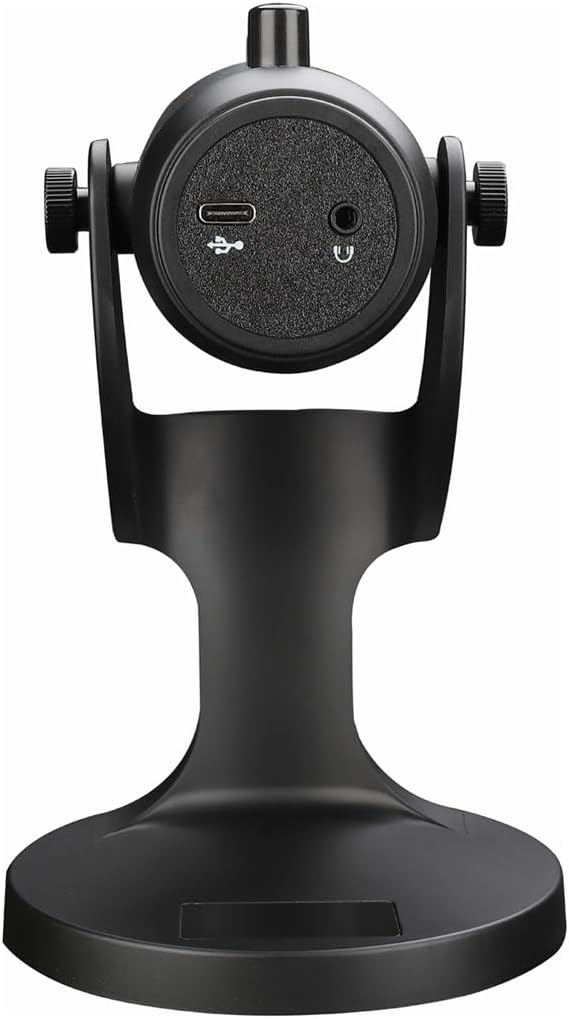
Figur 2.1: Bagside view of the havit GK59 Gaming Microphone, highlighting the USB-C port for data and power, and the 3.5mm headphone jack for monitoring.
After connecting, ensure the microphone is selected as the default input device in your system's sound settings or your gaming/streaming software.
3. Betjeningsvejledning
3.1 Grundlæggende kontroller
The havit GK59 features intuitive controls located on the front of the microphone body:
- Mute-knap: Press to mute or unmute the microphone. An indicator light will typically show the mute status.
- MIC +/- Buttons: Adjust the microphone input sensitivity (gain). Press '+' to increase, '-' to decrease.
- VOL +/- knapper: Adjust the headphone output volume for monitoring. Press '+' to increase, '-' to decrease.
- ECHO +/- knapper: Adjust the echo effect level. Press '+' to increase, '-' to decrease.
Figur 3.1: Detaljeret view of the microphone's control panel, including the mute button, microphone gain, volume, and echo adjustment buttons.
3.2 Adjusting Microphone Position
The microphone is equipped with an adjustable stand, allowing you to optimize its position for best sound capture and comfort.
- Gently hold the microphone body and the base of the stand.
- Tilt the microphone forward or backward to achieve the desired angle. The stand's design helps reduce vibration and abnormal sounds during use.
- Position the microphone approximately 6-12 inches (15-30 cm) from your mouth for optimal voice clarity.

Figure 3.2: The havit GK59 microphone demonstrating its adjustable tilt feature on the stand, designed for anti-vibration.
4. Vedligeholdelse
4.1 Rengøring
To maintain the microphone's performance and appearance:
- Disconnect the microphone from its power source before cleaning.
- Brug en blød, tør klud til at tørre de udvendige overflader af.
- Brug ikke flydende rengøringsmidler, aerosoler eller opløsningsmidler, da disse kan beskadige overfladen eller de indvendige komponenter.
4.2 Opbevaring
When not in use, store the microphone in a cool, dry place away from direct sunlight and extreme temperatures. Protect it from dust and moisture.
5. Fejlfinding
If you encounter issues with your havit GK59 Gaming Microphone, please refer to the following table for common problems and solutions:
| Problem | Mulig årsag | Løsning |
|---|---|---|
| No sound input from microphone | Mikrofonen er ikke tilsluttet korrekt Forkert inputenhed valgt Mikrofonen er slået fra | Sørg for, at USB-kablet er tilsluttet korrekt. Check system sound settings and select GK59 as input. Press the Mute button on the microphone to unmute. |
| Lav mikrofonlydstyrke | Microphone gain too low System input volume too low | Press the 'MIC +' button on the microphone. Adjust input volume in your system's sound settings. |
| Forvrænget eller uklar lyd | Microphone gain too high Microphone too close to mouth Miljøstøj | Press the 'MIC -' button on the microphone. Adjust microphone position (6-12 inches from mouth). Reducer baggrundsstøj i dine omgivelser. |
| No headphone monitoring sound | Hovedtelefoner er ikke tilsluttet Headphone volume too low | Ensure headphones are plugged into the 3.5mm jack. Press the 'VOL +' button on the microphone. |
6. Tekniske specifikationer
Below are the technical specifications for the havit GK59 Gaming Microphone:
| Feature | Specifikation |
|---|---|
| Mærke | havit |
| Modelnummer | GK59 |
| Forbindelsesteknologi | USB, 3.5 mm Jack (Auxiliary) |
| Anbefalede anvendelser | Spil |
| Polar mønster | Ensrettet |
| Mikrofon formfaktor | Handheld (with desktop stand) |
| Varens vægt | 429 gram |
| Impedans | 250 Ohm |
| Signal-støjforhold | 18 dB |
| Hørbar støj | 18 decibel |
| Strømkilde | Ledningsbaseret elektrisk (via USB) |
| Kompatible enheder | Gaming Consoles, PCs |
| Emnedimensioner (LxBxH) | 5.59 x 4.92 x 9.06 tommer |
| Farve | Sort |
7. Garanti og support
7.1 Garantioplysninger
The havit GK59 Gaming Microphone comes with a standard manufacturer's warranty. Please refer to the warranty card included in your product packaging or visit the official havit webhjemmeside for detaljerede garantivilkår.
7.2 Kundesupport
For technical assistance, troubleshooting not covered in this manual, or warranty claims, please contact havit customer support through their official channels. You can find more information and contact details on the Havit-butikken på Amazon eller deres embedsmand webwebsted.