
1. Introduktion
Thank you for choosing the UNITED LED40HS82A11 40-inch Full HD Smart Android TV. This television combines a vibrant Full HD display with the power of Android 11, offering a seamless entertainment experience. With built-in Chromecast and Airplay, Wi-Fi, Ethernet, and support for various digital broadcasting standards (DVB/T2/S2/C, MPEG-4, HEVC Main 10), your new TV is designed for versatile use, from watching movies and playing games to browsing the internet.
This manual provides essential information for setting up, operating, and maintaining your television. Please read it thoroughly before using the product and keep it for future reference.

Billede 1.1: Forside view of the UNITED LED40HS82A11 TV with Android TV interface.
2. Sikkerhedsoplysninger
Before operating your TV, please read all safety instructions carefully. Improper use can result in electric shock, fire, or damage to the appliance.
- Strømforsyning: Sørg for, at tv'et er tilsluttet en AC 100-240V, 50/60Hz strømforsyning. Overbelast ikke stikkontakter.
- Ventilation: Bloker ikke ventilationsåbningerne. Sørg for tilstrækkelig plads omkring tv'et for korrekt luftgennemstrømning.
- Vand og fugt: Udsæt ikke tv'et for regn eller fugt. Placer ikke genstande fyldt med væsker, såsom vaser, oven på tv'et.
- Varmekilder: Hold tv'et væk fra varmekilder såsom radiatorer, varmeapparater, komfurer eller andre apparater, der producerer varme.
- Rensning: Tag stikket til tv'et ud af stikkontakten før rengøring. Brug en blød, tør klud. Brug ikke flydende rengøringsmidler eller sprayrengøringsmidler.
- Service: Forsøg ikke selv at servicere dette produkt. Overlad al service til kvalificeret servicepersonale.
- Børn: Supervise children to ensure they do not play with the TV.
3. Pakkens indhold
Kontroller venligst, at følgende varer er inkluderet i din TV-pakke:
- UNITED LED40HS82A11 40-inch Full HD Smart Android TV
- Remote Control (with 2x AAA 1.5V batteries)
- Strømledning
- TV-stativ (2 stk.) og skruer
- MiniAV Adapter Cable
- Brugervejledning (dette dokument)
Hvis der mangler eller er beskadigede varer, bedes du kontakte din forhandler.
4. Opsætning
4.1 Montering af stativet
- Carefully place the TV face-down on a soft, flat surface (e.g., a blanket or foam) to prevent screen damage.
- Juster stativets ben med de tilsvarende riller i bunden af tv'et.
- Secure each stand leg with the provided screws. Ensure they are tightened firmly.
- Løft forsigtigt tv'et op, og placer det på en stabil, plan overflade.
4.2 Vægmontering (valgfrit)
This TV is compatible with VESA standard wall mounts. The VESA mounting pattern for this model is typically 200x200mm. Please consult a professional for wall mounting to ensure proper installation and safety. Wall mount bracket and screws are not included.
4.3 Tilslutning af eksterne enheder
Dit tv tilbyder forskellige tilslutningsmuligheder til eksterne enheder.
Billede 4.1: Bagside view of the TV with port layout.
- HDMI: Connect Blu-ray players, game consoles, set-top boxes, or other HDMI-enabled devices. The TV supports multiple HDMI inputs.
- USB: Tilslut USB-lagerenheder (f.eks. flashdrev) for at afspille medier files. TV'et har 1 USB-port.
- MiniAV: Use the provided MiniAV adapter cable to connect older devices with composite video and stereo audio outputs.
- Hovedtelefonudgang: Tilslut hovedtelefoner for privat lytning.
4.4 Antenne-/kabeltilslutning
Connect your terrestrial antenna (DVB-T/T2) or satellite dish (DVB-S/S2) cable to the appropriate input on the back of the TV. For cable TV (DVB-C), connect the cable to the antenna input.
4.5 Network Connection (Wi-Fi & Ethernet)
Your TV can connect to the internet via Wi-Fi or an Ethernet cable.
- Wi-Fi: During the initial setup or via the settings menu, select your Wi-Fi network and enter the password.
- Ethernet: Connect an Ethernet cable from your router to the LAN port on the back of the TV.
5. Førstegangsopsætning
- Tænd: After connecting all necessary cables, plug the power cord into an electrical outlet. Press the power button on the remote control or on the TV.
- Indledende konfiguration: The TV will guide you through the initial setup process.
- Sprogvalg: Vælg dit foretrukne sprog.
- Netværksopsætning: Connect to your Wi-Fi network or use an Ethernet connection.
- Google-konto: Sign in with your Google account to access the Google Play Store, personalized recommendations, and other Android TV features.
- Kanalscanning: The TV will prompt you to scan for available channels based on your antenna/cable connection.
- Privatlivsindstillinger: Review og juster privatlivsindstillingerne efter behov.
- Opsætning fuldført: Once all steps are finished, your TV is ready for use.
6. Betjening af dit TV
6.1 Fjernbetjeningsfunktioner
The remote control allows you to navigate the TV's features. Familiarize yourself with the buttons:
- Magt: Tænder/slukker tv'et.
- Input: Vælger inputkilden (HDMI, AV, TV).
- Navigationsknapper (op/ned/venstre/højre): Naviger gennem menuer og muligheder.
- OK/Enter: Bekræfter valg.
- Tilbage: Vender tilbage til den forrige skærm.
- Hjem: Åbner Android TV-startskærmen.
- Lydstyrke op/ned: Justerer lydstyrken.
- Kanal op/ned: Skifter tv-kanaler.
- Google Assistant: Aktiverer stemmekommandoer.
- App-knapper: Direkte adgang til populære streamingapplikationer.
6.2 Navigating Android TV Interface
The Android TV home screen provides access to your installed apps, live TV, and recommended content. Use the navigation buttons on your remote to browse categories like Search, Home, Discover, and Apps.

Image 6.1: Android TV home screen with various applications.
6.3 Valg af indgangskilde
Tryk på Input button on your remote control to switch between connected devices (e.g., HDMI 1, HDMI 2, AV) and the built-in TV tuner.
6.4-kanals indstilling
If you connected an antenna or cable, you can access live TV channels. Use the Kanal op/ned buttons to change channels. To perform a new channel scan or adjust channel settings, go to the TV's settings menu.
6.5 Brug af smarte funktioner
- Apps: Download og installer en bred vifte af apps fra Google Play Store.
- Chromecast indbygget: Cast content (videos, photos, music) from your compatible smartphone, tablet, or computer directly to your TV. Look for the Chromecast icon in supported apps.
- Airplay: For Apple device users, Airplay allows you to stream content or mirror your screen to the TV.
- Internet browsing: Brug en web browser app to surf the internet.
7. Vedligeholdelse
7.1 Rengøring af tv'et
- Tag altid stikket ud af tv'et inden rengøring.
- Brug en blød, tør og fnugfri klud til at tørre skærmen og kabinettet af.
- For genstridige mærker på skærmen, dræn letampRengør kluden med vand eller en specialiseret skærmrens (spray ikke direkte på skærmen).
- Undgå at bruge slibende rengøringsmidler, voks eller opløsningsmidler, da de kan beskadige tv'ets overflade.
7.2 Softwareopdateringer
Your Android TV may receive software updates to improve performance and add new features. It is recommended to keep your TV connected to the internet to receive these updates automatically. You can also check for updates manually in the TV's settings menu.
8. Fejlfinding
Hvis du støder på problemer med dit tv, kan du se følgende almindelige problemer og løsninger:
- Ingen strøm:
- Kontroller, om netledningen er korrekt tilsluttet tv'et og stikkontakten.
- Ensure the wall outlet is working by plugging in another device.
- Prøv at trykke på tænd/sluk-knappen på selve tv'et, ikke kun på fjernbetjeningen.
- Intet billede, men der er lyd:
- Sørg for, at den korrekte inputkilde er valgt.
- Kontroller kabelforbindelserne til eksterne enheder.
- Prøv at genstarte tv'et og den tilsluttede enhed.
- Ingen lyd, men der er billede:
- Kontroller lydstyrkeniveauet, og sørg for, at tv'et ikke er slået fra.
- Verify audio settings in the TV menu and on the external device.
- Try a different HDMI cable or input.
- Fjernbetjeningen virker ikke:
- Udskift batterierne i fjernbetjeningen.
- Sørg for, at der ikke er nogen forhindringer mellem fjernbetjeningen og tv'ets IR-sensor.
- Ret fjernbetjeningen direkte mod tv'et.
- Problemer med Wi-Fi-forbindelse:
- Genstart din router og dit modem.
- Kontroller, om den indtastede Wi-Fi-adgangskode er korrekt.
- Move the TV closer to the router or use an Ethernet cable for a stable connection.
Ved mere komplekse problemer bedes du kontakte kundesupport.
9. Specifikationer
Here are the technical specifications for the UNITED LED40HS82A11 TV:
| Feature | Specifikation |
|---|---|
| Mærke | FORENET |
| Modelnavn | LED40HS82A11 |
| Skærmstørrelse | 40 tommer |
| Skærmopløsning | Fuld HD (1920 x 1080 pixels) |
| Operativsystem | Android 11 |
| Forbindelsesteknologi | Wi-Fi, Ethernet, Bluetooth, HDMI, USB |
| Særlige funktioner | Smart TV, Flat Screen, Chromecast Built-in, Airplay, Pre-installed Apps |
| Tunere | DVB/T2/S2/C |
| Video afkodning | MPEG-4, HEVC Main 10 |
| Opdateringshastighed | 60 Hz |
| Aspektforhold | 16:9 |
| USB-porte | 1 |
| Kompatible enheder | Hovedtelefoner |
| Farve | Sort |
| Fabrikant | CHANHONG EUROPE ELECTRIC SRO |
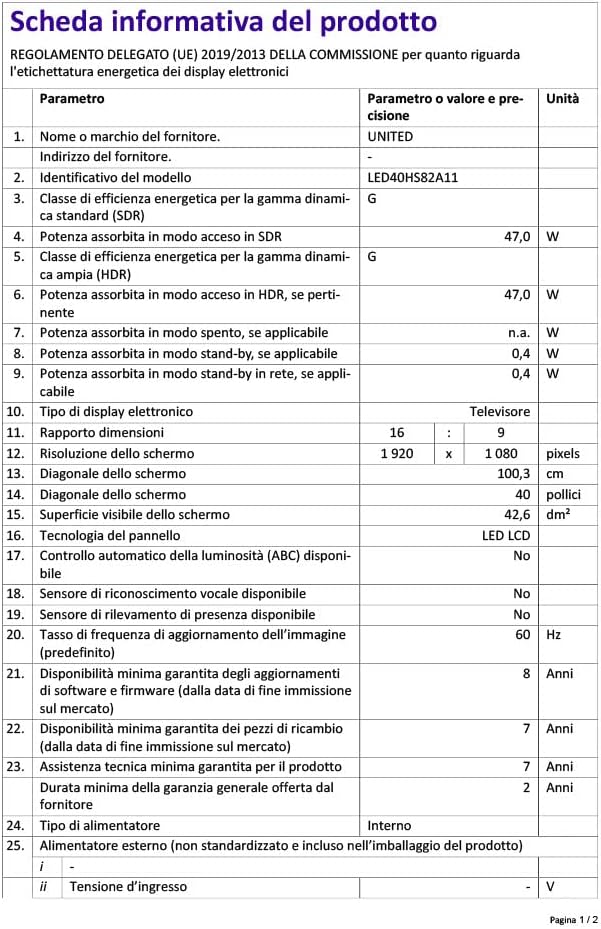
Image 9.1: EU Energy Label for LED40HS82A11.
For detailed product information, including energy consumption data, please refer to the official EU EPREL database via the QR code on the energy label or by visiting https://eprel.ec.europa.eu/qr/1068369.
10. Garanti og support
For warranty information, please refer to the warranty card included with your product or contact your retailer. The manufacturer, CHANGHONG EUROPE ELECTRIC S.R.O., provides general support for this product.
Please note that information regarding software update guarantees and spare parts availability is not explicitly provided for this model. For any technical assistance or service inquiries, please contact the customer support channels provided by your point of purchase.