
Kittyhok B0BD7MJCWK
Kittyhok Wireless Security Camera System User Manual
Model: B0BD7MJCWK
1. Introduktion
This manual provides detailed instructions for the setup, operation, and maintenance of your Kittyhok Wireless Security Camera System. This system includes a 10-channel NVR with a 12-inch monitor and a 1TB hard drive, along with 2K WiFi security cameras and PTZ outdoor security cameras featuring 360-degree viewing, auto-tracking, human detection, and spotlight capabilities. Please read this manual thoroughly to ensure proper installation and optimal performance of your security system.
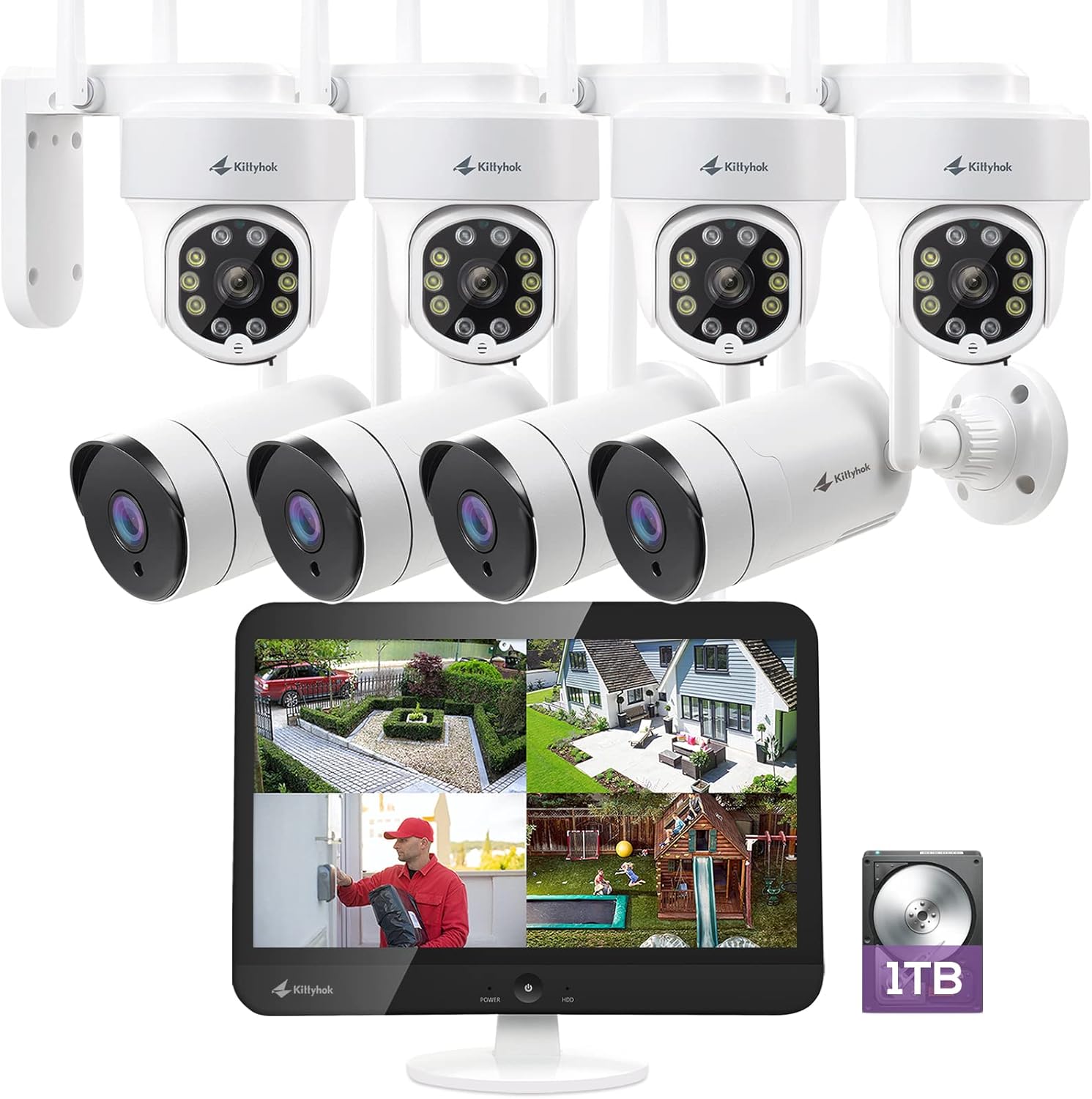
Figur 1.1: Overview of the Kittyhok Wireless Security Camera System components.
2. Hvad er der i æsken
Verify that all components are present and in good condition upon unboxing. The exact quantity of cameras may vary based on your specific model number.
- Mini NVR or Monitor Built-in NVR
- Dome- eller Bullet-kamera(r)
- NVR strømadapter
- Camera Power Adapter (1 per camera)
- RJ-45 Ethernet-kabel
- HDMI kabel
- USB-mus
- Monteringsudstyr (skruer, ankre)

Video 2.1: Unboxing and contents of the Kittyhok Wireless Security System.
3. NVR Introduktion
Familiarize yourself with the ports and indicators on your NVR (Network Video Recorder) for proper connection and operation.
NVR Front Panel Indicators:
- Strømindikator
- HDD -indikator
- Netværksindikator
NVR bagpanelporte:
- 12V DC In (Power Input)
- USB Port (for mouse)
- HDMI Video Output (for external monitor)
- RJ-45 (Ethernet) port
- Nulstil knap
- Micro SD-kortplads
- NVR-antenner
- Højttaler
- SATA Hard Drive Dock (for internal HDD)

Figure 3.1: NVR and camera connection diagram.
4. Kamera Introduktion
Understand the different components of your security cameras.
Common Camera Components:
- Antenne
- Monteringsbeslag
- Linse
- Infrared & Spotlight 2-in-1 LEDs
- Indbygget mikrofon
- Højttaler
- Strømport
- Ethernet Port (for wired connection, if applicable)
- Reset Button (for restoring factory settings)
- Micro SD Card Slot (for local storage, if applicable)
- Dagslyssensor

Figure 4.1: PTZ camera with 360-degree viewing.
5. Opsætning
5.1 Tilslutning af dit system
- Connect the NVR to power using the included power adapter.
- Tilslut USB-musen til NVR'ens USB-port.
- Connect the NVR to a PC monitor or TV with an HDMI cable if your NVR does not have a built-in monitor.
- Connect the NVR to your router with an Ethernet cable for remote access, or configure Wi-Fi settings via the NVR's Network Setting menu.
- Power on all cameras using their included power adapters.
Note: Ensure all cameras are powered on and within range of the NVR's Wi-Fi signal for optimal performance. The system is designed for auto-pairing.

Figure 5.1: Plug and Play setup for the Kittyhok system.
5.2 Positioning Your NVR and Cameras
- Camera distance from NVR can reach up to 1300 ft. wirelessly in line of sight. Proper placement of the wireless NVR in your home will help ensure maximum coverage.
- Avoid placing the NVR near high voltage wires or other sources of electrical interference, as this can degrade signal quality.
- Install cameras 2-3 meters (7-10 ft.) above the ground. This height maximizes the detection range of the motion sensor.
- For dome cameras, they should be installed upside down for better waterproof performance and motion sensor efficiency.
- For better motion detection performance, install cameras angularly.

Figure 5.2: Auto WiFi Relay technology for extended coverage.
6. Betjening af dit system
6.1 Accessing Your System via Smartphone
Download the Kittyhok App from the App Store (iOS) or Google Play (Android) and install it on your smart device. Launch the app, register an account, and log in. Tap the '+' button and then 'Scan to add' to scan the QR code on the NVR or manually add the device.

Figure 6.1: Remote access via phone, tablet, and PC.
6.2 Accessing Your System via PC and Mac
Download and install the CMS (Central Management Software) on your computer. Log in with your phone app user account, and your system will automatically sync to the CMS.
6.3 Nøglefunktioner
- 360° Viewing: Utilize the Pan-Tilt-Zoom (PTZ) cameras to cover every angle and eliminate blind spots. Digitally zoom in or out for detailed viewing.
- Automatisk sporing: When motion is detected, the PTZ camera will automatically pan and tilt to follow the source of the motion. It returns to its 'Home Point' when the motion ceases.
- Menneskelig detektion: Minimize false notifications by only receiving alerts when a person is detected on your property.
- Aktiv afskrækkelse: Deter unwanted guests with a motion-activated LED warning light and a remotely triggered siren.
- 2-vejs samtale: Communicate with visitors or deter intruders using the built-in microphone and speaker on the cameras.
- Farve Night Vision: Experience clear, full-color video even in low-light conditions.
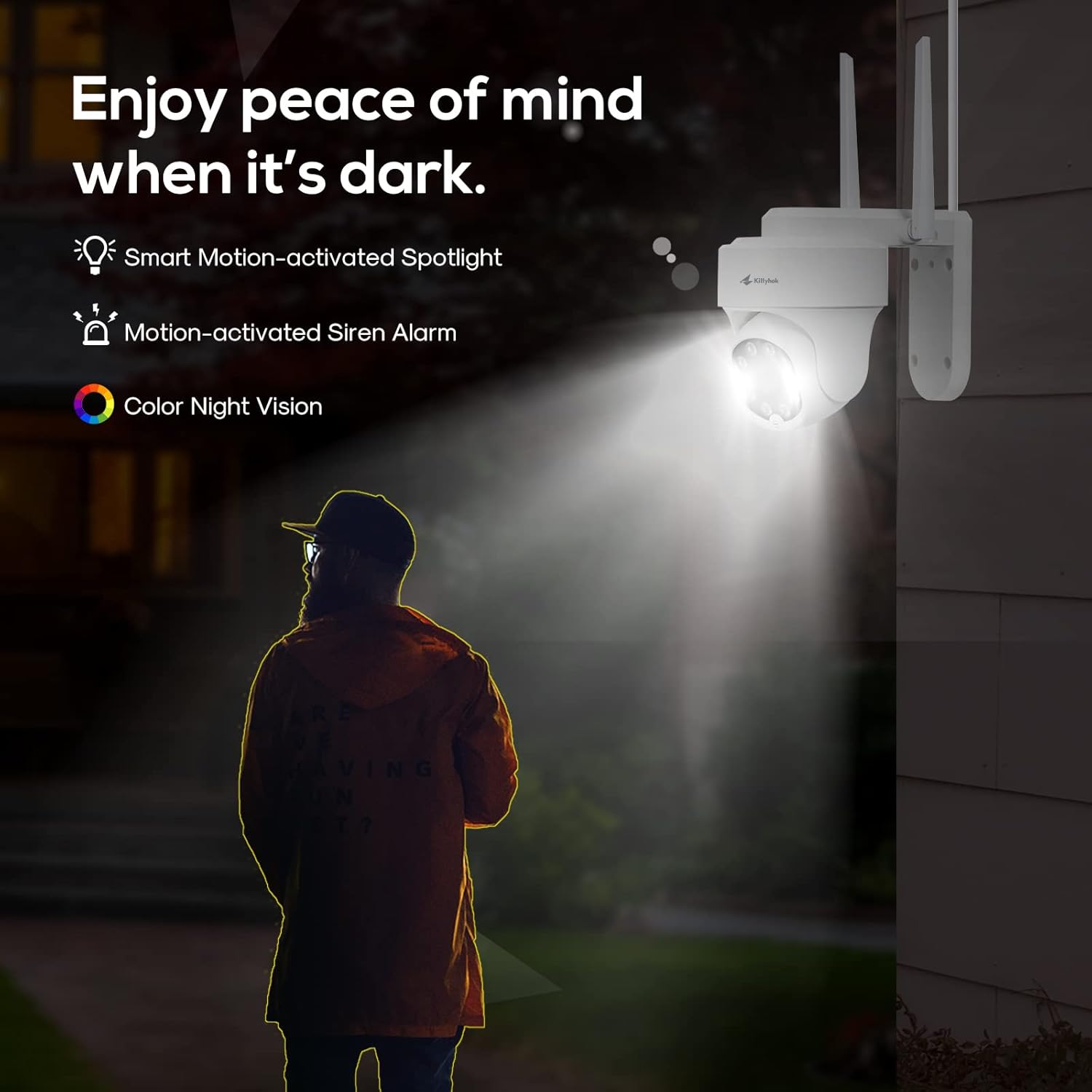
Figure 6.2: Active deterrence features including spotlight and siren.

Figure 6.3: Two-way talk functionality.
7. Vedligeholdelse
Regelmæssig vedligeholdelse sikrer dit sikkerhedssystems levetid og optimale ydeevne.
- Rensning: Rengør kameralinserne regelmæssigt med en blød kludamp cloth to remove dust and smudges that may affect image clarity. Ensure the power is off before cleaning.
- Firmwareopdateringer: Check the Kittyhok website or app regularly for firmware updates. Keeping your system updated ensures you have the latest features and security enhancements.
- Harddiskens tilstand: The 1TB HDD is pre-installed for 24/7 recording. Monitor its health through the NVR interface to prevent data loss.
- Kabelstyring: Sørg for, at alle kabler er sikkert tilsluttet og beskyttet mod miljøskader.
- Miljøbeskyttelse: While cameras are weatherproof, extreme weather conditions can impact performance. Ensure proper installation to protect against direct exposure to harsh elements.

Figure 7.1: Weatherproof design of Kittyhok cameras.
8. Fejlfinding (ofte stillede spørgsmål)
- Skal min NVR være forbundet til internettet for at fungere?
Nej, din NVR behøver ikke at være forbundet til internettet for at fungere. Du kan view live-feed og optagelser ved at tilslutte den til et tv/monitor via HDMI eller VGA. - Vil jeg kunne view mit system mens jeg er væk hjemmefra?
For at view your system remotely, your NVR will need to be connected to a modem/router either with the included Ethernet cable or via Wi-Fi. You can view your system using the free Kittyhok App on your smart device or CMS client on a PC/Mac®. - Hvordan overfører kameraerne video til NVR?
Our NVRs have built-in Wi-Fi for communicating with the cameras. Each camera comes paired to the NVR by default, so your initial setup should be hassle-free. - Why my camera's PTZ control is not responding in real-time?
That normally means your camera is not having strong Wi-Fi signal. Watch the camera while controlling from App, you will see it moves immediately on your control, but the live video is not feeding in real-time due to poor Wi-Fi signal. Please mount the camera closer/ with less walls to your Wi-Fi router/ NVR so it has at least 3-bar of Wi-Fi to work smoothly, or simply use an Ethernet cable to hard wire the camera. - Skal min NVR være tilsluttet et tv eller en skærm?
For den første opsætning skal du tilslutte din NVR til et tv eller en skærm. Efter at have gennemført den indledende opsætning, behøver din NVR ikke at være tilsluttet et tv eller en skærm til view eller fange optagelser. - Why is the Kittyhok App not accepting my password?
The Kittyhok App requires two passwords to configure: one password will be used to login to the app itself and the second will be the admin password of your NVR. In order to add a device to the app, you will need to enter the NVR's admin password. - Why can't I connect using the WallPixel App or CMS Software?
If you are having trouble connecting using our mobile app or client software, A) the Wi-Fi network you are trying to connect to is not stable, B) the latest firmware or client software may not be installed on your computer or mobile device, C) the password may have been entered incorrectly, or D) you may need to restart your NVR and try again.
9. Specifikationer
| Feature | Specifikation |
|---|---|
| Mærke | Kittyhok |
| Forbindelsesteknologi | Trådløs |
| Videooptagelsesopløsning | 1520p (2K) |
| Speciel funktion | Motion Sensor, Auto Tracking, Human Detection, Spotlight, 2-Way Talk |
| Antal kanaler | 10 |
| Hukommelseslagringskapacitet | 1 TB harddisk |
| Strømkilde | Elektrisk med ledning |
| Kompatible enheder | Personal Computers, Smartphones (iOS, Android) |
| Signalformat | Digital |
| Billedhastighed | 30 FPS |
| Optagetilstand | HD video |
| Optisk sensorteknologi | CMOS |
| Hardware-interface | 802.11 ac/b/g/n |
| Linsetype | Varifokal |
| Viewi vinkel | 360 Degrees (PTZ cameras) |
10. Garanti og support
Kittyhok is committed to providing excellent customer service and support for your security system.
- 1-års garanti: The product comes with a 1-year warranty for replacement, not repair.
- 24/7 online support: Dedicated one-to-one online support is available for any queries or issues you may encounter.
- 30-dages pengene-tilbage-garanti: Enjoy peace of mind with a 30-day money-back guarantee.
- Ingen månedlige gebyrer: There are no recurring monthly fees for using the core features of the system.

Figure 10.1: Benefits of choosing Kittyhok.
For further assistance, please visit the official Kittyhok webwebsted eller kontakt deres kundesupportteam.
Ask a question about this manual
Ask about setup, troubleshooting, compatibility, parts, safety, or missing instructions. Manuals+ will review the question and use this page’s manual context to help answer it.