
FLAMMA FX200
FLAMMA FX200 Multieffekter Guitar Processor Brugermanual
Model: FX200
1. Introduktion
This manual provides detailed instructions for the operation and maintenance of your FLAMMA FX200 Multi Effects Guitar Processor. Please read this manual thoroughly to ensure proper usage and to maximize the potential of your device.
The FLAMMA FX200 is a versatile multi-effects processor designed for guitarists, featuring a 5-inch LCD touch screen, extensive input/output options, and a wide array of effects, amplifier models, and cabinet simulations.
2. Sikkerhedsforanstaltninger
- Udsæt ikke enheden for regn, fugt eller ekstreme temperaturer.
- Undgå at placere enheden i nærheden af varmekilder eller i direkte sollys.
- Brug kun den angivne strømadapter.
- Forsøg ikke at skille enheden ad eller ændre den. Overlad al service til kvalificeret personale.
- Opbevares utilgængeligt for børn.
3. Pakkens indhold
Bekræft at alle varer er til stede i pakken:
- FLAMMA FX200 Multi Effects Guitar Processor
- Strømadapter
- USB-C kabel
- Brugervejledning (dette dokument)

Figure 3.1: Contents of the FLAMMA FX200 package.
4. Enhed overview
4.1 Frontpanel
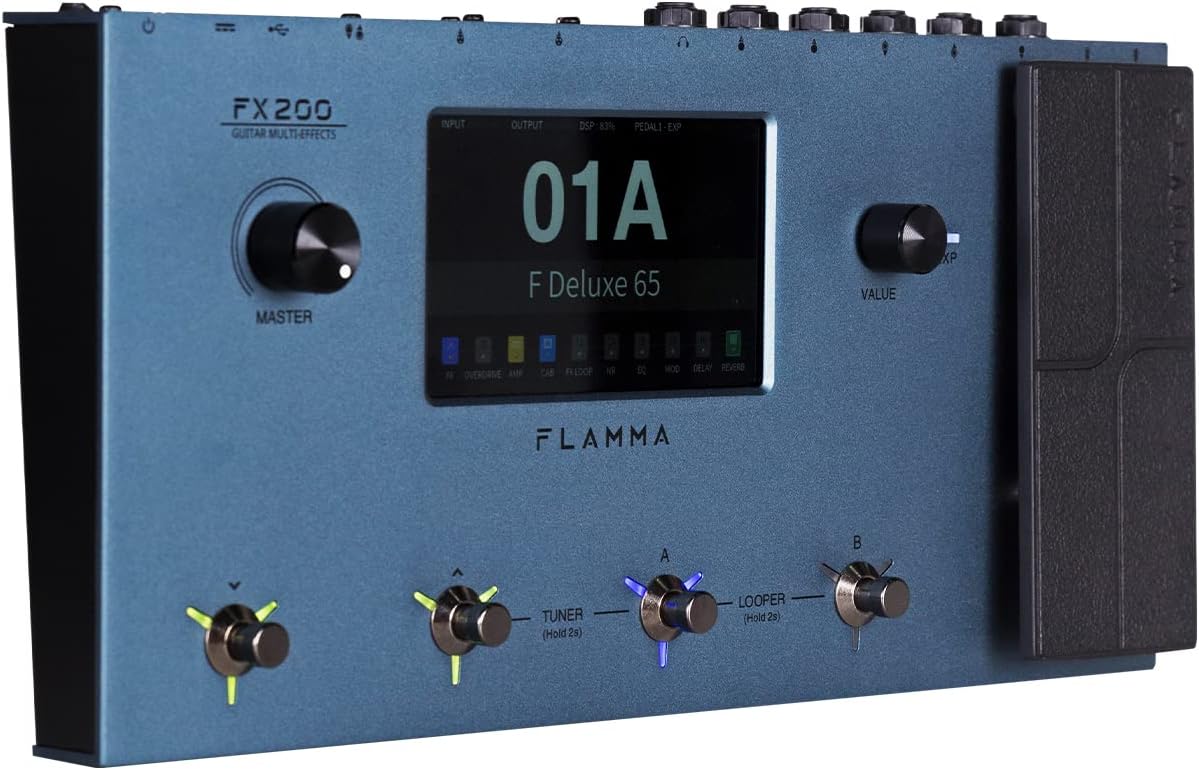
Figure 4.1: Front Panel Layout of the FX200.
- Hovedknap: Justerer den samlede udgangslydstyrke.
- LCD-berøringsskærm: 5-inch display for navigation, parameter editing, and preset management.
- Værdiknap: Used for data entry and parameter adjustments.
- Fodkontakter (A, B, C, D): Control presets, effects, looper, and tuner functions.
- Udtrykspedal: Assignable for real-time control of various effects parameters.
4.2 Rear Panel (I/O)

Figure 4.2: Rear Panel Input/Output Connections.
- AUX IN: 3.5 mm stereoindgang til eksterne lydenheder.
- EXP2: External expression pedal input.
- INPUT: 1/4-inch mono input for guitar.
- SEND/RETURN: Stereo FX Loop for integrating external effects pedals.
- OUTPUT (L/MONO, R): 1/4-inch stereo outputs to amprøremaskine eller røremaskine.
- TELEFON: 3.5 mm stereo hovedtelefonudgang.
- GND/LIFT: Ground lift switch to eliminate hum.
- XLR OUT (L, R): Balanced XLR stereo outputs for direct connection to PA systems or audio interfaces.
- MIDI IND/UD: 5-pin MIDI connectors for external MIDI control.
- USB DC IN: USB-C port for power and connection to a computer.
- Afbryderen: Tænder/slukker enheden.
5. Opsætning
5.1 Indledende opstart
- Connect the provided power adapter to the USB DC IN port on the rear panel.
- Sæt strømadapteren i en passende stikkontakt.
- Flip the Power Switch to the ON position. The unit will power on and display the startup screen.
5.2 Connecting Your Guitar and Amplivligere
- Tilslut din guitar til INPUT stik ved hjælp af et standard 6,5 mm instrumentkabel.
- Tilslut UDGANG L/MONO stik til din guitar amplifier's input using a 1/4-inch instrument cable. For stereo output, connect the UDGANG R jack til et sekund amplifier- eller mixerindgang.
- Alternatively, for direct recording or PA system connection, use XLR cables from the XLR OUT L og XLR OUT R ports to your audio interface or mixer.
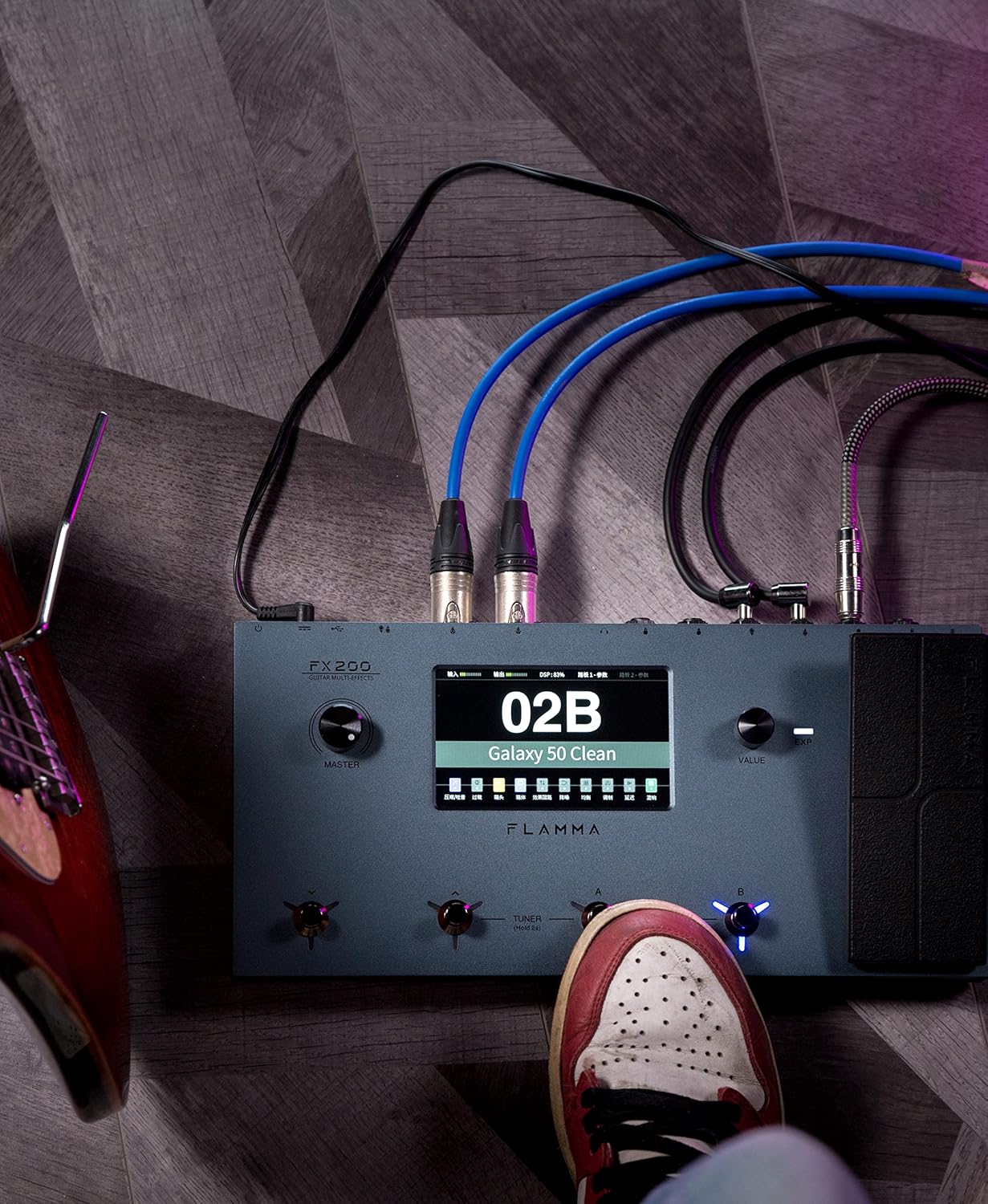
Figure 5.1: Typical connection setup for the FX200.
5.3 Tilslutning til en computer
The FX200 can be connected to a computer for editing presets, firmware updates, and USB audio recording.
- Download the specialized editing software from the official FLAMMA webwebsted.
- Connect the FX200 to your computer using the provided USB-C cable.
- Launch the editing software. The software will detect the FX200, allowing you to manage presets, effects, and perform firmware updates.

Figure 5.2: FX200 connected to a computer for software editing.
6. Betjeningsvejledning
6.1 Navigering på berøringsskærmen
The 5-inch LCD touch screen is the primary interface for controlling the FX200. Tap icons and parameters to select them, and use the Value Knob to adjust values.

Figure 6.1: Interacting with the touch screen interface.
6.2 Forudindstillet styring
The FX200 features 200 editable user preset slots. Presets can be selected using the footswitches or by navigating the touch screen.
- Valg af forudindstillinger: In Play mode, press footswitches A or B to cycle through presets within a bank. Press footswitches C or D to change banks.
- Redigering af forudindstillinger: Tap on an effect module icon on the touch screen to access its parameters. Adjust settings using the Value Knob.
- Gem forudindstillinger: After editing, tap the 'Save' icon on the touch screen and follow the prompts to store your changes to a user preset slot.
6.3 Effektmoduler og kæde
The FX200 includes 10 effect modules with over 160 different effect types, 58 preamp models, and 30 cabinet simulations. The effects chain can be customized.
- Module Order: Drag and drop effect module icons on the touch screen to change their order in the signal chain.
- Activating/Deactivating Modules: Tap an effect module icon to toggle it on or off within a preset.
- Third-Party IRs: The unit supports third-party impulse response files (up to 1024 sampling points) with 50 empty slots for custom cabinet simulations. Use the editing software to load IRs.

Figure 6.2: Customizable effects chain on the FX200.
6.4 Looper og trommemaskine
The FX200 includes an integrated 52-second looper and 80 drum machine variations with 10 metronome styles.
- Looper: Access the looper function via a dedicated footswitch or the touch screen. Record, overdub, play, and stop loops.
- Trommemaskine: Select drum patterns and metronome styles from the touch screen interface. Adjust tempo and volume.
6.5 USB Audio Recording
The FX200 supports USB audio recording, allowing you to record directly to your computer.
- Connect the FX200 to your computer via USB-C.
- Select the FX200 as your audio input device in your Digital Audio Workstation (DAW) software.
- Adjust input levels on both the FX200 and your DAW for optimal recording.
7. Vedligeholdelse
- Rensning: Brug en blød, tør klud til at rengøre enheden. Brug ikke slibende rengøringsmidler eller opløsningsmidler.
- Opbevaring: When not in use for extended periods, store the unit in a dry, cool place away from direct sunlight.
- Firmwareopdateringer: Regularly check the FLAMMA website for firmware updates to ensure optimal performance and access to new features. Updates are performed via the USB-C connection and editing software.
8. Fejlfinding
| Problem | Mulig årsag | Løsning |
|---|---|---|
| Ingen strøm | Strømadapteren er ikke tilsluttet eller defekt; Strømafbryder slukket. | Ensure power adapter is securely connected and plugged into a working outlet. Check power switch. |
| Ingen lydudgang | Incorrect cable connections; Master volume too low; Amplifier off; Effect module bypassed. | Verify all audio cables are correctly connected. Increase Master volume. Check amplifier power. Ensure desired effect modules are active. |
| Humming or noise | Ground loop; Faulty cables; Interference. | Engage the GND/LIFT switch. Try different cables. Ensure power supply is stable and away from other electronics. |
| Berøringsskærm reagerer ikke | Midlertidig softwarefejl. | Restart the unit by cycling the power switch. If the issue persists, contact customer support. |
| Kan ikke oprette forbindelse til computer | USB-C cable issue; Driver not installed; Software not running. | Ensure USB-C cable is functional. Install necessary drivers. Launch the FLAMMA editing software. |
9. Specifikationer
| Feature | Detalje |
|---|---|
| Vise | 5-tommer LCD-berøringsskærm |
| Effektmoduler | 10 modules, 160+ effect types |
| Preamp Modeller | 58 |
| Kabinetsimuleringer | 30 (IR-based, 1024pts), 50 user IR slots |
| Forudindstillinger for bruger | 200 editable slots |
| Looper | 52 sekunder |
| Trommemaskine | 80 variations, 10 metronome styles |
| Forbindelse | AUX IN, EXP2, INPUT, SEND/RETURN, OUTPUT (L/MONO, R), PHONES, XLR OUT (L, R), MIDI IN/OUT, USB-C |
| USB Audio Recording | Understøttet |
| Dimensioner (L x B x H) | 13.5 x 6.6 x 2 tommer (34.3 x 16.8 x 5.1 cm) |
| Vægt | 3.9 pund (1.77 kg) |
| Strømforsyning | 9V DC (via USB-C) |
| Kropsmateriale | Metal |
10. Garanti og support
FLAMMA products are covered by a limited warranty. For detailed warranty information, product registration, and technical support, please visit the official FLAMMA webwebsted eller kontakt deres kundeservice.
Official FLAMMA Webwebsted: www.flamma.com
For any issues not covered in this manual, please refer to the online resources or contact FLAMMA customer support directly.
Ask a question about this manual
Ask about setup, troubleshooting, compatibility, parts, safety, or missing instructions. Manuals+ will review the question and use this page’s manual context to help answer it.