
1. Introduktion
The NovaStar VX16s is an advanced all-in-one controller designed for LED display systems. It seamlessly integrates video processing, video control, and LED screen configuration into a single unit. This device supports Ultra HD 4K×2K@60Hz image processing and sending capabilities, managing up to 10.4 million pixels. When used with NovaStar's V-Can video control software, the VX16s facilitates rich image mosaic effects and streamlined operations. This manual provides essential information for the proper installation, operation, and maintenance of your VX16s unit.
2. Sikkerhedsoplysninger
Læs og forstå alle sikkerhedsinstruktioner, inden du bruger enheden, for at forhindre personskade eller beskadigelse. Gem denne manual til senere brug.
- Sørg for, at strømforsyningen voltage matches the device's requirements (AC 100~240V).
- Udsæt ikke enheden for regn, fugt eller ekstreme temperaturer.
- Undgå at blokere ventilationsåbningerne for at forhindre overophedning.
- Brug kun tilbehør specificeret af producenten.
- Overlad al service til kvalificeret personale.
- Afbryd strømmen før rengøring eller vedligeholdelse.
3. Pakkens indhold
Carefully unpack the box and verify that all items listed below are included. If any items are missing or damaged, contact your supplier.

Figur 3.1: NovaStar VX16s Package Contents. This image shows the VX16s unit, a power cord, DVI cable, HDMI cable, USB cable, Ethernet cable, and a Quick Start Guide, all neatly packed in the box.
- NovaStar VX16s Unit
- Strømledning
- DVI kabel
- HDMI kabel
- USB kabel
- Ethernet kabel
- Hurtig startvejledning
4. Produktet er slutview
4.1 Frontpanel
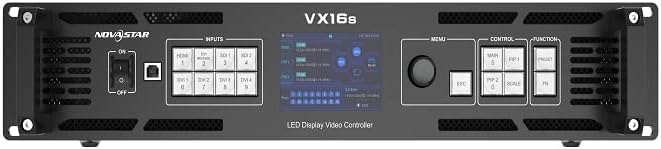
Figur 4.1: NovaStar VX16s Front Panel. The front panel features an ON/OFF switch, input selection buttons (HDMI, DVI, SDI), a central display screen, a menu control knob, and dedicated function buttons for MAIN, PIP1, PIP2, ESC, SCALE, and FN.
The front panel provides access to essential controls and indicators for real-time operation and monitoring.
- Afbryderen: Tænder eller slukker for enheden.
- Indtastningsknapper: Selects the active input source (HDMI, DVI, SDI).
- Skærm: Shows current status, menu options, and configuration details.
- Betjeningsknap: Navigates menus and adjusts parameters.
- Funktionsknapper:
- HOVED: Controls the main layer.
- PIP1/PIP2: Controls Picture-in-Picture layers.
- ESC: Afslutter den aktuelle menu eller annullerer en handling.
- VÆGT: Accesses image scaling options.
- FN: Brugerdefinerbar funktionsknap.
4.2 Bagpanel

Figur 4.2: NovaStar VX16s Rear Panel. This image details the rear panel, featuring Ethernet ports (1-16), Control ports (Ethernet, RS232, USB), Input ports (DVI 1-4, HDMI 2.0, 3G-SDI 1-2), an Output Monitor port (HDMI), and the AC power input.
The rear panel houses all input, output, and control connections.
- Indgangsstik:
- 2x 3G-SDI
- 1x HDMI 2.0
- 4x SL-DVI
- Ethernet Output Ports: 16 ports for LED screen connection, supporting up to 10,400,000 pixels.
- Kontrolporte: Ethernet, RS232, USB for V-Can software connection and device control.
- Skærmoutput: HDMI port for monitoring the output signal.
- AC strømindgang: Til tilslutning af strømkablet.
5. Opsætning
5.1 Fysisk installation
The VX16s is designed for rack mounting. Ensure adequate ventilation around the unit.
- Mount the device securely in a standard 19-inch equipment rack.
- Ensure sufficient space for cable connections and airflow.
- Connect the power cord to the AC power input on the rear panel and then to a grounded power outlet.

Figur 5.1: NovaStar VX16s Dimensions. This diagram shows the top-down view of the VX16s unit with its physical dimensions in millimeters, useful for rack installation planning.
5.2 Input/Output-forbindelser
Connect your video sources and LED display panels to the appropriate ports on the rear panel.
- Videoindgange: Connect your video sources (e.g., media players, cameras) to the HDMI, DVI, or 3G-SDI input ports.
- LED Display Outputs: Connect the Ethernet output ports (1-16) to your LED display panels using standard Ethernet cables.
- Skærmoutput: Connect an external monitor to the HDMI MONITOR output for real-time preview of the processed video.
- Kontrolforbindelse: Connect a computer running NovaStar V-Can software to the CONTROL Ethernet port or USB port for advanced configuration and control.
6. Betjeningsvejledning
6.1 Tænd/sluk
To power on the device, flip the power switch on the front panel to the 'ON' position. The display screen will illuminate. To power off, flip the switch to 'OFF'.
6.2 Valg af indgangskilde
Press the corresponding input button on the front panel (HDMI, DVI, SDI) to select your desired video source. The active input will be indicated on the display screen.
6.3 Layer Management (Main and PIPs)
The VX16s supports 3 independent layers: one 4K×2K main layer and two 2K×1K Picture-in-Picture (PIP) layers (PIP 1 and PIP 2). Use the MAIN, PIP1, and PIP2 buttons on the front panel to select and configure each layer. Layer priorities are adjustable via the menu.
6.4 Image Scaling
Tryk på SKALA button to access image scaling options. The VX16s offers three scaling modes:
- Pixel-to-Pixel: Displays the input source at its native resolution without scaling.
- Fuld skærm: Scales the input source to fill the entire LED display area.
- Custom Scaling: Allows for manual adjustment of resolution and position.
6.5 3D Display Function
The device supports 3D display effects on the LED screen. To enable this function, navigate through the menu using the control knob. Note: When the 3D function is enabled, the device's output capacity will be halved.
6.6 DVI Mosaic
Up to four DVI inputs can be combined to form a single, independent input source, known as DVI Mosaic. This feature is configured via the V-Can software or the device's menu.
6.7 Forudindstillet styring
The VX16s allows you to save up to 10 presets for various display configurations. This enables quick recall of frequently used setups. Presets can be saved and loaded via the device's menu or V-Can software.
6.8 EDID Management
The device supports both custom EDID and standard EDID management, allowing for optimized communication between the video sources and the processor. This can be configured in the system settings.
6.9 Device Backup
The VX16s includes a device backup design to ensure system stability and data integrity. Consult the full user manual for detailed instructions on utilizing backup features.
7. Vedligeholdelse
Regular maintenance ensures optimal performance and extends the lifespan of your VX16s.
- Rensning: Brug en blød, tør klud til at rengøre enhedens yderside. Brug ikke flydende rengøringsmidler eller rengøringsmidler på aerosol.
- Ventilation: Periodically check that all ventilation openings are clear of dust and obstructions.
- Firmwareopdateringer: Tjek NovaStar-officielle hjemmeside website for the latest firmware updates to ensure compatibility and access to new features.
8. Fejlfinding
Dette afsnit omhandler almindelige problemer, du kan støde på. Kontakt teknisk support ved mere komplekse problemer.
| Problem | Mulig årsag | Løsning |
|---|---|---|
| Ingen strøm | Power cable disconnected; Power switch off; Power outlet fault. | Kontroller strømkablets forbindelse; Sørg for, at tænd/sluk-knappen er tændt; Test stikkontakten med en anden enhed. |
| No video output on LED screen | Incorrect input selected; Output cables disconnected; LED screen not configured correctly. | Verify active input source; Check Ethernet cable connections to LED panels; Ensure LED screen configuration (resolution, mapping) is correct via V-Can software. |
| Image distortion or incorrect colors | Incorrect EDID settings; Cable issues; Scaling issues. | Adjust EDID settings; Replace video cables; Check image scaling options. |
| V-Can software cannot connect to device | Ethernet/USB cable disconnected; Network settings incorrect; Firewall blocking connection. | Check control cable connections; Verify IP address settings; Temporarily disable firewall for testing. |
9. Specifikationer
Technical specifications for the NovaStar VX16s 4K LED Video Processor.
- Model: VX16s
- Input bindtage: AC 100~240V
- Max Loading Capacity: 10,400,000 pixels
- Indgangsstik:
- 2x 3G-SDI
- 1x HDMI 2.0
- 4x SL-DVI
- Udgangsporte: 16x Ethernet output ports
- Lag: 3 independent layers (1x 4K×2K main, 2x 2K×1K PIPs)
- Billedbehandling: Ultra HD 4K×2K@60Hz
- Decimal Frame Rate Support: 23.98 Hz, 29.97 Hz, 47.95 Hz, 59.94 Hz, 71.93 Hz, 119.88 Hz
- 3D-visning: Supported (output capacity halved when enabled)
- Scaling Options: Pixel-to-pixel, full screen, custom scaling
- DVI Mosaic: Up to 4 DVI inputs can form an independent source
- Presets: Up to 10 configurable presets
- Kontrollere: V-Can software, front panel controls
- Kompatible enheder: Monitor, Television, Projector (as output/monitoring)
- Farve: Sort
10. Garanti og support
For warranty information and technical support, please refer to the warranty card included with your product or visit the official NovaStar webwebsted. Behold din købskvittering som købsbevis i tilfælde af garantikrav.
- Online support: Visit the NovaStar official webwebsted med ofte stillede spørgsmål, softwaredownloads og kontaktoplysninger.
- Teknisk assistance: Contact NovaStar customer service for assistance with setup, troubleshooting, or operational questions.