
INLAND 12700KPROZ790PWFD5
INLAND CPU Motherboard Intel Core i7-12700K & MSI PRO Z790-P WiFi DDR5 Instruction Manual
Model: 12700KPROZ790PWFD5
1. Produktet er slutview
This manual provides detailed instructions for the INLAND CPU Motherboard bundle, featuring the Intel Core i7-12700K processor and the MSI PRO Z790-P WiFi DDR5 motherboard. This bundle is designed for high-performance computing, offering advanced features for gaming, content creation, and professional applications.

Billede: Overview of the INLAND CPU Motherboard bundle, showing the Intel Core i7-12700K processor box and the MSI PRO Z790-P WiFi DDR5 motherboard.
2. Pakkens indhold
Bekræft, at alle nedenstående varer er inkluderet i din pakke. Hvis der mangler eller er beskadigede varer, skal du kontakte din forhandler.
- Intel Core i7-12700K-processor
- MSI PRO Z790-P WiFi DDR5 Motherboard
- I / O-skjold
- 3 x M.2 Clips
- 2 x SATA Cables
- Wi-Fi-antenne
- Driver DVD (for system drivers and utilities)
- EU-regulativ meddelelse
- Hurtig installationsvejledning
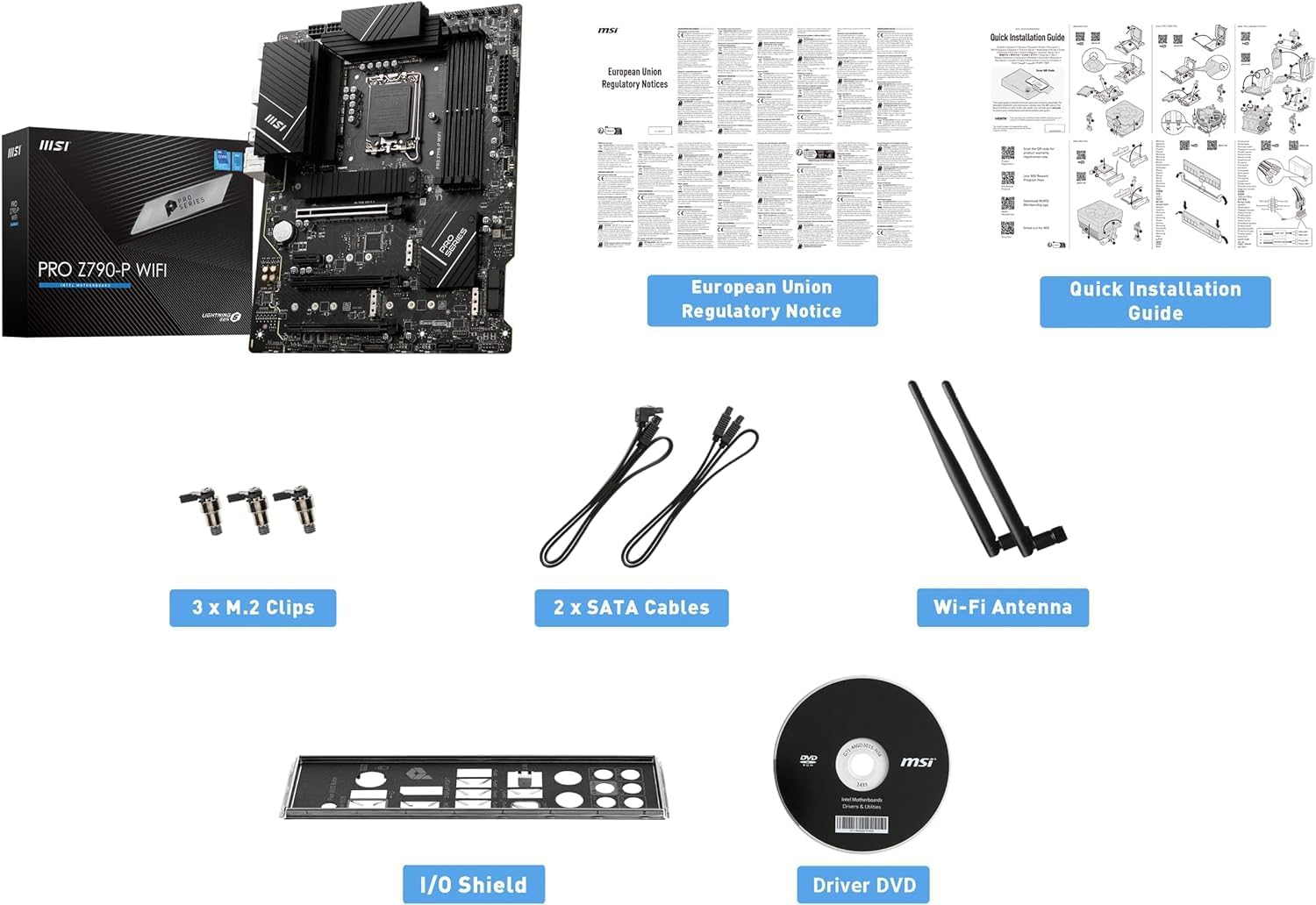
Image: All components included in the INLAND CPU Motherboard bundle, including the CPU, motherboard, I/O shield, M.2 clips, SATA cables, Wi-Fi antenna, driver DVD, and documentation.
3. Intel Core i7-12700K Processor Features
The Intel Core i7-12700K is a 12th Generation processor designed for high performance. Key features include:
- Kerner: 12 (8 Performance-kerner + 4 Efficient-kerner)
- Tråde: 20
- Max Turbo Frequency: Op til 5.0 GHz
- Stik: LGA 1700
- Integreret grafik: Intel UHD Graphics 770
- Hukommelsesstøtte: DDR5 og DDR4
- PCI Express-version: PCIe 5.0 og 4.0
- Max # of PCI Express Lanes: 20
- Unlocked & Overclockable: Ja
- Processorens basiskraft: 125 W
- Samlet L2-cache: 12 MB
- Smart Cache: 25 MB

Image: Close-up of the Intel Core i7-12700K processor, highlighting its specifications.
4. MSI PRO Z790-P WiFi DDR5 Motherboard Features
The MSI PRO Z790-P WiFi DDR5 motherboard provides a stable and feature-rich platform for your system. Key features include:
- Formfaktor: ATX
- CPU-stik: LGA 1700 (Supports 12th and 13th Gen Intel Core processors)
- Chipsæt: Intel Z790
- RAM-hukommelsesteknologi: Dual Channel DDR5 7000+MHz (OC) up to 192GB
- Strømdesign: 14+1+1 DRPS with 55A DrMOS for stable power delivery
- Køling: Premium Cooling design with Extended Heatsink, Heavy Plated VRM Heatsink, 7W/mK Thermal Pad, and Chipset Heatsink.
- Opbevaring: 4x PCIe 4.0 x4 M.2 slots, 6x SATA 6Gb/s ports
- PCIe-slots: Lightning Gen 5 PCIe slot with Steel Armor for enhanced durability and bandwidth.
- USB: USB 3.2 Gen 2x2 Type-C for high-speed data transfer.
- Netværk: 2.5G LAN with Wi-Fi 6E Solution and Bluetooth 5.3.
- Lyd: AUDIO BOOST for high-quality sound.
- PCB: 6-Layer 2oz copper PCB for improved signal integrity and durability.
- Operativsystem support: Windows 11/10 Supported.

Image: The MSI PRO Z790-P WiFi DDR5 motherboard, showcasindens design og funktioner.

Image: Diagram illustrating the 14+1+1 phase power design of the MSI PRO Z790-P WiFi DDR5 motherboard, ensuring stable power delivery to the CPU.

Image: Visual representation of the cooling components on the MSI PRO Z790-P WiFi DDR5 motherboard, including heatsinks for VRM and chipset, and M.2 Shield Frozr.

Image: Diagram showing the multiple M.2 slots (4x PCIe Gen4) and SATA ports (6x) available on the MSI PRO Z790-P WiFi DDR5 motherboard for various storage configurations.

Image: Close-up of the rear I/O panel of the MSI PRO Z790-P WiFi DDR5 motherboard, highlighting the USB 3.2 Gen 2x2 Type-C port for high-speed connectivity.

Image: Illustration of the DDR5 memory slots on the MSI PRO Z790-P WiFi DDR5 motherboard, emphasizing support for high-frequency DDR5 modules.

Billede: Detaljeret view of the Lightning Gen 5 PCIe slot with Steel Armor on the MSI PRO Z790-P WiFi DDR5 motherboard, designed for next-generation graphics cards.
MSI Z790 Series Motherboard Overview Video
Video: En officiel overview of the MSI Z790 Series Motherboards, highlighting key features and design elements relevant to the PRO Z790-P WiFi DDR5 model.
5. Opsætningsvejledning
This section provides a general guide for setting up your CPU and motherboard. Refer to the detailed Quick Installation Guide included in your package for specific steps and diagrams.
5.1. Klargøring af bundkortet
- Statisk udladning: Before handling components, ensure you discharge any static electricity by touching a grounded metal object.
- Installer I/O-skjold: If not pre-installed, secure the I/O shield into your computer case.
- Monter bundkort: Carefully align the motherboard with the standoffs in your computer case and secure it with screws.
5.2. Installation af CPU'en
- Åben CPU-sokkel: Gently lift the load lever and open the CPU socket cover on the motherboard.
- Juster CPU: Carefully align the Intel Core i7-12700K processor with the LGA 1700 socket. Ensure the triangular mark on the CPU matches the mark on the socket. Do not force the CPU into place.
- Luk CPU-sokkel: Lower the socket cover and push down the load lever until it clicks into place, securing the CPU.
- Apply Thermal Paste & Cooler: Apply a thin, even layer of thermal paste to the CPU (if not pre-applied on your cooler) and install your CPU cooler according to its manufacturer's instructions.
5.3. Installing RAM (DDR5 Memory)
- Åbne DIMM-slotklemmer: Åbn fastholdelsesklemmerne i begge ender af DDR5 DIMM-pladserne.
- Indsæt RAM-moduler: Align the notch on the DDR5 memory module with the key in the DIMM slot. Insert the module firmly until the clips snap into place. Refer to your motherboard manual for recommended dual-channel configurations.
5.4. Installation af lagerenheder
- M.2 SSD'er: For M.2 NVMe SSDs, insert the drive into an M.2 slot and secure it with the provided M.2 clip or screw. Ensure the M.2 Shield Frozr heatsink is installed over the SSD for optimal cooling.
- SATA-drev: Tilslut SATA-datakabler fra dine SSD'er/harddiske til SATA-portene på bundkortet. Tilslut strømkabler fra din strømforsyning til drevene.
5.5. Tilslutning af periferiudstyr og strøm
- Grafikkort: Install your graphics card into the primary PCIe 5.0 x16 slot and secure it. Connect necessary PCIe power cables from your power supply.
- Strømforsyning: Tilslut 24-bens ATX-strømstikket og 8-bens (eller 4+4-bens) CPU-strømstikket fra din strømforsyning til bundkortet.
- Frontpanelstik: Connect the front panel headers (power button, reset button, USB ports, audio jacks) from your case to the corresponding pins on the motherboard. Refer to the motherboard manual for pin layouts.
- Wi-Fi antenne: Attach the Wi-Fi antenna to the connectors on the rear I/O panel.
- Eksterne periferiudstyr: Tilslut din skærm, tastatur, mus og andet tilbehør.
6. Betjeningsvejledning
Når alle komponenter er installeret og tilsluttet, kan du tænde dit system.
- Første opstart: Press the power button on your computer case. The system should power on and display the BIOS/UEFI screen.
- BIOS/UEFI-konfiguration: Access the BIOS/UEFI setup (usually by pressing DEL or F2 during boot) to configure boot order, enable XMP for RAM, and adjust other settings as needed.
- Installation af operativsystem: Install your preferred operating system (Windows 10 or 11 recommended) from a bootable USB drive or DVD.
- Driver installation: After OS installation, install all necessary drivers from the included Driver DVD or download the latest versions from the MSI website for your motherboard and Intel website for your CPU. This includes chipset, graphics, audio, LAN, and Wi-Fi drivers.
- Systemopdateringer: Ensure your operating system and all drivers are up to date for optimal performance and security.
7. Vedligeholdelse
Regelmæssig vedligeholdelse er med til at sikre systemets levetid og optimale ydeevne.
- Fjernelse af støv: Periodically clean dust from inside your computer case, especially from fans, heatsinks, and vents, using compressed air. Ensure the system is powered off and unplugged before cleaning.
- Driver opdateringer: Keep your motherboard and component drivers updated to the latest versions from the manufacturer's webwebsteder.
- BIOS/UEFI-opdateringer: Check the MSI webwebsted for BIOS/UEFI-opdateringer. Opdater kun hvis det er nødvendigt, og følg instruktionerne omhyggeligt for at undgå systemustabilitet.
- Kabelstyring: Ensure internal cables are neatly managed to promote good airflow within the case.
- Temperaturovervågning: Use monitoring software to keep an eye on CPU and motherboard temperatures, especially during heavy loads, to prevent overheating.
8. Fejlfinding
Hvis du støder på problemer, kan du se følgende almindelige fejlfindingstrin:
- Ingen strøm:
- Kontroller alle strømforbindelser (24-bens ATX, 8-bens CPU, GPU-strøm).
- Sørg for, at strømforsyningsafbryderen er i ON-positionen.
- Test strømforsyningen med et andet system eller en strømforsyningstester.
- Ingen visning:
- Sørg for, at skærmen er tilsluttet grafikkortet (eller bundkortet, hvis der bruges integreret grafik) og tændt.
- Sæt grafikkortet og RAM-modulerne i igen.
- Prøv at boote med kun én RAM-stick.
- Systemustabilitet/nedbrud:
- Tjek CPU- og GPU-temperaturer.
- Sørg for, at alle drivere er korrekt installeret og opdaterede.
- Kør hukommelsesdiagnosticeringsværktøjer for at kontrollere for RAM-fejl.
- Bekræft strømforsyningens watttage er tilstrækkeligt for alle komponenter.
- Langsom ydeevne:
- Tjek for baggrundsprocesser, der bruger ressourcer.
- Ensure storage drives are not full.
- Verify XMP profile is enabled for RAM in BIOS/UEFI.
- Check for thermal throttling.
- Problemer med netværksforbindelse:
- Ensure LAN cable is properly connected or Wi-Fi antenna is attached.
- Update LAN/Wi-Fi drivers.
- Tjek router/modem status.
For more specific troubleshooting or persistent issues, consult the MSI motherboard manual or contact technical support.
9. Specifikationer
| Komponent | Feature | Specifikation |
|---|---|---|
| Intel Core i7-12700K CPU | Kerner | 12 (8 Performance + 4 Efficient) |
| Tråde | 20 | |
| Max turbofrekvens | Op til 5.0 GHz | |
| CPU socket | LGA 1700 | |
| Integreret grafik | Intel UHD Graphics 770 | |
| Hukommelsesstøtte | DDR5 & DDR4 | |
| PCI Express-version | PCIe 5.0 og 4.0 | |
| Maks. antal PCI Express-baner | 20 | |
| Processor Base Power | 125 W | |
| Cache | 12 MB L2, 25 MB Smart Cache | |
| MSI PRO Z790-P WiFi DDR5 Motherboard | Formfaktor | ATX |
| CPU socket | LGA 1700 | |
| Chipsæt | Intel Z790 | |
| RAM-hukommelsesteknologi | DDR5 (Dual Channel, up to 7000+MHz OC, 192GB Max) | |
| PCIe Slots | 1x PCIe 5.0 x16, 1x PCIe 4.0 x16 (x4 mode), 3x PCIe 3.0 x1 | |
| M.2 Slots | 4x PCIe 4.0 x4 M.2 slots | |
| SATA porte | 6x SATA 6Gb/s | |
| USB-porte | USB 3.2 Gen 2x2 Type-C, USB 3.2 Gen 2, USB 3.2 Gen 1, USB 2.0 | |
| LAN | 2.5G LAN | |
| Trådløs forbindelse | Wi-Fi 6E, Bluetooth 5.3 | |
| Lyd | LYDBOOST | |
| Operativsystem | Windows 11/10 64-bit |
10. Garanti og support
This product is manufactured by Inland. For warranty information and technical support, please refer to the documentation included with your product or visit the official websites of INLAND and MSI.
- Fabrikant: Indre
- Standard returpolitik: 30 dage (refusion/erstatning)
- Valgfrie beskyttelsesplaner: Available (e.g., 4-Year Protection Plan, Complete Protect)
It is recommended to register your product with MSI to ensure access to full warranty benefits and support resources.
Ask a question about this manual
Ask about setup, troubleshooting, compatibility, parts, safety, or missing instructions. Manuals+ will review the question and use this page’s manual context to help answer it.