
QDSYLQ BT 520
QDSYLQ External CD/DVD Drive User Manual
Mærke: QDSYLQ | Model: BT 520
1. Introduktion
The QDSYLQ External CD/DVD Drive is a portable optical drive designed for modern laptops and desktops that may lack built-in CD/DVD capabilities. This device provides a convenient solution for reading and burning CD/DVD discs, enabling various functions such as watching movies, installing software, backing up data, and playing games. It features high-speed data transfer via both USB 3.0 and Type-C interfaces, ensuring efficient performance.
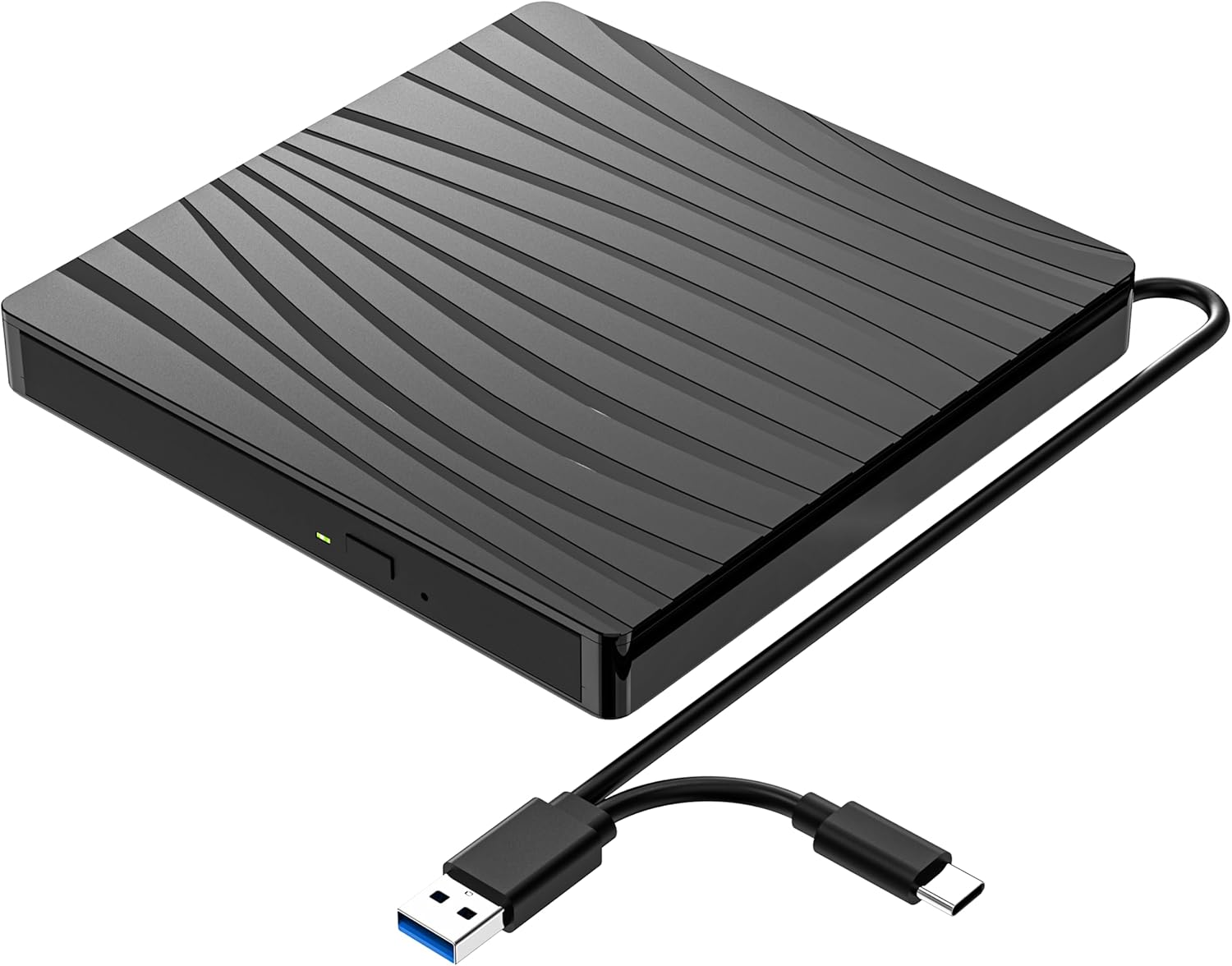
Image: The QDSYLQ External CD/DVD Drive, a compact black unit with a textured top surface, shown with its integrated USB 3.0 and Type-C dual-interface cable.
2. Hvad er der i æsken
Pakken indeholder følgende varer:
- QDSYLQ External CD/DVD Drive (Model: BT 520)
- Integrated USB data cable (USB 3.0 & Type-C dual interface)
3. Specifikationer
| Feature | Detalje |
|---|---|
| Mærke | QDSYLQ |
| Modelnummer | BT 520 |
| Interface | USB 3.0 & Type-C (backward compatible with USB 2.0, USB 1.0) |
| Optisk lagrings læsehastighed | DVD: 8x max, CD: 24x max |
| Optisk lagrings skrivehastighed | CD: 24x max |
| Understøttede disktyper | DVD-ROM, DVD-Video, CD-R/RW, CD-ROM/XA, CD-ROM, CD-EXTRA, CD-TEXT, DVD-R, DVD+R, DVD-RW, DVD+RW, DVD+R DL, DVD-R DL, DVD-RAM |
| Varens vægt | 11.3 ounce |
| Produktdimensioner | 5.7 x 5.7 x 0.62 tommer |
| Farve | Sort |

Image: The external DVD drive connected to a laptop, illustrating its USB 3.0 and Type-C connectivity and highlighting features like noise reduction, shock proofing, error correction, fast recording, and durability.
4. Kompatibilitet
This external DVD drive offers wide compatibility with various operating systems and hardware platforms:
Understøttede operativsystemer:
- Windows 11 / 10 / 8.1 / 7 / XP
- Linux
- All versions of Mac OS
Supported Hardware Platforms:
- MacBook Pro
- MacBook Air
- iMac
- Mac Mini
- Bærbare computere
- Notesbøger
- Desktops
- PC
Inkompatible enheder:
- Surface Pro
- Ubuntu
- TV
- Blu-ray-afspillere
- iPad
- Projektorer
- Chromebook
- Car systems
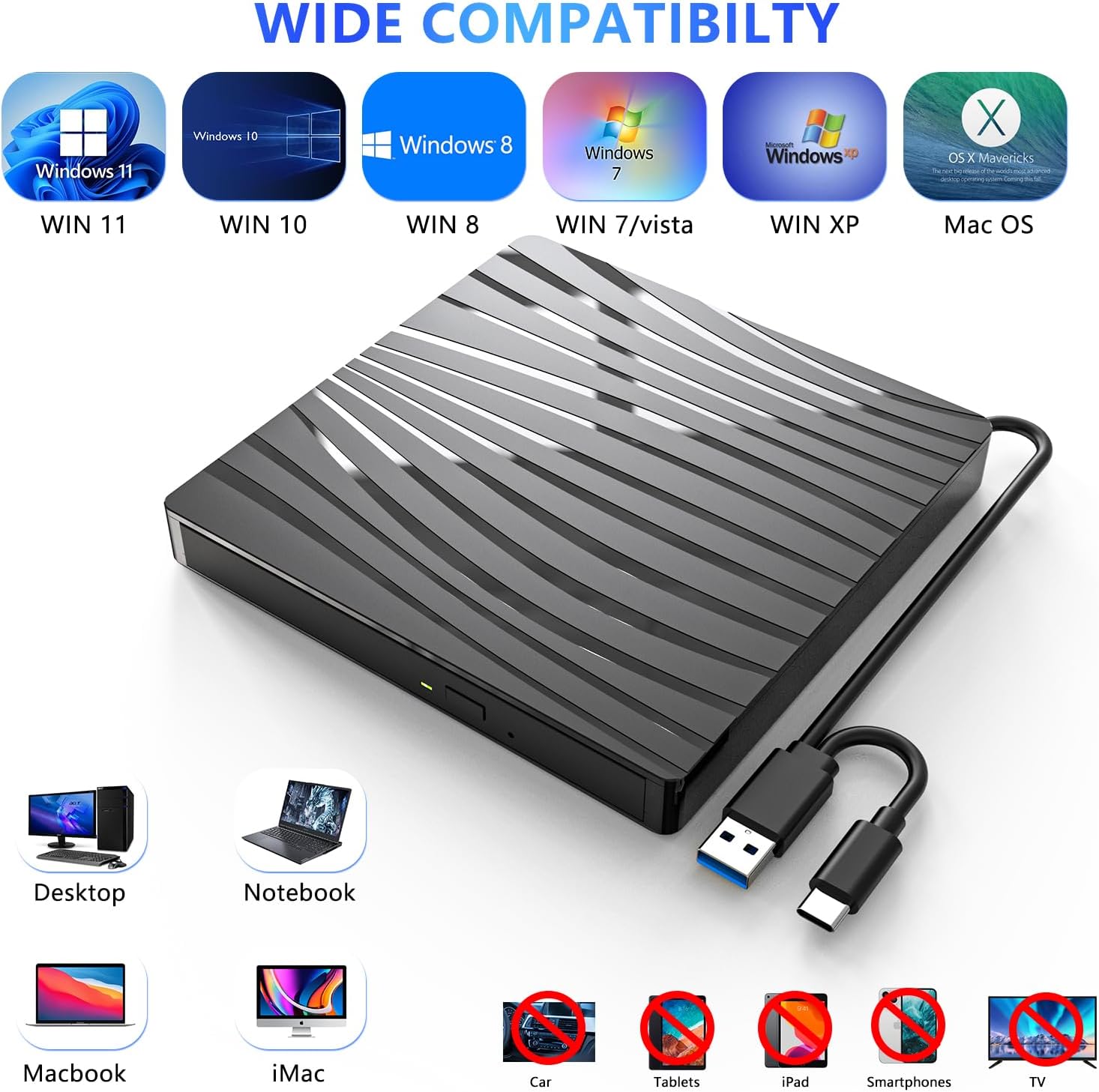
Image: A visual representation of the drive's wide compatibility, showing supported operating systems (Windows 11, 10, 8, 7, XP, Mac OS) and compatible devices (Desktop, Notebook, Macbook, iMac), alongside incompatible devices (Car, Tablets, iPad, Smartphones, TV).
5. Opsætningsvejledning
The QDSYLQ External CD/DVD Drive is designed for plug-and-play functionality, requiring no additional driver installation for most operating systems.
- Tilslut drevet: Connect the integrated USB data cable from the external CD/DVD drive to an available USB 3.0 or Type-C port on your computer (laptop or desktop). Ensure the connection is secure.
- Systemgenkendelse: Your operating system should automatically detect and install the necessary drivers for the drive. This process typically takes a few seconds.
- Klar til brug: Once recognized, the drive will appear as an available optical drive in your computer's file Stifinder (f.eks. "Denne pc" i Windows, "Finder" på Mac).

Image: The external DVD drive connected to a laptop, with a disc partially inserted, illustrating its plug-and-play nature and various functions like watching movies, playing games, listening to music, creating backups, installing software, burning CDs, copying files, and data backup.
6. Betjeningsvejledning
Reading Discs (CD/DVD Playback):
- Ensure the drive is connected to your computer.
- Gently press the eject button on the front of the drive to open the disc tray.
- Place your CD or DVD onto the tray, ensuring it is centered and securely seated.
- Skub forsigtigt bakken tilbage i drevet, indtil den klikker på plads.
- Your computer's operating system should detect the disc. You can then open it via File Explorer/Finder or use your preferred media player software (e.g., VLC Media Player, Windows Media Player) to play movies, music, or access data.
Writing Discs (CD/DVD Burning):
- Ensure the drive is connected and recognized by your computer.
- Insert a blank recordable CD-R/RW or DVD-R/RW disc into the drive as described above.
- Use your preferred burning software (e.g., Windows built-in burning utility, Nero, Roxio, or other third-party software) to select the files you wish to burn.
- Follow the on-screen instructions of your burning software to initiate the burning process.
- Do not disconnect the drive or interrupt the burning process until it is complete to avoid data corruption or disc damage.
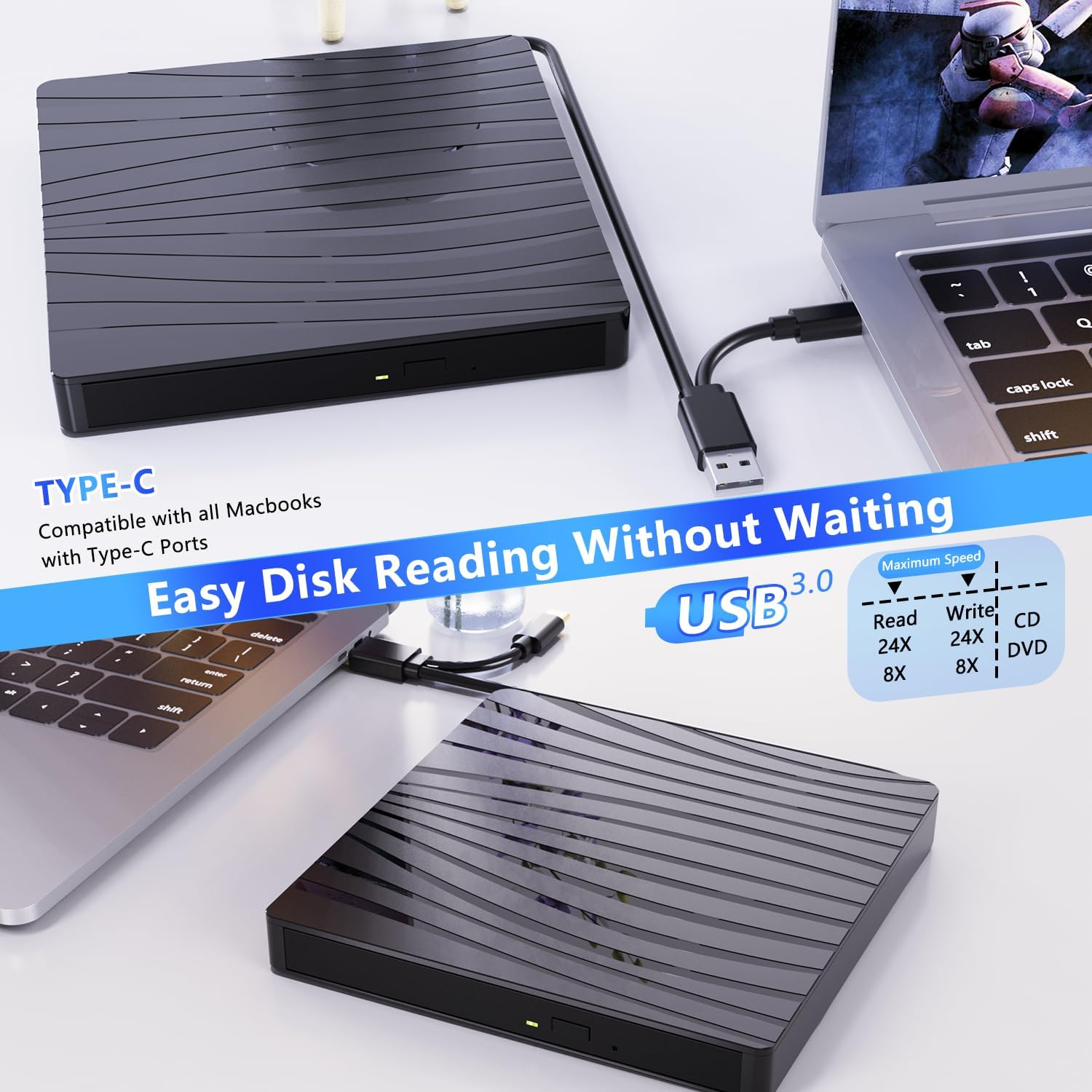
Image: The external DVD drive connected to a MacBook via Type-C, emphasizing "Easy Disk Reading Without Waiting" and displaying maximum read/write speeds for CD (24X) and DVD (8X).
Video: A brief product display of the QDSYLQ External CD/DVD Drive, showcasindens design og funktioner.
7. Vedligeholdelse og pleje
- Rensning: Use a soft, dry cloth to clean the exterior of the drive. Do not use liquid cleaners or abrasive materials. For the lens, use a specialized CD/DVD lens cleaning kit if necessary, following its instructions carefully.
- Diskhåndtering: Hold altid diske i kanterne for at undgå fingeraftryk og ridser. Opbevar diske i deres æsker, når de ikke er i brug.
- Opbevaring: Opbevar drevet et køligt, tørt sted væk fra direkte sollys og ekstreme temperaturer.
- Undgå påvirkning: The drive contains delicate optical components. Avoid dropping or subjecting it to strong impacts.
- Kabelpleje: Do not bend or crimp the integrated USB cable excessively.

Image: The compact external DVD drive being easily slipped into a laptop bag, demonstrating its portability and "Plug and Play" feature for DVD, CD, and VCD discs.
8. Fejlfinding
Issue: Drive is not recognized by the computer.
- Løsning 1: Sørg for, at USB-kablet er korrekt tilsluttet til både drevet og computeren.
- Løsning 2: Prøv at tilslutte drevet til en anden USB-port på din computer.
- Løsning 3: Genstart din computer.
- Løsning 4: For desktop PCs, try connecting to a USB port on the back of the computer, as front ports may sometimes provide insufficient power.
Issue: Disc is not reading or burning, or is ejected.
- Løsning 1: Ensure the disc is clean and free of scratches or smudges. Clean the disc with a soft, lint-free cloth if necessary.
- Løsning 2: Prøv en anden disk for at udelukke en defekt disk.
- Løsning 3: Ensure the disc is placed correctly and securely in the disc tray.
- Løsning 4: Verify that your burning software is up-to-date and configured correctly for the type of disc you are using.
- Løsning 5: Some older or copy-protected discs may not be compatible.
Issue: Slow read/write speeds.
- Løsning 1: Ensure you are connected to a USB 3.0 or Type-C port for optimal speed. USB 2.0 ports will result in slower performance.
- Løsning 2: Close other applications running in the background that might be consuming system resources.
9. Garanti og support
QDSYLQ stands by the quality of its products. With 7 years of professional experience in manufacturing CD/DVD drives, we ensure reliable quality and professional customer service.
If you encounter any problems after purchase, please do not hesitate to contact our customer service team for assistance or a free replacement. We are committed to resolving any issues you may experience with your product.
For support, please refer to the contact information provided with your purchase or visit the official QDSYLQ webwebsted.
Ask a question about this manual
Ask about setup, troubleshooting, compatibility, parts, safety, or missing instructions. Manuals+ will review the question and use this page’s manual context to help answer it.