
typecase KB206129
typecase Keyboard Case for iPad Pro 12.9-inch User Manual
Model: KB206129
1. Produktet er slutview
The typecase Keyboard Case is designed to enhance your iPad Pro 12.9-inch experience by transforming it into a versatile laptop-like device. It features a full-size keyboard with multi-touch trackpad, backlit keys, and a protective case with a magnetic attachment system.
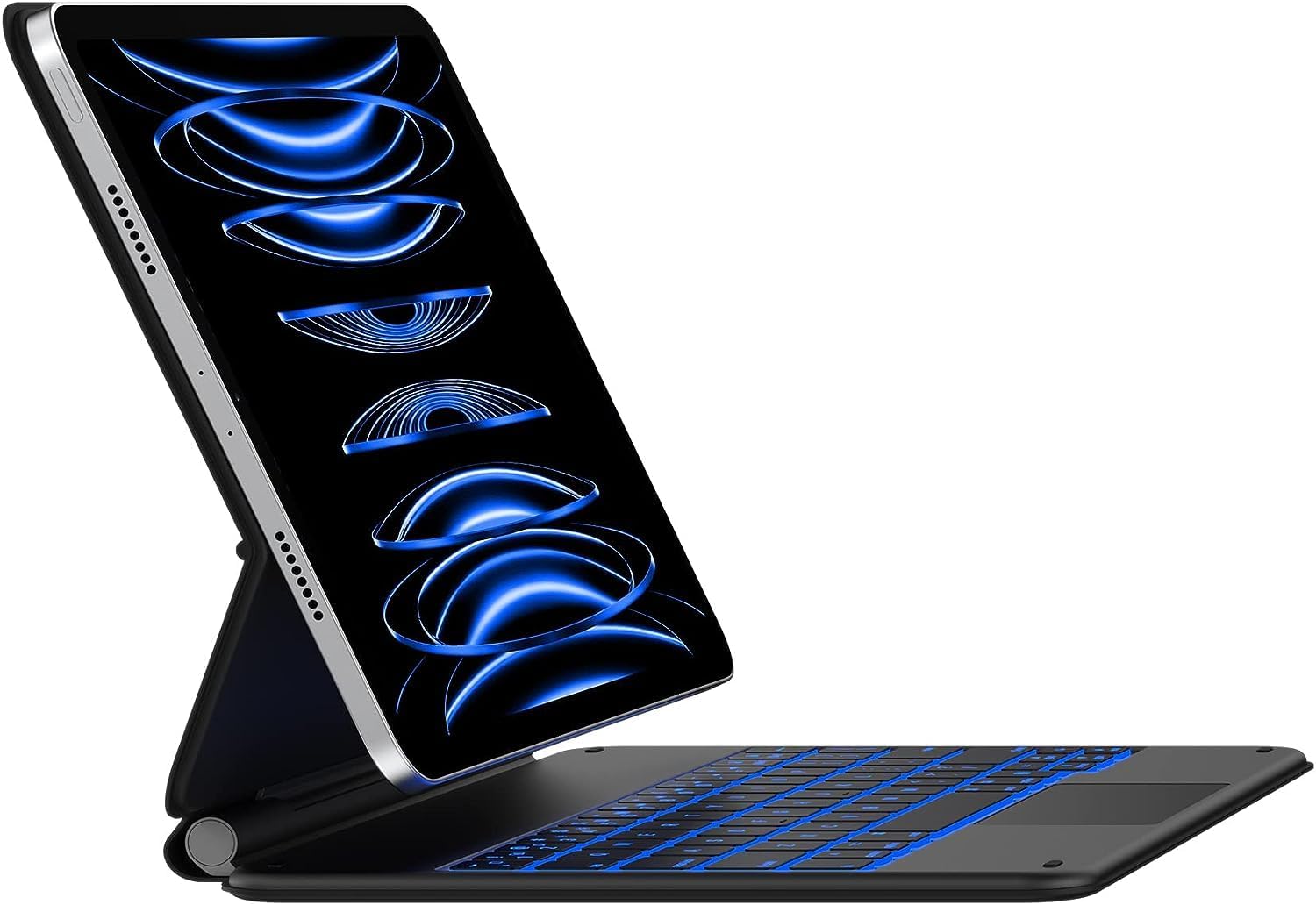
Image: The typecase Keyboard Case with an iPad Pro 12.9-inch attached, showcasing its backlit keyboard and floating cantilever design.
2. Opsætning
2.1 Kompatibilitet
This keyboard case is compatible with the following iPad Pro 12.9-inch models:
- iPad Pro 12.9 tommer (6. generation, 2022)
- iPad Pro 12.9-inch (5th Generation, 2021) - Models: A2378, A2379, A2461, A2462
- iPad Pro 12.9-inch (4th Generation, 2020) - Models: A2229, A2069, A2232, A2233
- iPad Pro 12.9-inch (3rd Generation, 2018) - Models: A1876, A2014, A1895, A1983

Image: Visual guide to compatible iPad Pro 12.9-inch models, including 6th, 5th, 4th, and 3rd generations.
2.2 Pakkens indhold
Bekræft at alle varer er til stede i pakken:
- 1 x typecase Keyboard for iPad Pro 12.9 inch with Trackpad
- 1 x USB-C opladningskabel
- 1 x Full-Color Product Manual (this document)
2.3 Indledende opladning
Before first use, fully charge the keyboard case using the provided USB-C charging cable. Connect the USB-C cable to the charging port on the keyboard and the other end to a USB power adapter (not included) or a computer's USB port.

Image: Detail of the USB-C charging port located on the side of the keyboard case.
2.4 Bluetooth -parring
- Sørg for, at tastaturet er opladet.
- Turn on the keyboard by sliding the power switch. The indicator light will flash, indicating it's in pairing mode.
- På din iPad skal du gå til Indstillinger > Bluetooth.
- Slå Bluetooth til.
- Select "typecase Keyboard" from the list of available devices.
- Follow any on-screen prompts to complete the pairing process. The indicator light on the keyboard will turn solid when successfully paired.
Once paired, the keyboard will automatically connect to your iPad when both devices are turned on and within range.
3. Betjeningsvejledning
3.1 Tilslutning af din iPad
The keyboard case features a strong magnetic attachment system. Simply align your iPad Pro 12.9-inch with the magnetic back cover of the case. The magnets will securely hold your iPad in place, allowing for a floating cantilever design.

Image: Demonstrates the magnetic attachment of the iPad to the keyboard case, highlighting the floating design.
3.2 Justering Viewi vinkel
The floating cantilever design allows for smooth and precise adjustment of the viewing angle. Gently tilt your iPad to achieve the desired angle for typing, viewing eller tegning.

Image: Illustrates the smooth angle adjustment feature of the keyboard case, allowing for various viewing stillinger.
3.3 Tastaturfunktioner
The keyboard provides a comfortable and efficient typing experience with its ergonomic, laser-etched, and illuminated keys.
- Baggrundsbelysning: The keyboard features 10-color backlighting with three adjustable brightness levels. Use the dedicated backlight keys (usually Fn + Lysikon) to cycle through colors and adjust brightness.
- iPadOS Shortcuts: A full row of dedicated iPadOS shortcut keys allows quick access to functions like screen brightness, media control, volume, search, and more.

Image: The keyboard displaying its 10-color backlight feature.

Image: A close-up of the keyboard highlighting the dedicated iPadOS shortcut keys.
3.4 Multi-Touch-pegefelt
The integrated multi-touch trackpad allows for precise navigation and gesture control on your iPad. You can scroll, swipe, pinch, and perform other multi-touch gestures as you would on a laptop.
- Håndfladeafvisning: The trackpad features palm rejection technology, which automatically disables the trackpad when you are actively typing to prevent accidental cursor movements.
- Disabling Trackpad: If desired, the trackpad can be temporarily disabled using a dedicated function key (refer to the keyboard shortcut map in the included manual for specific key).

Image: The multi-touch trackpad with visual cues for various gestures like scrolling and app switching.
3.5 Smarte funktioner
- Auto-Sleep/Wake: The keyboard case supports the iPad's auto-sleep/wake function. Closing the case will put your iPad to sleep, and opening it will wake it up.
- Beskyttelsesdæksel: When folded, the case provides front and back protection for your iPad, ensuring its safety during travel or storage.
4. Vedligeholdelse
4.1 Rengøring
For at rengøre tastaturkabinettet skal du forsigtigt tørre overfladerne af med en blød klud.amp klud. Undgå at bruge skrappe kemikalier eller slibende rengøringsmidler, da disse kan beskadige overfladen.
4.2 Pleje af batterier
The keyboard is powered by a rechargeable Lithium Polymer battery. For optimal battery life, it is recommended to fully charge the keyboard before extended periods of non-use. The keyboard can last up to 90 days on a single charge with backlighting turned off.
5. Fejlfinding
5.1 Forbindelsesproblemer
- Tastatur forbinder ikke: Ensure Bluetooth is enabled on your iPad and the keyboard is turned on and charged. Try unpairing and re-pairing the keyboard in your iPad's Bluetooth settings.
- Intermitterende forbindelse: Ensure the keyboard and iPad are within close proximity (within 10 meters or 33 feet). Other wireless devices might cause interference.
5.2 Trackpad Performance
- Trackpad unresponsive or erratic: Ensure your fingers are clean and dry. If the issue persists, try turning the keyboard off and on again. Verify that the trackpad is not accidentally disabled via its function key.
- Accidental touches while typing: The palm rejection feature is designed to minimize this. If it occurs frequently, ensure your typing posture is not causing your palm to rest directly on the trackpad. You may also temporarily disable the trackpad using its dedicated function key while typing long passages.
5.3 Keyboard Sleep Mode
The keyboard enters a sleep mode after a period of inactivity to conserve battery. To wake it up, simply press any key. There might be a brief delay as it reconnects to your iPad.
6. Specifikationer
| Modelnummer | KB206129 |
| Produktdimensioner | 11.81 x 9.84 x 0.79 tommer |
| Varens vægt | 2.16 pund |
| Forbindelsesteknologi | Bluetooth |
| Tastaturbeskrivelse | Multifunktionel |
| Særlige funktioner | Backlit, Hotkeys and Media Keys, Integrated Stand, Rechargeable, Trackpad |
| Farve | Mat sort |
| Baggrundslys farver | RGB (10 farver) |
| Batteritype | Lithium Polymer (inkluderet) |
7. Garanti og support
Your typecase Keyboard Case comes with a 12 måneders producentgaranti fra købsdatoen, dækker defekter i materialer og udførelse.
typecase also provides gratis livstids teknisk support. If you encounter any issues or have questions regarding your product, please contact our support team for assistance.
For support, please visit the official typecase webwebstedet eller se kontaktoplysningerne på din produktemballage.
Online ressourcer: typecase Official Store on Amazon
Ask a question about this manual
Ask about setup, troubleshooting, compatibility, parts, safety, or missing instructions. Manuals+ will review the question and use this page’s manual context to help answer it.